Why Is Your iPhone Stuck on the Apple Logo? (Quick Answer)
Seeing your iPhone permanently frozen on the Apple logo can be terrifying, especially if you haven’t backed up your photos and messages recently. An iPhone usually gets stuck on this screen when the operating system struggles to boot up properly. This is most commonly caused by a failed iOS update, critically full storage, or physical hardware damage.
Quick Answer: How Long Should You Wait?
Give your iPhone 15 to 20 minutes. If the Apple logo is showing a moving progress bar, let it finish. However, if there is no progress bar and the screen remains completely frozen for more than 20 minutes, your device is stuck and you need to take action.
Take a deep breath: a frozen screen does not automatically mean your data is gone forever. If this is a software crash, there are safe methods you can try right now to revive your iPhone without wiping your personal files.
Diagnostic Checklist: Software Crash or Hardware Damage?
Before you try to fix the Apple logo loop, you need to figure out why it happened. Software repair methods can only fix software problems—they cannot repair a physically broken component.
Use this diagnostic checklist to determine what is happening to your iPhone:
Likely a Software Crash (You can fix this yourself):
- The iPhone got stuck immediately after installing an iOS update.
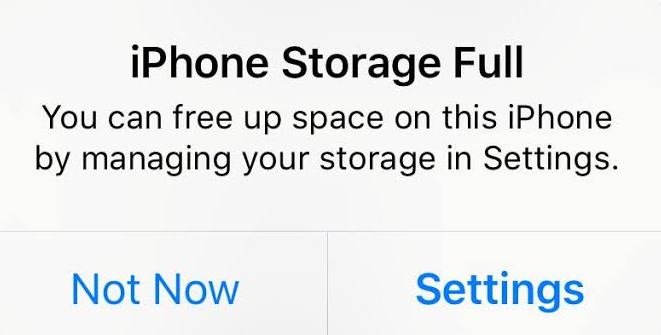
- Your device recently warned you that your “Storage is Full,” and then crashed into a boot loop.
- The phone was interrupted while restoring from a backup.
Likely Hardware Damage (Requires professional repair):
- The iPhone was recently dropped on a hard surface, which may have damaged the logic board or display connector.
- The device was dropped in water or exposed to heavy moisture.
- The battery is severely degraded and failing to provide enough power to boot the device.
If your issue falls under the software category—like a “storage full” boot loop or an update failure—you can safely proceed to the troubleshooting steps below.
Fix 1: Perform a Force Restart (Safe & No Data Loss)
The absolute best first step to take is a Force Restart. A Force Restart will not erase your photos, messages, or any other user data. It safely cuts the power to your device and forces the operating system to start over, which is often enough to clear a minor software glitch.
Many users get confused by the button timings, so be sure to perform these steps quickly in succession for modern iPhones (iPhone 8, iPhone X, and newer, including iPhone 16/17 series):
- Press and quickly release the Volume Up button.
- Press and quickly release the Volume Down button.
- Press and hold the Side (Power) button on the right side of the device.
- Keep holding the Side button even when the screen goes completely black. Release the button only when you see the Apple logo reappear.
Wait a few minutes to see if the phone boots to your lock screen. If the device loops right back to the frozen Apple logo, the basic restart wasn’t enough, and you must proceed to the next fixes.
Fix 2: Use iTunes or Finder in Recovery Mode (Warning: High Data Risk)
If a Force Restart fails, Apple’s official troubleshooting path is to connect your iPhone to a computer and put it into Recovery Mode using iTunes (Windows/older Macs) or Finder (newer Macs). While this method is free, it requires extreme caution. Panicked clicking in this menu is the most common way users accidentally permanently delete unbacked-up data.
Here is how to navigate Recovery Mode safely:
- Connect your frozen iPhone to your computer using a USB cable and open iTunes or Finder.
- Perform the Force Restart button sequence again (Volume Up, Volume Down, hold Side button) until your iPhone displays a computer icon and a cable. This is the Recovery Mode screen.
- A prompt will appear on your computer screen giving you two choices: Update or Restore.
- Crucial Warning: You must select Update. The Update option will attempt to reinstall iOS while keeping your personal data intact. If you click Restore, iTunes will completely wipe your iPhone, erasing all data and resetting it to factory settings.
Unfortunately, iTunes manual workflows can be frustrating. Sometimes iTunes will fail to recognize the stuck device entirely, or the update process will take longer than 15 minutes, causing your iPhone to exit Recovery Mode and forcing you to start over. If you encounter unknown error codes or are terrified of accidentally clicking “Restore,” there is a safer, guided alternative.
Fix 3: Fix the Apple Logo Loop with AnyFix (Guided & Data-Safe)
For users who want to avoid iTunes errors or are terrified of accidentally erasing their data with the “Restore” button, a dedicated iOS system repair tool is often the clearer next step. AnyFix provides a guided desktop workflow with a visual “Standard Repair” mode specifically designed to fix supported common software loops while aiming to keep your device data intact.
Instead of guessing button timings or wrestling with confusing computer errors, you can use AnyFix to navigate the repair safely. Before you begin, check the AnyFix Tech Specs page to confirm that your specific device model and iOS version are supported.

AnyFix – Fix 150+ iOS Issues in 1 click
The complete iOS solution to fix 150+ system issues, revive your dead Apple device, and optimize your mobile experience in a way simple, smart, and secure. As a complete iOS system repair solution, AnyFix can easily help you fix iPhone/iPad/iPod touch/Apple TV issues without data loss.
Here is how the workflow works for supported software issues:
1. Open AnyFix on your computer and select System Repair from the main dashboard.
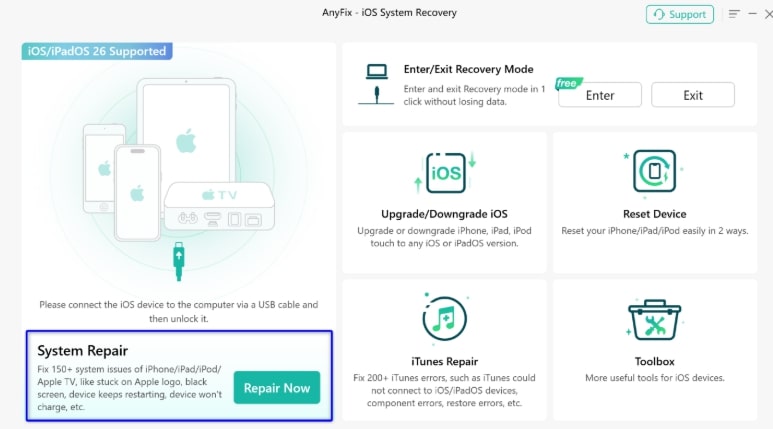
2. Connect your supported, frozen iPhone to the computer using a USB cable.
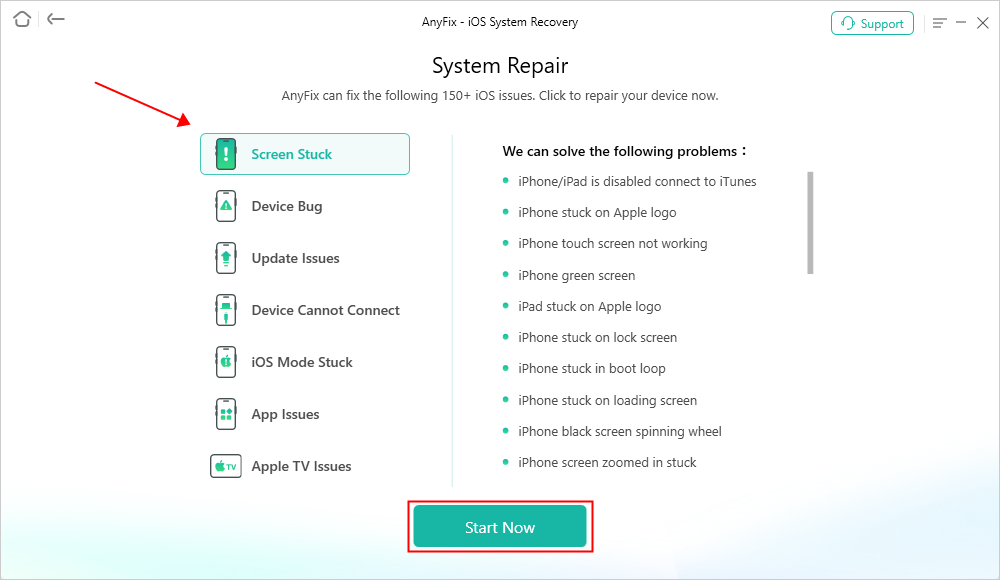
3. Choose Standard Repair. This mode aims to fix supported common Apple logo loops while keeping your photos, messages, and files intact.
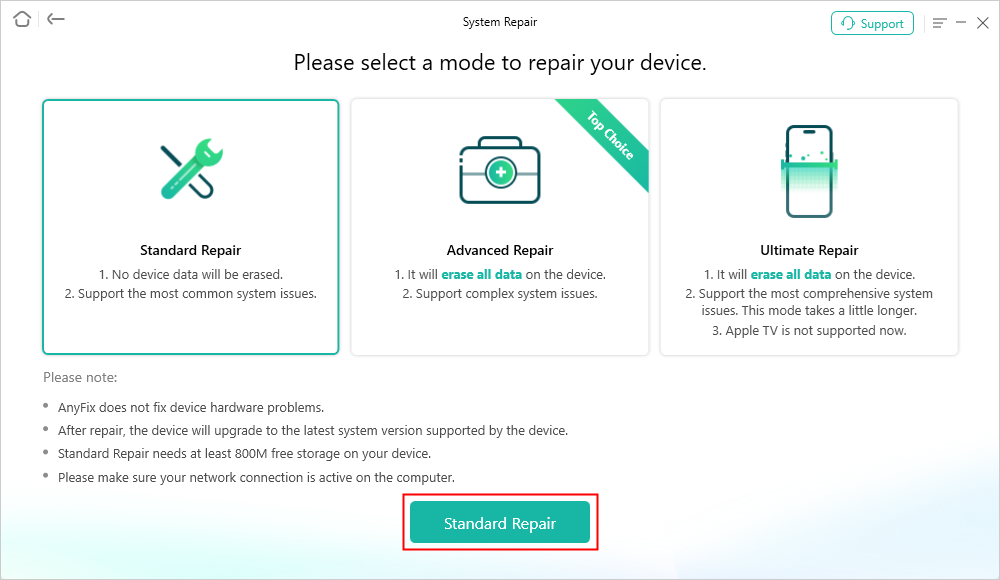
4. Follow the clear, on-screen instructions to download the correct firmware for your device model and start the repair process.
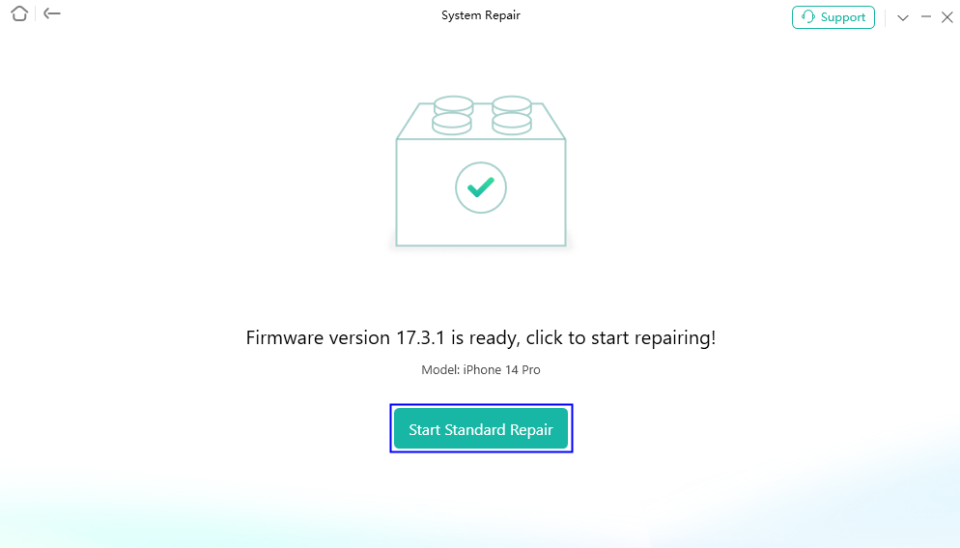
AnyFix Standard Repair is built to preserve data for supported common iOS glitches. However, if your operating system is severely corrupted, you may need to use the Advanced Repair or Ultimate Repair option, which will erase all data on the device. Additionally, if your iPhone is stuck on the Apple logo due to physical hardware damage (like a broken logic board or liquid damage), no software tool can resolve it; you will need to visit an Apple Store.
Frequently Asked Questions
Q1: Why is my iPhone stuck on the Apple logo?
An iPhone usually gets stuck on the Apple logo when the operating system cannot boot up properly. This is frequently triggered by a failed iOS update, critically full storage, or physical hardware damage like a failing battery.
Q2: Will a force restart erase my data?
No, a Force Restart is completely safe. It simply forces the device’s hardware to cut power and reboot, preserving all your photos, apps, and settings.
Q3: What is the difference between Update and Restore in iTunes?
When using Recovery Mode in iTunes or Finder, selecting “Update” attempts to reinstall iOS while keeping your personal data intact. Selecting “Restore” will completely wipe the device, erasing all data and returning it to factory settings.
Final Thoughts: Getting Past the Apple Logo
An iPhone stuck on the Apple logo can induce immediate panic, but it is a highly common issue with clear troubleshooting paths. Your first step should always be to verify that the phone hasn’t suffered physical hardware damage, and then attempt a simple Force Restart. If the device remains frozen, you can use iTunes or Finder in Recovery Mode—just be extremely careful to click “Update” rather than “Restore” to avoid accidentally wiping your device.
If iTunes fails to recognize your phone, throws unknown error codes, or you simply want a less intimidating process, AnyFix Standard Repair is an excellent alternative. It offers a practical, visual path to resolve software-related Apple logo loops while aiming to keep your personal data safe and intact.

AnyFix – Fix 150+ iOS Issues in 1 click
- Fix 150+ iOS/iPadOS/tvOS system issues like stuck on Apple logo, boot loop, etc.
- Enter/Exit Recovery Mode on iOS devices in 1 click without password.
- Upgrade & Downgrade iPhone/iPad/iPod to any supported iOS/iPadOS version.
- Fix 200+ iTunes errors and get your Apple devices back to life instantly.
More Related Articles


 AnyFix