Free Hard Drive Data Recovery Software: Tested Solutions for 2026
Free hard drive recovery tools can work surprisingly well—if the drive is still detectable and you act quickly. This guide compares tested solutions for 2026 and explains which ones are best for deleted files, formatted drives, and partition loss.
Paying hundreds of dollars for professional lab services isn’t always necessary when you lose data. If your drive is still spinning and recognized by your computer, competent free hard drive data recovery software exists to resolve the issue without cost.
However, the internet is flooded with free PC recovery tools that are actually marketing funnels for expensive subscriptions. To ensure we recommend tools that truly work, this guide is the result of hands-on testing on a standard Windows 10 PC and a portable external HDD. We deliberately deleted files, formatted partitions, and simulated corruption to verify which solutions deliver results and which ones merely market themselves as free. This guide walks you through the best free HDD recovery Windows options available in 2025, helping you save both your files and your money.
Recovery Decision Matrix: Software vs. Manual vs. Professional
Before downloading any tools, it is vital to determine if software is the correct solution for your specific data loss scenario. Attempting the wrong method can sometimes reduce the chance of future recovery. Generally, there are three main approaches:
1. Manual Methods (CMD/Chkdsk)
Windows built-in tools like Command Prompt are generally ineffective for HDD file recovery after accidental deletion. In fact, using commands like chkdsk on a failing drive can be dangerous. It attempts to “fix” the file system by aggressively moving file segments, often ignoring the integrity of the data itself, which can permanently corrupt the files you are trying to save.
2. Free Hard Drive Data Recovery Software
This is the sweet spot for logical failures—where the hardware is functioning, but the data is missing, formatted, or deleted. Tools designed for Windows data recovery offer a high success rate for recovering data from damaged or dead Hard Drive. It is the most accessible method for home users and small businesses, provided you follow the safety protocols below.
3. Professional Data Recovery Services
If your drive is making clicking sounds, not spinning, or is physically hot to the touch, software cannot help. In these cases, you must send the drive to a cleanroom lab. If your drive is silent and recognized by the PC, proceed with the software recommendations below.
⚠️ STOP: The Golden Rule of HDD Recovery
There is one critical mistake that causes more permanent data loss than the initial accident itself. Here is the golden rule:
Do not install recovery software on the same hard drive you are recovering from.
When a file is deleted, it isn’t actually wiped from the disk immediately. Instead, the file system marks the space that file occupied as “available” for new data. If you download and install free file recovery software for hard drive tasks directly onto that same drive, the installation files may overwrite the very sectors containing your lost data. Once those sectors are overwritten, recovery becomes impossible.
Follow this workflow for safety:
1. External Drive: If you are recovering an external drive, install the software on your main PC.
2. Main C: Drive: If you are recovering your main system drive, you should pull the drive and connect it to another computer as a secondary disk, or run portable software from a USB stick.
3. Output Location: Never save recovered files back to the original source drive. Always output the recovered data to a separate storage location to prevent file system corruption and overwriting.
Best Free Hard Drive Recovery Software for Windows (2025 Top Picks)
Finding a hard drive recovery software free download that doesn’t hide essential features behind a paywall can be difficult. Many tools claim to be free but only offer a “preview” of your files. Based on our testing, here are the top picks.
1. Recuva (Best for Beginners)
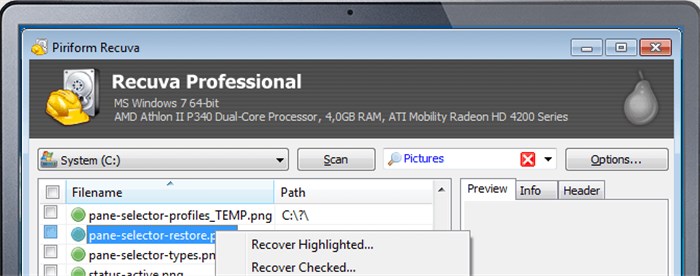
For simple accidental deletions (like emptying the Recycle Bin), Recuva remains a staple.
The Experience: When you open Recuva, you can use the Wizard, but we recommend switching to “Advanced Mode.” This displays your files in a list with a “traffic light” health indicator.
- Green Circle: Excellent health. The file is not overwritten and recovery is likely.
- Yellow Circle: Partial overwriting. The file may open but could be corrupted.
- Red Circle: The file is overwritten and likely unrecoverable.
Pros: Lightweight, fast, visual interface.
Cons: Development has slowed; struggles with complex file system corruption.
Best For: Users who need a quick, visual interface to restore recently deleted files.
2. TestDisk (Best for Partition Recovery)
If your drive is missing entirely from File Explorer or says “RAW,” TestDisk is the industry-standard open-source solution. It is a command-line tool, meaning it uses a text-only interface rather than a mouse. While this looks intimidating (like a hacker’s screen from a movie), it is incredibly powerful.
Quick Start Guide for the Nervous User:
Don’t be afraid of the black screen. Use your arrow keys to navigate and Enter to select.
- Create Log: Select [ No Log ] and press Enter (unless you are a pro).
- Select Drive: Highlight your hard drive from the list and press Enter.
- Partition Type: Select [ Intel ] (for most Windows PCs) or [ EFI GPT ] (for modern large drives) and press Enter.
- Analyze: Select [ Analyse ] > [ Quick Search ] to find lost partitions.
Pros: Completely free and open-source; excellent for partition recovery.
Cons: No graphical interface; requires careful reading.
Best For: Fixing drives that have “disappeared” or become unbootable.
3. PhotoRec (Best for Signature Recovery)
Bundled in the same folder as TestDisk, PhotoRec ignores the file system entirely and goes after the underlying data. It is excellent for a deep scan recovery where the file system is damaged.
The Experience: Like TestDisk, it is text-based. You select the drive, choose the file types you want (e.g., .JPG, .DOCX), and let it run.
The Trade-off: It recovers files without their original filenames. You will see thousands of files named f12345.jpg or t99281.doc. You will have to open them to see what they are.
Best For: Recovering photos and documents from formatted or RAW drives when Recuva fails.
You may also like: Best Photo Recovery Software for PC >
The “Middle Ground” Problem
If Recuva can’t find your files, but TestDisk feels too technical to use, you have hit the “Middle Ground” gap. This is where most users give up or pay. Be honest with your expectations here: There is currently no “easy button” software that is 100% free and as powerful as TestDisk. If you cannot manage the command line tools, you may need to look at the “Freemium” options listed below, but be aware of their strict limits.
Scenario-Based Guides: Recovering from RAW, Formatted, or Deleted Drives
Different data loss scenarios require different recovery strategies. A “one-size-fits-all” scan often leads to poor results. Here is how to approach the three most common situations.
Scenario A: Accidental Deletion
If you simply deleted a file, use a standard “Quick Scan” method. The file metadata usually remains intact, meaning you can often recover the file with its original name and folder structure in minutes. Tools like Recuva excel here. This is the fastest method for free data recovery for external hard drive mishaps where the drive itself is healthy.
Scenario B: Formatted Drive
To recover formatted hard drive data, you need a “Deep Scan.” When a drive is formatted, the address table is wiped, but the data usually remains until overwritten.
- Time Expectation: A deep scan reads every single sector. This is not a 5-minute job. For a 1TB drive, this can take 5 to 10 hours via USB 3.0.
- Can I Pause? Most free tools do not handle pausing well. We recommend starting this process only when you can leave the computer running uninterrupted (e.g., overnight). Interrupting a deep scan can sometimes force you to restart from zero.
Scenario C: RAW Drive Recovery
If Windows asks you to format a drive because it is “RAW” or unrecognized, do not format it. This indicates file system corruption. You need software capable of RAW drive recovery.
The Fix: Use TestDisk to try and repair the partition table first. If that fails, use PhotoRec to scrape the files off the disk. PhotoRec ignores the “RAW” status because it reads the disk geometry directly, bypassing the corrupted file system.
The Reality of ‘Free’: Limits, Deep Scans, and the “Freemium” Trap
When searching for best free hard drive recovery software, it is important to distinguish between “Free” and “Freemium.”
The “Freemium” Culprits
Many popular tools rank highly on Google but are designed to make you pay eventually.
- EaseUS Data Recovery Wizard: Excellent interface, but the free version is capped at 2GB of recovery.
- Disk Drill: Very user-friendly, but the free version on Windows is often capped at 500MB.
If you need to recover 50GB of family photos, these tools will hold your data hostage until you pay. Stick to Recuva, TestDisk, or PhotoRec if you require unlimited free recovery.
HDD vs. SSD Expectations
Hardware architecture changes the probability of success. HDD file recovery generally has a high success rate because data physically remains on the magnetic platters until overwritten.
However, modern SSDs use a technology called TRIM. When files are deleted on an internal SSD, the TRIM command immediately wipes the data blocks to optimize performance. Consequently, recovering deleted data from an internal SSD is significantly more difficult and often impossible, regardless of the software used. If you are recovering data from an older external drive, it is likely a mechanical HDD, which increases your odds of success.
Frequently Asked Questions About Free Drive Recovery
Q1. Is free data recovery software safe to use?
Generally, yes, provided you download tools from reputable developer websites like CCleaner (Recuva) or CGSecurity (TestDisk). However, be cautious of “cracked” versions of premium software, as these often contain malware.
Q2. How can I recover files from an external hard drive?
To perform free data recovery for external hard drive devices, connect the drive to a working computer via USB. Ensure the cable is tight and the drive is receiving power. Run your chosen recovery software and select the external drive as the target. Remember the golden rule: save the recovered files to your computer’s internal drive, not back onto the external drive you are fixing.
Q3. Why are my recovered files corrupted?
Corruption occurs if part of the file was overwritten by new data before recovery. It can also happen if the file was fragmented across different sectors of the drive. If Recuva shows a “Green” file that won’t open, the file header (the code that tells Windows “this is a JPG”) might be damaged.
Q4. What is the best Recuva alternative?
If Recuva fails to find your files, the best free alternative is PhotoRec (for deep data scraping) or TestDisk (for partition repair). If you need an easier interface than those, you will likely have to use a trial version of a paid tool like Disk Drill, accepting the 500MB limit.
Conclusion
Losing data is stressful, but for most logical errors, you do not need to panic. By following the protocols outlined here—specifically the golden rule of using a secondary drive—you can often restore your files from recycle bin using free hard drive data recovery software.
Start with a simple scan using Recuva to see if the files are easily accessible. If that fails, do not be afraid to try TestDisk using the steps provided above. You have the knowledge and the tools to regain control of your data. Download one of the recommended tools today and start your scan—your files may still be waiting for you.



Joy Taylor is a seasoned technical writer with over a decade of experience in mobile technology. At iMobie, she specializes in producing in-depth content on iOS data recovery, iPhone unlocking solutions, and iOS troubleshooting.
Product-related questions? Contact Our Support Team to Get Quick Solution >
