How to Open a USB on Windows 10 in 2026: A Tested Guide
You plug in your USB drive, expecting to see your files, but your Windows 10 computer gives you silence. That moment of frustration can quickly turn into real concern: is the drive broken? Is my data gone forever? It’s a common and stressful situation, but the solution is often much simpler than you think.
If you’re asking, “how do I open a flash drive in Windows 10 when it doesn’t appear?”, you’ve found the right guide.
Instead of jumping into complex system tools, we’ll start with the most basic physical checks that professionals use to quickly isolate the problem. We will then walk you through a clear, step-by-step diagnostic process, moving from the most common software fixes to more advanced solutions. Each method is explained for a non-expert audience, giving you the confidence to find the issue and get your files back without needing technical help.
Before You Begin: The Two Most Important Physical Checks
Before diving into any Windows settings, let’s rule out the simplest physical problems. A surprising number of issues can be solved in under a minute with these two steps.
1. Try a Different USB Port. The USB port you’re using could be loose or faulty. Unplug the drive and connect it to a different USB port on your computer. If possible, try a port on the opposite side of your laptop or on the back of your desktop PC, as these are often connected to a different internal controller.
2. Try a Different Computer. This is the single most effective way to determine if the problem is with your drive or your PC. Plug the USB drive into another computer.
If it works on another computer: The drive and your data are fine. The issue lies with your original computer’s settings or drivers. You can skip the next section and proceed directly to our guide on using Disk Management.
If it does not work on another computer: The problem is likely with the USB drive itself. This could be a physical issue or a severe file system corruption.
Completing these checks first saves you time and helps you target the correct solution.
Method 1: Manually Opening Your USB Drive in File Explorer
If the physical checks didn’t help, let’s address the most frequent software scenario: Windows 10 has recognized your USB drive, but for some reason, the AutoPlay notification didn’t appear. In this case, your files are safe and accessible through File Explorer, the system’s file management application. This is the most direct method to manually `open a flash drive on Windows 10`.
Follow these simple steps to locate and open your drive:
1. Open File Explorer: Click the folder icon on your taskbar or press the Windows key + E on your keyboard.
2. Navigate to ‘This PC’: In the left-hand navigation pane of the File Explorer window, click on “This PC.”
3. Locate Your USB Drive: Under the “Devices and drives” section, you should see your connected USB drive listed. It will typically be labeled with the manufacturer’s name (e.g., SanDisk, Kingston) or as a “Removable Drive,” followed by a drive letter (like E: or F:).
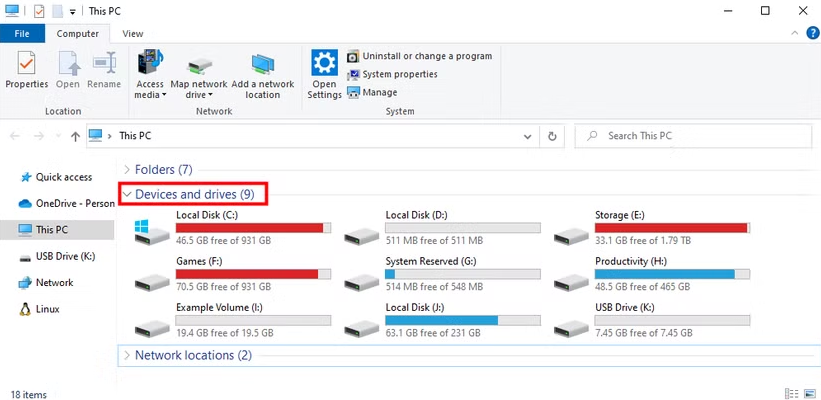
4. Access Your Files: Double-click the drive’s icon to open it and view its contents.
If you see your `removable drive` here, your problem is solved. If the drive is not visible, the `usb drive not appearing in file explorer` is your key issue, and you should proceed to the next method.
Method 2: When Your USB is Invisible, Use Disk Management
If your drive doesn’t appear in File Explorer, the next logical stop is Disk Management. This built-in Windows tool gives you a deeper look at all storage connected to your computer, even devices that aren’t ready for use. This is where we solve the most common “invisible drive” problem.
I’ve personally seen this many times: a perfectly good drive was invisible simply because it lacked a drive letter. Windows could see the device, but without an assigned letter (like E: or F:), it had no way to show it to you. Assigning one is a simple fix that makes the drive immediately accessible.
Important Safety Warning: Be Careful in Disk Management This tool gives you access to all of your computer’s drives. Before making any changes, double-check that you are selecting your USB drive. It will typically be labeled as “Removable” and match the size of your flash drive. Your main system drive is usually “Disk 0” and labeled “C:”. Modifying the wrong drive can cause serious system problems.
Here’s the exact procedure:
1. Open Disk Management: Right-click the Start button and select “Disk Management” from the menu.
2. Identify Your USB Drive: Look in the lower pane for a disk labeled “Removable” that matches the size of your USB drive. Now, look at the bar to the right. We’ll cover three common scenarios.
Scenario A: The Partition is Healthy (Blue Bar) but Has No Letter
This is the best-case scenario. You see a blue bar indicating a healthy partition, but it’s missing a drive letter (e.g., it just says “New Volume” instead of “New Volume (E:)”).
Assign a Drive Letter: Right-click on the partition (the block with the blue bar) and select “Change Drive Letter and Paths…”
Add a New Letter: In the pop-up window, click “Add,” choose an available drive letter from the dropdown menu, and click “OK.”
Your drive should now appear in File Explorer.
Scenario B: The Partition is “RAW” (Blue Bar)
If the partition says “RAW” instead of “NTFS” or “FAT32,” it means Windows cannot recognize the file system. This is a form of data corruption. The option to “Change Drive Letter and Paths…” may be greyed out. Do not format it. Jump to our crucial warning section below about data recovery.
Scenario C: The Space is “Unallocated” (Black Bar)
If the bar is black and labeled “Unallocated,” it means the drive has no partition for Windows to read. The option to “Change Drive Letter and Paths…” will be greyed out because there is no partition to assign a letter to. To make the drive usable for new files, you would right-click the unallocated space and select “New Simple Volume…” to create a partition and format it. However, this will erase any data that might still be recoverable. If you need to recover files from this drive, stop here and consult our section on data recovery.
Method 3: Resolving Driver Issues with Device Manager
If your drive is still invisible in both File Explorer and Disk Management, the issue may be with your computer’s hardware drivers. The Device Manager is the control center in `Windows settings` for all hardware. This step is essential if your USB drive works on another computer but not on yours, as that strongly suggests a driver conflict on your PC.
First, we’ll ask Windows to re-scan for the device.
1. Open Device Manager: Right-click the Start button and select “Device Manager.”
2. Scan for Hardware Changes: In the Device Manager window, click on your computer’s name at the top of the list. Then, go to the “Action” menu and select “Scan for hardware changes.” This forces Windows to re-detect connected devices, which often resolves temporary connection glitches.
If the scan doesn’t work, we’ll try updating or reinstalling the driver:
1. Find Your USB Drive: Expand the “Disk drives” and “Universal Serial Bus controllers” sections. Look for your USB drive, which may appear with a yellow exclamation mark, indicating a driver problem. It might be listed as an “Unknown Device.”
2. Update the Driver: Right-click the device and select “Update driver.” Choose “Search automatically for drivers.” Windows will try to find and install the correct software.
3. Reinstall the Driver: If updating fails, right-click the device again and choose “Uninstall device.” After it’s uninstalled, unplug the USB drive, restart your computer, and plug the drive back in. Windows will automatically try to reinstall the necessary drivers. [Internal Link Suggestion: Link the preceding phrase to ‘/how-to-update-drivers-on-windows-10’]
A Crucial Warning: When NOT to Format Your USB Drive
During your troubleshooting, you may encounter a pop-up from Windows that says, “You need to format the disk in drive X: before you can use it.” While this sounds like a solution, it is vital to understand what this does.
Formatting a drive erases all data on it completely.
This prompt usually appears when a drive’s file system is corrupted or in a RAW state, as we saw in Disk Management. While formatting will make the drive usable again for new files, it will result in the permanent loss of your existing data. Simply trying to access your drive will not harm your files, but formatting it will.
If you see this message and need the files on the drive, your goal must shift from opening the drive to data recovery. First, try the drive in another computer. If it still doesn’t work or shows as RAW, professional data recovery software or services are the correct next steps. These tools are designed to scan RAW or corrupted drives and retrieve files without performing a destructive format.
You may also like: Best Tools for External Hard Drive Recovery>
How to Prevent USB Detection Issues in the Future
Preventing problems is much easier than fixing them. By adopting a few good habits, you can greatly reduce the chances of facing these issues again and protect your data.
Here are a few key tips for keeping your USB drives healthy:
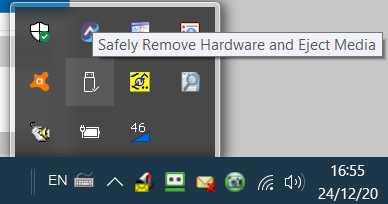
- Always Eject Safely: Before unplugging a USB drive, always use the “Safely Remove Hardware and Eject Media” icon in the system tray (the small arrow on the taskbar). This finishes all read/write operations and prevents the kind of corruption that can make a drive unreadable.
- Keep Windows Updated: Run Windows Update regularly. These updates often include improved USB controller drivers, which increase compatibility and stability with external devices.
- Protect from Physical Damage: Store your drives in a safe place, away from extreme temperatures, moisture, or impacts. A bent or damaged connector is a very common cause of connection failure.
- Ensure a Firm Connection: When plugging in your drive, make sure it is seated firmly and completely in the port. A loose connection can cause intermittent detection errors.
Following these best practices greatly reduces the likelihood of future issues. However, if a drive repeatedly has problems across multiple computers, it may be failing. At that point, the safest course of action is to back up any accessible data and replace the drive.
You now have a complete diagnostic process to solve why your USB drive won’t open. Instead of feeling stuck and fearing your data is lost, you can systematically test for physical issues, check File Explorer, assign a drive letter in Disk Management, or resolve driver conflicts. By following this logical process, you can troubleshoot with confidence, regain access to your files, and feel in control of your devices. These tested methods are designed to resolve the problem in minutes, saving you time and stress.
You may also like: How to Transfer Photos from Android to Flash Drive Simply and Easily>
Frequently Asked Questions
Here are direct answers to some of the most common questions about how to open a USB on Windows 10.
Why does my USB not open automatically on Windows 10?
The AutoPlay feature may be disabled in your `Windows settings`, or you might have missed the notification pop-up. In most cases, the drive is still connected and can be opened manually, even if it doesn’t open automatically.
How do I manually open a USB drive in Windows 10?
You can open it through File Explorer. Press the `Windows key + E`, click on “This PC” in the left sidebar, and then double-click your USB drive under the “Devices and drives” section. You can find detailed instructions in the first method of this guide.
What should I do if my USB does not show up in File Explorer?
If your drive isn’t in File Explorer, check for it in Disk Management. It’s very common for Windows to see the drive but fail to assign it a drive letter. You can often assign one manually to make it visible, as explained in Method 2.
Can a USB work on another computer but not on my Windows 10 PC?
Yes, this is a common scenario. It strongly suggests the problem is with your computer’s software, not the USB drive. The issue is likely related to outdated or corrupted drivers, which you can fix using the Device Manager, as detailed in our advanced troubleshooting section.
Will opening a USB damage or delete my files?
No, trying to open or access a USB drive will not harm your files. However, if Windows prompts you to format the drive, do not agree if you have important data on it. Formatting will erase everything permanently. See our crucial warning section for more details.
You may also like: 5 Ways to Backup Android Phone to PC Before Factory Reset>



Joy Taylor is a seasoned technical writer with over a decade of experience in mobile technology. At iMobie, she specializes in producing in-depth content on iOS data recovery, iPhone unlocking solutions, and iOS troubleshooting.
Product-related questions? Contact Our Support Team to Get Quick Solution >
