How to Recover Permanently Deleted Emails: The Verified 2026 Guide
If your deleted emails are missing from Trash, don’t panic yet. This guide shares verified steps to recover permanently deleted emails in 2026, from built-in recovery features to admin/support requests and backup restores. Follow the methods in order to maximize your recovery success.
Stop. Don’t close your browser. Do not navigate away.
The sinking feeling of deleting a critical message is universal. You might be staring at an empty Trash folder right now, worried that your data is gone forever. However, “permanently deleted” is often a misnomer in the world of cloud storage. Even if your Trash is empty, the server usually retains your data in a hidden state for a short window.
Whether you are facing deleted emails not found in Trash, confusion over why emails vanished from your phone and desktop simultaneously, or the urgent need to recover permanently deleted emails for work, this guide provides verified solutions. We have removed the fluff to focus strictly on actionable steps. We tested every method described below on Windows, macOS, and mobile devices to confirm exactly what works to undeleted files on PC.
Recovery Options Compared: Native Tools vs. Admin Restore vs. Local Backups
Not all email recovery situations are identical. The correct procedure depends entirely on your email provider and how much time has passed since the deletion. We categorize the solutions into three primary approaches.
- Native Provider Recovery (Best for <30 Days): If you deleted the item recently, most providers (Gmail, Outlook, Yahoo) hold data in a server-side “dumpster” or “recoverable items” folder for 14 to 30 days after the Trash is emptied. This requires the least technical skill and should be your first attempt.
- Admin Console Restoration (Best for Work/School): For users on Microsoft 365 or Google Workspace, an administrator often has an extended recovery window (often 25–30 days beyond what you can see). This method has a very high success rate for business accounts.
- Local Client Recovery (Best for Desktop Users): If you use desktop apps like Outlook for Windows or Apple Mail, your hard drive might still hold a copy of the data in a .pst or .ost file, even if the server has been purged.
Select the method below that aligns with your account type and timeline to proceed efficiently.
First Response: Understanding Sync and Checking Archives
Before initiating complex recovery protocols, it is vital to understand why the email disappeared and rule out common errors.
The “Sync” Panic (IMAP Protocol)
Many users ask: “Why did the email disappear from my laptop when I only deleted it on my iPhone?”
This is the standard behavior of IMAP (Internet Message Access Protocol). Unlike older systems that downloaded copies to each device, IMAP mirrors the server. If you delete an email on one device, you are sending a command to the server to delete it everywhere. If you have multiple devices syncing (e.g., an iPad, an Android phone, and a Windows laptop), the deletion propagates instantly. Do not waste time checking other devices for the email unless one of them has been offline (in Airplane Mode) since before the deletion occurred.
The Archive vs. Delete Confusion
Before assuming the data is purged, we must verify it wasn’t simply moved.
Expert Insight: Many users believe emails are “permanently deleted” when they are actually just archived. In Gmail and Outlook mobile apps, the “Swipe” gesture often defaults to “Archive,” not “Delete.” If an email was archived, it remains on the server indefinitely, hidden from the main Inbox view but searchable in “All Mail.”
Steps to Verify:
- Gmail: Navigate to the “All Mail” label in the left-hand sidebar. This folder contains every message in your account (except Spam and Trash). Search for your missing email here.
- Outlook: Check the “Archive” folder specifically, as well as the “Other” tab if you are using the Focused Inbox feature.
- Yahoo: Verify your “Spam” folder and any custom folders where filters might have automatically routed the message.
If the message is not found in these locations, proceed to the provider-specific recovery steps below.
Provider-Specific Guide: Gmail, Outlook, and Yahoo Recovery Steps
If your emails are definitely not in the archives, use the specific Windows data recovery tools provided by your email service. Note the specific retention windows for each provider.
Gmail (Google Workspace & Personal)
To learn how to recover permanently deleted emails from gmail, you must identify your account type.
Retention Window: 30 Days (in Bin) + 25 Days (Admin Console for Business).
Google Workspace (Business/School): If you use Gmail with a custom domain (e.g., name@company.com), you are in luck. An administrator can restore data from the Admin Console for up to 25 days after permanent deletion. (See the Admin Recovery section below).
Personal Accounts: This is the most difficult scenario. Once the Trash is emptied, Google does not provide a user-facing “recoverable items” tool.
- Clarification on Drive Backups: Contrary to some rumors, Gmail does not automatically back up your emails to Google Drive. Unless you manually used Google Takeout to export your data to Drive previously, there is no hidden backup there.
- Last Resort: You can try the Gmail Message Recovery Tool provided by Google Support. This is primarily for accounts that were compromised (hacked), but some users report success in recovering recently wiped messages.
Outlook (Web & Desktop)
Microsoft offers the most robust native feature to recover deleted emails Outlook users often overlook. Even after you empty the “Deleted Items” folder, Microsoft Exchange retains messages in a secondary hold.
Retention Window: 14 to 30 Days (after Emptying Trash).
Steps to Execute:
1. Go to the Deleted Items folder in the web interface or desktop app.
2. Look for the link at the top of the list labeled “Recover items deleted from this folder.”
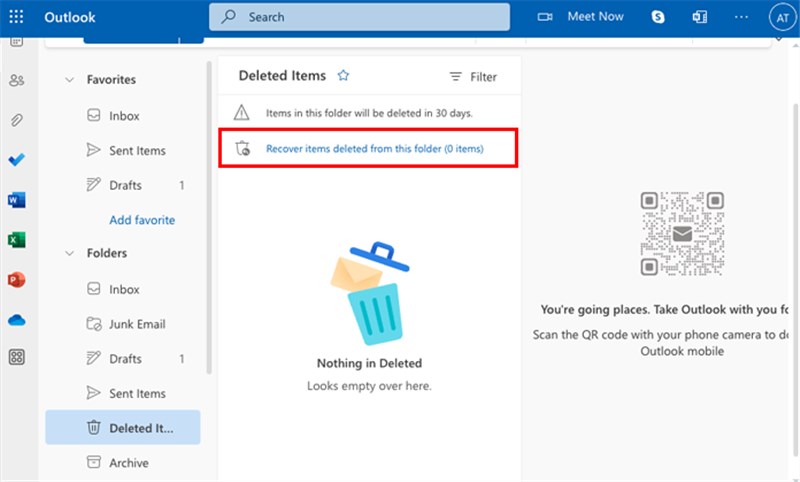
3. This opens the “Recoverable Items” folder (formerly known as the dumpster).
4. Select the emails you need and click “Restore.” The emails will usually reappear in your Inbox or the Deleted Items folder.
Yahoo Mail
To recover deleted emails Yahoo has purged from the Trash, you must submit a formal request. This is highly time-sensitive.
Retention Window: Roughly 7 Days (from the time of the request).
Steps to Execute:
1. Navigate directly to the Yahoo Recover Lost or Deleted Emails Form.
2. Click “Send a Restore Request.”
3. Select “Mail: Accidentally deleted messages on webMail.”
Important: Select a time range (e.g., “Last 7 Days”).
What to Expect: If successful, Yahoo will restore your mailbox to the state it was in at the selected time. Check your Trash folder immediately after the restoration completes, as recovered emails are often dumped there rather than the Inbox.
For Work & School Accounts: Using Admin Recovery
If you are using an email account provided by a workplace or educational institution, you have a significant advantage: admin recovery. In enterprise environments like Microsoft 365 and Google Workspace, “permanently deleted” usually means the email is removed from the user’s view, but it remains in a hidden administrative holding tank.
- Google Workspace: Admins have 25 days to restore data after you empty your trash.
- Microsoft 365: Admins can often recover items for 30 days (or longer if specific Litigation Holds are active).
Your IT department can access these retention policies to restore data you cannot see. However, clear communication is key. Do not simply say “I lost an email.” Use the specific request template below to ensure they understand the technical requirement and act before the retention window closes.
Template for IT Support Request
Subject: URGENT: Request for Email Object Restoration – [Your Name]
Body:
Hello IT Team,
I accidentally purged an important email from my Trash folder on [Date]. The missing item is [Sender/Subject].
Could you please check the Exchange Admin Center (Microsoft 365) or Google Admin Console for recoverable items? I understand there is a retention window for deleted items before they are scrubbed from the server.
Thank you.
By framing your request with the correct terminology, you increase the speed and likelihood of a successful restore.
Recovering from Local Backups and Desktop Clients
For users who manage their email via desktop applications like Outlook for Windows or Apple Mail, recovery options extend to the local hard drive. While sync protocols usually remove deleted messages, local data files (.pst or .ost on Windows, .mbox on Mac) may still retain fragments of the data, especially if you have system-wide backups running.
Outlook on Windows: Previous Versions
Outlook stores data in .pst (Personal Storage Table) or .ost files. If you have “File History” or “System Restore” enabled in Windows, you may be able to roll back this specific file to a version from before the deletion.
1. Close Outlook completely.
2. Navigate to C:\Users\[YourName]\AppData\Local\Microsoft\Outlook (you may need to enable “Hidden Items” in View settings).
3. Right-click the data file and select Properties.
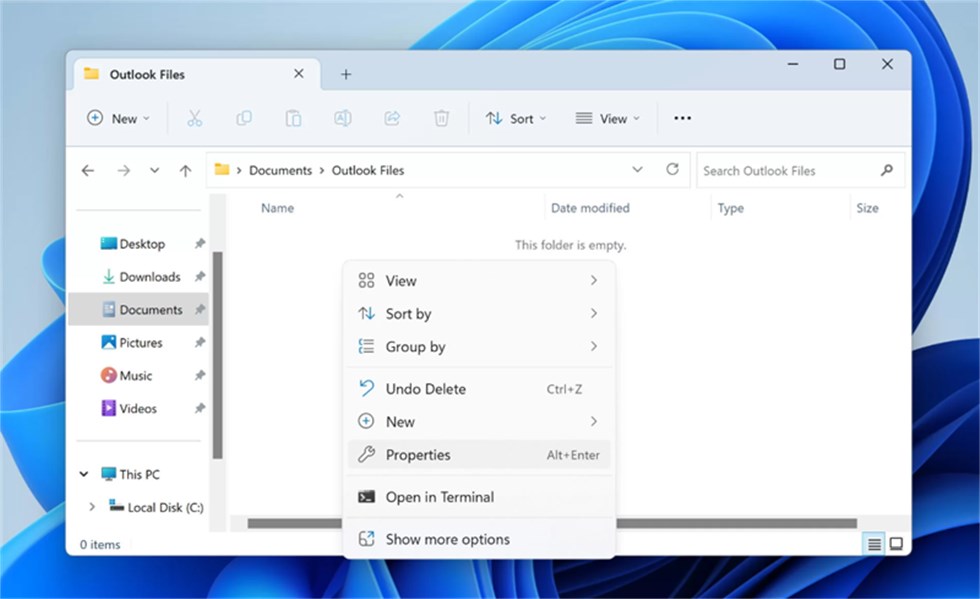
4. Click the Previous Versions tab.
5. If a version exists from a date prior to the deletion, select it and click “Restore.”
This will revert your entire mailbox to that date, so recent emails received since then may be lost.
Apple Mail on macOS: Time Machine
Mac users have one of the most reliable recovery methods via Time Machine. This allows you to recover emails deleted from trash by restoring the specific mailbox state without overwriting your entire system.
1. Open the Mail app and select the specific mailbox (e.g., “Inbox”) where the email used to be.
2. With the Mail app open, click the Time Machine icon in the menu bar and select “Browse Time Machine Backups.”
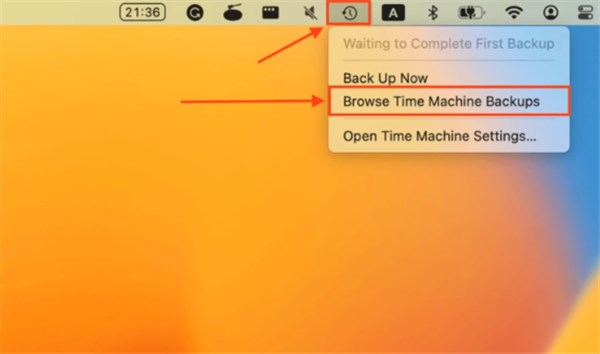
3. The interface will transform. Use the timeline on the right to scroll back to a date before you deleted the email.
4. Locate the missing email in the historical view.
5. Select the email and click “Restore.” Apple Mail will create a new folder labeled “Recovered Messages” containing your retrieved data.
The Danger Zone: Avoiding Scams and Fake Tools
When searching for permanently deleted emails recovery, you will encounter websites or software claiming to perform miracles. It is our responsibility to protect you from financial loss: Do not trust tools that promise to recover cloud-based emails after the server retention period has expired.
Here is the hard truth: Once an email is scrubbed from a provider’s server (Google, Microsoft, Yahoo) and no local backup exists, no third-party software can decrypt or retrieve that data. The encryption keys and physical storage are held by the provider, not accessible by external tools.
Red Flags to Watch For:
- Upfront Payment Requirements: Legitimate diagnostic tools usually offer a free preview of recoverable files before asking for money.
- Password Requests: Never share your email login credentials with a recovery service. Legitimate recovery tools scan your local hard drive, not your cloud account.
- Unrealistic Claims: Any tool guaranteeing 100% success for emails deleted months ago from a web-based account (like Gmail) is fraudulent.
Focus your efforts on the verified methods listed in this guide (Admin consoles, local backups, and provider restore requests). These are the only legitimate avenues for recovery.
Frequently Asked Questions About Email Recovery
Q1. How long do deleted emails stay recoverable?
Generally, emails stay in the Trash folder for 30 days. After the Trash is emptied, providers offer a specific “grace period” before permanent overwriting:
- Outlook/Exchange: 14–30 days.
- Google Workspace: 25 days (via Admin).
- Yahoo: ~7 days (via Restore Request).
Q2. Can you recover permanently deleted emails after months?
If you rely solely on the email provider’s server, the answer is generally no. However, if you have a local backup (like a Time Machine backup or an Outlook .pst file) that was created while the email was still in your inbox, you can restore the data regardless of how much time has passed on the server.
Q3. Is there a way to restore permanently deleted personal Gmail for free?
If the email is gone from the Trash and you are not a business user, options are very limited. You can check Google Takeout if you created an export in the past (look for .mbox files in your downloads or Drive). Otherwise, you can try the Google Message Recovery Tool, but success rates are low for non-compromised accounts.
Q4. Does changing my password help recover emails?
No. Changing your password secures your account but does not revert the mailbox to a previous state. However, if you suspect the deletion was caused by a hacker, changing your password is a critical first step before contacting support.
Conclusion
Losing essential data is stressful, but as we have outlined, “permanently deleted” rarely means gone instantly. By acting quickly and following the correct procedure—verifying archives, utilizing provider-specific restoration tools like the Outlook “Recoverable Items” folder, or leveraging admin retention policies—you have a strong chance of retrieving your information. No matter whether you’ve deleted Instagram photos, Facebook photos, or important emails, there’s often still a chance to recover them—especially if you act quickly and use the right recovery method.
If the methods above resolved your issue, we strongly recommend setting up a dedicated local backup for your most critical communications today. Whether it is enabling Time Machine on your Mac or scheduling regular exports of your Outlook data, taking action now ensures that a simple click of the “Empty Trash” button never puts your work or personal memories at risk again.



Joy Taylor is a seasoned technical writer with over a decade of experience in mobile technology. At iMobie, she specializes in producing in-depth content on iOS data recovery, iPhone unlocking solutions, and iOS troubleshooting.
Product-related questions? Contact Our Support Team to Get Quick Solution >
