How Can I Recover Deleted Photos on Instagram? (Fast & Easy Guide 2026)
Deleted photos on Instagram by mistake? This fast and easy 2026 guide shows the quickest ways to recover them, starting with Instagram’s built-in “Recently Deleted” feature. You’ll also learn what to do if the photos aren’t there, including checking synced backups and saved copies on your device.
Accidentally tapping “delete” on a favorite memory or a high-performing business post creates immediate anxiety. Whether you are a content creator worried about losing valuable engagement metrics or simply someone trying to save a cherished photo, the fear is that the content is gone forever. You are likely searching “How can I recover deleted photos on Instagram?” right now because there is a gap in your profile grid where a memory used to be.
The good news is that Instagram anticipates this exact scenario. The platform includes a native safety net designed to help you recover deleted Instagram photos quickly. In most cases, your content is not permanently erased; it is sitting in a temporary holding area, waiting for you to retrieve it.
This guide cuts straight to the solution. We walked through these official recovery methods on both iOS 17 and Android 14 to document exactly how the menus look and behave on different devices. We will cover how to use the “Recently Deleted” feature, the critical nuances of restoring Carousel posts, and what to do if the 30-day window has passed.
You may also like: How to Recover Deleted Facebook Photos: 3 Verified Methods >
The Official Way: How to Restore Deleted Photos from Instagram Account
The most effective method to get back deleted Instagram photos is through the “Recently Deleted” folder hidden within your activity settings. This feature acts like the Recycle Bin on a PC or the Trash on a Mac, holding content for 30 days before permanent erasure. much like scenarios where users need to recover files deleted from Recycle Bin, since the data often isn’t truly gone immediately and may still be restorable if you act within the allowed recovery window.
Recovering from here is the only way to restore the post to your profile exactly as it was. This means the caption, the hashtags, and crucially, the likes and comments, will reappear as if they never left. For business accounts or creators who rely on engagement algorithms, this restoration is vital.
Here is the step-by-step procedure to restore deleted photos on Instagram:
1. Open your Profile: Tap your profile picture in the bottom right corner of the app to view your grid.
2. Access the Menu: Tap the three horizontal lines (hamburger menu) in the top right corner.
3. Navigate to Your Activity: Look for the clock icon labeled Your Activity.
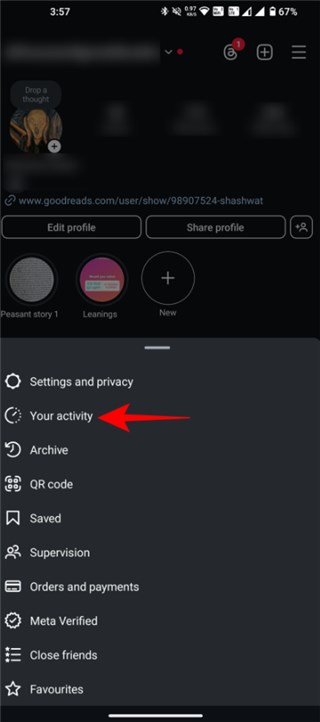
Note for Android Users: On some versions of Android (specifically older One UI versions), this may be nested under “Settings and Privacy.” If you do not see the clock icon immediately, use the search bar at the top of the menu and type “Activity.”
4. Find Recently Deleted: Scroll down to the “Removed and archived content” section and tap Recently Deleted (trash can icon).
5. Select the Content: You will see tabs for posts (grid icon), Reels (clapperboard icon), and Stories. Tap the photo, video, or reel you want to save.
6. Finalize Restoration: Tap the three dots (More options) in the top right, then select Restore.
Testing Insight: During our tests on the Galaxy S24, we noticed a slight lag (1–2 seconds) after tapping “Restore” before the confirmation pop-up appeared. On the iPhone 15, it was instant. If you are on Android, be patient and do not double-tap.
Security Checkpoint: Instagram takes account security seriously during this step. Because hackers often delete content when they compromise an account, Instagram will likely ask you to verify your identity. You may need to enter a 6-digit code sent to your email or phone number on file before the restoration completes.
Critical Warning: Recovering Carousel Posts (Multiple Images)
There is a specific nuance regarding Instagram deleted posts recovery that affects Carousel posts (posts with multiple slides). This is a frequent pain point for users who try to delete just one “bad” photo from a “photo dump” and then regret it.
If you deleted a single image from a carousel and want to restore it, you need to be aware of the ordering issue.
- The “Out of Order” Glitch: When you restore a single deleted image back into a live carousel, Instagram does not always place it back in its original chronological slot. In our testing, the restored image often reappeared at the very end of the slide deck.
- No Reordering: Currently, you cannot reorder slides in a carousel once the post is published and active.
- The Implication: If the sequence of your photos tells a story (e.g., a tutorial or a before-and-after reveal), restoring a single deleted slide might disrupt the narrative flow.
Expert Advice: If the order is essential, your best option is to restore the image to save the file (screenshot it or use the data download method below), delete the messed-up carousel, and repost it correctly. However, remember that reposting means losing the original likes and comments.
Recovery Options Compared: Recently Deleted vs. Archive vs. Data Download
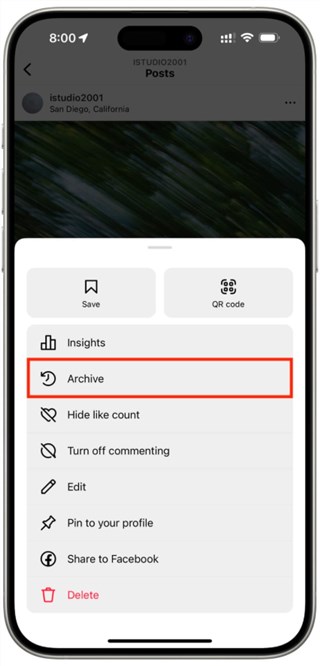
When trying to recover deleted Instagram posts, it is vital to distinguish between actual deletion and archiving. A common oversight is confusing the Instagram Archive vs delete function.
Expert Insight: Many users panic unnecessarily because they tapped “Archive” instead of “Delete” by mistake. “Archive” simply hides posts from the public profile while keeping them safe indefinitely in a private folder. “Delete” moves the post to a trash folder where a 30-day countdown timer begins. The recovery window is strictly limited for deleted items.
Depending on your specific situation, you have three primary options for recovery:
1. The “Recently Deleted” Feature
- Best For: Content deleted less than 30 days ago.
- Outcome: Restores the post to your profile grid with all likes, comments, and captions intact.
- Difficulty: Low.
2. The Archive Check
- Best For: When you cannot find the post in “Recently Deleted.”
- Outcome: The content never actually left the platform; you simply need to move it back to “Show on Profile.”
- Difficulty: Very Low.
- How to check: Go to Your Activity > Archived. Tap the drop-down menu at the top to switch between “Stories Archive” and “Posts Archive.”
3. Data Download (The Fallback)
- Best For: When the 30-day window has expired.
- Outcome: Allows you to retrieve the raw image or video file. It does not restore the post to your profile.
- Difficulty: Medium.
Recover Deleted Instagram Reels and Stories
Different media types on Instagram have distinct “survival times” within the trash folder. Understanding these nuances is critical for successful recovery, specifically regarding Stories.
Instagram Stories (The 24-Hour Rule)
If you are wondering, “Can I recover deleted Instagram story photos?” you must act immediately.
- Standard Rule: Stories that were not archived stay in the Recently Deleted folder for only 24 hours.
- Archived Stories: If you have the “Save to Archive” setting enabled (which is on by default for most accounts), deleted stories might still be accessible in your Stories Archive rather than the deleted folder. Always check your Archive first.
Reels and Feed Posts
Unlike Stories, deleted Reels and standard feed photos remain in the Recently Deleted folder for 30 days. This extended window applies regardless of engagement levels or video length.
How to Get Back Deleted Instagram Photos After 30 Days (Data Download)
If more than 30 days have passed, the “Recently Deleted” folder will be empty. At this stage, your option shifts from restoration to file retrieval. You can use the Instagram data download tool to request a copy of everything you have uploaded to the platform.
⚠️ PRO TIP: Understand the Limitation
This method helps you regain possession of the original image file so you can repost it or save it to your camera roll. This will NOT restore the post to your profile. You will possess the photo, but you will have lost the original caption, likes, comments, and date stamp.
How to request your data:
1. Go to Your Activity (Clock icon) in the main menu.
2. Scroll to the very bottom and select Download your information.
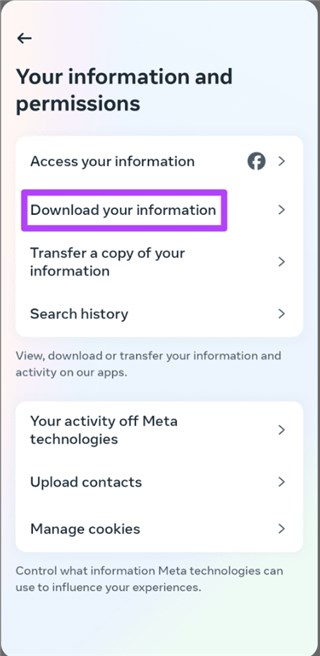
3. Tap Request a download.
4. Select your Instagram account.
5. Crucial Step: Choose Select types of information. Do not select “Complete copy” unless you want to wait days.
6. Select Photos and Videos (and “Content” or “Posts” depending on the current update wording). This speeds up the process significantly compared to downloading message history.
7. Select Format:
- Choose HTML if you want to view the files easily on your computer browser.
- Choose JSON only if you are tech-savvy or using a third-party import tool.
8. Submit the request.
Instagram will email you a link to download a ZIP file. This can take anywhere from a few minutes to 48 hours. Once downloaded and unzipped, you will find folders organized by date or type. This is the most reliable way to get back deleted Instagram photos that have been purged from the visible interface.
Troubleshooting: Why Can’t I Find Recently Deleted on Instagram?
A common complaint in support forums is, “Where is Recently Deleted on Instagram? I followed the steps, but the folder is missing.” If you cannot locate the folder, check these three specific issues.
1. The App is Outdated
The “Recently Deleted” feature is not available on legacy versions of Instagram. If you have not updated your app in a year, the menu option will not exist. Visit the App Store or Google Play Store and update the app immediately.
2. No Deleted Content Exist
This is a user interface quirk we confirmed during testing: On some devices, the “Recently Deleted” folder disappears entirely if it is empty. If you have not deleted anything in the last 30 days, or if you already restored everything, Instagram hides the menu item to keep the “Your Activity” list clean.
3. The 30-Day Limit Expired
If it has been 31 days since deletion, the content is automatically removed. If there are no other items in the trash, the folder may disappear until you delete something new.
A Warning on Third-Party Apps
You may encounter “recovery tools” online claiming to restore deleted Instagram pictures instantly, even after the 30-day limit. Exercise extreme caution.
Most of these tools are scams. Instagram’s servers are encrypted; no third-party app can “hack” into Meta’s database to retrieve a file that Meta itself has deleted. These apps often require your login credentials, posing a severe security risk. Sticking to Instagram support channels and native features is the only safe method to ensure you do not lose access to your account entirely.
FAQs About Instagram Photo Recovery
Q1. Can I recover deleted photos on Instagram?
Yes, provided you act within the 30-day window. You can restore them via the “Recently Deleted” folder in your account settings. After 30 days, you must rely on a data download request, which provides file copies but does not restore the post to your profile.
Q2. How long do deleted Instagram photos stay in Recently Deleted?
Deleted photos, videos, Reels, and IGTV videos stay in the folder for 30 days. However, deleted Stories that were not archived stay for only 24 hours.
Q3. Can I recover deleted Instagram posts with comments and likes?
Yes. When you restore deleted Instagram pictures from the Recently Deleted folder, they return to your profile with all original likes, comments, and captions intact.
Q4. What if I accidentally deleted a photo from a carousel?
You can restore that single photo from “Recently Deleted.” However, be aware that it may reappear at the end of the carousel rather than in its original position.
Q5. What’s the difference between Archive and Recently Deleted?
Instagram archive vs delete is a key distinction. “Archive” removes the post from the public eye but keeps it safe privately forever. “Delete” moves the post to a trash folder where it will be permanently erased after 30 days.
Conclusion
Losing a photo or a high-performing post feels like a disaster, but it doesn’t have to be permanent. As we have outlined, the solution to “how can i recover deleted photos on instagram” is usually just a few taps away in the “Recently Deleted” folder.
Whether you are restoring engagement metrics for a business or simply saving a personal memory, the platform provides a 30-day safety net for exactly this purpose.
The most important takeaway is to act quickly. Check your “Recently Deleted” folder immediately (look for that trash can icon under “Your Activity”). If that fails, initiate a data download request as soon as possible. Or you can try some professional PC data recovery tools. By understanding the difference between archiving and deleting, you can prevent this panic in the future and keep your digital content secure. Take a moment now to check your settings—it takes less than a minute to ensure your memories are safe.



Joy Taylor is a seasoned technical writer with over a decade of experience in mobile technology. At iMobie, she specializes in producing in-depth content on iOS data recovery, iPhone unlocking solutions, and iOS troubleshooting.
Product-related questions? Contact Our Support Team to Get Quick Solution >
