How to Retrieve Safari History on Mac: 2026 Recovery Guide
Accidentally cleared your Safari history on a Mac? In many cases, it can still be retrieved depending on how and when it was deleted. This 2026 recovery guide explains safe, practical ways to retrieve Safari history on macOS, including checking iCloud sync, restoring from Time Machine backups, and reviewing system data without risking further loss.
The sinking feeling of clearing your browser cache only to realize you have wiped a critical work link is a specific type of digital anxiety. You might be staring at a blank “History” tab, realizing that a vital resource you needed for a project has vanished. Whether your Safari history disappeared due to an accidental deletion, a glitchy iOS update, or a syncing error, the need to locate that data is urgent.
Data is rarely gone the instant you hit “delete,” but recovery is often a race against time—especially when trying to recover deleted iMessages or Safari history on a Mac. This guide outlines the exact, tested procedures to retrieve Safari history on Mac and iPhone. We have filtered out outdated advice to focus on solutions that work on modern operating systems (iOS 17+ and macOS Sonoma), starting with the methods that require the least technical intervention.
Quick Decision: Can You Recover Deleted Safari History?
Before you attempt to restore your browsing data, you need to weigh the urgency of the situation against the risk of data loss. Some recovery methods are non-invasive and take minutes, while others require overwriting your device with an old backup.
We have evaluated the available options based on success rate, time cost, and complexity. Use the table below to decide your next move.
| Recovery Method | Success Rate | Time Cost | Data Overwrite Risk | Complexity |
| iCloud Sync Gap | High (Time Sensitive) | < 5 Mins | None | Low |
| iCloud Backup | High | 1-2 Hours | High (Overwrites Device) | High |
| Time Machine (Mac) | High | 30+ Mins | Medium | High |
If you just deleted the history moments ago, attempt the iCloud Sync Gap method immediately. Only proceed to Backup Restoration if the missing link is critical enough to warrant erasing and restoring your phone.
The “Sync Gap” Strategy: Retrieve Safari History Mac & iPhone Users Miss
This method relies on a brief window of opportunity and is often the most effective way to recover deleted files from Trash immediately after accidental deletion, provided you own a secondary Apple device (like a Mac or iPad) signed into the same iCloud account.
Time Sensitivity Warning: This solution only works if your secondary device has not yet synced with iCloud since you deleted the history. If it has been more than 15-20 minutes, or if the secondary device was connected to Wi-Fi the whole time, this method likely will not work.
How to Execute the Sync Gap Recovery
Speed is critical here. You are trying to cut the internet connection on your secondary device before the “Delete History” command arrives from Apple’s servers.
1. Isolate the Secondary Device: Immediately grab your iPad or Mac. Do not open Safari yet.
2. Cut the Connection:
- On Mac: Click the Wi-Fi icon in the menu bar and toggle the switch to Off.
- On iPad: Swipe down from the top-right corner and tap the Airplane Mode icon.
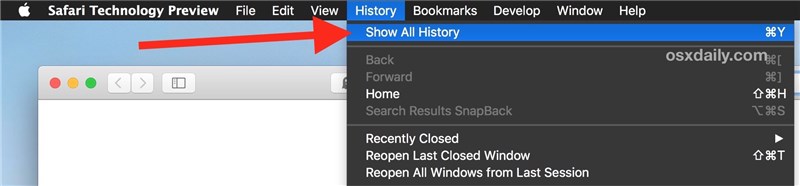
3. Check History: Once you are offline, open Safari and navigate to the History tab (Command + Y on Mac).
4. Preserve the Data: If you can see the logs that are missing from your iPhone, take a screenshot or write down the URL immediately. Do not rely on “Reading List” or Bookmarks yet, as the sync might override them once you reconnect.
5. Reconnect: Do not reconnect to the internet until you have physically saved the data elsewhere. Once the device goes back online, the deletion command will sync, and the history will vanish.
Why This Works (The “Ella” Scenario)
We recently helped a user, Ella, who cleared her Safari history on her iPhone to free up storage space. Seconds later, she realized she lost a specific research link. Because she understood that iCloud sync isn’t always instantaneous, she grabbed her MacBook, disconnected the Wi-Fi, and found the history file on her laptop was still intact. She secured the URL before the sync caught up.
Restore Safari Browsing History Using System Backups
When non-invasive methods fail, you may need to recover Safari history after deletion by restoring a full system backup. This is the most reliable way to retrieve data from a specific point in time, but it comes with significant risks regarding your recent data and security settings.
Method 1: iCloud Backup (iPhone)
To restore history on an iPhone, you must erase the device and restore from an iCloud backup created before the history was deleted.
Critical Security Warning (2FA):
Before you erase your iPhone, ensure you have a secondary trusted device or phone number available to receive Two-Factor Authentication (2FA) codes. If this iPhone is your only trusted device, erasing it could lock you out of your Apple ID during the setup process.
1. Check the Timestamp: Go to Settings > [Your Name] > iCloud > iCloud Backup. Look at the “Last Successful Backup” date and time. It must be from before you deleted the history. If the backup is recent (after deletion), do not proceed—the history is not there.
2. Reset the iPhone: Go to Settings > General > Transfer or Reset iPhone.
3. Erase: Select Erase All Content and Settings.
4. Restore: Follow the setup prompts until you reach the “Apps & Data” screen. Choose Restore from iCloud Backup and select the file with the correct timestamp.
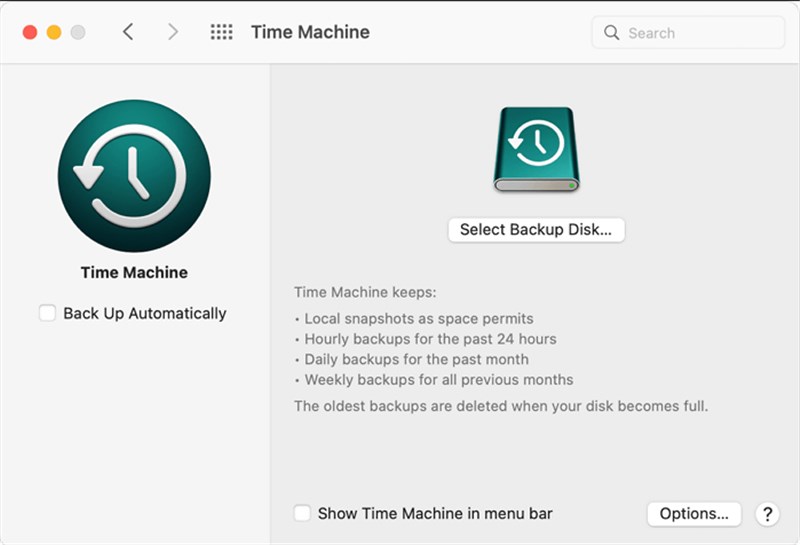
Method 2: Time Machine (Mac)
Mac users can retrieve specific Safari files without wiping the entire system using Time Machine. If you do not have Time Machine set up, skip to the next section; modern macOS does not keep an accessible local cache of history outside of system backups.
1. Close Safari: Ensure the application is completely quit (Command + Q).
2. Open the Folder Path:
- Open Finder.
- Click Go in the top menu bar, then select Go to Folder…
- Type exactly: ~/Library/Safari/ and press Enter.
3. Locate the Database: Find the file named History.db.
4. Enter Time Machine: Open the Time Machine application. Use the timeline on the right to navigate back to a date before the deletion occurred.
5. Restore: Select the History.db file from the past and click Restore.
6. Confirm Replacement: You will be asked if you want to replace the current file. Select Replace. When you reopen Safari, the old history should populate.
What If I Don’t Use Time Machine?
If you have not enabled Time Machine and the “Sync Gap” method failed, the data is unfortunately likely unrecoverable. Modern macOS (Sonoma/Ventura) encrypts and overwrites deleted database files quickly for efficiency. In this case, we recommend checking your Screen Time logs on your Mac (System Settings > Screen Time) as a last resort to identify the lost domains.
Why Safari History Disappeared: Understanding iCloud & Sync
If your Safari history disappeared suddenly without you manually deleting it, the culprit is often iCloud synchronization or a settings configuration. Understanding how these mechanisms work can prevent future data loss.
When Safari is enabled in iCloud settings, your browsing history is a shared database across all devices signed into your Apple ID. If you delete a folder or clear history on your iPad, that command is pushed to your iPhone and Mac almost instantly. This keeps your experience seamless, but it also means deletion is permanent across the ecosystem.
Important Distinction:
- Clearing Cache: Removes temporary files (images, scripts) to free up space. This usually keeps your list of visited sites intact.
- Clearing History: Removes the record of URLs you visited.
To prevent history from syncing (and deleting) across devices in the future, you can go to Settings > [Your Name] > iCloud > Show All and toggle off Safari. However, be aware that this will also stop your bookmarks and Reading List from syncing between your iPhone and Mac.
FAQs: Common Issues When You Restore Safari Browsing History
Q1. Can I retrieve Safari history after deleting it?
Yes, but specific URLs are hard to recover if you wait too long. You can recover data by immediately checking a non-synced device (the “Sync Gap”), viewing Screen Time logs for domain names, or restoring a system backup. Once the deletion syncs and no backup exists, the data is typically overwritten permanently.
Q2. How do I find Safari history on Mac?
To find your current history, open Safari and press Command + Y. If the data is missing, check the ~/Library/Safari/ folder for History.db using Time Machine backup, as detailed in the steps above.
Q3. Does Private Browsing save history?
No. Safari’s Private Browsing mode is designed specifically to discard history, cookies, and cache immediately upon closing the tab. This data cannot be recovered through standard history logs, Screen Time, or backups because it was never written to the device’s storage.
Q4. Why did my Safari history disappear after an update?
Occasionally, major iOS updates can reset iCloud sync settings. Ensure you are signed into your Apple ID and that Safari is toggled “On” in iCloud settings to re-download your history from the cloud.
Conclusion
Losing valuable browsing data is stressful, but recovery is possible if you choose the right method for your timeline. If you just deleted the file, try the Sync Gap method immediately on a secondary device. If that fails, check your Screen Time logs to find the domain names without risking your current data.
If those techniques do not work, you can rely on system backups or data recovery software for Mac, provided you are willing to accept the time cost and have verified the backup date. Take a moment now to check your Screen Time settings; often, the clues you need are already sitting in your device logs, waiting to be found.



Joy Taylor is a seasoned technical writer with over a decade of experience in mobile technology. At iMobie, she specializes in producing in-depth content on iOS data recovery, iPhone unlocking solutions, and iOS troubleshooting.
Product-related questions? Contact Our Support Team to Get Quick Solution >
