How to Recover Deleted iMessages on Mac (2026 Guide)
Accidentally deleted iMessages on your Mac? In many cases, they can still be recovered—especially on newer versions of macOS. This 2025 guide explains verified ways to recover deleted iMessages on Mac, including using the Recently Deleted folder, iCloud sync, Time Machine backups, and safe recovery options when messages are no longer visible.
The sinking feeling of deleting a crucial conversation is immediate and overwhelming. One moment, the thread is there, and the next, vital work specifications, legal details, or photos are gone on a PC. If you are frantically searching for how to recover deleted iMessages on Mac, you are not alone. Whether you need to restore deleted iMessages or recover deleted text messages Mac synced from your iPhone, time is your most valuable asset.
The good news is that macOS offers several layers of protection, though they aren’t always obvious. From the “Recently Deleted” folder to utilizing local database files, recovery is often possible if you act quickly. This guide is the result of hands-on testing on a MacBook Pro running macOS Sonoma and a Mac mini on macOS Catalina to ensure every method works across versions. We will walk you through the exact procedures available to retrieve your data, starting with the simplest solutions and moving toward advanced recovery techniques like database swaps.
Method 1: The “Recently Deleted” Feature (macOS Ventura & Sonoma)
If you are running macOS Ventura, Sonoma, or Sequoia, Apple has integrated a fail-safe that makes learning how to recover deleted iMessages on Mac significantly easier—similar to how users can recover deleted files from Trash on Mac. Much like the Photos app, the Messages app on Mac now includes a “Recently Deleted” folder. This feature holds deleted conversations for a period of 30 to 40 days before permanently scrubbing them from the system.
This is the most reliable method for users who accidentally deleted iMessage conversations on Mac devices running modern software.
Procedure: Checking the Built-in Safety Net
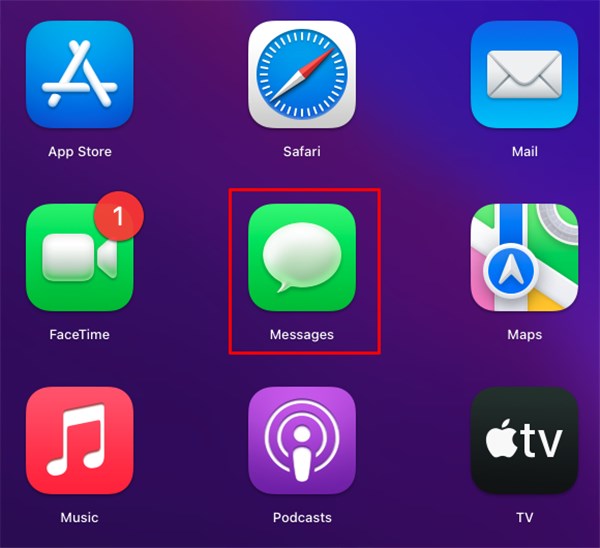
1. Open the App: Launch the Messages app on your Mac.
2. Access the Menu: In the menu bar at the top of your screen, click View.
3. Locate the Folder: Select Recently Deleted from the dropdown menu.
4. Identify the Thread: A sidebar will appear showing all recoverable conversations. It will list the sender and the number of messages in the thread. Select the conversation you want to save.
5. Restore: Click the Recover button to restore it to your main inbox immediately.
If you are on an older version of macOS (like Monterey or Catalina) or if the 30-day window has passed, you will not see this option. In those cases, we must move on to more strategic recovery techniques involving your other Apple devices or system backups.
Method 2: The “Sync Gap” Strategy (Check Other Devices First)
If the deleted message is not in your “Recently Deleted” folder, your next best hope relies on a flaw in the synchronization process. iCloud Messages sync is designed to mirror actions across all devices—meaning a deletion on your Mac sends a “delete command” to your iPhone or iPad. However, sync is not always instantaneous. There is often a “sync gap”—a delay between the deletion command and its execution on other devices.
Reality Check: If your iPhone is sitting next to your Mac, unlocked, and connected to the same high-speed Wi-Fi, this gap may be non-existent. However, if your secondary device is in another room, asleep, or on a poor cellular connection, you may have a brief window of opportunity.
If iMessages disappeared on Mac, this protocol is your best immediate defense against permanent data loss.
Steps to Exploit the iCloud Sync Delay
1. Sever the Connection: Grab your iPhone or iPad and immediately toggle Airplane Mode to ON. Do not hesitate. This cuts the internet connection before the “delete” command can reach the device.

2. Verify the Message: Open the Messages app on that offline device. If the conversation is still there, you have a chance to save it.
3. Capture the Data: While still offline, take screenshots or copy the text to a local note (stored “On My iPhone,” not iCloud). Since you cannot “push” this back to the Mac directly without risking the sync deleting it, capturing the information manually is the safest bet.
This technique relies on speed. Once the device reconnects to iCloud, the server will update the status to “deleted.” This method is often the most effective workaround for users who haven’t enabled Time Machine or who accidentally cleared their recently deleted messages folder.
Decision Guide: Comparing Recovery Options
If the “Recently Deleted” folder was empty and the sync gap trick didn’t work, the remaining solutions require a more technical approach, especially if you’re also trying to recover deleted Word documents. Before proceeding, it is vital to understand the risks. Restoring a database often involves overwriting current data, meaning you could lose new messages received after the backup was created.
Here is a comparison of your remaining options to help you decide if the lost data is worth the effort to restore deleted iMessages MacBook users often require.
| Recovery Method | Success Rate | Data Safety | Best Application |
| Time Machine Restore | High (if backups active) | Low (Overwrites current Messages database Mac) | Recovering entire threads essential for legal or business reasons. |
| iCloud Backup Restore | Moderate | Moderate (Requires erasing iOS device) | Users who do not use “Messages in iCloud” and rely on device backups. |
| Data Recovery Software | Low to Moderate | High (Read-only process) | Users with no backups needing to scan for “ghost” files on the drive. |
If you choose to proceed with a Time Machine restore messages operation, the next section details the precise steps to minimize data loss.
Method 3: Restore Messages from Time Machine (The Deep Dive)
To restore deleted iMessages MacBook users must often interact directly with the macOS file system. Unlike restoring a simple file, restoring messages via Time Machine requires replacing the specific database file (chat.db) that stores your history.
This will replace your current message history with the older version. Any texts received between the backup date and today will be lost unless you export them first.
Technical Procedure: The Database Swap
1. Sign Out and Close: Open the Messages app, go to Settings (or Preferences) > iMessage, and sign out of your Apple ID. Quit the Messages app completely. This ensures the database is not in use during the swap.
2. Locate the Library: In Finder, select Go from the top menu, hold down the Option key, and click Library when it appears. Navigate to the Messages folder.
3. Identify the Database Files: inside the Messages folder, look for files named chat.db, chat.db-wal, and chat.db-shm. These three files work together to store your conversation history.
4. Enter Time Machine: With the Messages folder open, click the Time Machine icon in your menu bar and select Browse Time Machine Backups.
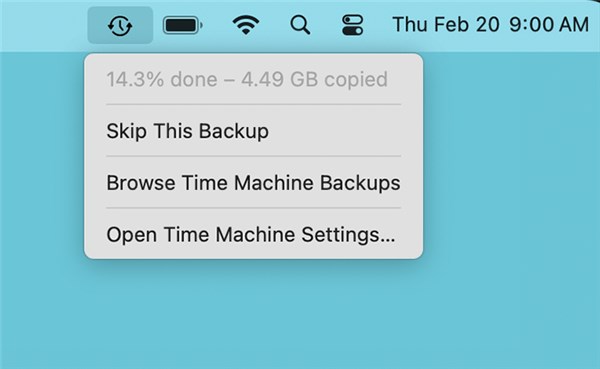
5. Select Your Restore Point: Use the timeline on the right edge of the screen to scroll back to a date before the deletion occurred. Select chat.db, chat.db-wal, and chat.db-shm. Click Restore.
6. Handle the System Warning: This is the most critical step. A Finder dialog box will appear stating that files with these names already exist. It will ask if you want to “Keep Both,” “Stop,” or “Replace.” You must click Replace. This action overwrites the current (empty) database with the old (full) one.
7. Restart and Reload: Once the files are replaced, restart your Mac. Open Messages and sign back in. The system should reload the old database, allowing you to recover deleted conversations mac messages that were previously lost.
Understanding the Problem: Why iMessages Disappear
Understanding why the messages vanished is key to preventing future data loss. A common point of confusion is how iCloud Messages sync actually functions. In older macOS versions, messages were stored locally on each device. Deleting a text on your iPhone didn’t affect your Mac. However, with the modern “Messages in iCloud” feature enabled, your messages are no longer just local files—they are part of a synchronized cloud database.
When you delete a conversation, you aren’t just hiding it; you are sending a command to the server to remove that data key. This command propagates to every device signed in with your Apple ID. This architecture is why many users find that messages disappear after enabling iCloud sync.
The system is designed for efficiency, not redundancy. Unless you have a separate Time Machine backup or a local export, the cloud assumes that if you deleted it, you meant to destroy it everywhere. This distinction is why relying solely on iCloud for macOS message history retention can be risky—it syncs changes, including deletions, instantly.
Alternative: Data Recovery Software (Last Resort)
If you have asked, “Can you recover deleted messages on macbook without a backup?” the answer is complicated. Third-party data recovery tools can scan your Mac’s hard drive for deleted files. However, modern Macs use SSDs (Solid State Drives) with a feature called TRIM. TRIM proactively wipes data blocks soon after deletion to maintain drive speed.
Because of this, the success rate for recovering a specific chat.db file via software is lower than it used to be on older hard drives. If you pursue this route:
1. Stop using the Mac immediately: Any new data written to the drive (even browsing the web) could overwrite the sectors where your message data sits.
2. External Installation: Install the recovery software on an external drive, not the main drive you are trying to rescue.
3. Targeted Scan: Scan specifically for SQLite databases or the Library/Messages folder path.
While this method is less reliable than a Time Machine restore, it is the only option left if you do not have backups and the data is critical enough to warrant the attempt.
Prevention: How to Export and Secure Conversations
The best way to ensure you never have to panic about how to recover deleted iMessages on Mac again is proactive preservation. Since iCloud sync treats deletion as a universal command, keeping a static, offline copy of vital conversations is a smart practice for legal or sentimental records.
Manual Export to PDF
For specific, high-value threads, do not rely on a database file.
- Select the conversation in the Messages app.
- Choose File > Print from the top menu.
- Select Save as PDF.
This creates a permanent, readable document that no cloud sync error can erase.
Enable Time Machine
Ensure an external drive is connected and Time Machine is toggled ON. This creates hourly snapshots of your chat.db file, giving you granular restore points. Although you may search for ways to restore messages from iCloud Mac, a local Time Machine backup is consistently the most reliable method for undoing accidental deletions.
Frequently Asked Questions (FAQ)
Q1. Can I recover deleted iMessages on a Mac without a backup?
Generally, no. If the “Recently Deleted” folder is empty and you have no Time Machine backup, the data is likely overwritten. Data recovery software is a last-ditch option, but its success rate with SSDs (which use TRIM to aggressively wipe deleted data) is low.
Q2.How do I restore iMessages from iCloud on Mac?
You cannot “restore” just messages from iCloud in the traditional sense because iCloud is a sync service, not a backup service for Messages. If you delete a message, iCloud deletes it. The only exception is if you disable iCloud sync, restore a full device backup, and then capture the messages before they re-sync.
Q3.What is the difference between SMS and iMessage recovery?
Recover deleted text messages Mac (green bubbles) works the same way as iMessage (blue bubbles) recovery. Both are stored in the same chat.db database. However, SMS messages are not stored on Apple’s servers in the same encrypted capacity, so carrier recovery is sometimes—though rarely—an option.
Q4.How do I stop Messages from syncing deletions across devices?
You must disable “Messages in iCloud” in your Apple ID settings. However, doing so means your conversations will no longer update across devices, and you will end up with a fragmented history.
Conclusion
Losing digital conversations can feel like losing a part of your memory, but it doesn’t have to be permanent. Whether you were able to retrieve your chats via the “Recently Deleted” folder, catch them during the “Sync Gap” on your iPhone, or perform a full database rollback using Time Machine, options exist to solve the problem—including using Mac data recovery software when backups aren’t available.
If you have successfully used these methods to recover deleted iMessages on Mac, your next step is security. Take five minutes right now to export your most critical threads as PDFs or verify your Time Machine drive is connected. By establishing these safety nets today, you ensure that a simple accidental click never puts your valuable history at risk again.



Joy Taylor is a seasoned technical writer with over a decade of experience in mobile technology. At iMobie, she specializes in producing in-depth content on iOS data recovery, iPhone unlocking solutions, and iOS troubleshooting.
Product-related questions? Contact Our Support Team to Get Quick Solution >
