How to Record Google Hangout
Understand how to record Google Hangout using four simple ways. You can use tools on Mac, Windows, or online. Follow easy steps to save your meetings. To ensure that you get everything that isn’t crucial, this article will assist you in selecting the ideal recording method. We suggest using Screenify to record Google Hangouts as it provides the most efficient screen recording process.

Screenify – Free Screen Recorder for PC/Mac
Free download Screenify to record your screen on Windows or Mac. Supports recording full screen, specific screen, audio, camera, etc. Just record as you like!
Google Hangouts is a platform that facilitates online communication and meetings. It allows you to communicate with friends and family via chat, video calls, and idea sharing. It works well for meetings, but there is a drawback: there is no built-in feature for recording calls. This post will walk you through four simple methods for recording Google Hangouts. Now, let’s explore the details of how to record Google Hangout!
Part 1. Record Google Hangout – Summary
| Method/Software | Best For | Advantages | Limitations |
| Screenify | High-quality, detailed recording | 4K at 60fps, flexible recording options, unlimited time | Requires installation, can be complex for beginners |
| OBS Studio (Mac) | Advanced, professional recording | High-quality recording, customizable settings | Setup can be complex, may need configuration |
| Xbox Game Bar (Windows) | Quick and easy recording | Built-in tool, simple interface, supports annotations | Limited editing features, basic recording options |
| Chrome Extension | Browser-based recording | Easy installation, records directly from browser | Limited to browser-based recordings, may lack advanced features |
Part 2. Solution 1: Recording Google Hangouts with Screenify
With a number of features that make recording easy and high-quality, Screenify is a great option for recording Google Hangouts. It enables you to capture crisp, detailed video in 4K at 60 frames per second. Screenify offers a range of customizable settings to meet your requirements, regardless of whether you want to record the full Google Hangout or only a portion of it.
Thanks to the limitless recording duration, you can record your entire Hangout without missing significant moments. Moreover, you can quickly crop or modify your videos after they’ve been recorded, and you can brand your recordings with unique watermarks. Screenify’s additional marking tools and screenshot capabilities make it a perfect solution for creating polished recordings of your Google Hangouts.
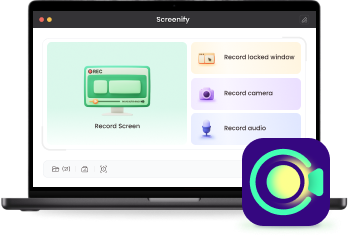
Screenify – Free Screen Recorder for PC/Mac
- Supports full screen and specific screen recording.
- Allows to record the screen with sound and camera.
- Can record 4K, 60FPS videos. Freely set watermark.
- Totally free to record, with no time limit.
Free Download
100% Clean & Safe
Free Download
100% Clean & Safe
Now, let’s explore the simple steps to use Screenify for recording Google Hangouts:
Step 1. Begin the process by downloading and installing Screenify on your device.
Step 2. Launch Screenify and select the “Record Screen” option.
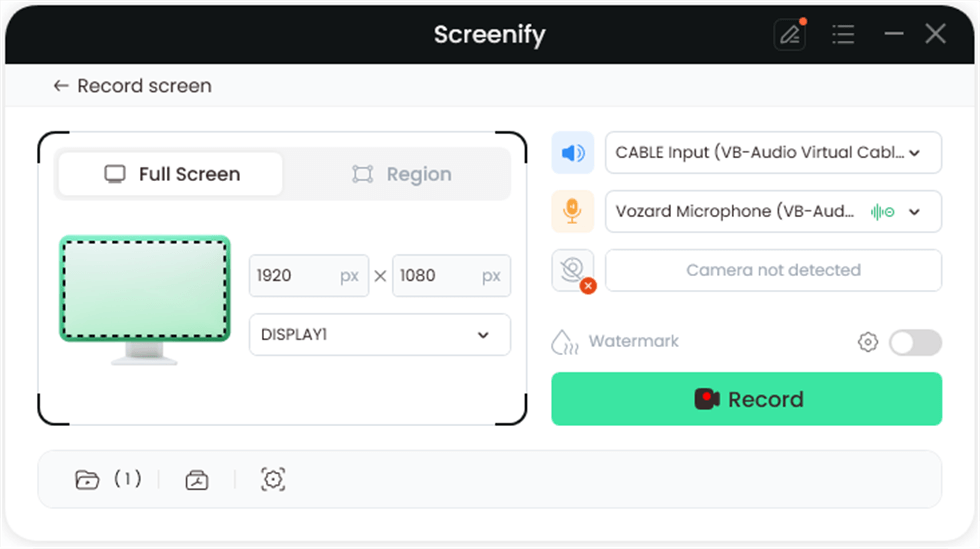
Select Record Screen Mode
Step 3. Customize your recording settings, including audio preferences, before beginning.
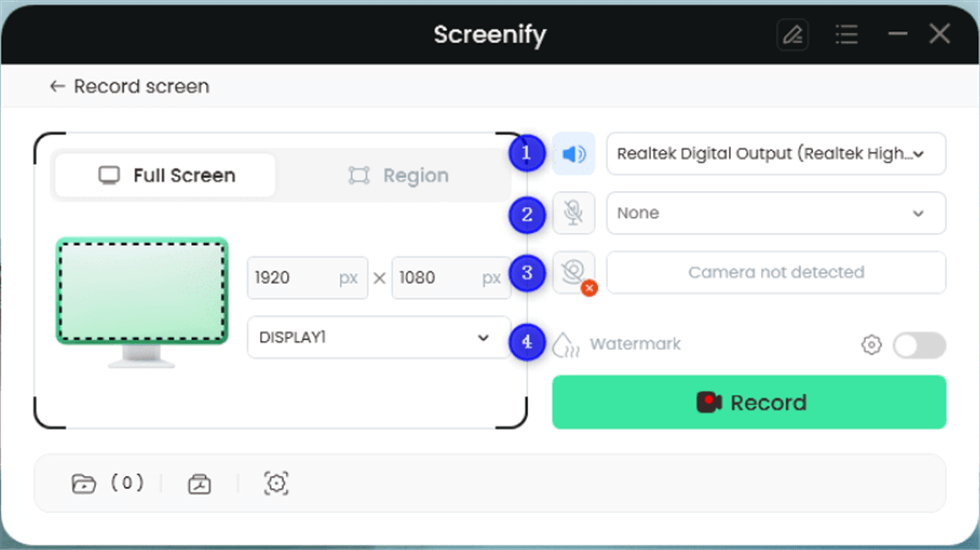
Record Setting
Step 4. Choose the area you want to capture. Select “Full Screen” to record everything or drag to highlight a specific section. You can also adjust the size of social media if needed. Press “Record” to start.
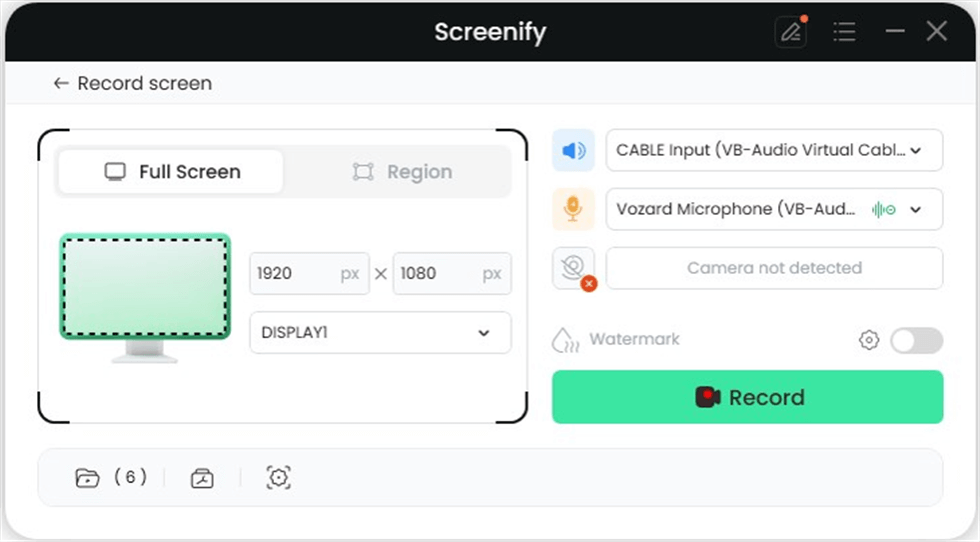
Full Screen
Step 5. A 3-second timer will appear, giving you a moment to get ready.
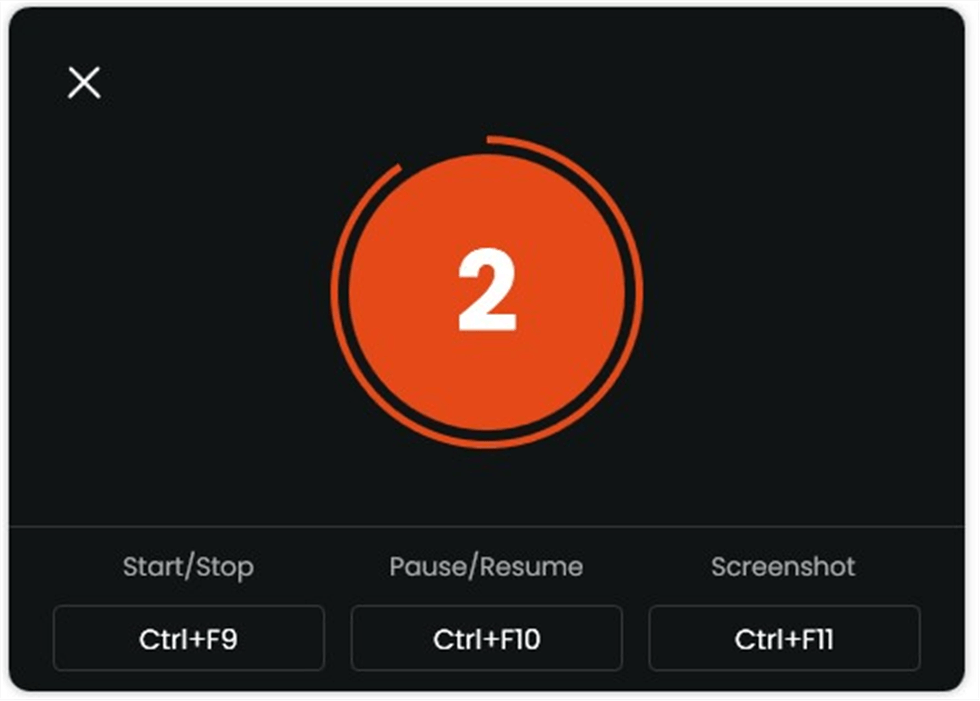
Start recording countdown
Step 6. Once the timer ends, the recording will begin. You can add annotations or notes while the recording is being processed.
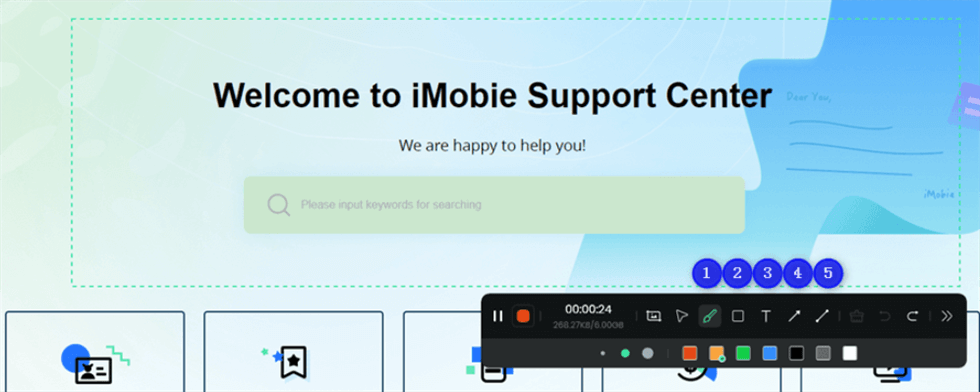
Annotate the Screen
Step 7. Press “Stop” when you’re done. You can then watch, edit, and save your video.
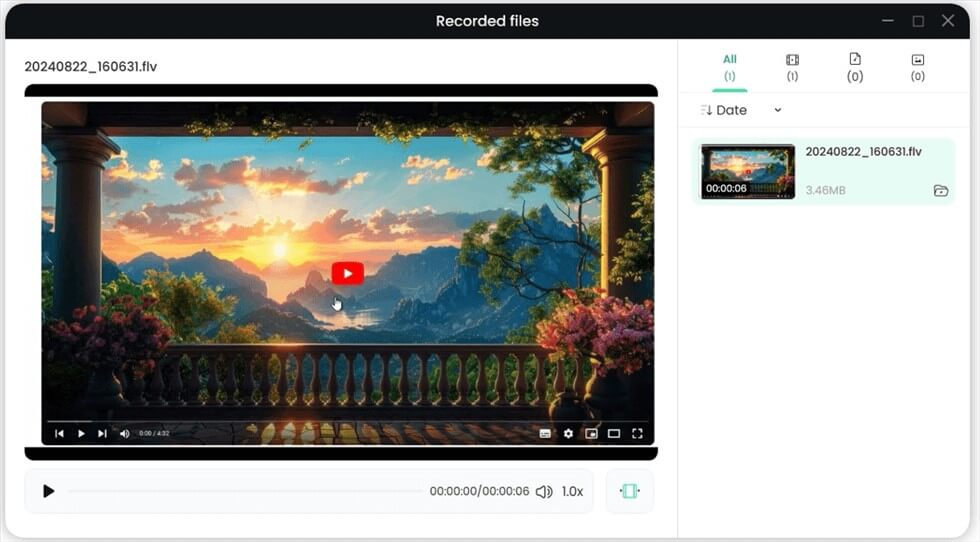
Record Screen Process Completed
Part 3. Solution 2: Recording Google Hangouts with OBS (Mac)
A useful free program for recording Google Hangouts on Macs is OBS Studio. It gives you a variety of recording settings and allows you to take excellent footage. OBS allows you to record from multiple video sources, and you may select which windows to record. In addition, it has capabilities like live streaming and sophisticated options for adjusting your recordings, which makes it an excellent choice for capturing intricate and expert video footage.
Key Features
- Adjust audio and video settings such as audio bitrate, encoder, video resolution, and more for brilliant screen recording quality.
- Audio mixers and pre-set filters improve the audio recording quality.
- OBS has an intuitive interface and multiple advanced-level functionalities.
- Pre-set filters, audio/video mixing, noise reduction, and more features can enhance recording quality.
For this method:
Step 1. Open OBS on your computer and click “Settings” in the bottom right corner.
Step 2. Go to “Recording” under the “Output” tab.
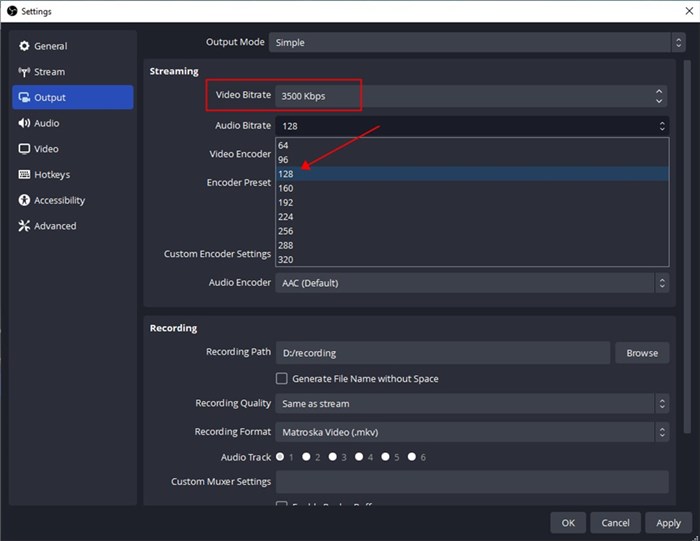
OBS Output Settings
Step 3. Set the “Recording Path” (where you want to save your videos), choose the “Recording Quality” (medium or high), and pick the “Recording Format” (MP4, MOV, etc.).
Step 4. Click the “+” button and select “Window Capture/Display Capture.”
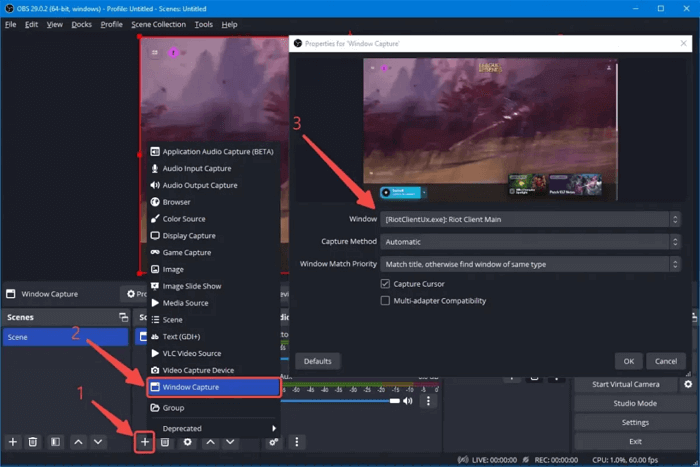
Open Phone Screen Capture on OBS – Window Capture
Step 5. Name the source as “Google Hangouts” or any name you prefer.
Step 6. Choose the browser running Google Hangouts and click “OK.”
Step 7. Click “Start Recording” and minimize OBS to begin recording your Hangout session.
Step 8. When your Hangout ends, click “Stop Recording” to finish.
Part 4. Solution 3: Recording Google Hangouts with Xbox Game Bar (Windows)
One built-in feature for Windows users that facilitates Google Hangouts recording is the Xbox Game Bar. It provides full-screen and window capture and has the ability to record audio. Xbox Game Bar can be utilized for creating and sharing videos without any additional applications. It offers an easy-to-use interface for rapidly starting and stopping recordings.
However, one downside of this method is that it doesn’t allow you to record the clips for more than 4 hours and has limited audio recording functionalities. Additionally, you can only record a single window at a time.
To use this solution:
Step 1. Open the Xbox Game Bar by searching for it or using the shortcut “Win+G.”
Is the game Bar not showing up on the screen? You can enable the Xbox Game Bar by navigating to “Settings > Gaming”. Then click on “Xbox Game Bar” and toggle to turn ON.
Step 2. Once launched, you’ll see the toolbar at the top of the screen. Click on “Settings” to adjust the recording parameters.
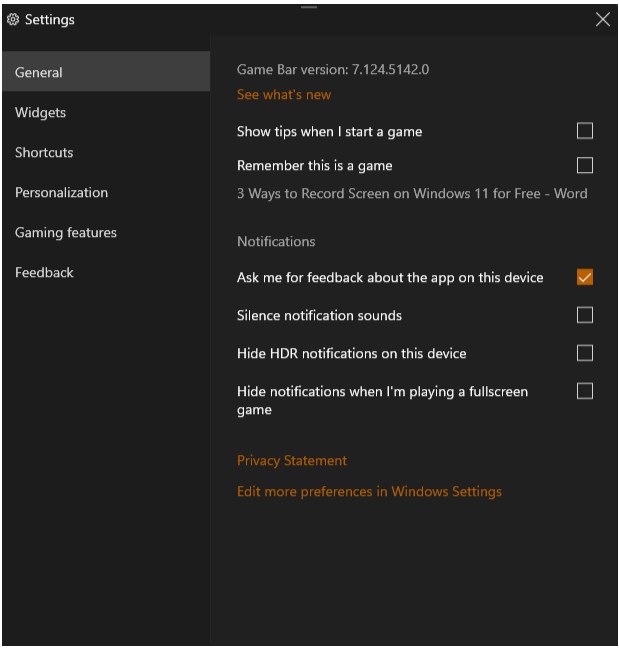
adjust the recording parameters
Step 3. Click on the “Capture” button and then start recording. You can use the shortcut keys, i.e., Windows key + Alt + G, from the keyboard to start the recording process directly. Stop recording by clicking the “square” button or pressing “Win+Alt+R” again. Your video will be saved automatically.
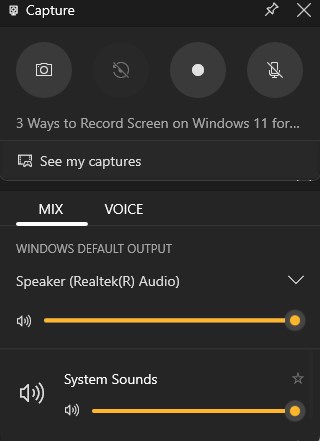
video will be saved automatically
Part 5. Solution 4: Recording Google Hangouts with Google Chrome Extension (Online)
Recording Google Hangouts can be easily done from the browser using a Google Chrome extension. Screen Recorder extension offers an easy way to record the content with a single click. It enables simultaneous recording of your screen and webcam and has features allowing video trimming, titling, and branding. Moreover, some extensions can be chosen to share videos and avoid handling files locally.
Step 1. Click “Get” to add the Screen Recorder extension to Chrome from the Web Store.
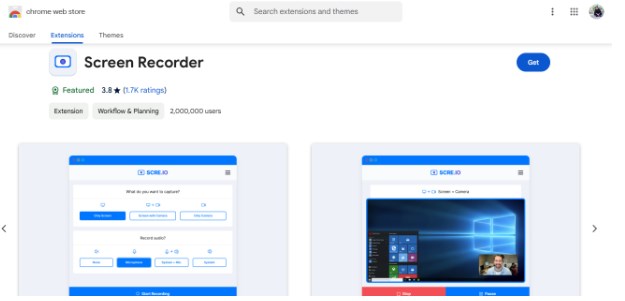
add the Screen Recorder extension to Chrome
Step 2. Set your recording options such as Only Screen or Only Camera and click “Start Recording.” Choose what to record (window or tab) and click “Share.”
Step 3. Monitor the status in the toolbar and click to stop. After stopping, save your recording from the preview window.
Part 6. Record Google Hangout FAQs
1. Can I record a Google Hangout session?
You can record a Google Hangout session using tools like Screenify for high-quality recordings.
2. Can you record a Google Meet up?
Google Meet sessions can be recorded using built-in features or third-party recording tools.
3. Can I record a Google Meet if I am not the host?
No, only the host can record a Google Meet session without permission.
4. How to screen capture Google Hangout?
Use a screen recording tool like Screenify or a browser extension to capture a Google Hangout.
Part 7. Conclusion
Various methods are available, each with advantages, for capturing Google Hangouts. You can use programs like Screenify, Google Chrome extensions, Xbox Game Bar, and OBS Studio. Various features are available for each technique to meet your requirements, whether they are flexibility, simplicity of use, or excellent video quality. We recommend using Screenify for the best experience. It records in 4K at 60 frames per second, lets you record particular spaces or windows, and has simple-to-use tools for editing and adding text to your videos.
Free Download * 100% Clean & Safe



Senior writer of the iMobie team as well as an Apple fan, love to help more users solve various types of iOS & Android-related issues.
Product-related questions? Contact Our Support Team to Get Quick Solution >
