How to Record Streaming Video Free | Updated
This article provides an in-depth guide on how to record streaming video free. We’ll cover 8+ useful methods and their pros, and cons with restrictions for live-streaming content from any platform. It will benefit you in a variety of ways.
Screenify – Record Streaming Video Free
Try Screenify for free to record screen on Windows or Mac. Whether full-screen or partial-screen recording, recording with sound or with camera, Screenify can do it with ease.
100% Clean & Safe
Would you want to record a live video to view later? Or are you a streamer wishing to capture and share your live across many web platforms? Some video-sharing services, such as YouTube and Instagram, provide live streaming. So how do you record streaming video? In various situations understanding how to record streaming video free is important!
Once taken, you won’t have to worry about losing it after the live finishes. You may view it anytime you want and share it to relatives, friends, or coworkers. But how can one record a live stream? Don’t worry about it! This guide will walk you through 8+ simple ways to capture a streaming video.
PART 1: Best 6 Streaming Video Recorders [PC & Mac]
In this section, we will introduce 6 best streaming video recording tools for PC and Mac, helping you easily record and save all the wonderful content. Whether you are a content creator, a student, or just want to save interesting video clips, the following tools can meet your needs.
1. Screenify
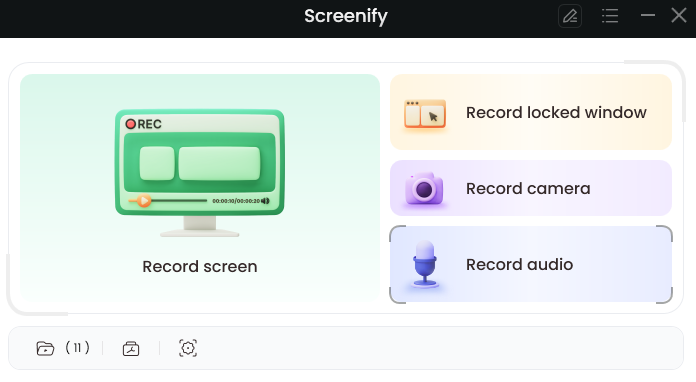
Screenify is a fantastic choice to record streaming video free due to its flexibility. It allows you to simply capture live videos from any internet site, including YouTube, Twitch, and others.
Screenify
It has several recording options, including half-screen, full display, select windows, and more. You may capture super HD films at a high frame rate and without latency! It is completely free. You won’t have to worry about watermarks on your videos. Screenify allows you to edit your video after you’ve captured it for a better result!
Features:
- Screenify is a free freeware. You do not have to pay for any function!
- You can record streaming videos without regard for record restrictions.
- You may record your screen in a variety of ways, such as whole or partial screen, window-specific, camera, and audio.
- Screenify allows you to record live material at up to 4K resolution and 60 FPS.
- You may do simple modifications to your captured movies, such as cutting, denoising, substituting the original video, and so on.
- Screenify works on both Windows and Mac devices.
Free Download * 100% Clean & Safe
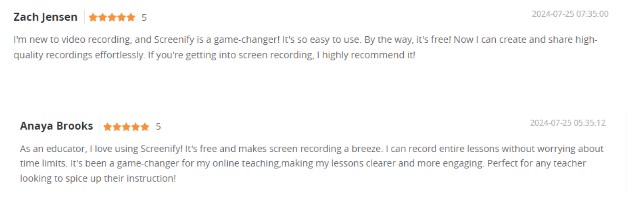
Many individuals on the internet share their reviews regarding Screenify, some of them are as follows:

User review
Some like it for its HD quality, while others like it because it’s free and free of ads and watermarks.
User Reviews – Free
2. Snagit
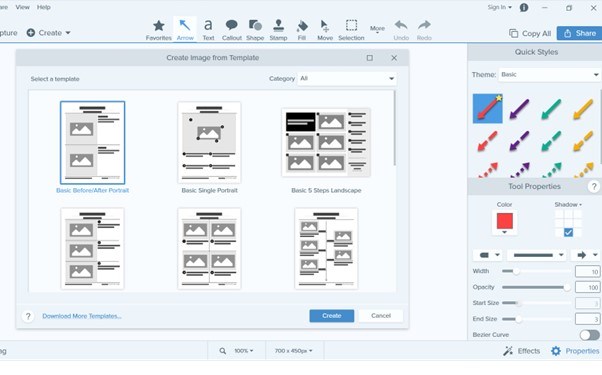
Snagit is a specific screen recording tool for Windows and Mac. It allows you to easily grab streaming videos from websites and apps.
You may capture the entire screen or just a portion of it, including system sounds. It also allows you to add microphone sounds and a camera, which you may turn on and off depending on your needs.
1080p Screen Recorder – Snagit
Pros:
- Enables screen recording at up to 4k quality.
- The UI and editing tools are both user-friendly.
- Easy sharing and exporting possibilities.
Cons:
- It is Expensive compared to other screen recorders.
- Your system may occasionally slow down or crash.
Restrictions:
The software requires a recent Windows or macOS version and sufficient system resources. It does not offer advanced features like professional-level video editing or animation creation.
3. VLC Media Player
VLC is a free multimedia player that supports a wide range of music and video formats. Its screen recording features allow you to record streaming videos in addition to watching them. You may choose the recording resolution and frame rate to ensure high-quality results.
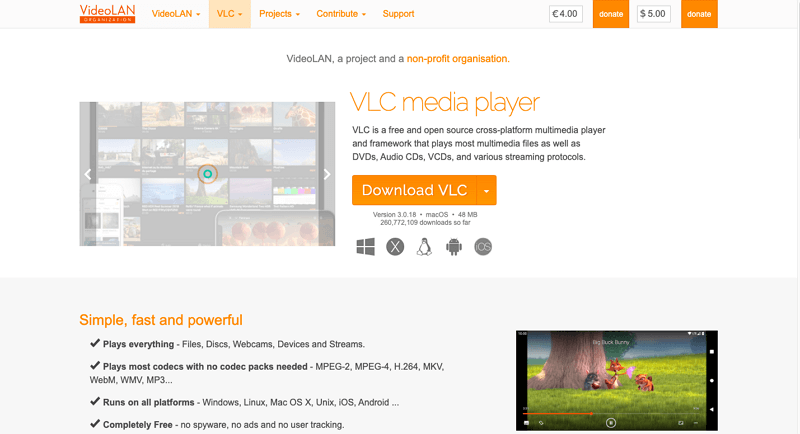
VLC Media Player Official Webpage Interface
Pros:
- Free, open-source, and compatible with all popular platforms.
- Allows you to store and convert recordings to various file formats.
- Allows you to edit it.
Cons:
- Does not support recording custom areas.
- Only provides basic video editing tools.
- The UI is old-fashioned and very complex.
- It may not be as often updated and enhanced as other tools.
Restrictions:
VLC’s DVD and Blu-ray playback capabilities may be inconsistent or require additional configuration.
4. ScreenRec
ScreenRec is a good screen recording program that may record your full screen, a browser window, or a specific area of the screen. The program may also capture audio from your system and microphone. This screen recorder may be used without an internet connection.
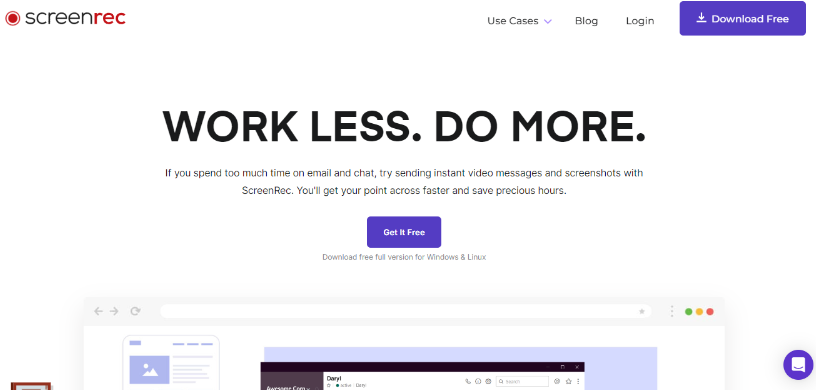
Screenrec Website Interface
Pros:
- A free screen recording tool that works offline.
- Record and save videos with no watermarks.
- Recorder with no lag and private cloud storage.
Cons:
- Does not provide numerous export choices.
- It does not collect audio outside of the browser.
Restrictions:
ScreenRec supports fewer export formats. It cannot capture audio from programs or system sounds outside of the browser.
5. Screencastify
Screencastify is specifically designed for screen recording. You can record a camera-only video, a screen-sharing session, or both. The program allows you to share a recording via a URL or download the video. All recordings are automatically stored in your own video collection on Google Drive.
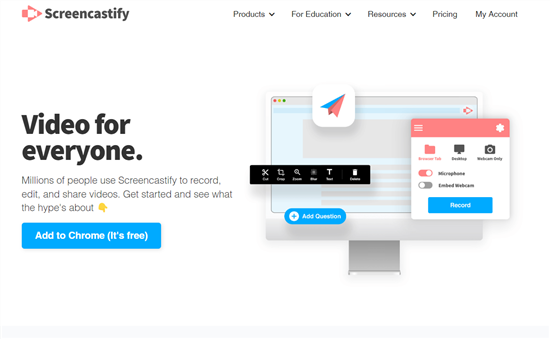
Mac Video Recording Software – Screencatisfy
Pros:
- More features are offered at a lower price point.
- Make a separate Watch Page to distribute videos using a URL.
- Get 10GB of free storage and up to 100GB in premium plans.
Cons:
- The free plan has a recording restriction of 5 minutes.
- Does not allow you to record a custom portion of the screen.
Restrictions:
The free version offers recordings of up to 5 minutes. It does not support recording a specific screen area.
6. ShareX
ShareX is a free, open-source Windows screen capture and recording software that enables users to capture high-quality video from their screen and save it in various formats. It can record video from specific areas of the screen, making it useful for streaming. To record, select the desired area, click “Record” and save the video.
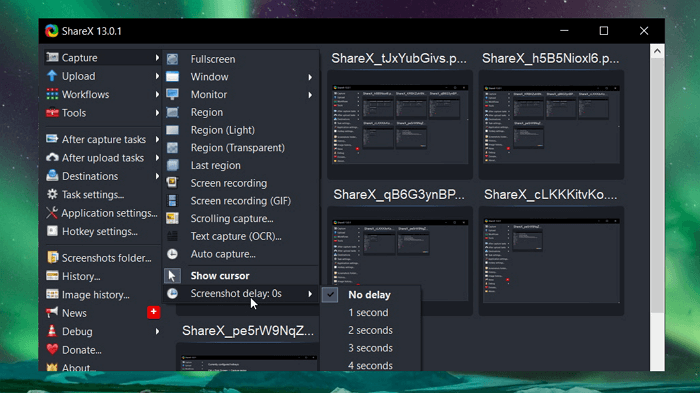
ShareX Interface
Pros:
- Completely free and open-source.
- Allows you to capture streaming videos in high resolution.
- Supports a multitude of file types.
Cons:
- Not as simple to operate as other commercial screen recorders.
- The UI is outdated.
Restrictions:
Does not include built-in cloud storage for videos; you must manually manage and store files.
PART 2: Best 2 Stream Recording App on iPhone & Android
1. Record it!
The application “Record it!” may record any tab on your iPhone. However, be careful that it takes over the full screen, including all icons and backgrounds.
You may record an audio commentary or modify the video before saving it. You may incorporate the response form, size, and location into videos. It’s an excellent method to express your reactions to the stream.

Record it! App Interface
Pros:
- It offers editing tools and facecam reactions.
- The UI is straightforward and simple to use.
Cons:
- Exporting films might be sluggish, which may disrupt your production.
- Features and functionality are restricted in the free version.
- The software may crash while recording external audio.
Restrictions:
The program controls the full screen, including all icons and backgrounds. It allows you to capture only the current tab on your iPhone.
2. Mobizen
Mobizen is an android screen recorder. It supports video editing and facecam display, and the output quality is good. However, there are advertisements within the program that some may find intrusive. There is also a watermark on recordings that, if removed, degrades the video quality.
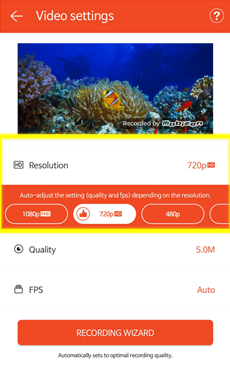
Mobizen Interface for Android
Pros:
- It provides a straightforward interface with all the essential recording features.
Cons:
- Contains advertising that may disrupt your experience.
- It may not always launch properly on the first try, which can be annoying.
Restrictions:
Advertisements may disrupt the recording process. Launch difficulties might arise, resulting in app startup delays.
PART 3: 2 Best Google Chrome Extensions for Screen Recording
1. Loom
Loom is a strong video chat application that can capture both the screen and the camera. It allows you to grab streaming content in a few clicks and share it with friends or colleagues via a link. Your recordings are instantly uploaded to Loom, along with a title and URL.
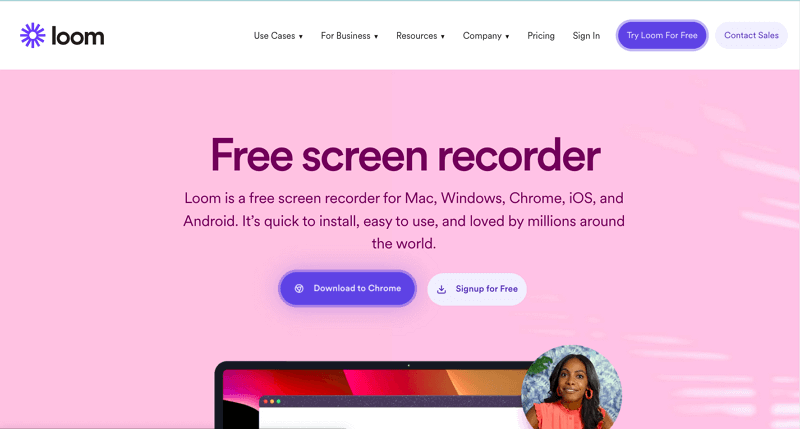
Loom Official Webpage Interface
Pros:
- Integration for teamwork
- A wide variety of sharing choices
Cons:
- There are several limitations in the free version
- No screen or webcam recording
- Several crashes during internal audio recording
Restrictions:
The free version has various limitations regarding recording time and functionality. While internal audio recording is underway, users can crash.
2. Movavi Screen Recorder for Chrome
This browser extension allows you to record the full screen or a specific browser tab. Movavi straightforward UI makes it easy to use. You can record your screen, system noises, video via a camera, and audio from a microphone.
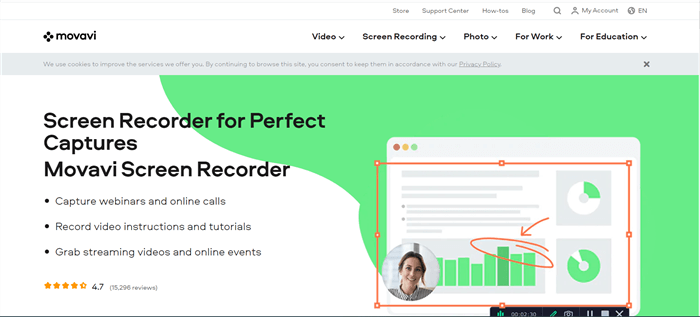
Video Capture Software – Movavi
Pros:
- Users can easily access and utilize features.
- It allows you to capture specified stuff straight from your web browser.
Cons:
- Users cannot make changes or improvements to recordings within the program.
- Restricts users to just taking pictures on preset regions or the full screen.
Restrictions:
You are unable to edit or improve recordings within the extension. Custom selections are not supported for screen selection.
PART 4: Best Free Streaming Recording Software
This concludes our guide on record streaming video free! We’ve included 8 + simple tools as well as step-by-step directions to walk you through the process. Try Screenify for a robust, free solution that does not include watermarks or recording restrictions! So go ahead. Download Screenify and begin recording now and never miss a moment of your favourite broadcasts again!
Free Download * 100% Clean & Safe
PART 5:FAQs About Streaming Recorder Free
1. What is the best live stream recorder?
There are several top live stream recorders available for free. Tools like OBS Studio, VLC Media Player, and Screenify are great options. Screenify is particularly user-friendly and allows you to capture high-quality live streaming.
2. How can I record my screen video for free?
You may record your screen for free using apps like OBS Studio, Xbox Game Bar (Windows), QuickTime (Mac), and Screenify. Screenify provides an easy-to-use interface that allows you to record without a watermark or time limit.
3. Is there an app to record streaming video?
Yes, there are several programs for recording streaming videos, such as VLC media players, ShareX, Snagit, and Screenfity.
4. How do I download a streaming video in Chrome?
To download a streaming video in Chrome, utilize browser extensions such as Loom. After recording, it allows you to record streaming videos free immediately from your browser in high quality.



Senior writer of the iMobie team as well as an Apple fan, love to help more users solve various types of iOS & Android-related issues.
Product-related questions? Contact Our Support Team to Get Quick Solution >
