How to Transfer Music from One iPod to Another Directly
Want to transfer songs from one iPod to another? This guide explains 6 practical ways to move music between iPods, including options for iPod touch and older iPod models, with or without iTunes.
Quick Answer: Can You Transfer Music from iPod to iPod?
Yes. You can transfer music from one iPod to another, but the best method depends on your iPod models and where the music came from. Purchased iTunes Store music can often be redownloaded on a compatible iPod touch, while Apple Music users can use Sync Library on supported devices. If the songs are local files already stored on an iPod, a computer-based transfer or syncing workflow may be required.
The biggest distinction is the iPod model. Methods that rely on apps, Apple Music, or cloud services are intended for compatible iPod touch models. iPod classic, nano, and shuffle rely on computer-based music management.
Which Method Should You Use?
| Your Situation | Recommended Method | Computer Needed? | Main Limitation |
| Selected local songs on one iPod to another | Compatible iPod transfer tool | Yes | Device compatibility should be checked first |
| Music purchased from the iTunes Store | Redownload purchases | No, on a compatible iPod touch | Only applies to eligible purchased music |
| Apple Music library on two iPod touch devices | Sync Library | No | Requires compatible devices and the same Apple Account |
| Audio files you only need to access on another iPod touch | Cloud storage | No | Does not necessarily add songs to the Music library |
| Purchased music shared by a family member | Family Sharing purchases | No, on a compatible iPod touch | Only eligible shared purchases are available |
| iPod classic, nano, or shuffle | Computer-based transfer or sync | Yes | Modern iPod touch-only methods do not apply |
Before You Transfer Music Between iPods
- Identify both iPod models. Methods that use apps, Apple Music, or cloud services apply to compatible iPod touch models, not iPod classic, nano, or shuffle.
- Check where the music came from. iTunes Store purchases, Apple Music subscription songs, and locally imported MP3 or AAC files follow different transfer rules.
- Check the available storage on the target iPod. Make sure there is enough free space for the songs you plan to move.
- Back up irreplaceable music first. This is especially important before changing the sync configuration of an older iPod.
- Confirm that the computer recognizes both devices. If an iPod does not appear, test another cable or USB port before starting the transfer.
Can You Transfer Music from One iPod to Another
Yes, but there is no single transfer method that works the same way for every iPod and every type of music. The first thing to check is whether you have an iPod touch or an older iPod classic, nano, or shuffle.
On a compatible iPod touch, purchased music and an Apple Music library may be available through your Apple Account and Apple’s online services. Older iPods depend much more heavily on a computer and compatible music-management software.
The source of the songs matters as well. Music purchased from the iTunes Store, Apple Music subscription content, and local songs imported from CDs or other sources cannot always be transferred using the same workflow.
If the source iPod contains local music that is no longer available on your computer, back up irreplaceable tracks before changing its sync configuration.
How to Transfer Music from iPod to iPod without iTunes
You can transfer music between iPods without using the traditional iTunes workflow, but the available options depend on the devices and the source of the music. Use the comparison above to choose a method that matches your situation.
Method 1. Transfer Music from iPod to Another without iTunes – AnyTrans
Best for: Selecting local songs already stored on a source iPod and moving supported music to another compatible Apple device from a computer.
If the songs are already stored locally on the source iPod and you want to select specific tracks to move to another compatible iPod, a computer-based device manager can be more practical than rebuilding or syncing an entire music library.
AnyTrans provides a device-management workflow that lets you view supported music on a connected device, select the tracks you need, and transfer them to another compatible Apple device. Before using it with an older iPod, confirm that both devices are recognized by the current software version.
- Preview supported music on the connected source device before selecting songs.
- Choose individual songs instead of syncing an entire music library.
- Transfer supported music between compatible connected Apple devices.
- Manage supported music stored on the connected device from a computer.
Step 1. Install and launch AnyTrans on the computer. Connect the source and target iPods with USB cables. After both devices are recognized, select the source iPod and open the Music category.
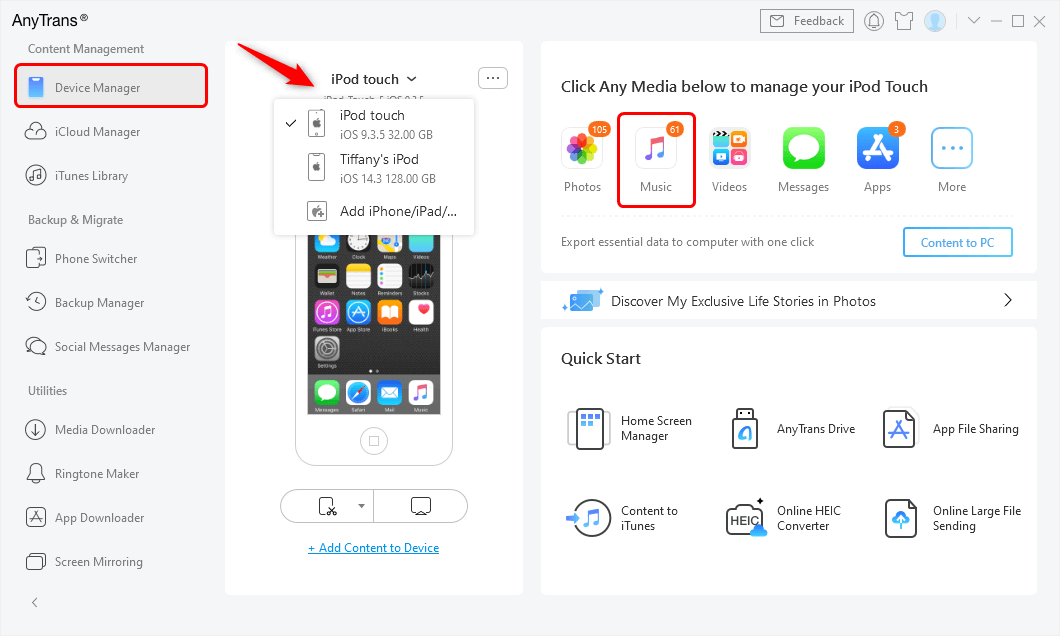
Connect the source and target iPods
Step 2. Preview the available songs, albums, artists, or playlists on the source iPod. Select the music you want to move, click To Device, and choose the target iPod.
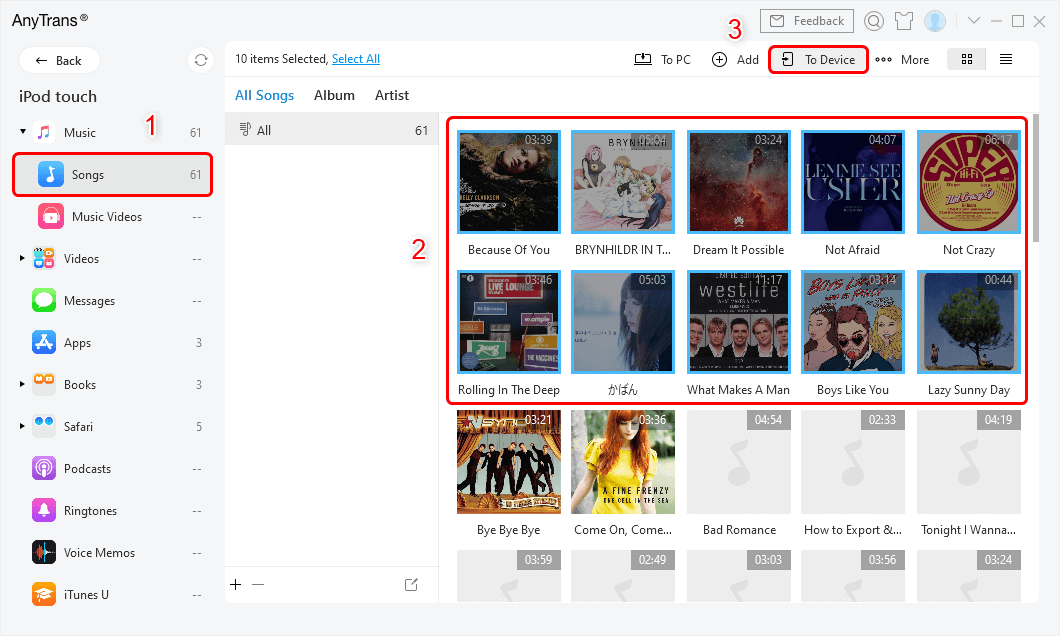
Select music and send it to the target iPod
Step 3. Wait until the transfer finishes. Before disconnecting the devices, check the target iPod and confirm that the selected music appears as expected.
Tip: If one of the iPods is not recognized, reconnect it, try another USB port or cable, and confirm that your current operating system and software version support the device before starting the transfer again.
Method 2. Transfer Purchased Music from iPod to Another via iTunes Store
Best for: Music that you previously purchased from the iTunes Store and want to download again on a compatible iPod touch.
This is not a direct device-to-device copy. Instead, the target device downloads eligible purchases associated with the Apple Account used to buy the music.
On a compatible iPod touch with access to the iTunes Store:
- Sign in with the Apple Account associated with the music purchases.
- Open the iTunes Store.
- Open Purchased and select Music.
- Find music that is not currently on the device.
- Tap the download button beside the songs or albums you want.
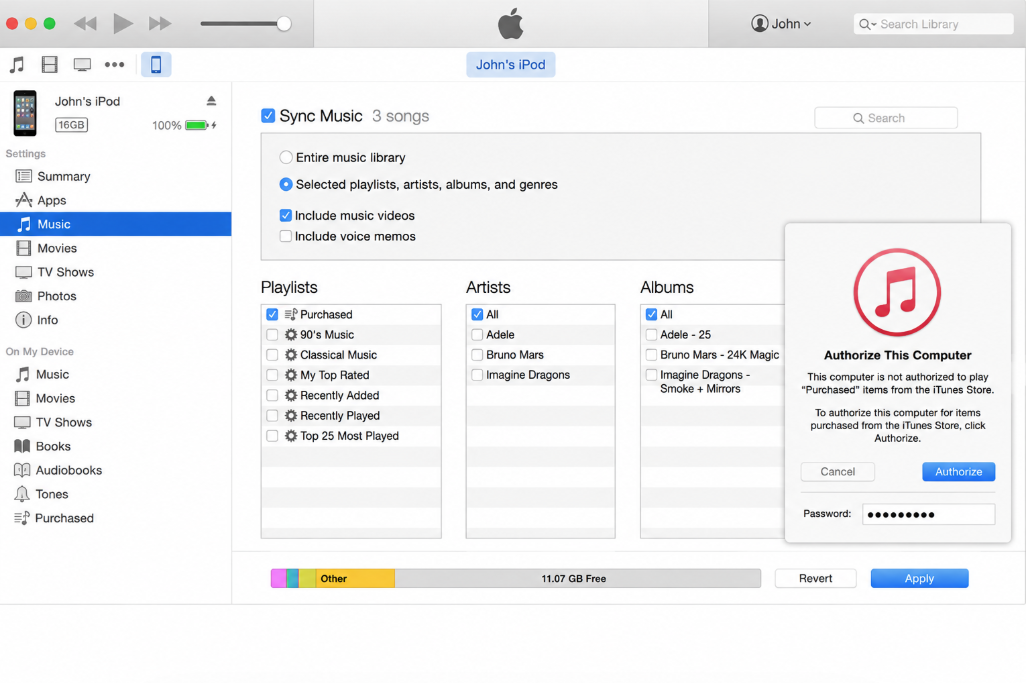
Limitation: This method is for eligible iTunes Store purchases. It does not copy arbitrary MP3 files or other locally imported songs from the old iPod.
Method 3. Transfer Music between iPod Touch Devices via Apple Music
Best for: Compatible iPod touch devices using the same Apple Account with an Apple Music subscription and Sync Library enabled.
If your music is managed through Apple Music, you do not need to manually copy the Apple Music library from one device to another. Sync Library keeps the music library associated with your Apple Account available across supported devices.
- Make sure the compatible iPod touch devices are signed in with the Apple Account used with Apple Music.
- On each supported device, open Settings > Music.
- Turn on Sync Library where the option is available.
- Connect the devices to the internet and allow the library to update.
- Open the Music app on the target device and check the synced library.
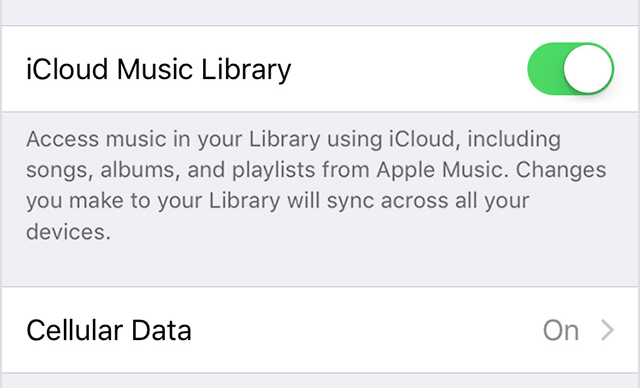
Enable Sync Library on a compatible device
Important: Sync Library is not a general-purpose method for copying every locally stored file directly from one iPod to another. Availability also depends on the iPod touch model, supported software, Apple Account, and Apple Music service access.
Method 4. Access Music on Another iPod Touch via Cloud Services
Best for: Audio files that you want to upload to cloud storage and access from another compatible iPod touch.
A cloud-storage service such as Dropbox can be useful if both devices can run the service’s app. This option does not apply to iPod classic, nano, or shuffle.
Using Dropbox as an example:
- Install or open Dropbox on the source device and sign in.
- Upload the audio files that you want to make available through the cloud.
- Open Dropbox on the target compatible iPod touch and sign in to the same account.
- Open the uploaded audio files to access or play them on the target device.
Note: Cloud storage does not necessarily import an audio file into Apple’s Music library. If your goal is to make the songs appear as part of the normal synced music library, choose a compatible music-management or syncing method instead.
Method 5. Transfer Purchased Music without a Computer via Family Sharing
Best for: Eligible iTunes Store music purchased by another member of your Family Sharing group.
If the music belongs to a family member rather than the Apple Account on the target device, eligible shared purchases may be available through Family Sharing. Instead of copying the song directly from the old iPod, you download the eligible purchase again from Apple’s store.
- Make sure Family Sharing is already configured and the relevant purchase is available for sharing.
- On the compatible target device, open the iTunes Store.
- Open the purchased music section.
- Select the family member whose purchased music you want to view.
- Download the eligible songs you want on the target device.
Limitation: Family Sharing does not transfer locally imported music from one iPod to another. It only helps with eligible purchases that are available through purchase sharing.
Tip: Copy Music from Old iPod to New iPod – iOS to iOS Transfer
If you are moving more than music and your actual goal is a broader supported device-to-device migration, you may also consider a dedicated phone-transfer workflow.
PhoneTrans provides device-to-device transfer features for supported devices. This option is more relevant when you want to migrate multiple supported content types rather than manually selecting only a few songs.
Before using it with an iPod, connect the source and destination devices and confirm that both are recognized by the current software version. If your only goal is to move selected music, use the music-specific method above instead.
How to Transfer Music from iPod to Another With iTunes
Best for: Older iPod workflows where music can first be placed in a computer music library and then synced to the target iPod.
The important distinction is between transferring purchases from an iPod and syncing music from a computer to an iPod. If the source iPod contains eligible iTunes Store purchases, iTunes can transfer those purchases to an authorized computer. You can then sync available music from the computer library to the target iPod.
Step 1. On a Windows PC using iTunes, authorize the computer with the Apple Account associated with the purchased content.
Step 2. Connect the source iPod to the computer.
Step 3. In iTunes, choose File > Devices > Transfer Purchases from [device] to transfer eligible purchased content to the computer.
Step 4. After the transfer finishes, safely disconnect the source iPod and connect the target iPod.
Step 5. Select the music you want to put on the target iPod and use the available device syncing options.
Important: Transfer Purchases does not recover every song stored on an iPod. Music imported from CDs, downloaded elsewhere, or added from another computer may require a different backup or transfer method.
Using Current Apple Apps on Windows
On current Windows systems, Apple also provides the Apple Devices app for device management together with the Apple Music app for the computer’s music library. Apple Devices can sync all music or selected artists, albums, genres, and playlists from the computer to a supported iPhone, iPad, or iPod.
For iPod classic, nano, or shuffle, the exact workflow depends on the device and Windows setup. If you are using an older iPod with iTunes, do not change its existing sync configuration until you have backed up any irreplaceable music.
FAQs about Transferring Music from iPod to iPod
Can I transfer music directly from one iPod to another?
It depends on what you mean by directly. Local music stored on an older iPod usually requires a computer-based workflow. On compatible iPod touch devices, purchased music or an Apple Music library may be made available through Apple’s online services instead of physically copying the files from one device to the other.
Can I transfer music from an old iPod to a new iPod?
Yes, but first identify the old and new iPod models and the source of the songs. An iPod classic or nano does not support the same app- and cloud-based methods as an iPod touch. For local music that exists only on the old iPod, back it up before changing its sync settings.
Can I transfer music from iPod to iPod without a computer?
On compatible iPod touch devices, some music can be made available without a computer through iTunes Store purchases, Apple Music Sync Library, Family Sharing, or cloud services. These methods do not apply in the same way to iPod classic, nano, or shuffle.
Can I transfer music from an iPod Classic to another iPod?
An iPod Classic relies on computer-based music management. If the music exists only on the source iPod Classic, first determine whether the songs are purchases or local files and back up irreplaceable music before attempting to sync another device.
Why is my old iPod not recognized by the computer?
Start by checking the USB cable and port, reconnect the device, and restart the computer if necessary. If it still does not appear, check whether the current operating system and music-management software support the iPod model you are using.
Will transferring music erase the songs already on the target iPod?
That depends on the method. Library-based syncing can change the music stored on a device according to the computer’s selected sync configuration. Before syncing an older iPod with a different computer or library, back up music that cannot be replaced and review the selected sync options.
The Bottom Line
There are several ways to transfer music from one iPod to another, but the correct method depends on the iPod models and the source of the music. Purchased songs can often be redownloaded, an Apple Music library can be synchronized across compatible devices, and cloud storage can provide access to audio files on an iPod touch. Older iPod classic, nano, and shuffle models rely more heavily on computer-based music management.
If the source iPod contains local songs and you want to choose specific tracks rather than rebuild an entire music library, a compatible device-management tool such as AnyTrans provides another transfer workflow. Confirm that both iPods are recognized before starting, especially when working with older hardware.
Most importantly, do not treat all iPod models or all music sources as interchangeable. Identify the devices, check whether the songs are purchases, Apple Music content, or local files, and back up irreplaceable music before changing an existing sync configuration.



Joy Taylor is a seasoned technical writer with over a decade of experience in mobile technology. At iMobie, she specializes in producing in-depth content on iOS data recovery, iPhone unlocking solutions, and iOS troubleshooting.
Product-related questions? Contact Our Support Team to Get Quick Solution >
