An iPhone that stays on the Apple logo after an iOS update can look like a serious failure, but the Apple logo alone does not tell you what has gone wrong.
Sometimes the phone is still completing an update, restore, or data migration. In other cases, iOS is no longer completing startup normally. A phone that repeatedly shows the Apple logo and restarts is slightly different again: that is usually described as a boot loop.
So the first question should not be “Which repair method should I use?” It should be:
Is the iPhone actually stuck, or is it still completing a system operation?
First, Is Your iPhone Actually Stuck?
An Apple logo does not always mean that an iOS update has failed.
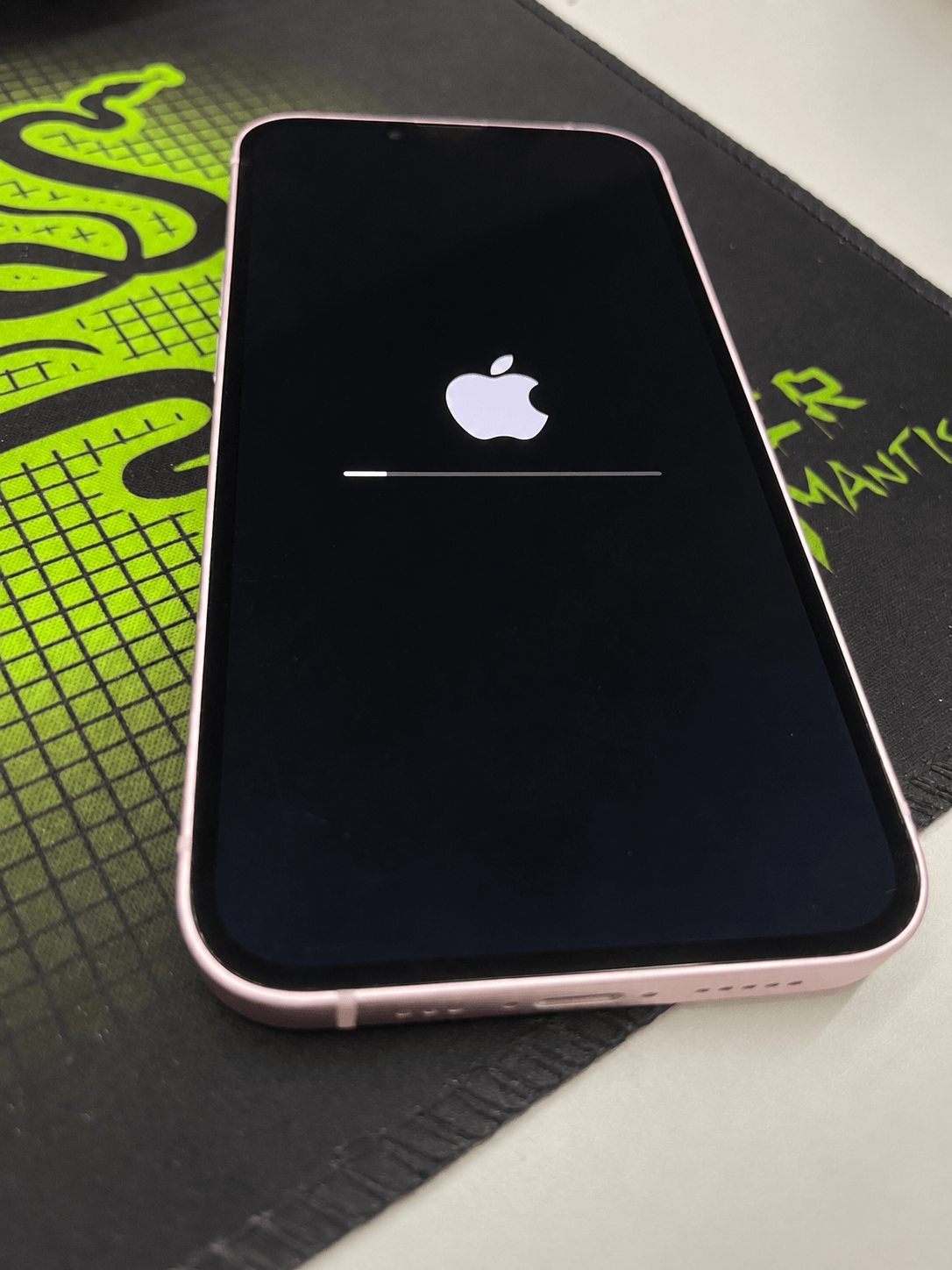
After an update, restore from backup, or device erase, an iPhone may display the Apple logo together with a progress bar. Apple notes that the bar can move slowly, appear temporarily static, reach the end, or even begin again.
| What you see | What it may mean | What to do first |
|---|---|---|
| Apple logo with a progress bar that is still changing | The update, restore, or migration may still be running | Keep the iPhone connected to power when appropriate and allow the process to continue |
| Progress bar appears slow or temporarily static | This can still occur during a normal system operation | Do not interrupt the process only because progress appears slow |
| Apple logo remains on screen with no progress bar and the phone never reaches the Lock Screen | The iPhone may no longer be completing normal startup | Consider a force restart, then further recovery if the problem continues |
| Apple logo repeatedly appears and disappears | The iPhone is repeatedly attempting startup | Treat it as a persistent boot problem rather than a normal update screen |
Apple gives a specific one-hour threshold for one situation: when an iPhone running iOS 13 or later remains on the Apple logo and progress bar during a restore or device migration. If that progress bar has not moved for at least one hour, Apple recommends moving to recovery steps.
That threshold should not be treated as a universal rule for every software update. During a normal update, the more useful question is whether the process still appears to be progressing or responding.
See Apple’s guidance on the Apple logo and progress bar after an update or restore.
The Apple logo by itself is not enough to decide whether an iPhone needs repair.
What Does Being Stuck on the Apple Logo Actually Mean?
When an iPhone starts, it does not move directly from “off” to the Lock Screen. Several startup components must run before iOS becomes available to the user.
Apple’s platform-security documentation describes a secure boot process in which startup components are verified in sequence. The boot process progresses through components such as Boot ROM and iBoot before the iOS kernel is allowed to run.
This helps explain an important point: an iPhone can power on far enough to display the Apple logo without successfully completing the entire startup process.
However, the screen cannot tell you exactly where or why startup failed.
A frozen Apple logo tells you that normal startup has not completed. It does not identify a single root cause.
If the symptom began immediately after an iOS update, the update and subsequent restart are relevant. But the screen alone cannot prove that a particular system file, storage condition, or hardware component is responsible.
For the technical background, Apple documents the iPhone and iPad boot process.
Frozen Apple Logo vs. iPhone Boot Loop
“Stuck on the Apple logo” and “boot loop” are often used together, but they describe slightly different device behavior.
| Symptom | What you see | What it tells you |
|---|---|---|
| Frozen Apple logo | The Apple logo remains on screen and the iPhone does not reach the Lock Screen | Startup has stopped before normal iOS becomes available |
| Boot loop | The Apple logo appears, the device restarts or the display goes dark, and the logo appears again | The iPhone is repeatedly attempting startup without reaching normal iOS |
The distinction can help describe the symptom more accurately, but neither one identifies the cause by itself.
If the problem persists, the more useful next question is not which symptom sounds more serious. It is which recovery action has the lowest appropriate data risk.
Choose the Next Step by Data Risk, Not by “Repair Strength”
When an iPhone contains photos, messages, or other information that may not be backed up, the order of recovery attempts matters.
A reasonable escalation path is:
Restart → Recovery Mode Update or appropriate system repair → Restore → Hardware service
This is not a ranking from “weak” to “strong.” Each operation changes the device differently, and some actions can erase data while others are intended to avoid a full erase.
| Action | Expected data impact | When it makes sense |
|---|---|---|
| Force restart | Does not intentionally erase user data | The iPhone is unresponsive or clearly no longer progressing |
| Recovery Mode + Update | Attempts to update or reinstall iOS before choosing a full Restore | The iPhone cannot complete normal startup |
| System repair software | Depends on the repair mode used | A software startup problem persists and the repair mode clearly states its data impact |
| Restore | Erases the iPhone | Lower-data-risk recovery attempts have failed and you accept the data consequence |
| Hardware service | Depends on the repair required | Software recovery repeatedly fails or physical damage is suspected |
The important distinction is not whether an option sounds more powerful. It is what that operation will do to the system and to your data.
Try a Force Restart Before Moving to Deeper Repair
If the iPhone is clearly no longer progressing, a force restart is a reasonable first recovery attempt because it does not intentionally erase user data.
For iPhone 8 or later:
- Press and quickly release the Volume Up button.
- Press and quickly release the Volume Down button.
- Press and hold the Side button.
- Release the Side button when the Apple logo appears.
Apple provides the current instructions for different models in its Force restart iPhone guide.
If the iPhone reaches the Lock Screen after restarting, there is no reason to move immediately to a deeper repair.
If it returns to the same frozen logo or begins repeatedly cycling through the Apple logo, repeating the same force-restart sequence over and over is unlikely to change a persistent startup problem.
Recovery Mode: Try Update Before Restore
If the iPhone still cannot complete startup, Recovery Mode allows a Mac or PC to work with the device even though normal iOS startup has not completed.
This is where the distinction between Update and Restore becomes especially important.
| Recovery option | What it does | Data consequence |
|---|---|---|
| Update | Attempts to update or reinstall iOS before a full restore | Used before choosing the erase-and-restore path when possible |
| Restore | Reinstalls iOS and returns the iPhone to a fresh setup state | Erases the device |
Apple recommends trying Update first if you have not already tried it. Restore reinstalls iOS and erases the data currently stored on the iPhone.
See Apple’s Recovery Mode guidance.
This is also why entering Recovery Mode should not itself be described as “erasing an iPhone.” Recovery Mode is a device state. If you want to understand how that state differs from DFU, see our guide to Recovery Mode vs. DFU Mode. The data consequence depends on the action you choose afterward.
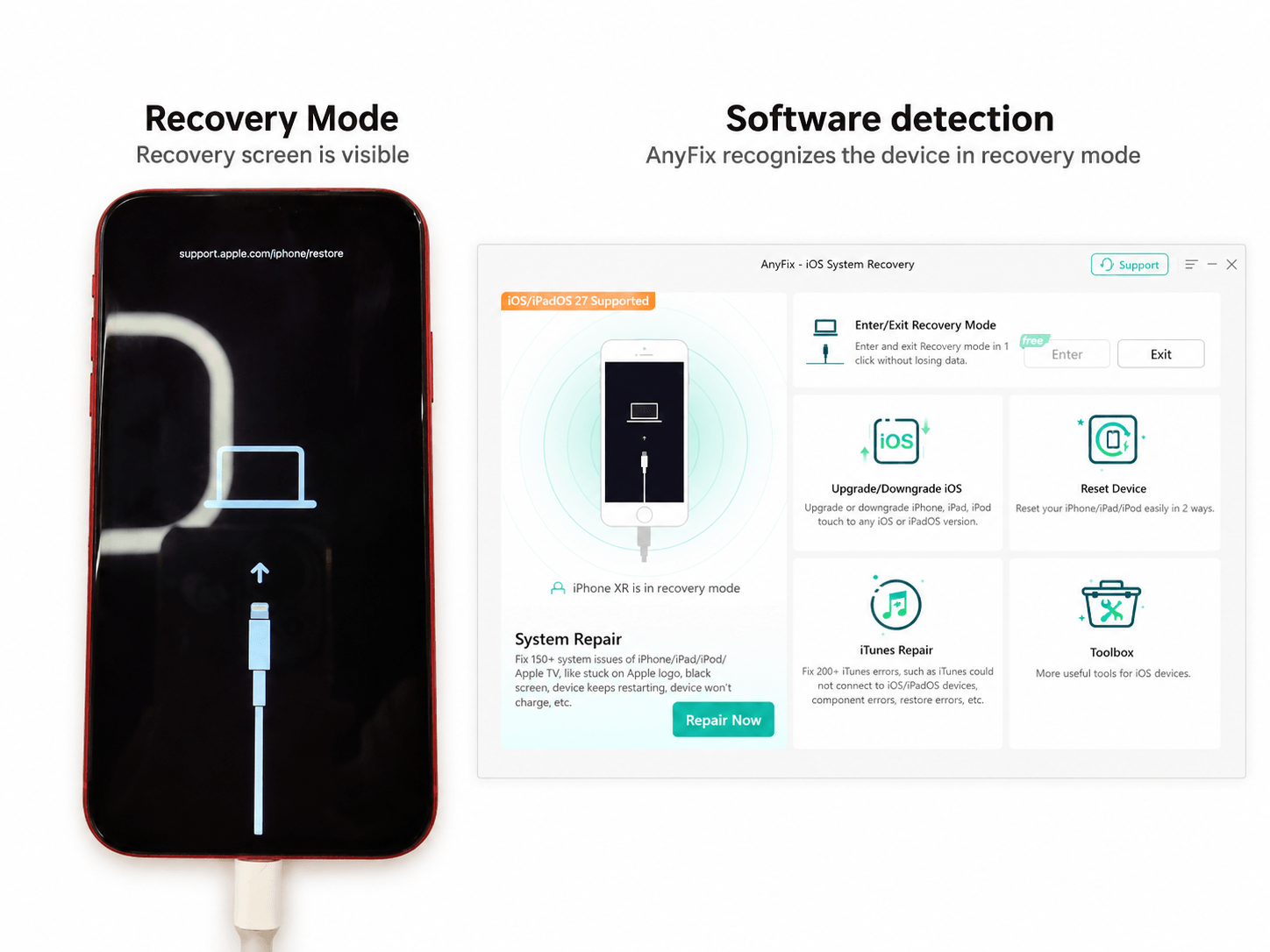
Where AnyFix Fits — and Where It Does Not
We develop AnyFix at iMobie, and persistent iOS startup problems are directly related to its System Repair function.
That does not mean every iPhone showing an Apple logo should immediately be repaired with software. A system-repair tool becomes relevant after you have established that the device is no longer simply completing an update and that normal startup continues to fail.
AnyFix currently separates System Repair into three modes with different data consequences:
| AnyFix repair mode | Data impact | How to interpret it |
|---|---|---|
| Standard Repair | Designed to preserve device data | For supported common system problems where a data-preserving repair is appropriate |
| Advanced Repair | Erases device data | For more persistent system problems; AnyFix currently lists stuck-on-Apple-logo problems among the scenarios for this mode |
| Ultimate Repair | Erases device data | For more severe system failures when a deeper repair path is required |
This distinction matters because a persistent Apple-logo problem should not automatically be marketed as a “no data loss” repair.
If the problem can be addressed with Standard Repair, it provides a data-preserving repair path. But AnyFix currently lists persistent stuck-on-Apple-logo problems under Advanced Repair, which erases device data.
What We Saw in Recent AnyFix Compatibility Validation
System repair also depends on the specific device, iOS version, desktop environment, firmware package, and software build involved. Our recent compatibility testing for the iPhone 18 series and iOS 27 provided a useful example.
| Validation scenario | Environment | What we observed | Follow-up |
|---|---|---|---|
| iPhone 18 Pro system-repair validation | Windows | Initial testing identified a device-name recognition issue and a firmware-repair failure during System Repair | The issues were corrected during compatibility validation, and the updated build was released |
| iPhone 18-series compatibility validation | macOS | Core validation was completed, with no AnyFix-specific issue recorded in this test report | The tested configuration completed compatibility validation without a recorded AnyFix-specific defect |
| iOS 27 system-repair validation | Windows | Initial testing identified a firmware-flashing failure during System Repair on tested iOS 27 devices | The issue was addressed during compatibility validation, and the updated build was released |
| iOS 27 compatibility validation | macOS | Core validation was completed, with no AnyFix-specific issue recorded in this test report | No separate AnyFix compatibility fix was required according to this test record |
These results are useful because they show why “the repair workflow started” and “the firmware repair completed” should not be treated as the same event. New devices and new iOS releases can expose compatibility problems at later stages of a system-repair workflow.
They also show the role of compatibility testing: identify a problem on a specific device, operating system, or desktop environment, correct it, and validate the updated build before treating that configuration as supported.
These were compatibility and regression tests, not Apple-logo repair-success benchmarks. The results reflect the devices, operating-system versions, desktop environments, AnyFix builds, and procedures tested at the time.
AnyFix also cannot repair damaged physical components. If the problem is caused by liquid damage, a failed battery, damaged storage hardware, or another physical fault, repeatedly reinstalling software is not a substitute for hardware diagnosis.
When Does Restore Become Reasonable?
A Restore becomes more reasonable when lower-data-risk recovery paths have already failed and you are prepared for the iPhone to be erased.
Typical conditions include:
- the iPhone cannot complete normal startup;
- a correct force restart does not change the symptom;
- Recovery Mode Update cannot complete or does not solve the problem;
- an appropriate non-erasing system-repair option is unavailable or unsuccessful; and
- you understand that Restore will erase the device and return it to setup.
If a usable iCloud or computer backup exists, supported data may later be restored from that backup.
That is different from preserving the data already stored on the iPhone during the repair process.
Repairing the operating system and recovering user data are two separate questions.
When Should You Stop Trying Software Fixes?
Not every iPhone that stops at the Apple logo has a software-only problem.
If Recovery Mode Update or Restore repeatedly cannot complete, or the iPhone remains unable to start normally after an apparently successful software restore, hardware diagnosis becomes more important.
The same is true when the startup problem follows a physical event such as a drop or liquid exposure.
Software repair also depends on the computer being able to communicate reliably with the device. If Recovery Mode cannot be used because of a damaged button, connection problem, or another physical failure, service may be necessary before software recovery can proceed.
The key is not to diagnose hardware simply because an Apple logo is visible. Instead, hardware becomes more plausible when appropriate software recovery repeatedly fails or when there is independent evidence of physical damage.
What Not to Assume When an iPhone Is Stuck on the Apple Logo
- Do not assume your data is already gone. A phone that cannot complete startup is not the same as a phone that has been erased.
- Do not assume every Apple logo means corrupted iOS. The screen tells you that startup did not complete, not the exact reason.
- Do not assume a boot loop requires an immediate Restore. Lower-data-risk recovery options normally deserve consideration first.
- Do not assume Recovery Mode itself erases the iPhone. Update and Restore are different actions performed after entering Recovery Mode.
- Do not assume Standard Repair can preserve data in every Apple-logo case. The repair mode required depends on the device state, and deeper AnyFix modes erase data.
- Do not assume DFU Mode is simply a stronger version of Recovery Mode. It is a different device state, and the data outcome depends on the action performed afterward.
- Do not keep repeating the same software repair indefinitely. Persistent failure after appropriate recovery attempts is a reason to consider hardware diagnosis or service.
An iPhone stuck on the Apple logo after an update is best treated as a startup-state problem first and a repair-method problem second. Determine whether the phone is actually stuck, choose the next action according to its data impact, and escalate only when the lower-risk option is no longer appropriate.


 AnyFix