If your iPhone update failed, the right fix depends on where the process stopped. Your iPhone might be unable to find an update, download it, verify it, or finish installing iOS. If you are trying to install iOS 27, first confirm that your iPhone model supports it; then identify the stage where the update failed.
Start with the least disruptive checks before considering a restore. Check compatibility, the network, and available storage, and note the exact message on screen. If wireless updating keeps failing, try updating through a Mac or Windows PC before considering another installation method.
Why Did My iPhone Update Fail?
An iOS update may fail for several reasons:
- Device compatibility: Your iPhone may not support the iOS version you are trying to install.
- Network connection: Your iPhone may be unable to reach Apple's update servers reliably.
- Insufficient storage: The device may not have enough available space for the download or installation.
- Update file problems: A downloaded update may need to be removed and downloaded again.
- Installation interruption: The process may stop progressing or return an error during installation.
- Computer connection or software errors: A USB connection, computer software, or network issue can interrupt an update performed through a computer.
The most useful first step is to match the error message to the stage where the update failed.
Identify Where the iPhone Update Failed
| What You See | What to Check First |
|---|---|
| No update appears in Settings | Check device compatibility, update availability, and the network connection. |
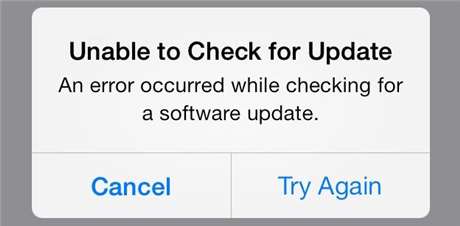
| Unable to Check for Update | Check the internet connection and Apple service status; try another reliable network. |
| Unable to Download Update | Check Wi-Fi and available storage, then retry the download. |
| Unable to Verify Update | Try another network and, if the error persists, remove and download the update again. This specific error may need more targeted troubleshooting. |
| Preparing Update or installing appears slow | Connect the iPhone to power and allow the process to finish. Do not interrupt an installation just because it is slow. |
| An error code appears on a computer | Record the exact code and follow the matching Apple update or restore instructions. |
1. Check Whether Your iPhone Supports the Update
Not every iPhone supports every iOS release. If your device is not compatible with the version you are trying to install, changing Wi-Fi networks or downloading the same update again will not solve the problem.
Which iPhones Support iOS 27?
Apple's current compatibility list includes the iPhone 11 family and newer supported models, as well as iPhone SE (2nd generation and later). The listed models span the iPhone 11, 12, 13, 14, 15, 16, and 17 families; iPhone Air; iPhone 18 Pro and iPhone 18 Pro Max; and iPhone SE (2nd and 3rd generations). Support is model-specific, so check the exact model rather than relying only on the phone's age.
- Open Settings on your iPhone.
- Tap General > About and check the model name.
- Open Settings > General > Software Update to see which iOS version is offered to your device.
- If iOS 27 does not appear, check whether another update is offered first and install it if prompted. Then return to Software Update and check again.
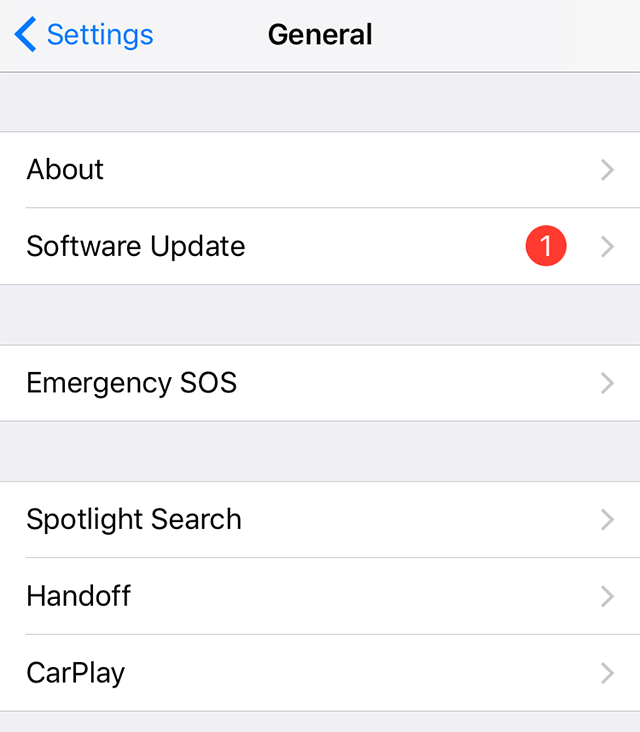
If your iPhone is not on the compatibility list, a computer or third-party tool cannot make an unsupported model install iOS 27. If your model is supported but the update still does not appear, continue with the network and storage checks below, then try a computer-based update if needed.
2. Check Wi-Fi and Apple's Update Services
A network problem can prevent your iPhone from checking for, downloading, or verifying an update. A website opening successfully does not always mean that every connection needed for a software update is working correctly.
- Open Settings > Wi-Fi and confirm that your iPhone is connected to a working Wi-Fi network.
- Go to Settings > General > Software Update and retry the update once on that network.
- If you see a connection, download, or verification alert again, connect to a different reliable Wi-Fi network and retry. Avoid changing several network settings at once; switching networks is a simpler way to test whether the original connection is involved.
- Pause other large downloads while the update is downloading. Download time depends on both the update size and your connection speed.
- If Apple's update service appears to be temporarily unavailable, wait a while and try again.
If the same alert returns on more than one network, stop repeating the network test and move to Step 5 to download the update again or Step 6 to update through a computer.
3. Check Available Storage and Connect to Power
An iOS update needs enough available storage to download and install its files. The amount required varies by update, so there is no single free-space figure that applies to every iPhone.
- Open Settings > General > iPhone Storage and wait for the storage breakdown to load.
- If the Offload Unused Apps recommendation appears, tap Enable next to it. Offloading can free space while keeping an app's documents and data so the app can be reinstalled later.
- If you still need space, review large apps and downloaded media. Delete only items you can safely remove or recover; do not delete important photos, documents, or app data without checking your backup.
- Connect your iPhone to a power source before starting the update again.
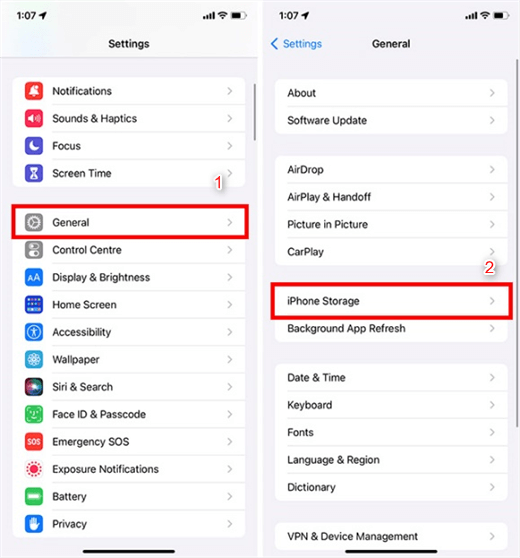
Once installation starts, keep the iPhone connected to power and allow the progress bar to finish. It can move slowly depending on the update size and the files on the device.
4. Restart Your iPhone and Retry the Update
Restart only if the update has failed and the iPhone has returned to its normal lock screen or Home Screen. Do not interrupt an installation that is still showing a progress bar.
- iPhone X or later: Press and hold either volume button and the side button until the power-off slider appears.
- iPhone 6, 7, 8, or iPhone SE (2nd or 3rd generation): Press and hold the side button until the power-off slider appears.
- iPhone SE (1st generation), iPhone 5, or earlier: Press and hold the top button until the power-off slider appears.
- Drag the slider and wait 30 seconds for the iPhone to turn off.
- Press and hold the side or top button, depending on your model, until the Apple logo appears.
- Reconnect to reliable Wi-Fi and power.
- Open Settings > General > Software Update and try again.
A restart can clear a temporary software state, but it will not resolve compatibility, storage, or server issues. If the phone is frozen or shows an Apple logo without returning to the Lock Screen, follow guidance for that specific symptom instead.
5. Delete the Downloaded Update and Download It Again
If the update still will not install or the same connection or verification alert returns after testing more than one network, try downloading the update again.
- Open Settings > General > iPhone Storage.
- Wait for the list to load, then look for the iOS update entry. It may be named with the iOS version.
- Tap that update entry and select Delete Update. Confirm if prompted.
- Return to Settings > General > Software Update.
- Wait for the available update to appear, then tap Download and Install (or the equivalent option shown on your iPhone) and follow the onscreen prompts.
This removes the downloaded update package, not your photos, apps, or other iPhone content. If the update entry is not listed, or the same issue returns after a fresh download, stop repeating this step and try a computer-based update.
6. Update Your iPhone Using a Mac or Windows PC
If the iPhone repeatedly fails to update wirelessly, a computer gives you another way to install iOS. Back up your iPhone first if possible. Before connecting, update the computer and use a cable that can transfer data, not just charge the device.
On a Mac
- Connect the iPhone directly to the Mac using a USB cable.
- Unlock the iPhone. If a Trust This Computer? prompt appears, tap Trust and enter the passcode if asked.
- On macOS Catalina or later, open Finder. Select the iPhone under Locations in the sidebar. On an older Mac that uses iTunes for device management, open iTunes and select the iPhone.
- In Finder, open the device's General tab and click Check for Update. In iTunes, open Summary and select Check for Update.
- If an update is available, choose Download and Update or Update, then follow the onscreen instructions. Keep the iPhone connected until the computer says the process is complete.
On a Windows PC
- Install available Windows updates. Open the Apple Devices app if you use it to manage your iPhone; otherwise, update and open iTunes.
- Connect the iPhone directly to a USB port on the computer. Do not connect it through a keyboard or USB hub.
- Unlock the iPhone and tap Trust if prompted.
- In Apple Devices, select the iPhone, open General, and choose Update if available. In iTunes, select the device, open Summary, and click Check for Update.
- Follow the onscreen instructions and leave the iPhone connected while the update installs.
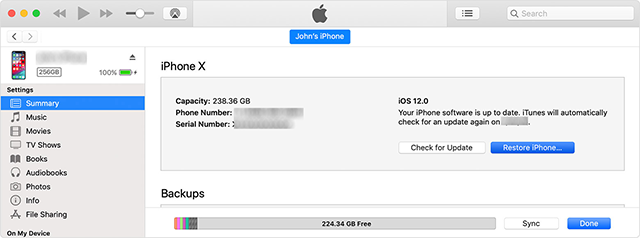
If the computer cannot detect the iPhone or shows an error, do not immediately choose Restore. First use the error-code checks in the next section. Update is the option intended to reinstall iOS without intentionally erasing personal data; Restore erases the device.
7. Check the Exact Error if the Update Still Fails
If a Mac or PC displays an error while updating or restoring the iPhone, write down the exact error number and message before trying another step. Different codes can indicate different problems, so choose the next step based on the specific code instead of repeating every general fix.
| Error Code or Message | What It May Indicate | What to Try First |
|---|---|---|
| 17, 1638, 3000–3020, 3100–3999, or “device isn't eligible for the requested build” | The computer may be unable to communicate with Apple's software update servers, or the requested build may not be eligible for the device. | Update macOS, Apple Devices, or iTunes; check the computer's internet connection; then check whether a firewall or security tool is blocking the connection. If needed, try another network or computer. |
| 13, 1600–1604, 1611, 1643–1650, 2000, 2001, 2002, 2005, 2006, 2009, or “Invalid response” | The error may involve the USB connection, cable, port, or communication between the device and computer. | Connect the iPhone directly to the computer, try another Apple-certified cable and USB port, and retry. Avoid USB hubs and keyboard ports. |
| 4037 | The iPhone is locked and the computer cannot update it in that state. | Unlock the iPhone and tap Trust if prompted, then try again. |
| 4005, 4013, or 4014 | The update or restore process was interrupted or the computer could not complete communication with the device. The code alone does not prove a hardware failure. | Retry the update, restart the iPhone and computer, check the cable and USB port, and make sure the computer's Apple software is up to date. If the error persists, seek further support. |
| 10 | The iOS software on the device may be too new for the computer's current software. | Update macOS, or install the latest Apple Devices app or iTunes on Windows, reconnect the iPhone, and try again. |
These groups are troubleshooting clues, not definitive diagnoses. If your code is not listed above, or the suggested first step does not resolve it, use these general checks in order:
- Update the computer software: install available macOS updates, or update the Apple Devices app or iTunes on Windows.
- Check the USB connection: connect the unlocked iPhone directly to the computer, not to a keyboard or USB hub. Approve the Trust prompt if it appears.
- Change one connection component at a time: if the alert remains, try a different USB cable and then a different USB port.
- Restart both devices: restart the computer and iPhone, then retry the update.
- Test another computer and network: if possible, try a different computer connected to a different network.
Do not disable security protection indiscriminately. If security software may be blocking the connection, review its settings carefully or ask your IT administrator for help.
If the iPhone no longer starts normally, shows the recovery screen, or displays the Apple logo for several minutes without a progress bar, stop repeating routine update checks. See our guide to an iPhone stuck on the Apple logo for symptom-specific guidance. If the device still cannot be updated, seek help before choosing Restore. In recovery mode, choose Update first if that option is offered and your goal is to reinstall iOS without erasing data. If Update is unavailable or fails, Restore may be required; it erases the device. If a computer downloads the software for more than 15 minutes and the iPhone exits the recovery screen, let the download finish, then reconnect the iPhone and enter recovery mode again.
Alternative: How to Upgrade to iOS 27 with AnyFix
If your iPhone supports iOS 27 but wireless updating and the computer's built-in update method still fail, AnyFix offers an alternative way to download and install a supported iOS firmware package. Use this method only if the target version is listed for your exact iPhone model.
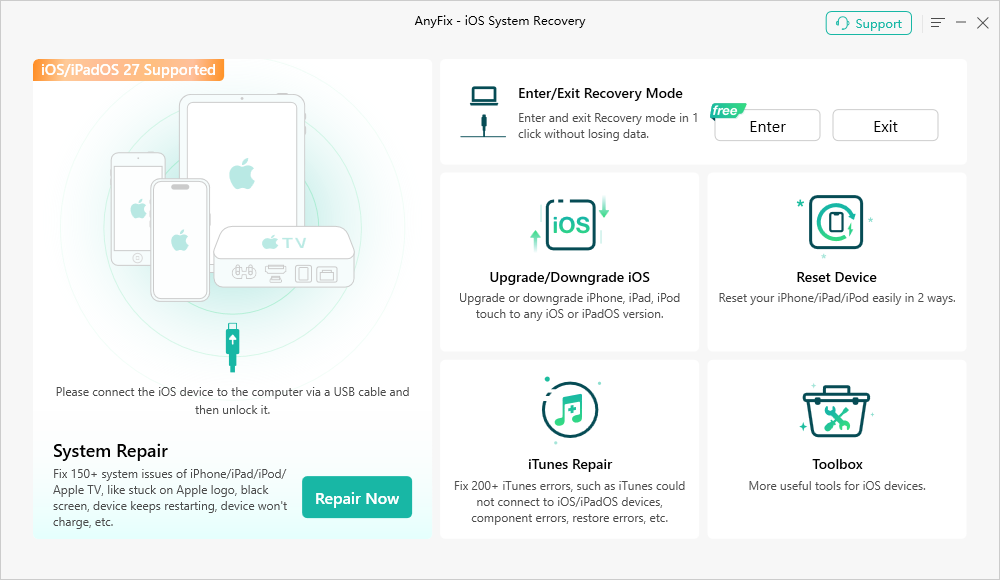
- Install AnyFix on your computer. Download and open AnyFix on a Windows PC or Mac. Back up your iPhone before starting, even though AnyFix describes its iOS upgrade/downgrade process as non-erasing.
- Connect your iPhone. Use a working USB cable to connect the iPhone directly to the computer. Unlock the phone and tap Trust if prompted.
- Open the upgrade tool. In AnyFix, choose Upgrade/Downgrade iOS.
- Select the upgrade mode. Choose 1-Click to Upgrade iOS/iPadOS, then click Start Now.
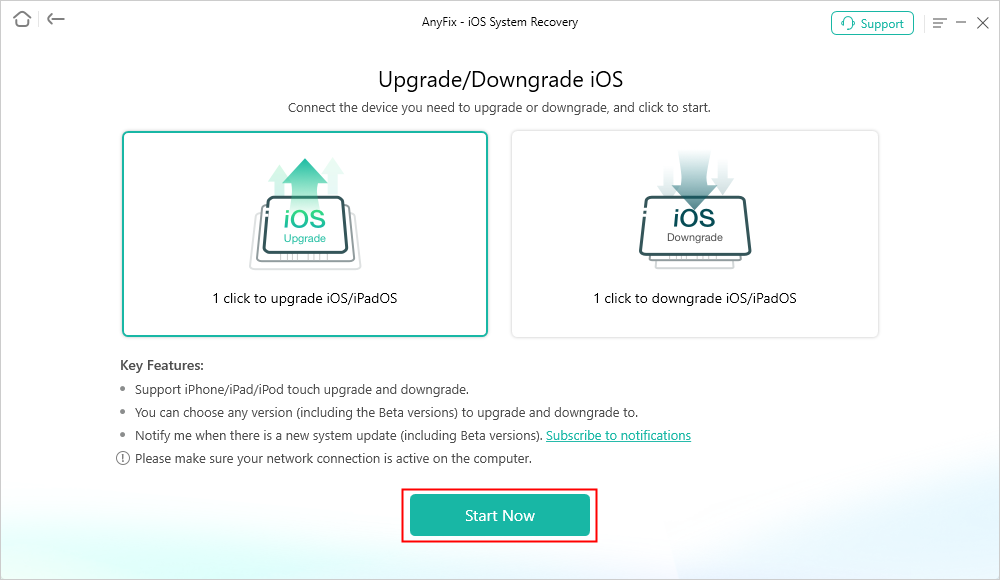
Choose the 1-Click to Upgrade iOS/iPadOS mode. - Check the available firmware and start the upgrade. Review the versions AnyFix lists for your device. Select iOS 27 only if it is offered for your exact model and is available for installation. Click Download for the selected firmware; when the download finishes, click Upgrade and follow the on-screen instructions. If iOS 27 does not appear, do not try to force-install an unrelated firmware package; the version may not be available for that device or may no longer be signed by Apple.
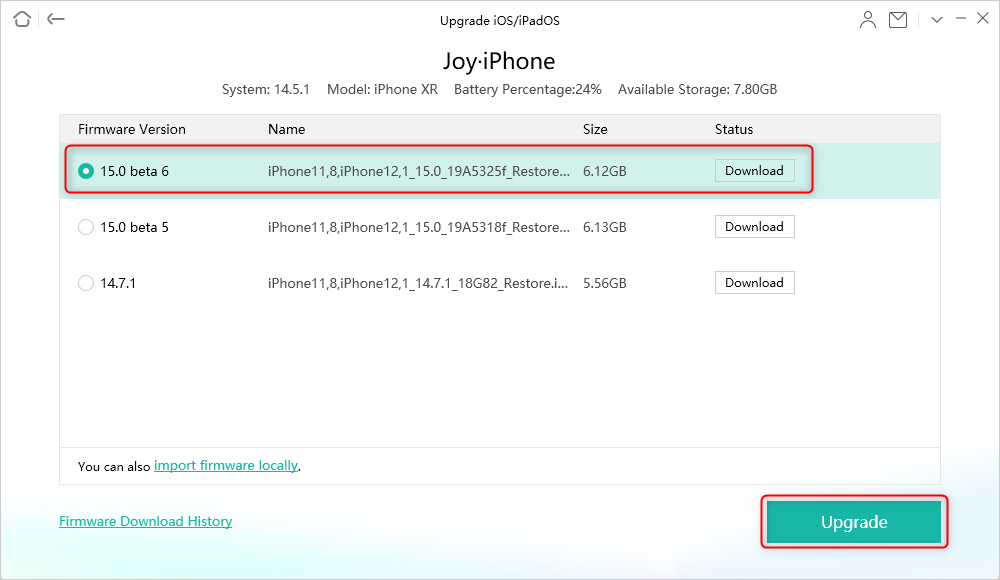
Available firmware options depend on the iPhone model and signing status. - Wait for completion. Keep the iPhone connected and do not close AnyFix or disconnect the cable while the process is running. Wait until AnyFix confirms that the upgrade has completed.
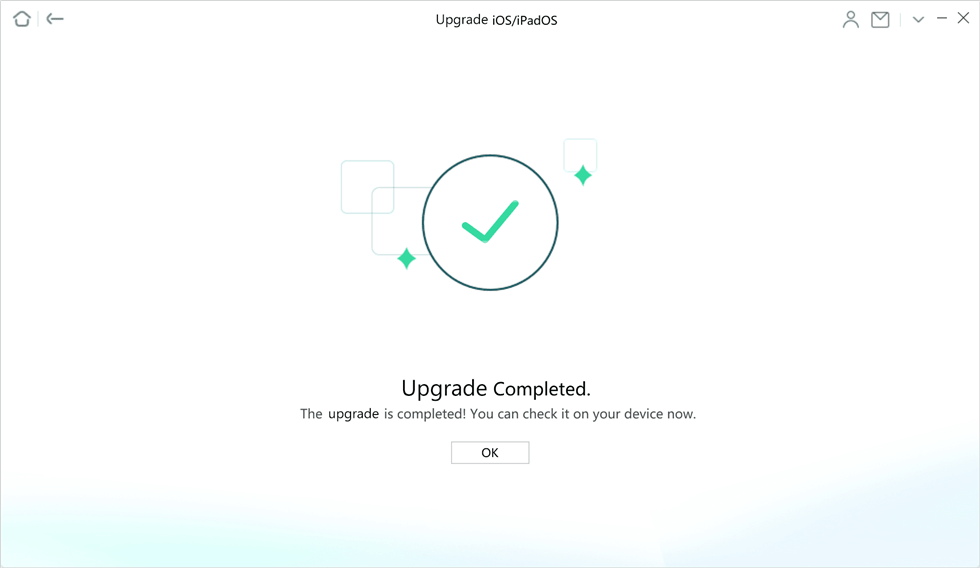
AnyFix confirmation that the upgrade has completed.
Important: AnyFix cannot make an unsupported iPhone compatible with iOS 27 or bypass Apple's firmware-signing restrictions. If the upgrade option is unavailable or the process returns an error, stop and follow the error message rather than repeatedly retrying the same operation. Some AnyFix features may require a paid license.
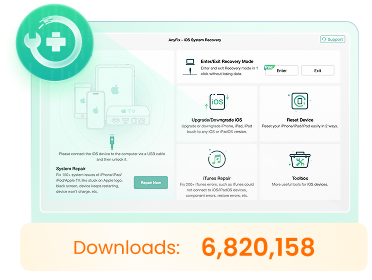
Want to Update to iOS 27 but Can't Update Wirelessly?
Upgrade or downgrade your iPhone to a supported iOS/iPadOS version, including iOS 27 when compatible firmware is available and still signed by Apple.
Fix 150+ iOS/iPadOS/tvOS system issues, including an iPhone stuck on the Apple logo or in a boot loop.
Enter or exit Recovery Mode on iOS devices in one click, without a passcode.
Fix 200+ iTunes errors that can interrupt iPhone updates or restores.
Frequently Asked Questions
Why does my iPhone update keep failing?
Repeated failures can result from device incompatibility, insufficient storage, network problems, a problematic downloaded update, or an installation error. Identify the stage where the failure occurs and change your troubleshooting approach if the same fix does not work.
Why doesn't iOS 27 appear in Software Update?
First confirm that your exact iPhone model supports iOS 27. Then connect to a reliable network, make sure enough storage is available, and check Software Update again. If iOS 27 still does not appear or the wireless update repeatedly fails, try updating through a Mac or Windows PC. Install an earlier update first only if your device explicitly prompts you to do so. A computer-based method cannot bypass device compatibility or Apple's firmware-signing requirements.
Will deleting an iOS update erase my photos and apps?
Deleting the downloaded update file from iPhone Storage is not the same as erasing the device. However, deleting other content to free up space can remove personal data, so check what you are deleting and make sure important information is backed up.
Can I update my iPhone without Wi-Fi?
Wireless updating may require Wi-Fi, depending on the device and update. If wireless updating is unavailable or repeatedly fails, you can try updating through a compatible Mac or Windows computer.
How long should an iPhone update take?
There is no fixed duration; it depends on the update size, connection speed, and installation stage. Keep your iPhone connected to power and do not interrupt a visible progress bar just because it moves slowly. If the phone becomes unresponsive or stays on the Apple logo, follow guidance for that specific symptom rather than repeating routine update steps.
Should I factory-reset my iPhone if an update fails?
No. A factory reset should not be the first response to a failed update. Check compatibility, network access, storage, and the downloaded update file first. If necessary, try a computer-based update before considering a restore that may erase your data.
What should I do if none of these fixes works?
Record the exact alert or error code, then choose the next step based on that code rather than repeating every general fix. If the iPhone cannot start normally, the buttons needed for recovery do not work, or an update and recovery attempt both fail, contact Apple Support or an Apple Authorized Service Provider.
An iPhone update failure does not automatically mean your device is damaged or needs to be erased. Identify the failed stage, try the relevant low-risk checks, and move to a computer-based update or official recovery guidance only when necessary.


 AnyFix