Reset, restore, and flash are often treated as if they were three levels of the same operation. They are not.
A reset might change only a group of settings, or it might erase all local user data. A restore might reinstall the phone’s system software, but the same word is also used when putting data back from a backup. Flashing usually refers to writing firmware or a system image to a device, yet even that does not automatically tell you whether your personal data will be erased.
The terminology also changes between iPhone and Android. An operation commonly called a “flash” in an Android or firmware context may be described very differently on an iPhone.
So before you reset, restore, or flash a phone, the safer question is not “Which one is more powerful?” It is:
What exactly is this operation going to change?
Reset vs Restore vs Flash at a Glance
| Term | Usually refers to | What can happen to local data? | Does it change system software? | Main caution |
|---|---|---|---|---|
| Reset | Resetting settings or returning a device to a factory-like state | May be preserved or erased | Usually not by itself | “Reset” can describe very different operations |
| Restore | Restoring the device itself or restoring data from a backup | Depends on what is being restored | Sometimes | “Restore the device” and “restore a backup” are not the same thing |
| Flash | Writing firmware, an operating-system image, or another software image to the device | Depends on the flashing process | Yes | The term is more common in Android, firmware, and developer contexts |
That is why there is no reliable rule such as Reset < Restore < Flash. These terms do not form a universal scale from “light” to “deep.”
Do not judge the risk by the word. Judge what the operation actually changes.
The Better Question: What Is the Operation Actually Changing?
A useful way to understand these operations is to separate the name of the operation from the part of the phone it affects.
Think about four things:
Term → Target → Data Impact → Resulting State
1. Settings
Some operations affect only configuration, such as network settings, keyboard preferences, privacy options, or other system settings, without wiping the phone.
2. Local User Data
Other operations erase locally stored apps, files, account data, and other personal content. A factory reset normally belongs in this category.
3. System Software
Some recovery operations go further and reinstall or rewrite the operating system or firmware.
4. Account and Activation State
Erasing local data does not necessarily remove ownership or activation protection. A phone may still require account credentials or other verification during setup.
These four dimensions make it much easier to understand why two operations with similar names can have very different consequences.
Why “Reset” Does Not Always Mean the Same Thing
The word reset is one of the easiest terms to misunderstand because it can describe operations with very different data impact.
Resetting Settings
On an iPhone, Apple provides options for resetting settings without erasing personal content. For example, Reset All Settings returns system settings such as network, keyboard, location, privacy, and Apple Pay settings to their defaults without deleting data or media.
This kind of reset is closer to resetting configuration than wiping the device.
You may also see narrower reset options for specific settings, such as networking or location-related preferences.
Factory Reset or Full Erase
A factory reset is a different operation.
On Android, a factory reset erases data stored on the phone and returns it to a setup state. On iPhone, the comparable user-facing operation is usually Erase All Content and Settings.
After the process, the device is ready to be set up again, but local user data that was erased is no longer simply sitting on the phone waiting to be reopened.
This leads to an important distinction:
The word “reset” alone is not enough to tell you whether your data will be erased.
You need to know which reset operation is being performed.
Does a Factory Reset Reinstall the Operating System?
Not necessarily.
This is another common source of confusion.
A normal factory reset primarily removes user data and resets the device to its initial setup state. It does not automatically mean that a completely new copy of the operating system has been downloaded and written to the phone.
For example, if an Android phone is running a particular system version before a normal factory reset, the reset does not usually mean the phone returns to the Android version it originally shipped with years earlier.
Likewise, erasing an iPhone through Erase All Content and Settings is not the same operation as connecting it to a computer and performing a factory restore that installs system software.
So:
Factory reset and system reinstallation may end with a device that looks “fresh,” but they do not necessarily reach that state in the same way.
Why “Restore” Is Even More Ambiguous
The word restore can describe two almost opposite directions of change.
One restore can erase a device and reinstall its system. Another can put your backed-up data back onto a new or erased device.
The easiest question to ask is:
What is being restored: the device, or the data?
Restore the Device
Apple uses Restore iPhone for a computer-assisted factory restore. This operation erases the device’s information and settings and installs the latest system software supported by the device.
When the process finishes, the iPhone returns to the setup screen.
This is a device-level operation. It should not be confused with simply resetting settings.
Restore from a Backup
Restore from Backup means something different.
In this case, a backup that already exists is used to bring supported content, settings, apps, and other information back to a new or erased phone.
Apple allows users to restore content, settings, and apps from an iPhone backup. Android similarly allows backed-up information to be restored to the original phone or another supported Android device.
Not every item is necessarily restored in exactly the same way. What comes back depends on what was included in the backup, the apps involved, the operating-system version, and the backup service being used.
In short, restoring the phone changes the device or system state, while restoring from a backup puts previously saved data back onto a device.
What Does “Flashing a Phone” Actually Mean?
Flashing generally means writing firmware, an operating-system image, or another software image to device storage.
The term is especially common in Android development, firmware repair, ROM installation, and device-service contexts. Google itself uses terms such as flashing a system image when describing Android system images for supported devices.
Flashing is therefore more directly related to the phone’s system-software layer than resetting settings.
But that does not make “flash” a synonym for:
- factory reset;
- unlocking a phone;
- removing account protection;
- or automatically erasing all user data.
Those outcomes depend on the particular flashing method.
Does Flashing Always Erase Data?
No—but you should never assume that it will preserve data either.
A useful example comes from Google’s own Android device images.
Installing a factory image on a supported Pixel device erases device data. But Google also provides full OTA images that can produce the same effect as flashing the corresponding factory image without requiring the device to be wiped or the bootloader to be unlocked.
Both operations work with system software, yet their data consequences are different.
That gives us another important rule:
Flashing describes how system software is being written to the device. The word alone does not tell you what will happen to user data.
The exact result can depend on the device, image type, flashing mode, partitions being written, bootloader state, and tool or workflow being used.
Why These Terms Work Differently on iPhone and Android
Part of the confusion comes from treating iPhone and Android terminology as if both platforms use the same vocabulary.
They do not.
On iPhone
Apple commonly uses terms such as:
- Reset All Settings;
- Erase All Content and Settings;
- Update;
- Restore iPhone;
- Restore from Backup;
- Recovery Mode;
- and DFU Mode in lower-level recovery contexts.
Users and repair communities may sometimes describe an iOS firmware operation as “flashing,” but that is not usually the main consumer-facing terminology Apple uses for normal iPhone recovery.
On Android
Android users are more likely to encounter terms such as:
- factory reset;
- restore backup;
- flash firmware;
- flash a system image;
- reinstall Android;
- or install an OTA update.
The exact language also varies among manufacturers and repair tools.
So a person moving between iPhone and Android can easily assume that two similar-sounding actions are technically identical when they are not.
There is no universal three-step ladder of Reset → Restore → Flash.
What Happens to Your Data?
The table below is a more useful way to compare these operations than ranking them by how “deep” they sound.
| Operation | Settings | Local user data | System software | Typical resulting state |
|---|---|---|---|---|
| Reset settings | Reset | Preserved | Unchanged | Same device and system, with selected settings returned to defaults |
| Factory reset / full erase | Reset | Erased | Normally remains installed | Fresh setup state |
| Device restore | Reset | Usually erased | Reinstalled or restored | Fresh system/setup state |
| Restore from backup | May be restored | Supported backed-up data is restored | Not normally the purpose of the operation | Device populated with available backup content |
| Flash firmware or system image | Depends | Depends on the workflow | Written or rewritten | Depends on the image and flashing process |
This is why two operations can lead to a similar-looking setup screen even though very different things happened underneath.
Does Resetting, Restoring, or Flashing Remove Account Locks?
Not automatically.
Erasing user data and removing ownership protection are two different things.
On iPhone
Apple’s Activation Lock is tied to Find My and the owner’s Apple Account rather than simply to the files stored locally on the iPhone.
Apple states that Activation Lock can continue to prevent reactivation even after a device is erased remotely. A device that is still linked to the previous owner’s account may therefore continue to require ownership verification during activation.
This is why erasing an iPhone should not be understood as a generic way to remove account protection.
On Android
Android also has device-protection mechanisms that require ownership verification after certain factory resets.
For example, a protected device reset with its buttons or Recovery Mode may require a previously associated Google Account or screen-lock credential during setup. A remotely reset device can also require Google Account information associated with the device.
The precise behavior varies by Android version, manufacturer, management state, and reset method.
The important principle is:
Data erasure and ownership removal are not the same operation.
Which Operation Fits Which Goal?
| If your goal is… | The relevant type of operation is usually… |
|---|---|
| Fix a network or configuration problem | Reset the relevant settings |
| Erase personal data before reusing or transferring a phone | Proper device erase or factory reset |
| Return an iPhone to a fresh system state using a computer | Device restore |
| Put saved content back onto a new or erased phone | Restore from backup |
| Rewrite or reinstall Android firmware or a system image | Flash or system reinstall |
| Repair physical hardware damage | None of these software operations |
The right operation depends on the goal, not on which word sounds more powerful.
Where iMobie Tools Fit in These Operations
We develop system-recovery tools for both iPhone and Android, and their interfaces also separate these operations rather than treating reset, restore, and system reinstall as interchangeable.
AnyFix on iPhone and iPad
AnyFix separates functions such as Reset Device, System Repair, and Upgrade/Downgrade iOS.
That distinction matters because the expected data impact is different.
For example, AnyFix describes Standard Repair as a system-repair mode designed to keep device data, while its Advanced and Ultimate Repair modes warn that device data will be erased. Its Reset Device function is a separate operation, and resetting a locked device also erases its data.
The important point is not that one button is “stronger” than another. Each workflow is intended to change a different part of the device or reach a different system state.
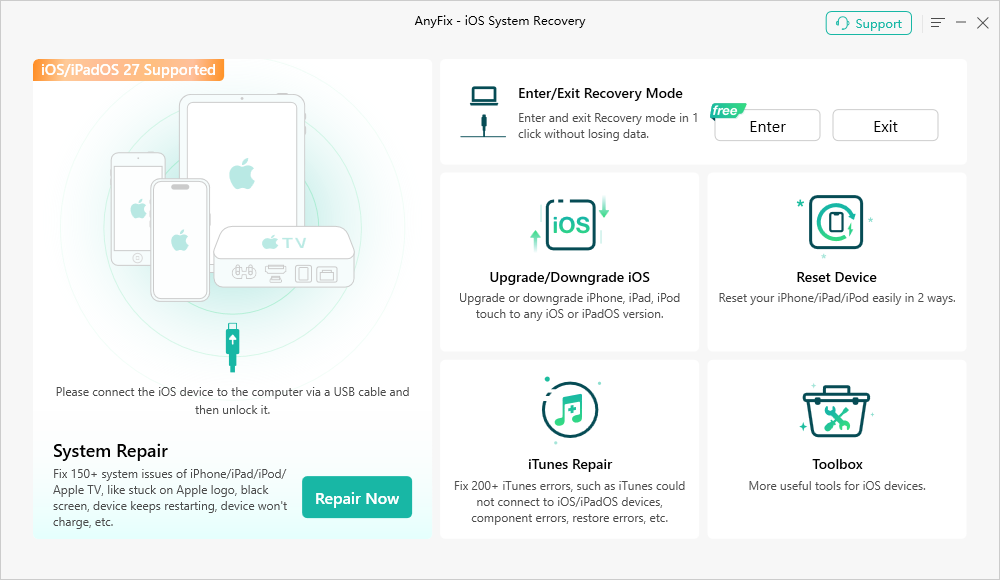
AnyFix separates reset, system repair, and iOS upgrade or downgrade into different workflows.
DroidKit on Android
DroidKit similarly provides a separate System Reinstall workflow for supported Android devices. Its current interface states that the function automatically matches the appropriate system version after the device is connected, and currently supports Samsung devices.
The software also states that reinstalling or upgrading the system is designed not to erase device data, while still recommending that important data be backed up first.
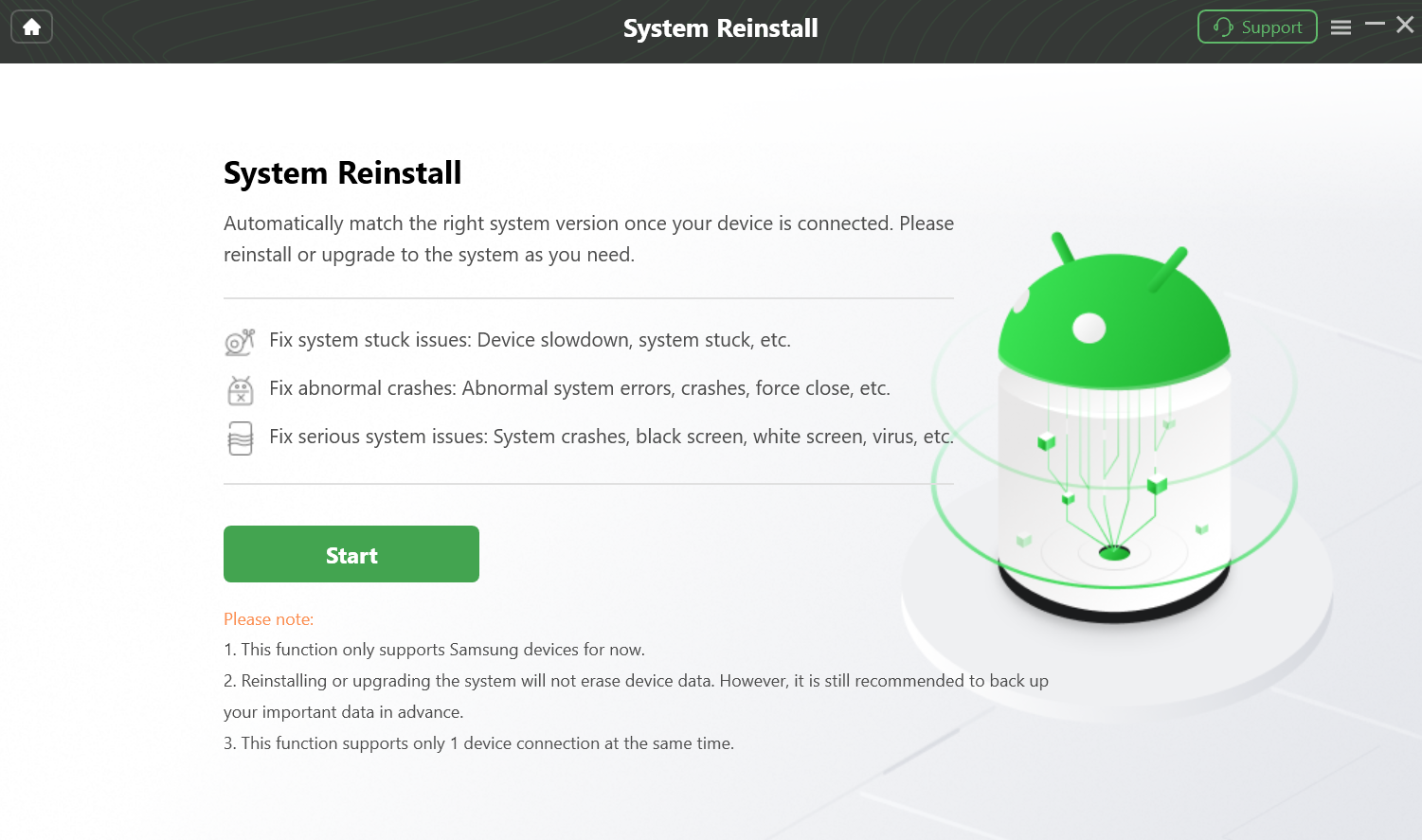
DroidKit System Reinstall for supported Samsung devices.
That belongs to the system-software layer. It is conceptually different from simply resetting settings or restoring cloud data after a factory reset.
These product distinctions reflect the same principle used throughout this article:
Start with what needs to change, then choose the operation that actually changes it.
Before You Reset, Restore, or Flash a Phone
Before starting any operation that may affect a phone’s data or system software, ask four questions:
- What exactly will this operation change? Settings, user data, system software, or more than one of them?
- Will local data be erased? If the answer is unclear, do not assume the data will be preserved.
- Will the operating system or firmware be rewritten? A factory reset and a system reinstall can lead to similar-looking results without performing the same operation.
- What credentials will still be required afterward? Erasing the phone does not necessarily remove activation or ownership protection.
If You Plan to Flash Firmware, Check These Details Too
- Confirm the exact device model and firmware variant. A similar product name is not enough to establish compatibility. Use firmware intended for the specific model and supported region or variant.
- Verify the firmware source and procedure. Follow instructions intended for that device, and do not mix images or steps from different models.
- Understand the bootloader requirements. Some Android flashing workflows require an unlocked bootloader. Unlocking it can erase user data, so do not treat it as a data-preserving step.
- Check the data-loss risk before starting. Flashing may preserve or erase data depending on the image and process. If the data is important and no backup exists, pause before unlocking, wiping, or flashing.
- Prepare a stable connection and enough power. Use a reliable USB cable and port, keep the computer powered, and avoid interrupting the process once writing begins.
- Know which account credentials may still be required. Resetting or flashing does not necessarily remove Activation Lock or Android Factory Reset Protection; the previously associated account may still be required during setup.
Once those questions are answered, the terminology becomes much less confusing.
The safest way to understand reset, restore, and flash is not to rank the words by how “deep” they sound. Understand what each operation actually changes, what happens to your data, and what state the phone will be in when the process is finished.


