Why Can’t I Download Disney Plus Videos? How to Fix?
Disney Plus downloads not working is a common issue viewers face. However, there are many fixes for this issue. This guide will explore the problems behind this issue and also discuss its solutions.
Disney Plus is watched by millions of viewers worldwide, which makes it one of the most popular streaming platforms. The reason this platform is liked by viewers is due to its ability to download content for offline viewing. Still, many users complain about Disney Plus downloads not working. There can be several reasons that lead to this issue. In this guide, we’ll explain why these problems happen and provide quick fixes to resolve them. We will also discuss specific solutions for common Disney Plus download errors.
Part 1. Why Does Disney Plus Downloads Not Working?
Before diving into the solutions, you must be aware of the reasons behind the Disney Plus downloads not working issue. Next are some of the common reasons:
- Poor Internet Connection: Disney Plus requires a stable internet connection to start and complete downloads. The process may stop midway or fail to begin In case your Wi-Fi or mobile data is weak.
- Insufficient Storage Space: Downloads need enough free space on your device to save the files. If your phone or tablet is running low on storage, new downloads will not work.
- Outdated Disney Plus App: An older version of the app may have bugs or compatibility issues. Keeping the app updated ensures smooth performance and fixes download errors.
- Device or Account Limitations: Disney Plus restricts the number of devices and profiles allowed for downloads. If you’ve reached the limit, the app won’t let you download more content.
Part 2. Quick Ways to Fix Disney Plus Downloads Not Working
There are a few quick troubleshooting steps you can try in case your Disney Plus downloads are failing. These methods often resolve the most common problems and restore smooth offline viewing.
Fix 1. Check Your Internet Connection
The most common fix for resolving the download issue is to make sure your internet connection is stable. This is because a weak WiFi that keeps disconnecting can stop your download process mid-way. Always ensure your device is connected to a reliable WiFi network. Plus, users who are using mobile data must check whether Disney is allowed to download over cellular in their app settings.
Steps:
Step 1. Test your Wi-Fi or mobile data speed using an app like Speedtest. Aim for at least 5 Mbps for standard downloads, 25 Mbps for HD.
Step 2. If using Wi-Fi, ensure you’re close to the router or switch to a stronger network.
Step 3. For mobile data users, go to Disney+ App > Profile > App Settings and enable Download Over Cellular if disabled.
Step 4. Restart the download and monitor for interruptions.
Fix 2. Check Storage Space
Disney Plus content takes a lot of storage space especially when they are in high resolutions. This means the download process won’t start when your device’s storage is full. Perform the following steps To check your storage space on your device.
Instructions: On iPhone, head to Settings > General > iPhone/iPad Storage. Similarly, Android users need to go to Settings > General management > Storage. Then, see whether your device has enough storage left.
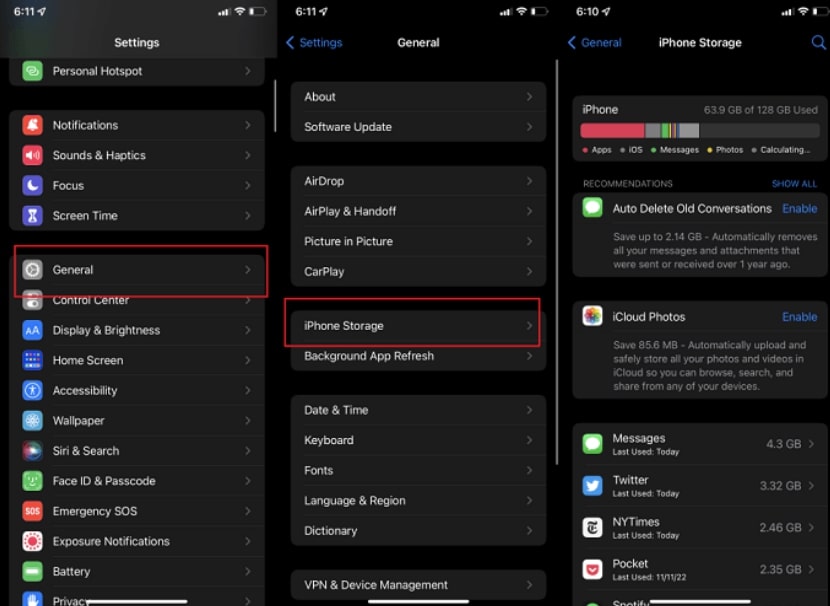
Ensure Storage Space Is Not Full
Fix 3. Clear Disney Plus App Cache
Another reason for Disney Plus downloads not working issue can be corrupted files stored in the app’s cache. These files conflict with the new downloads that cause them to get stuck or stopped. Follow the steps to clear the app cache on your phone.
Instructions: iPhone/iPad users have to go to Settings >General > iPhone/iPad Storage > Disney+ > Offload App. Android users must navigate to Settings > Apps > Disney+ > Storage > Clear cache.
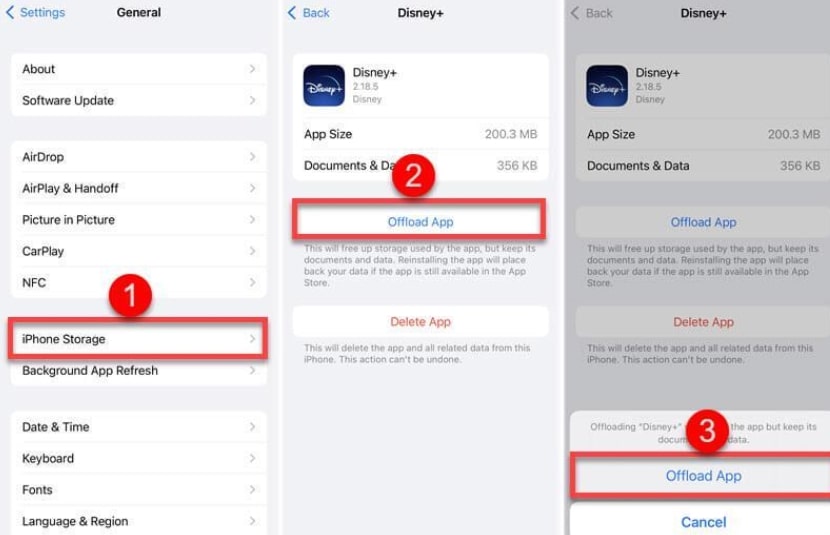
Clear App Cache Data
Fix 4. Restart Your Device
Another fix that can work for this issue is restarting your device. Sometimes, temporary glitches can cause Disney Plus downloads not working issue on your iPhone or Android devices. Look at the provided steps on how you can restart your phone.
Instructions: Android users need to press the volume up button and press the Restart button to reboot their device. To start the restart on the iPhone, press both the power button and the volume up or down button simultaneously until the “Slide to power off” slider appears. Then, drag the slider to the right to power off your phone.

Force Restart Phone
Fix 5. Update the Disney Plus App
Using an old version of the Disney Plus app can also be the reason behind Disney Plus downloads not working. This is because an outdated app might have bugs or missing features that are stopping the downloading process. Adhere to the given guide to update the Disney Plus app on your phone.
Instructions: Instructions: You need to head to the App Store or Google Play Store on your phone. Then, search for the Disney Plus app and tap on the Update button next to the app.
Part 3. Fix Specific Disney Plus Download Issues
Users still face unique problems when downloading Disney Plus content, even after applying general fixes. This section explores some of the most common issues and their solutions:
Issue 1. Disney Plus App Download Stuck in Queue
This happens most of the time when “Download over WiFi only” is enabled and the device believes it isn’t on WiF. In that case, try turning off “Download over WiFi only” in the download settings so it uses whatever network is active. Also, clear some storage space, then restart your device.
Issue 2. No Download Option for Disney Plus Content
Some titles are not available for download on Disney Plus due to copyright protection. Furthermore, Disney Plus only supports downloads on specific devices. TVs, laptops, and Windows devices are not supported for downloads. So, users on those platforms will not see the download option. Therefore, use a supported device or update the app to solve this issue.
Issue 3. Disney Plus Downloads Disappeared or Expired
Disney+ app needs subscribers to go online at least once in 30 days. In case they don’t, the downloads will be erased. In situations when a user hasn’t connected the app to the internet for more than 30 days, the downloads will be deleted by Disney Plus. Redownloading the Disney Plus videos will solve the Disney Plus downloads not working issue.
Issue 4. Disney Plus Error Code 75
The Error Code 75 will occur when you stream on more than 4 supported devices. If that’s the case, stop streaming devices on extra devices and stay within the 4-device limit. Alternatively, you can download Disney Plus videos on Windows or Mac computers with the help of third-party downloading tools.
Issue 5. Disney Plus Download Gets Stuck or Is Too Slow
Slow or stuck video download process can be due to weak internet connection. Other than that, the cache data or an old version of the app can lead to such issues. So, the simple solution to overcome such issues is to ensure you’ve a reliable internet connection, no cache data, and the updated app.
Part 4. Bonus Tip. Fix Disney Plus Downloads Not Working in 1-click
As discussed in the above sections, there are some issues that lead to Disney Plus downloads not working. However, if you want to prevent these issues and download Disney Plus content with a single click, you can use Keeprix Video Downloader. This tool allows users to download shows in high quality.
In addition to that, viewers can download shows in their desired video formats. It also allows you to batch download multiple videos at once. The best part is that Keeprix even enables users to download shows in subtitles with multi-language options.
Key Features:
- Downloads unlimited Disney+ titles without limitations.
- Saves videos in 4K with subtitles and audio tracks intact.
- Supports batch downloading for entire seasons.
- Works with other platforms like Netflix, Hulu, and Paramount+.
Next is the detailed steps guide that you can follow to download Disney Plus videos using Keeprix Video Downloader.
Step 1. Download and install Keeprix Video Downloader on your PC or laptop.
Step 2. Open the tool and click on the Disney Plus icon on its main dashboard.
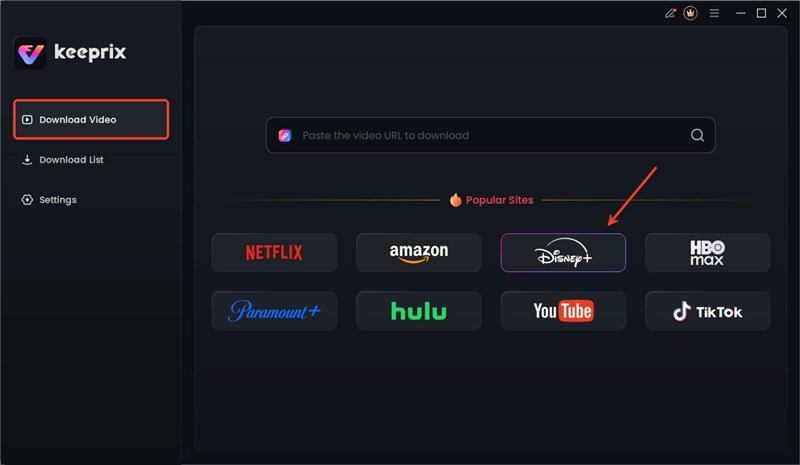
Choose Disney Plus Platform
Step 3. You will be now taken to the browser version of Disney Plus within Keeprix and log in with your credentials.
Step 4. Open the content that you want to save and hit the Download button.
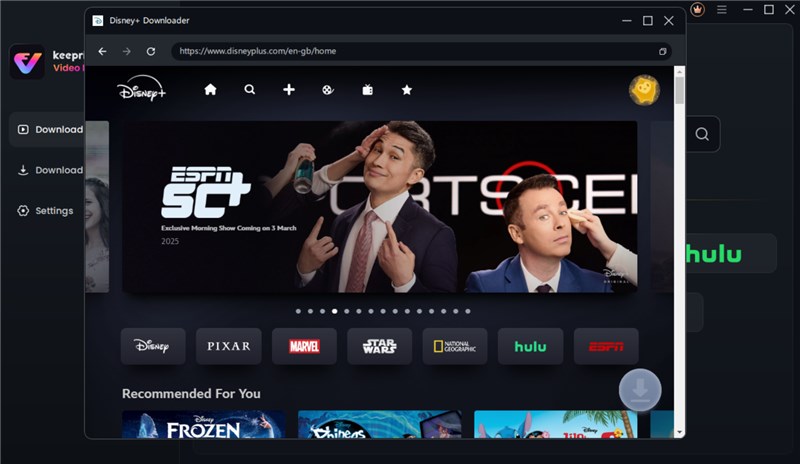
Search Disney Plus Video
Step 5. After that, set your desired settings like Resolution, Subtitles, Output Path for the downloaded video. Finally, hit the download button to start the download process.
Part 5. FAQs
Q1. Why won’t Disney+ let me download certain titles?
Some titles are restricted due to licensing agreements. Check for the download icon; if absent, the title isn’t available for offline use.
Q2. How many devices can download Disney+ content?
Up to 10 mobile or tablet devices (iPhone, iPad, Android, Amazon Fire) can download, with a total cap of 25 titles across all devices.
Q3. Why do my Disney+ downloads expire?
Downloads expire 48 hours after playback starts or after 30 days offline. Connect online every 30 days to keep them active.
Q4. Can I download Disney+ videos on a computer?
Disney+ doesn’t support downloads on Windows/Mac apps, only mobile devices. Keeprix Video Downloader bypasses this by saving videos to your computer.
Conclusion
Viewers often face the Disney Plus downloads not working issues while viewing content. This article explored the top reasons and fixes behind the download problems. Plus, we explored Keeprix video downloader for downloading Disney Plus content with a single click without facing any issues. So, download Keeprix video downloader today to enjoy your Disney plus issues without any downloading issues.



Joy Taylor is a seasoned technical writer with over a decade of experience in mobile technology. At iMobie, she specializes in producing in-depth content on iOS data recovery, iPhone unlocking solutions, and iOS troubleshooting.
Product-related questions? Contact Our Support Team to Get Quick Solution >
