How to Save Netflix Videos as MP4 for Personal Offline Viewing
This guide explores practical ways to rip Netflix videos for offline viewing. You’ll learn how to save movies with simple tools, record films when downloads aren’t available, and extract audio with open-source options. With these methods, you can watch your favorite content anytime without worrying about device limits, internet connection, or Netflix’s download restrictions.
This guide explains how Netflix offline downloads work, why desktop users often need a different workflow, and how to save Netflix videos as MP4 or MKV files for personal offline viewing on Windows or Mac.
Why Netflix Offline Viewing Feels More Limited on Desktop
Netflix offline downloads are useful when you are traveling, commuting, or preparing a watchlist before a long flight. However, the official download feature is not available everywhere and does not work the same way on every device.
According to Netflix’s official download rules, downloads are mainly available on supported mobile devices, Fire tablets, and Chromebooks. Desktop users on Windows or Mac may be able to stream Netflix in a browser or app, but they cannot rely on the same offline download workflow that mobile users have.
Even when you use the official Netflix app on a supported device, offline downloads still come with rules. Ad-free plans can have up to 100 active downloads at a time per device, depending on the number of devices included in your plan. Ad-supported plans are limited to 15 downloads per device each calendar month. Downloads can also expire after a period of time, and some titles may have yearly download limits.
That is why many users look for a more flexible way to prepare Netflix videos for personal offline viewing on a computer.
Common Problems with Official Netflix Downloads
Official Netflix downloads are convenient, but they may not fit every offline viewing situation. Here are the most common limits users run into.
| Official Netflix Download Rule | What It Means for You |
| Supported devices only | Downloads may work on phones, tablets, Fire tablets, or Chromebooks, but not as a full desktop workflow on every Windows or Mac computer. |
| Plan-based download limits | Ad-free plans support more downloads, while ad-supported plans have a monthly download quota. |
| Expiration rules | Downloaded titles can expire after a period of time, and some may need to be renewed or downloaded again. |
| Title availability | Not every movie or episode is available for download. This can vary by title, region, and licensing. |
| Account status | Downloads may be removed if the account is canceled or access changes. |
These rules are normal for the official Netflix app. But if you want to organize a personal offline watchlist on your computer, the app-only workflow can feel restrictive.
You might like: 4 Ways to Get Netflix for Free or At Low Cost
Why Screen Recording Is Not a Reliable Netflix Saving Method
Some older guides suggest using a screen recorder to capture Netflix playback. In practice, this method often creates more problems than it solves.
The most common issue is a black screen. Many screen recorders can capture the audio, but the video area may appear blank because the browser or app blocks screen capture. This makes the recorded file unusable.
Screen recording also depends on real-time playback. Your computer needs to keep playing the whole movie or episode from beginning to end. If the screen locks, the internet drops, a notification appears, or the audio falls out of sync, the final recording may be incomplete or hard to watch.
Video quality can also be unstable. Since screen recording captures what is shown on your display, the final file depends on screen resolution, playback stability, system performance, and recording settings.
For users who want a cleaner desktop workflow, a direct video saving tool is usually easier to manage than recording the screen in real time.
A Better Desktop Workflow: Save Accessible Netflix Videos with Keeprix
Keeprix Video Downloader is designed for users who want to save videos they can already access for personal offline viewing. Instead of recording your screen, Keeprix helps you process accessible Netflix videos into standard MP4 or MKV files on Windows or Mac.
This makes offline viewing easier to manage. You can organize saved videos in local folders, prepare a travel watchlist, transfer files to compatible devices, or back them up for personal use.
Keeprix supports saving Netflix videos up to 1080p, depending on source quality, subscription plan, region, title availability, account access, and technical compatibility. It also lets you choose MP4 or MKV format and preserve available subtitles or audio tracks when supported.
Keeprix is available for Windows 10/11 and macOS 11+. The trial allows you to save up to 2 full videos so you can test the workflow first. After activation, the trial download quota is removed for uninterrupted personal offline viewing.
How to Save Netflix Videos as MP4 or MKV on Windows and Mac?
Step 1. Download and Install Keeprix
Download Keeprix Video Downloader on your Windows or Mac computer. Install and open the program.
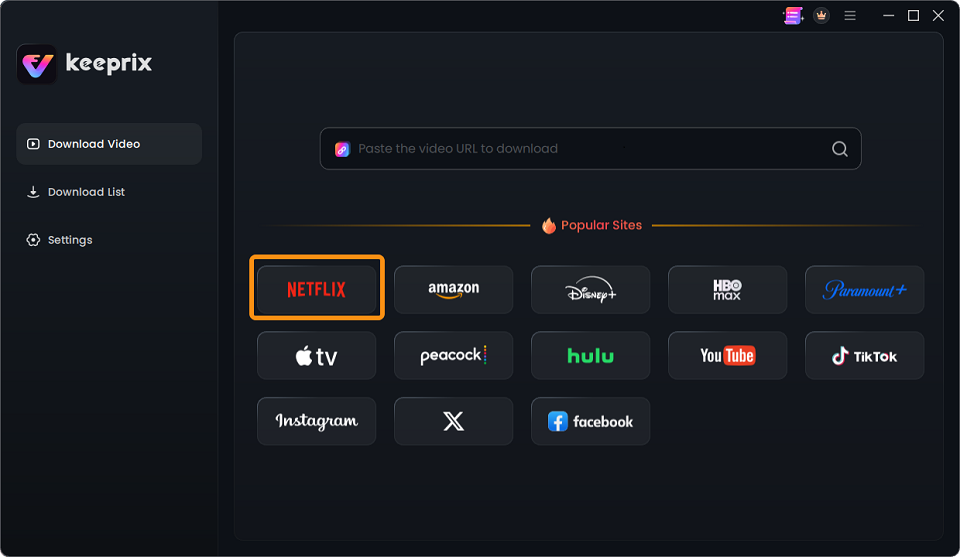
Step 2. Open Netflix in Keeprix
Use the built-in browser to open Netflix. Log in with your valid Netflix account and make sure your subscription is active.
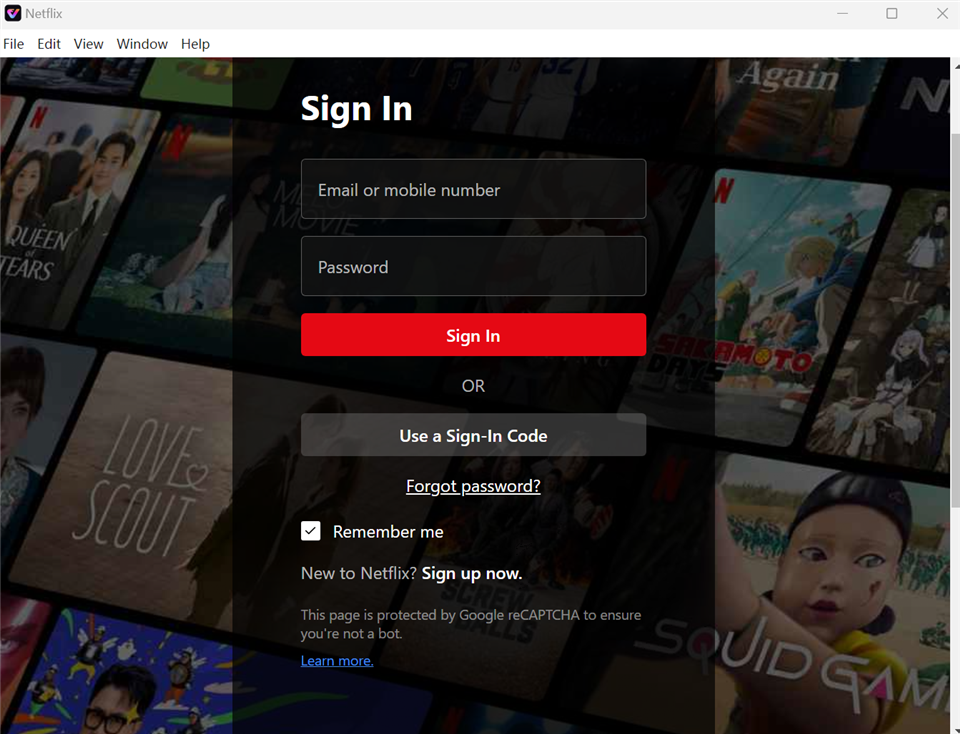
Step 3. Search for the Netflix Video
Search for the movie, episode, documentary, or show you want to save. Open the video page so Keeprix can detect the available video information.
Step 4. Choose MP4 or MKV Output
Select your preferred output format. MP4 is a good choice for easier playback across compatible devices, while MKV is useful when you want to keep more audio or subtitle options together in one file.
You can also choose the available video quality, subtitle language, and audio track. Netflix videos can be saved up to 1080p when the source quality and account conditions support it.
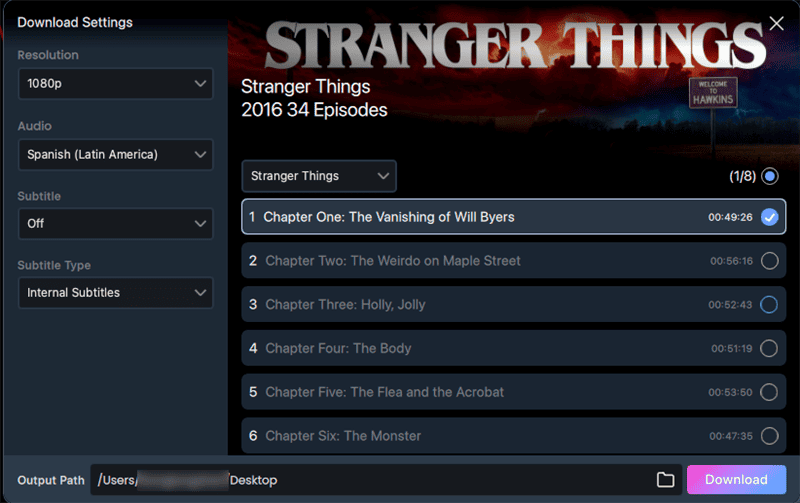
Step 5. Start Saving the Video
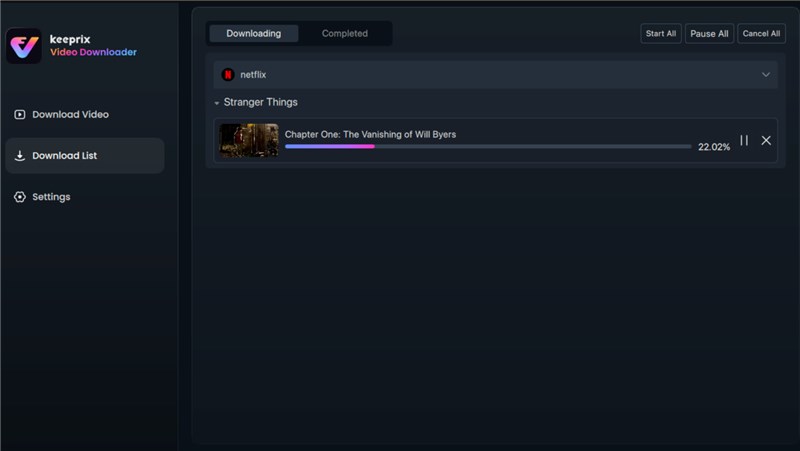
Click the download or save button to begin processing the video. After the task finishes, you can find the MP4 or MKV file in your local folder and use it for personal offline viewing.
Keeprix vs. Screen Recording: Which Method Is Better?
If your goal is to prepare Netflix videos for offline viewing on a computer, the difference between screen recording and Keeprix is clear.
| Feature | Keeprix Video Downloader | Screen Recorder |
| Workflow | Saves accessible videos as MP4 or MKV files | Records the screen in real time |
| Black screen issue | Lower risk because it does not rely on screen capture | Higher risk when playback is blocked or the browser shows a blank screen |
| Time needed | Can process videos without recording the full playback manually | Requires the whole video to play from beginning to end |
| Output format | MP4 or MKV | Depends on recorder settings |
| Subtitle and audio options | Can preserve available subtitles and audio tracks when supported | Usually captures only what is currently shown or played |
| Batch saving | Supported | Not practical for multiple long videos |
| Best for | Personal offline viewing, travel preparation, local organization | Short clips, tutorials, or non-protected screen content |
Screen recording may work for simple screen activities, but it is not ideal for preparing a Netflix watchlist. Keeprix offers a more stable desktop workflow for users who want standard local files for personal offline viewing.
You might like: Get Keeprix Downloader 20% OFF
When Should You Use Keeprix?
Keeprix is useful when you want to watch Netflix videos offline in situations where official app downloads are not enough.
You may find it helpful if:
- You want to prepare movies or episodes before traveling.
- You prefer watching on a laptop instead of a phone or tablet.
- You want to organize saved videos in local folders.
- You need MP4 or MKV files for easier playback on compatible devices.
- You want to reduce reliance on app-only downloads that may expire.
- You want to keep available subtitles or audio tracks for personal viewing.
Keeprix should only be used with videos you can already access through your own account. Actual saving results can vary based on account access, subscription plan, region, source quality, title availability, and technical compatibility.
Tips for a Better Netflix Offline Viewing Experience
Before saving Netflix videos, check these points to avoid failed tasks or lower-than-expected quality.
- Make sure your Netflix account is active.
- Confirm the title is available in your region.
- Use a stable internet connection during processing.
- Choose MP4 if you want easier playback on more compatible devices.
- Choose MKV if you want to keep more subtitle or audio options when available.
- Select 1080p only when the source quality supports it.
- Keep enough storage space on your computer.
- Use saved videos only for personal offline viewing.
You might like: Prime Video Download Limit: How to Fix ‘Limit Reached’ Errors in 2026
Frequently Asked Questions
Can I save Netflix videos as MP4?
Yes. You can use a desktop tool like Keeprix to save Netflix videos you can already access as MP4 files for personal offline viewing.
Can I save Netflix videos on Mac?
Yes. Keeprix supports macOS 11+ and lets Mac users save accessible Netflix videos as MP4 or MKV files. This is useful because Netflix’s official offline download workflow is mainly designed for supported mobile devices and selected other devices, not a full Mac desktop download experience.
How long do official Netflix downloads last?
Official Netflix downloads can expire after a period of time. Some titles may also have limits on how many times they can be downloaded per year, depending on title, region, licensing, and account status.
Why do Netflix screen recordings show a black screen?
Netflix screen recordings may show a black screen because browser or app playback can block screen capture. In many cases, the recorder captures audio but not the video image.
What video quality can Keeprix save from Netflix?
Keeprix can save Netflix videos up to 1080p when the source quality, subscription plan, region, title availability, account access, and technical compatibility support it.
Final Thoughts
Netflix official downloads are helpful, but they are not always enough for desktop users. Supported devices, download quotas, expiration rules, title availability, and account status can all affect what you can watch offline.
If screen recording gives you a black screen or unstable quality, Keeprix Video Downloader offers a cleaner desktop workflow. It helps you save Netflix videos you can already access as MP4 or MKV files for personal offline viewing on Windows or Mac.
Try the Keeprix trial to save up to 2 full videos and test the workflow first. After activation, Keeprix removes the trial download quota so you can prepare your offline watchlist more easily.



Joy Taylor is a seasoned technical writer with over a decade of experience in mobile technology. At iMobie, she specializes in producing in-depth content on iOS data recovery, iPhone unlocking solutions, and iOS troubleshooting.
Product-related questions? Contact Our Support Team to Get Quick Solution >
