If I Download on Netflix Where Does It Go on iPhone/Android/PC
This guide answers the question “If I download on Netflix where does it go?” for iPhone, Android, and PC. It explains how to locate your downloads in the Netflix app or hidden system folders. It also introduces Keeprix Video Downloader, which allows you to save Netflix videos and keep them for an unlimited time on your device.
Ever wondered, “If I download on Netflix where does it go?” You’re not alone. Millions of Netflix users download shows and movies, but aren’t sure where those files end up. They’re not in your Photos or regular folders, and you can’t just move them to another device.
In this guide, we’ll show you exactly where Netflix downloads are stored on iPhone, Android, and PC. You’ll also learn how to find them quickly, manage your storage, and watch offline without confusion.
Plus, we’ll share a simple way to download and watch Netflix content freely on any device. Let’s get started!
Part 1. If I Download on Netflix, Where Does It Go?
Netflix stores the downloads in the same device used to receive them. They are not found inside regular folders, and can also not be transferred to a different storage device or read on a browser.
The files remain on the secure system of the Netflix app, ensuring that the files are safe and linked with your account. When such a setup is installed, you can watch the movies and shows downloaded, even without internet, but inside the app only.
Note that as of 2025, Netflix is retiring its feature where downloads are saved on your PC. From now on, there won’t be a legal way to access the download folder.
Part 2. Where Do I Find My Netflix Downloads?
The process to locate what your Netflix downloads varies depending on the device. We have listed the steps to each platform below so that you can quickly find saved shows and movies. Take a look and follow one of those that suits your device.
Also Read: 3 Methods to Download Movies on Netflix on Mac
1. How to Find Netflix Downloads on PC
Many users ask: “Can I directly download Netflix videos on Windows?” Unfortunately, Netflix does not officially support downloads on Windows. Even if you install the Netflix app on your computer, you cannot watch offline like you can on a phone or tablet. However, if you’ve already saved Netflix video files on Windows through other methods, you might want to know where exactly these files are stored. Below, we’ve compiled a set of steps to help you quickly locate the hidden download path.
To view your downloads in the app, open the Menu and select My Downloads. However, on your PC, they are stored in a secret system file that you need to search for and find. Here is the exact location.
Step 1: First, click on File Explorer on the taskbar.
Step 2: The steps of finding the download location vary. It depends on the version of Windows that your PC is running.
- For Windows 10: Select the tab View at the top left. Choose Options at the top right of the menu bar. Now, a pop-up window for folder Options will appear.

Click on Options
Go to the View tab. Then, in the Files and Folders section, check the “Show Hidden files, folders, and drives”. Next, click on Apply > OK to save your changes.

Click Apply
- For Windows 11: Select the View tab and select Show > Hidden items. Then make all hidden folders appear on your screen.

View All Hidden Items
Step 3: Finally, follow this path to exactly find your Netflix downloads in File Explorer:
C:\Users\Username\AppData\Local\Packages\4DF9E0F8.Netflix_mcm4njqhnhss8\LocalState\offlineInfo\downloads
Change [Username] with your current username on your PC.
You are now going to have all your Netflix movies and shows saved on your PC. They come in the form of unknown files and cannot be played in the regular media players. The reason is that Netflix’s format can only be used within the Netflix app and cannot be copied or played on other platforms.
2. How to Find Netflix Downloads on Android
The method differs when you have an Android phone. On the Netflix app itself, downloadable movies on Netflix are easily available. All you need to do is tap on My Downloads at the lower right-hand corner of the interface.
About the location in the local folder, here is a step-by-step method on how to find them.
Step 1: Go to Files and select Settings, then Show hidden files.
Step 2: Select Internal Storage > Android > data > com.netflix.mediaclient > files > Download > .of.

Access Netflix Downloads on Android
Step 3: Finally, the folders’ names with eight-digit random numbers will appear. Now, you can open any of them to find your downloaded Netflix content.
3. How to Find Netflix Downloads on iPhone/iPad
Downloads of Netflix do not show up in Files on an iPhone, iPad, or iPod touch, which displays only imported or iCloud files. All the downloaded content on Netflix is saved in the application. Your downloaded movies and shows appear in the Downloads section to be streamed in the Netflix app on your device.
Step 1: Launch the Netflix application on your iPhone or iPad.
Step 2: Tap on Downloads. And here you can see your Netflix downloads are all listed on this page.

Access Your Netflix Downloads on iPhone
This is how you can find your Netflix downloads on iPhone or iPad.
Part 3. How to Download Netflix and Watch Offline on Any Device
Want to watch your favorite Netflix productions without worrying about a WiFi connection? It is possible through offline viewing. Using Keeprix Video Downloader, you can save Netflix videos directly to a device. It is easy to use and compatible with various platforms.
All you have to do is choose and download the show or movie of your choice and watch it whenever you please. You do not have to be restricted to the Netflix application, and you do not need to be online always.
This tool allows you to make your own library and watch it anywhere. It is perfect for travelling, commuting long distances, or entertaining kids. The Keeprix video Downloader will also enable you to stream Netflix at your convenience without buffering or a data cap.
Standout Features of Keeprix Video Downloader
- Saves videos from Netflix and other large platforms in high definition.
- Saves videos on MP4 and MKV.
- Keeps the original soundtracks and subtitles of various languages.
- Provides the possibility to download shows and episodes in batches.
- Fast and stable performance on both Windows and macOS
- A user-friendly interface with an in-built search feature.
Steps to Download Netflix Videos using Keeprix Video Downloader
Step 1. Download and install Keeprix Video Downloader. Launch it and select Download Video from the left. Then, choose Netflix or paste the video link in the search box.
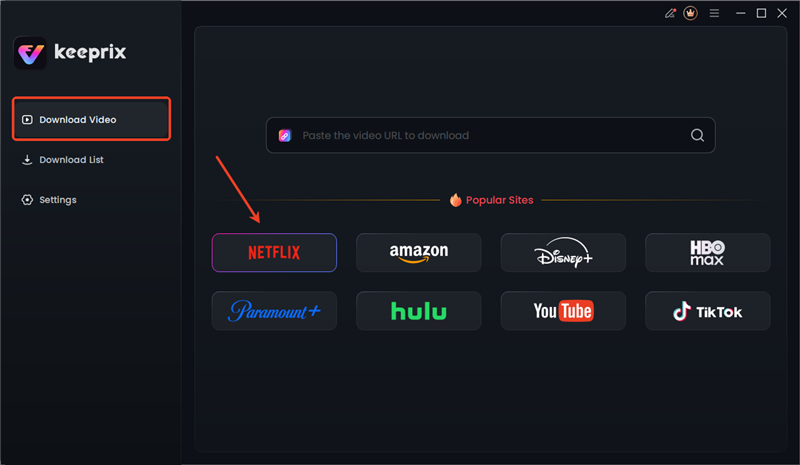
Choose Netflix in Keeprix
Step 2. Keeprix Video Downloader will direct you to the built-in Netflix website. From here, log in with your Netflix account details.
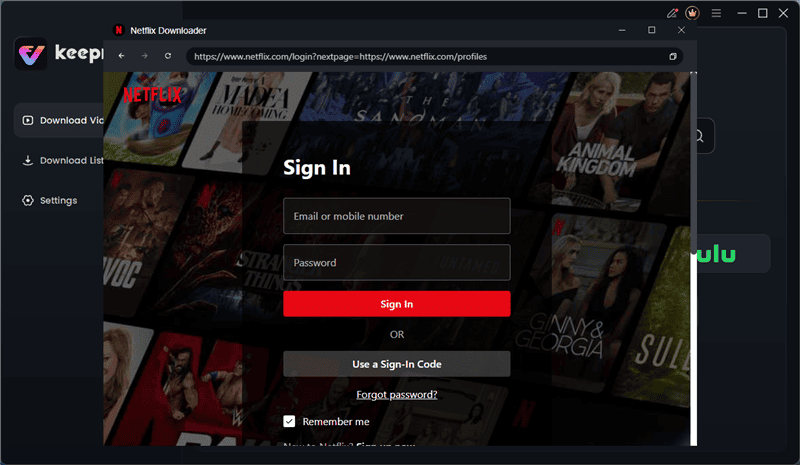
Log in to Netflix in Keeprix
Step 3. Find your favorite Netflix shows or movies to download them. To get what you need sooner, all you need to do is input your Netflix link into the search box.
Step 4. Choose your favorite Netflix video from the search results. This will open the playback page. From here, click the Download icon.
Step 5. Choose your preferred video resolution, audio language, and subtitle type (internal or external) of the video. Then, choose where to save your file and hit Download.
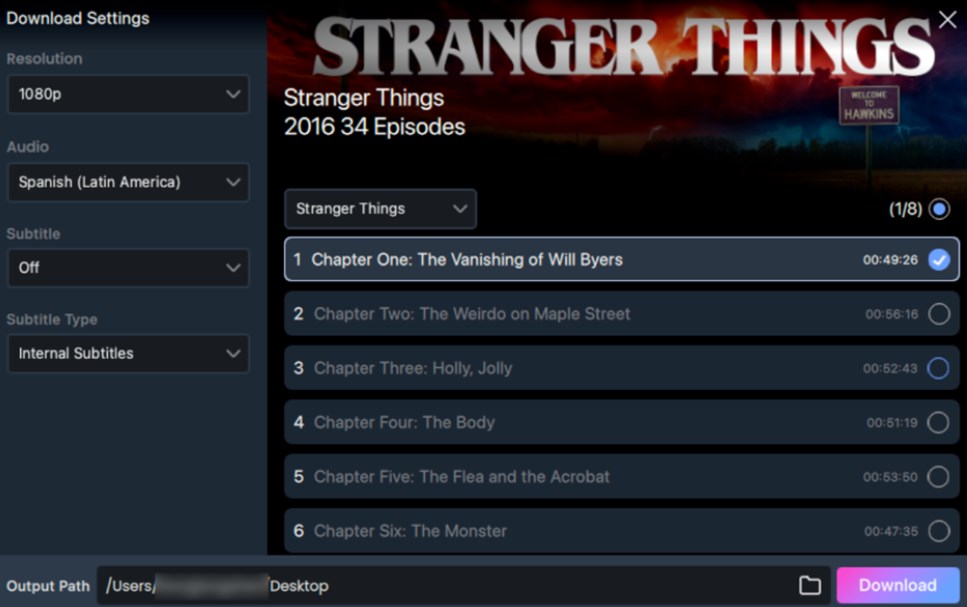
Adjust Download Settings
Step 6. Your download will start. You can track it in the Download List menu on the left.
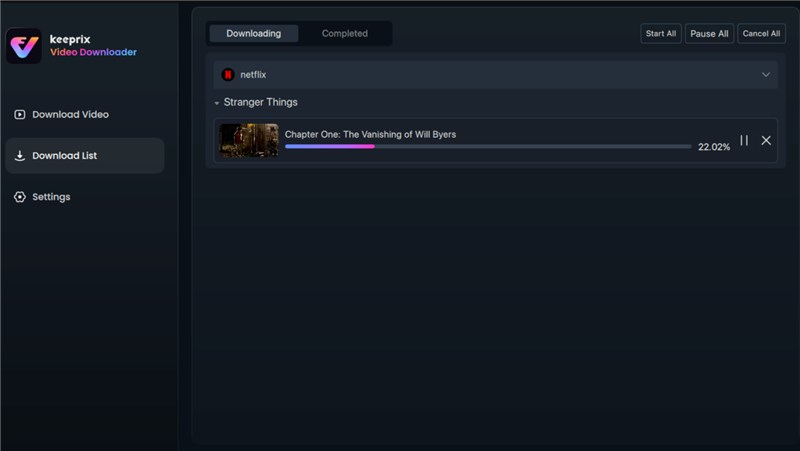
Download Netflix Videos
Part 4. FAQs
Q1. Can downloaded Netflix movies be watched offline?
Yes! When you download anything, be it movies or shows to Netflix, you can watch it at any point in time and not necessarily require an internet connection, as long as the downloads are in the Netflix application.
Q2. Can Netflix downloads be transferred?
No! You can’t share Netflix downloads across devices. They are coded and attached to the Netflix app on the device on which you downloaded it.
Q3. When you download a movie from Netflix, how long does it last?
Netflix downloads have a typical lifespan of 30 days. In contrast, others expire 48 hours after they are watched. The Downloads page in the app displays the remaining time accurately. When a title has expired, you might have to download it again.
Conclusion
When you save your favorite shows and movies, Netflix helps you do it easily, but where do you think they go? When I download on Netflix, where does it go? It remains within the Netflix application on mobile devices and can not be transferred or played.
All the platforms store downloads in different ways. So, it is helpful to know how to locate them. For more freedom to save and watch content in standard formats, consider using Keeprix Video Downloader. It lets you download and enjoy videos on your own terms.



Joy Taylor is a seasoned technical writer with over a decade of experience in mobile technology. At iMobie, she specializes in producing in-depth content on iOS data recovery, iPhone unlocking solutions, and iOS troubleshooting.
Product-related questions? Contact Our Support Team to Get Quick Solution >
