Samsung Experience Service Keeps Stopping? Fix in 8 Ways 2026
Facing the “Samsung Experience Service keeps stopping” error on your device? Discover 8 effective ways to fix it in 2026 and restore smooth performance quickly.
DroidKit – Fix Android Issues Easily
Free download DroidKit to fix the ‘Samsung Experience Service keeps stopping’ error in several clicks. Support system fix without unlocking the Samsung, Xiaomi, etc.

Is your Samsung device regularly displaying the irritating “Samsung Experience Service keeps stopping” pop-up? Don’t worry, this problem doesn’t only happen to you. This persistent error can cause your apps to malfunction and slow down your phone, yet by applying the correct fixes, you can get your device back to normal. In this guide, we will reveal to you 8 effective methods to fix this problem in 2025.
Part 1. What is Samsung Experience Service And Do I Need It?
Samsung Experience Service is a Samsung device interface and features manager system app. The app is responsible for implementing easy app transitions, notifications, and device customization. Besides, it is the users’ smooth experience guarantee. Even if it’s not a service you’re dealing with directly, it’s a must-have for your Samsung phone if you want it to work efficiently. It’s better not to disable it, as it may cause your phone to malfunction, you may lose sync, notifications, and customization features.
Part 2. Why Does Samsung Experience Service Stop Working?
Multiple reasons may cause this service to crash or stop working.
- Software bugs: The updates may clash with existing apps or settings.
- Temporary files can be corrupted, which may cause the app to behave unexpectedly.
- A few third-party applications can put system services into a problematic state.
- Just like so many other devices, errors may show up if the Android version or Samsung’s One UI you are using is too old.
- If the storage is low, system apps may still function, but will be limited or slower in performance.
These are the reasons for the service instability, but fortunately, there are a few possible solutions to resolve this problem.
Part 3. How to Fix Samsung Experience Service Keeps Stopping
To fix the ‘Samsung Experience Service keeps stopping’ error, try out the solutions below:
Way 1. Clear cache and data
Perhaps some corrupted temporary files are the reason for the Samsung Experience Service to crash repeatedly. By clearing the cache and data, the app is given a new lease of life, and most of the time, the problem is solved.
Step 1. Go to Settings > Apps > Show system apps.
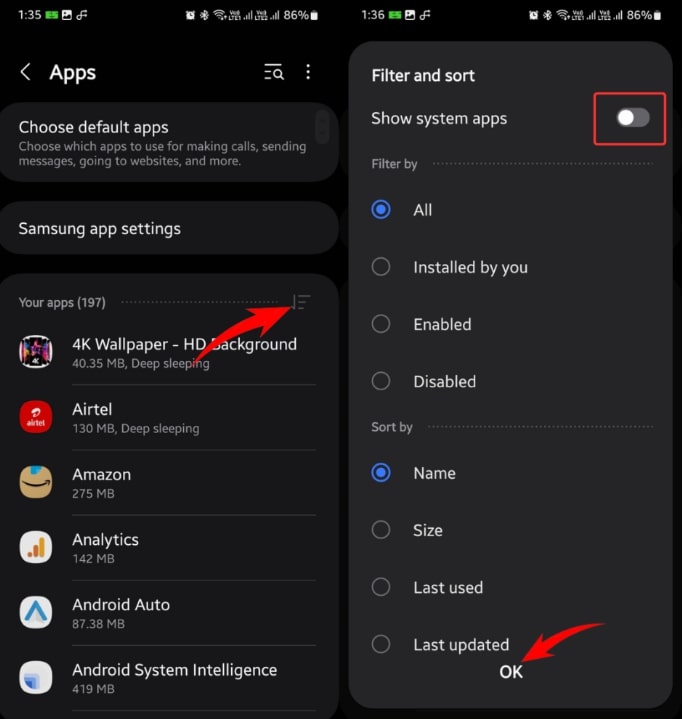
Show System Apps
Step 2. Find Samsung Experience Service. Hit Storage > Clear Cache > Clear Data.
Step 3. Restart your device.
Way 2. Update software
Outdated software is the reason that system apps become incompatible with the rest of the software. By frequently updating your phone, you will have a smoother performance and be less likely to experience crashes.
Step 1. Go to Settings > Software update > Download.
Step 2. Follow the instructions to install any available updates.
Step 3. Restart your device.
Way 3. Force Restart
A forced restart will reload all the system processes and fix minor issues that have occurred temporarily without deleting the user’s data.
Step 1. Press and hold Power + Volume Down for 10–15 seconds.
Step 2. Release when the Samsung logo appears.
Step 3. Allow the device to restart fully.
Way 4. Fix System Issue via DroidKit
If the Samsung Experience Service repeatedly stops due to system issues, DroidKit offers a reliable, user-friendly solution to fix over 50 Android problems, including app crashes, system freezes, and black screens, without requiring technical expertise or rooting. Its intuitive interface and step-by-step guide enable beginners to restore their device quickly and safely, complementing its FRP bypass and data recovery capabilities.
DroidKit – Android System Repair Tool
- Solve issues like black screen, device frozen, touch screen not working, etc.
- No need to root your device. No technical skills required.
- Bypass Android lock screen without factory reset.
Free Download100% Clean & Safe
Free Download100% Clean & Safe
Free Download * 100% Clean & Safe
Here’s the stepwise guide to fix the Samsung Experience not working error via DroidKit:
Step 1. Attach your Android device to the computer where you want to work via USB cable. Download, install, and open DroidKit; then, go to the System Fix section.
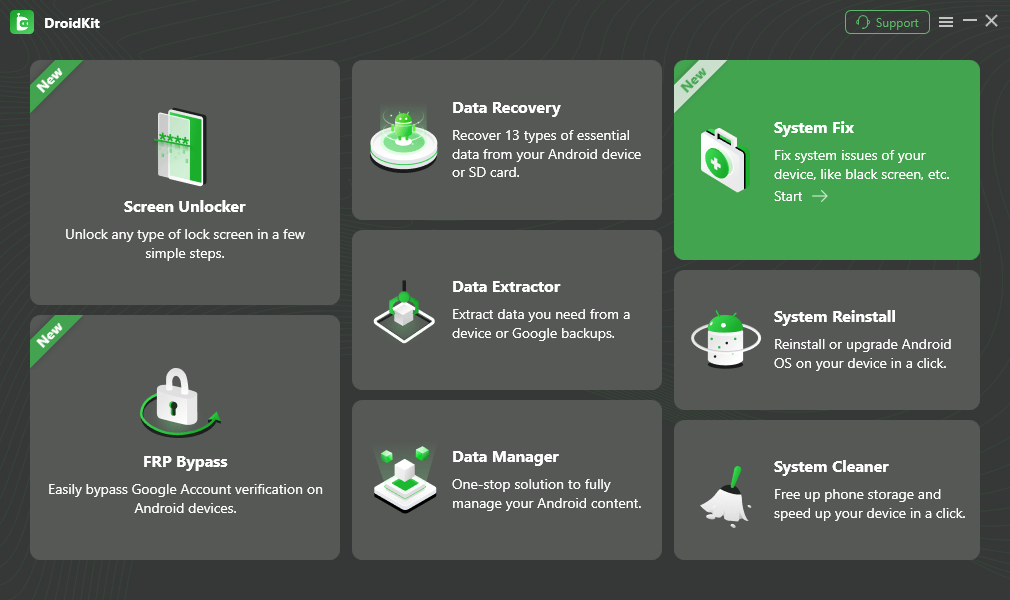
Choose System Fix Mode
Step 3. DroidKit will automatically match the PDA code of your Android phone > Click Download Now to get the firmware package, which is used for repairing Android system errors.
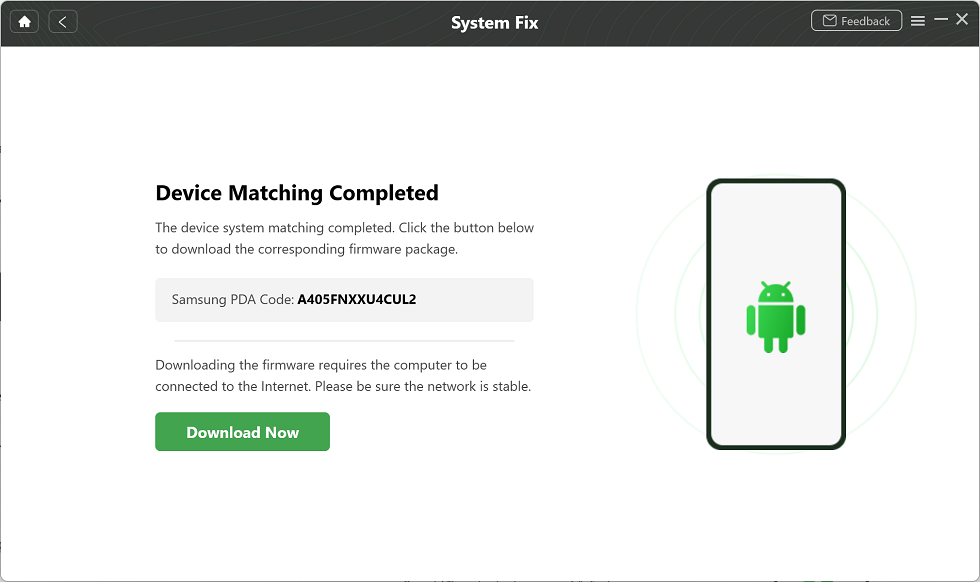
Complete Device Matching
Step 4. When it finishes downloading the firmware package, you will see the following interface, where you should click on the Fix Now button to initiate the fixing process.
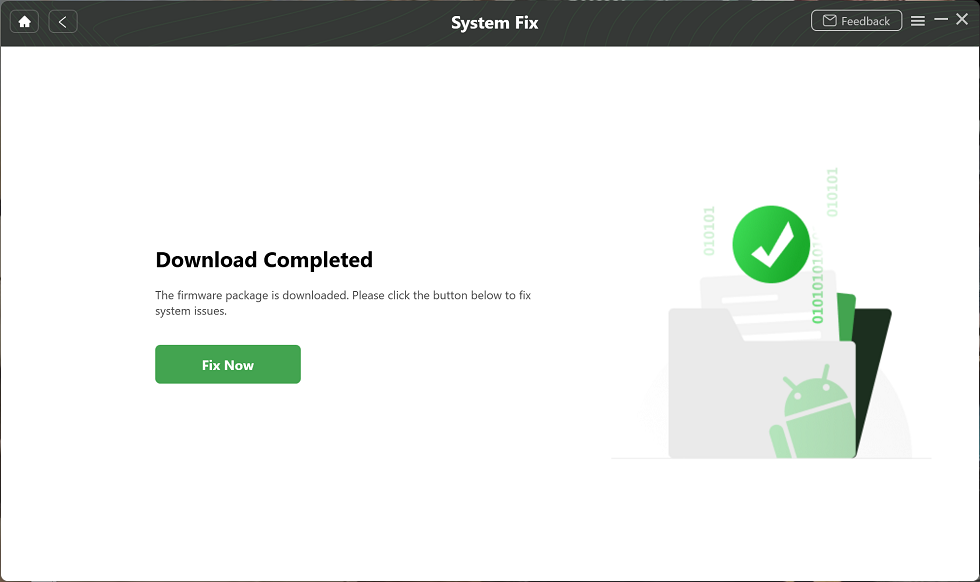
Complete the Firmware Download
Step 5. The device system will start to get repaired. Wait for a few minutes, and your Samsung phone will get back to normal.
Way 5. Reset App Preferences
Resetting app preferences can be supportive in a situation where a user is facing misconfigured settings that cause system apps, including Samsung Experience Service, to stop working. In addition, this operation will delete no personal files.
Step 1. Go to Settings > Apps.
Step 2. Hit the three-dot menu and pick Reset app preferences.
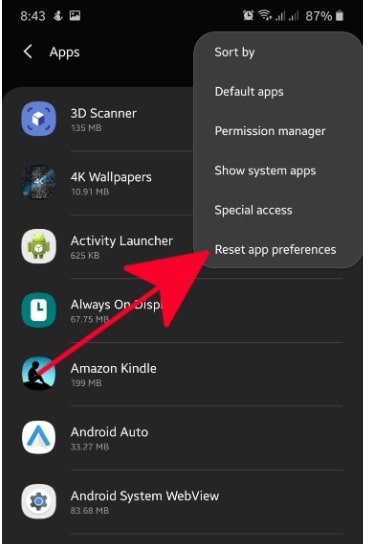
Reset App Preferences
Step 3. Confirm and then restart your device.
Way 6. Factory Reset
By performing a factory reset, your device will be returned to its original state, and consequently, the issue with the system will be fixed. Creating a backup of your data is highly advised before proceeding.
Step 1. Go to Settings > General Management > Reset > Factory data reset.
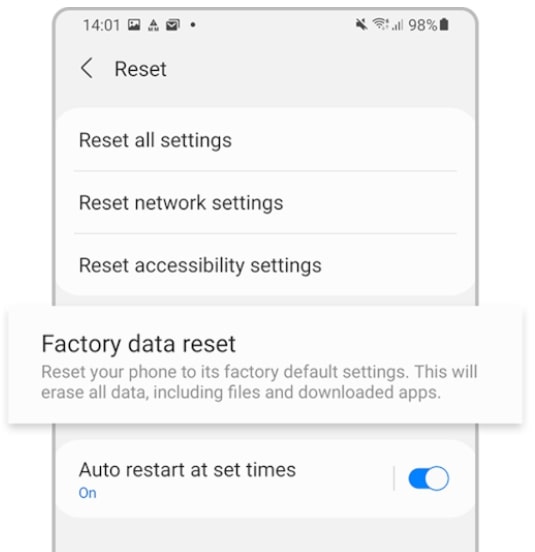
Factory Data Reset
Step 2. Go through the information and tap Reset.
Step 3. Waiting for the device to delete data and reboot.
Way 7. Check for Third-party App Conflicts
Some third-party apps can interfere with system services and cause them to crash. Through identifying and removing these conflicting apps, your problem can be solved.
Step 1. Boot your device into Safe Mode by holding down the Power button, then tap and hold Power Off > Safe Mode.
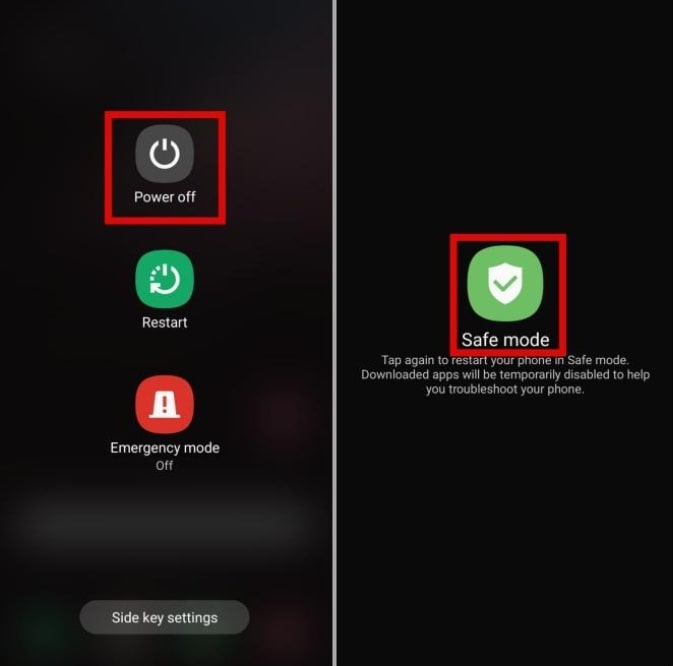
Choose Safe Mode
Step 2. Check if Samsung Experience Service runs properly while in Safe Mode.
Step 3. Uninstall the apps that have been installed recently, which may be causing conflicts, and then restart your device as usual.
Way 8. Check for Updates in the Play Store or Galaxy Store
Old apps may be the cause of system services that conflict with the app. Therefore, updating all the apps is the only way to guarantee easy compatibility and fluid performance.
Step 1. Open either the Google Play Store or Galaxy Store.
Step 2. Go to My apps & games and tap Update all.
Step 3. Restart your device to check if the service is working.
Part 4. Bonus. How to Disable Samsung Experience Service
Samsung Experience Service cannot be fully disabled or turned off, as it is a vital system app that takes care of the Samsung UI and system functions. But, in order to reduce inconveniences caused by these constant interruptions, you can turn off the alerts for this application, which will allow the safe running of the system.
Step 1. Go to Settings > Apps > Show system apps > Samsung Experience Service.
Step 2. Toggle Off for all notifications or select specific ones to mute.
Part 5. Conclusion
The error “Samsung Experience Service keeps stopping” can annoy you a lot, but most of the time, it is possible to fix it by applying the appropriate methods. A quick solution to the problem can be achieved by going through all these procedures that range from clearing cache and data, updating software, and checking for third-party app conflicts, to even using DroidKit for system repairs. Doing these 8 methods will make your Samsung phone work better, and you will have less trouble with it in 2025.


Roger Smith is a senior technical writer with years of experience in providing Android solutions. He loves to help users solve various problems such as Android unlock, Android data recovery, and Android system repair.
Product-related questions? Contact Our Support Team to Get Quick Solution >
