How to Remove Mi Account from Xiaomi or Redmi
Removing a Mi Account can mean signing it out of a Xiaomi or Redmi phone, unlinking a device from Xiaomi Cloud, or dealing with a Mi Account lock after a reset. This guide explains the Settings, Xiaomi Cloud, Mi Account Unlock Tool, and TPS Xiaomi Tool methods, plus what to do when the phone is actually asking for Google FRP verification.
If you are selling a Xiaomi or Redmi phone, switching accounts, or trying to resolve a Mi Account problem, first identify what you actually need to remove. Signing out in Settings disconnects the account from the phone, while removing a device from Xiaomi Cloud changes the device association. A phone showing a Mi Account lock after a reset is a different situation again.
If your screen specifically says “This device is locked,” see the Xiaomi “This device is locked” guide for that scenario. If the phone instead asks for a previously synced Google Account, the problem is Google Factory Reset Protection (FRP), not normal Mi Account removal.
Part 1. Remove Mi Account in Settings or Xiaomi Cloud
If you still know the Mi Account credentials and can use the phone normally, start with the built-in account options. This route is different from permanently deleting the Xiaomi account itself: the goal here is to sign the account out of the phone or remove a device association.
Method 1: Sign Out of Mi Account in Settings
Step 1. Open “Settings” on your Xiaomi or Redmi phone and locate “Mi Account.” Its position may differ depending on the ROM.
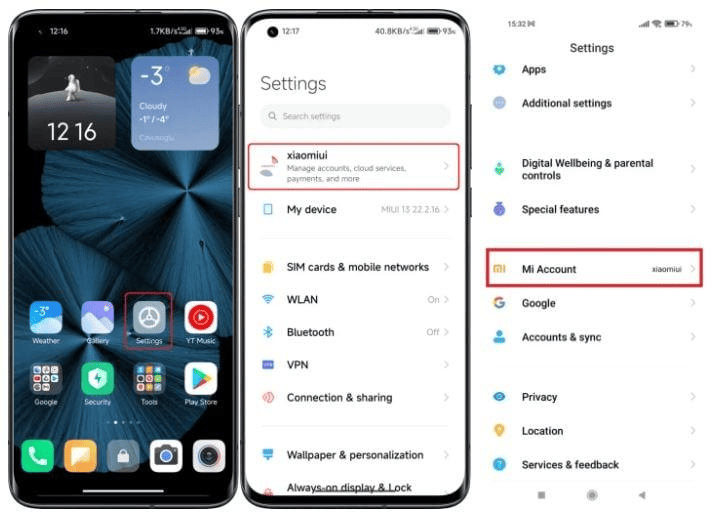
Access Mi Account in Settings
Step 2. Tap “Mi Account,” scroll down, and tap “Sign Out.”
Step 3. If prompted, enter your Mi Account password to confirm the action.
Step 4. When the phone asks whether to keep or remove Mi Account data from the device, select the option that matches what you want to retain locally.
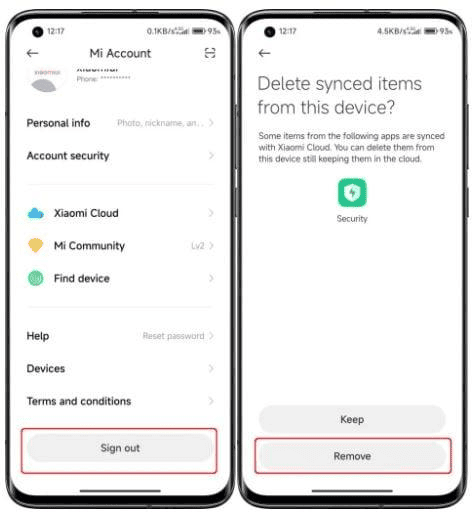
Remove Mi Account in Settings
Step 5. After the sign-out process is complete, the Mi Account section should show the option to sign in again instead of the previously connected account.
Method 2: Remove the Device from Xiaomi Cloud
If you can access the Xiaomi account online, you can also manage the devices associated with it. Removing a device from the account list should not be confused with permanently deleting the entire Xiaomi account.
Step 1. Open the Xiaomi Cloud website and sign in with your Xiaomi account details.
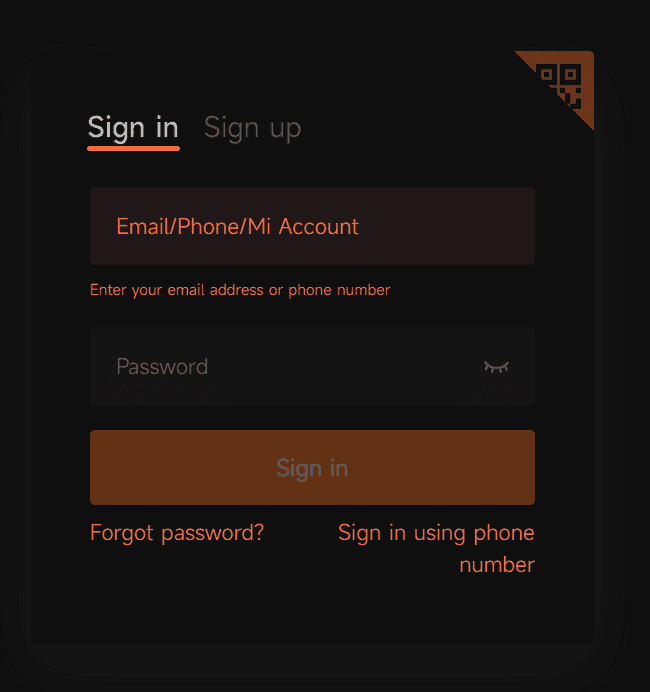
Log Into Xiaomi Cloud Site
Step 2. After signing in, open the “Settings” section.
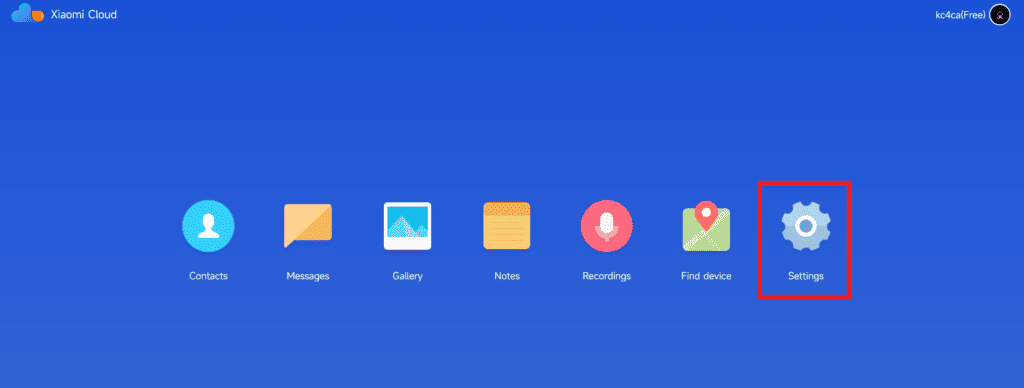
Xiaomi Cloud Settings
Step 3. Under “My Devices,” locate the Xiaomi or Redmi device you want to remove from the account.
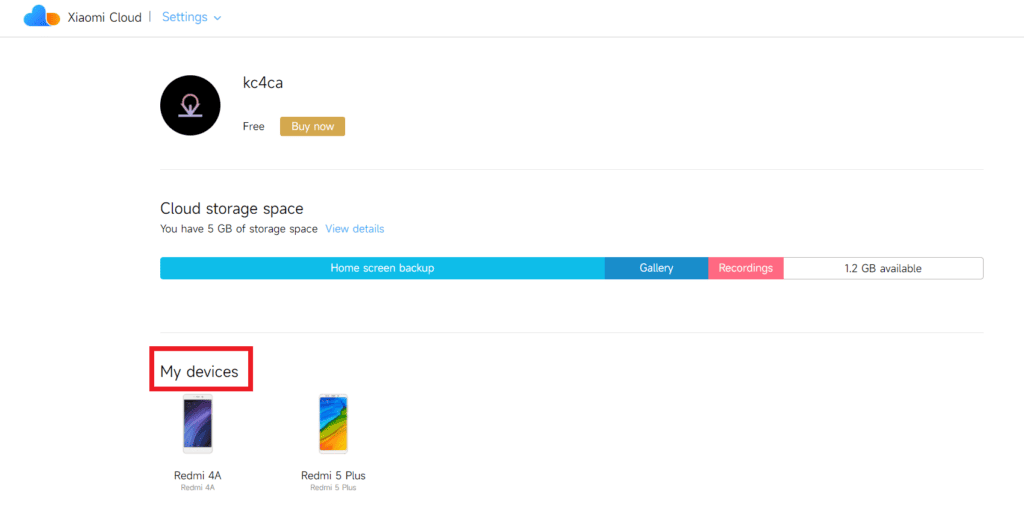
Locate Your Device in Xiaomi Cloud
Step 4. Select the device and choose “Delete Device.”
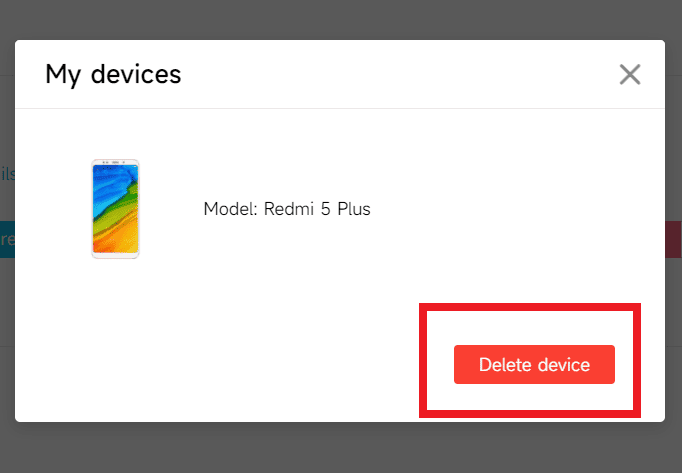
Delete Device in Xiaomi Cloud
Step 5. Confirm the action. The selected device will be removed from the device list associated with the Xiaomi account. This does not mean that the Xiaomi account itself has been permanently deleted.
Part 2. Use the Mi Account Unlock Tool
The Mi Account Unlock Tool is a PC-based utility users may encounter when a Xiaomi or Redmi phone is displaying a Mi Account lock rather than simply needing an account sign-out. The available options and behavior can differ by device and software build, so check what the utility detects before proceeding.
Use account-lock removal tools only on a Xiaomi or Redmi device you own or are authorized to service.
Step 1. Prepare the Mi Account Unlock Tool on your computer. On the phone, press and hold the Volume Up and Power buttons to enter recovery mode.
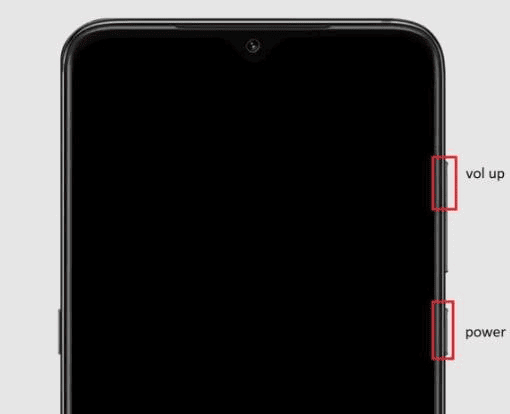
Enter Recovery Mode in Xiaomi
Step 2. Connect the Xiaomi or Redmi phone to the computer with a USB cable and open the Mi Account Unlock Tool.
Step 3. Select the “Information” option to check the detected device information. If nothing appears, check the USB connection and required drivers before continuing.
Step 4. If the appropriate option is available for your connected device, choose “Bypass Mi Account” and follow the tool’s prompts.
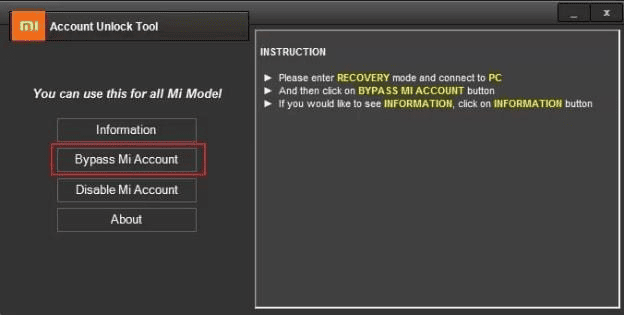
Bypass Mi Account in Xiaomi Unlock Tool
Part 3. Remove Mi Account with TPS Xiaomi Tool
TPS Xiaomi Tool is another computer utility whose interface includes Xiaomi account-lock functions. The supplied workflow uses Fastboot or EDL-related operations, so it is more technical than signing out through Settings and should not be treated as the same type of account removal.
Prepare TPS Xiaomi Tool
Step 1. Install the Xiaomi Qualcomm USB Driver, MTK USB Driver, and TPS Xiaomi Tool required by the workflow, then extract and open the TPS Xiaomi Tool files.
Step 2. Launch “TPS_Tool.exe” and complete the installation prompts before opening the utility.
Method 1: Fastboot Mode
Step 1. Turn off the Xiaomi device. Press and hold the Volume Down and Power buttons until the Fastboot screen appears.
Step 2. Connect the phone to the computer with a USB cable, then launch TPS Xiaomi Tool and check whether the device is detected.
Method 2: EDL Mode
Step 1. Set up the Fastboot and ADB drivers on the computer. The supplied ADB route also requires USB debugging to be available on the phone.
Step 2. Open Command Prompt and use the following commands:
adb devicesadb reboot edl
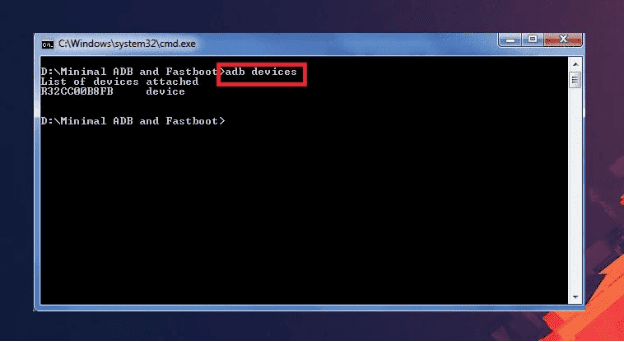
Set Up Xiaomi Fastboot on PC
Step 3. If the phone displays a USB debugging confirmation, approve it. Then open TPS Xiaomi Tool and check the detected ADB or Fastboot status.
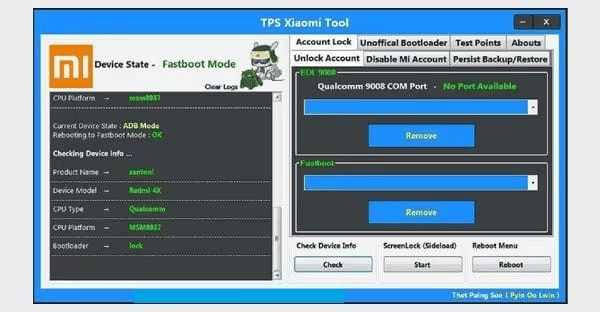
TPS Xiaomi Tool Main Screen
Step 4. Open “Check Device Info” and click “Check” to confirm that the connected device is recognized.
Step 5. In the supplied interface, go to “Account Lock,” select “Disable Mi Account,” and then use “Bypass Mi Account” as shown by the tool.
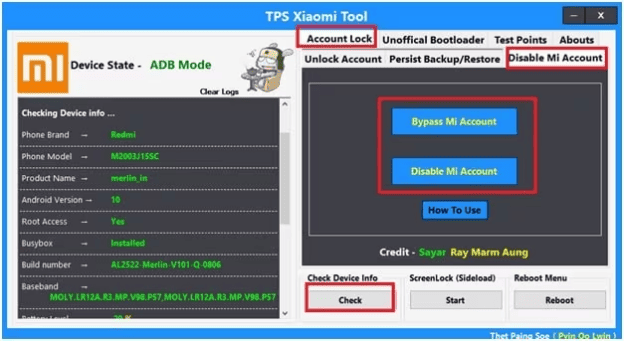
Disable Mi Account in TPS Xiaomi Tool
Mi Account Lock vs. Google FRP: What’s the Difference?
Mi Account removal and Google FRP bypass are often searched together, but they refer to different accounts and different lock screens. Check the account requested on the device before choosing a method.
| Lock Type | Account Involved | Typical Situation | Relevant Route |
| Normal Mi Account sign-out | Xiaomi Account | You can access the phone and want to disconnect the current account | Settings or Xiaomi Cloud |
| Mi Account lock | Xiaomi Account | The device asks for the Xiaomi/Mi Account linked to the phone | Account recovery or an appropriate Mi Account lock workflow |
| Google FRP | Google Account | After a factory reset, Android asks for a Google Account previously synced with the device | Google account recovery or an FRP-specific workflow |
If the setup screen asks for a Google Account rather than a Xiaomi Account, continue with an FRP method instead of repeating the Mi Account sign-out steps.
How to Bypass Google FRP on Xiaomi/Redmi with DroidKit
If your Xiaomi or Redmi phone is asking for a previously synced Google Account after a factory reset, the problem is Google FRP rather than Mi Account removal. DroidKit FRP Bypass provides a separate computer-based FRP workflow, including Xiaomi and Redmi brand selection in the process shown below.
This section applies to Google verification after reset. It does not permanently delete a Xiaomi account.
Steps to use DroidKit FRP Bypass:
Step 1. Launch DroidKit on your computer and select “FRP Bypass.”
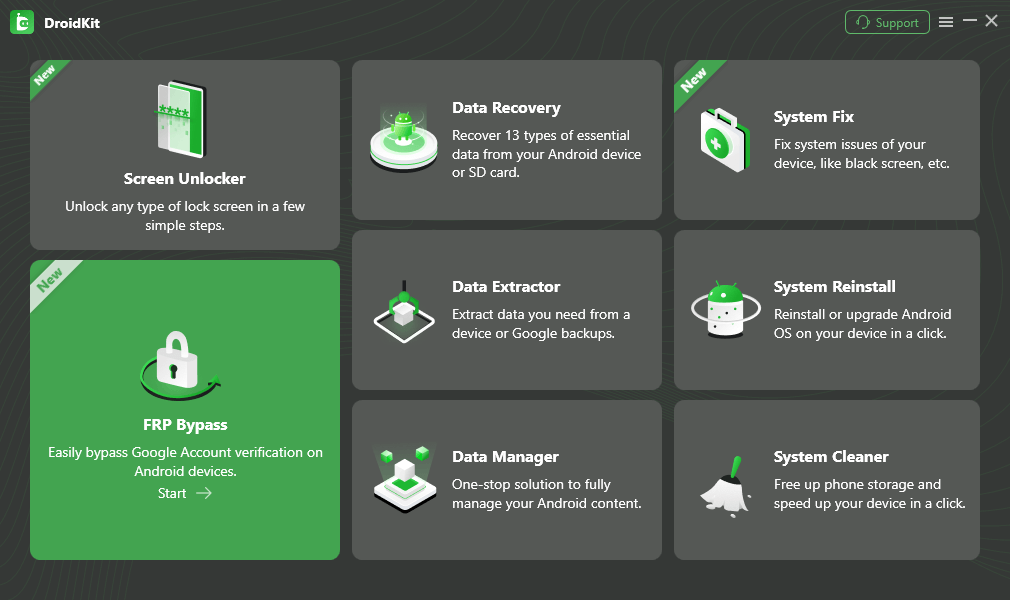
DroidKit FRP Bypass
Step 2. Connect the Xiaomi or Redmi device to the computer with a USB cable, then click “Start.”
Step 3. When DroidKit asks for the device brand, select Xiaomi or Redmi.
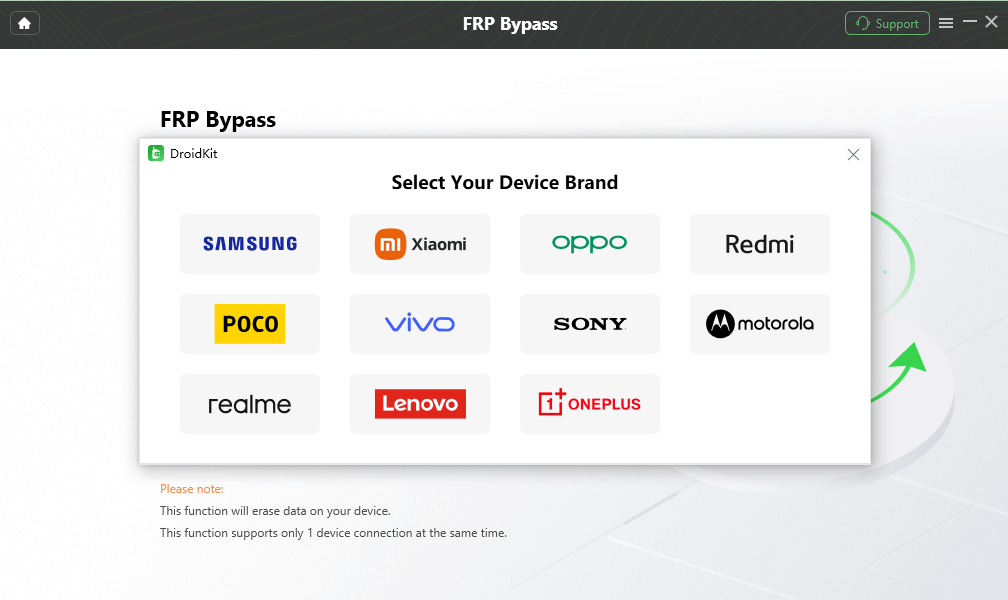
Select the Correct Device Brand
Step 4. Wait while DroidKit prepares the files required by the workflow, then select “Start to Bypass.”
Step 5. Follow the instructions displayed by DroidKit for the settings that need to be changed on the connected device.
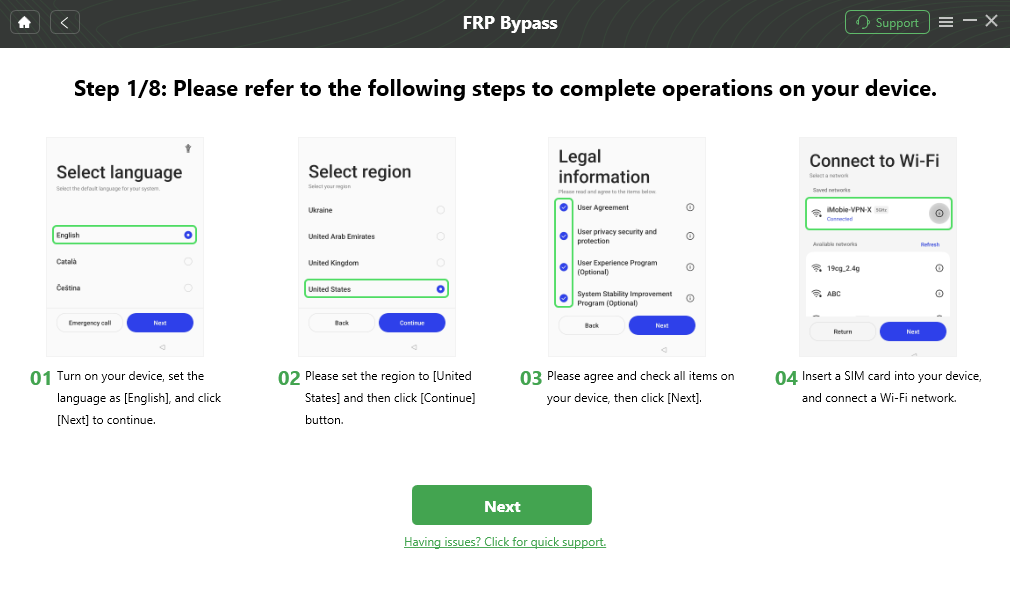
Follow the On-Screen FRP Bypass Steps
Step 6. Keep the phone connected while DroidKit runs the FRP process and wait for the completion screen.
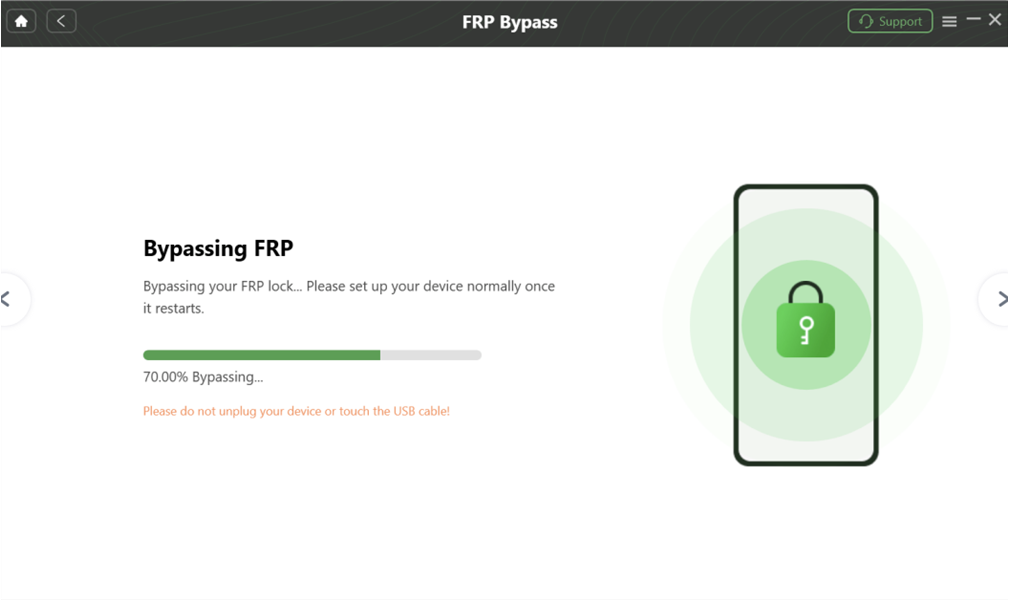
DroidKit Processing FRP Bypass
FAQs About Removing a Mi Account
Does signing out delete my Mi Account permanently?
No. Signing out disconnects the Xiaomi account from that phone. Removing a device from the Xiaomi Cloud device list is also different from permanently deleting the Xiaomi account itself.
Can I remove a Mi Account before selling my Xiaomi or Redmi phone?
If you still have access to the account, signing out through Settings is the most direct route covered in this guide. You can also review the devices associated with the account before handing the phone to someone else.
Is Mi Account Lock the same as Google FRP?
No. A Mi Account lock is associated with a Xiaomi account. Google Factory Reset Protection is associated with a Google Account previously synced with the Android device and normally appears after a factory reset.
Why does my Xiaomi still ask for an account after a factory reset?
Check which account the setup screen requests. A Xiaomi or Mi Account prompt points to a Xiaomi account-related lock, while a Google Account verification screen indicates FRP. The correct recovery or removal route depends on that distinction.
Can Xiaomi Cloud permanently delete my Mi Account?
The Xiaomi Cloud steps shown in this guide remove a selected device from the account’s device list. They should not be interpreted as a permanent deletion of the entire Xiaomi account.
Conclusion
The right way to remove an account from a Xiaomi or Redmi phone depends on what the device is actually asking for. If you can still access your Mi Account, start with Settings or the Xiaomi Cloud device-management options. If the phone displays a Mi Account lock, that is a different situation from a normal sign-out. And if setup asks for a previously synced Google Account after a factory reset, you are dealing with Google FRP rather than Mi Account removal.
Keeping those three situations separate helps you avoid using an account-lock or FRP method when all you really need is to sign an account out of the phone.
More Related Articles



Joy Taylor is a seasoned technical writer with over a decade of experience in mobile technology. At iMobie, she specializes in producing in-depth content on iOS data recovery, iPhone unlocking solutions, and iOS troubleshooting.
Product-related questions? Contact Our Support Team to Get Quick Solution >
