How to Fix Camera Freezing iPhone in 9 Ways [iOS 26/18]
To fix camera freezing iPhone, you can try restarting your device, updating your iOS version, etc. Or easily use AnyFix to repair system glitches and restore your iPhone camera to smooth, stable performance.
iPhone cameras are designed to record the best moments of life, but many users encounter camera freezing issues after upgrading to a new iOS version. These glitches include the camera showing a black screen, sudden quitting of the app, and selfies being out of focus an all spoil your photo and video experience. Most of these problems have simple fixes. In this guide, we’ll show you 9 easy and effective ways to fix a camera freezing iPhone.
Why Does My Camera Keep Freezing on My iPhone?
The problem of an iPhone camera freezing is not rare, but the causes are usually known and can be rectified. The major causes are:
- After updating to iOS 18, 18.5, or 26, sometimes the camera is affected by glitches, which are the result of the new software.
- The space running low may make your iPhone slower, and the camera freezing can be the result of it.
- Background apps can use memory and affect camera performance.
- Apps that access the camera may cause crashes or freezing.
- Small software errors may be the result of the camera being unresponsive.
- In case your iPhone gets overheated, the camera may cease to operate accurately.
9 Common Fixes for Camera Freezing iPhone
In most cases, freezing and blurring of the iPhone camera can be attributed to minor software glitches or background app interference. The fixes below are simple, effective, and do not require advanced technical skills.
Way 1: Close and Reopen the Camera App
There are moments when the camera application might experience a short freeze. The minor glitches can be removed just by quitting it completely and then reopening it. Easily swipe up (or double-click Home on older iPhones), close the Camera app, then open it again.
Way 2: Force Restart Your iPhone
Restarting your iPhone can often clear temporary software glitches that cause the camera to freeze or blur. By resetting system processes, a restart helps refresh your device and restore the camera’s normal performance. Here are the steps:
Step 1. The volume and power buttons should be pressed and held until the slider appears.
Step 2. The slider should be moved to turn your iPhone off.
Step 3. When it is off, the power button needs to be held until the Apple logo flashes to restart the device.
Way 3: Clear Background Apps and Free Up RAM
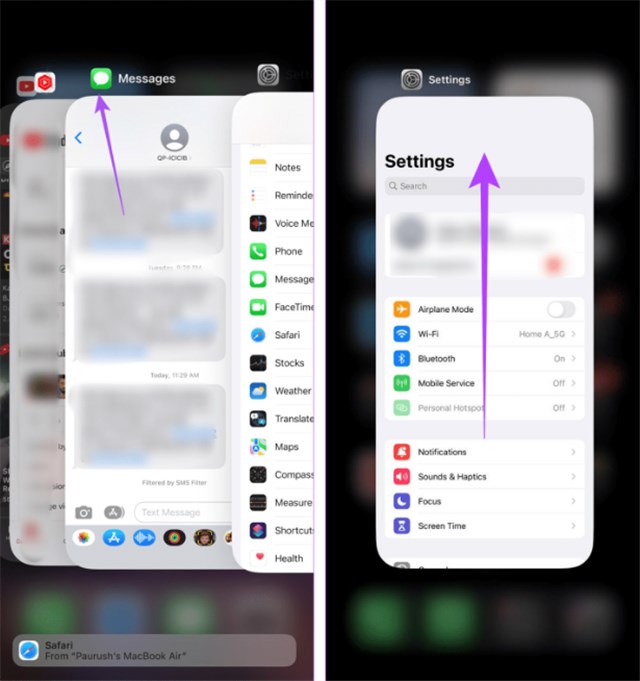
Running too many apps at once can also slow down your iPhone and cause the camera to freeze or blur. Close any unused apps in the background to free up memory and help the camera run smoothly. Swipe up (or double-click Home) to see open applications, and swipe away to close them.
Way 4: Clear iPhone Cache
A lot of times, a camera freezing iPhone happens because the system or apps are holding onto too much temporary data. Close the unnecessary apps that are operating in the background to release the RAM. This not only enhances the overall performance but also lets the camera work smoothly. Follow the steps below to clear iPhone cache:
Step 1. Go to the Settings application on your iPhone.
Step 1. Find and select the application that you are using with the camera, such as Camera or Photos, by scrolling down.
Step 1. Check if any options such as Clear Cache, Offload App, or Reset App Data are available. Tapping on the selected option will delete the temporary files.
Step 4. Restart your iPhone to let the changes take effect.
Step 5. Open the Camera app and check if it’s working without freezing.
Way 5: Update iOS to the Latest Version
Sometimes, software bugs in your iPhone’s current iOS version can make the camera freeze. Updating to the latest iOS version can fix these issues and improve performance, as Apple often releases updates to solve camera freezes, blurs, and crashes. Here is how to:
Step 1. Open the Settings app on your iPhone.
Step 2. Tap on General, then select Software Update.
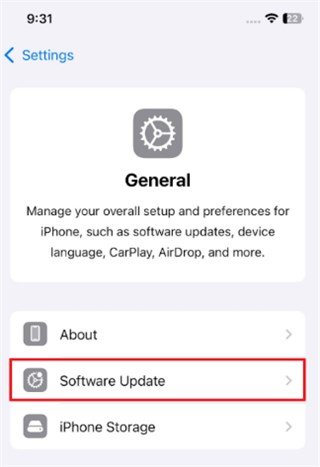
Step 3. If there is any update available, then tap on update now.
Step 4. Wait for the iPhone to finish downloading and installing the update. Your device may restart during this process.
Way 6: Enable Camera Access in Privacy Settings
A camera freezing iPhone can occur when apps don’t have permission to use the camera. When access to the camera is blocked, it is quite common for the apps to experience freezing, blurring, or crashing during the usage of the camera. To resolve this, navigate to Settings, then Privacy, and select Camera. From there, grant access to the desired applications.
Way 7: Remove Problematic Apps
The iPhone’s camera may freeze, blur, or crash as a result of some apps interfering with the device’s system or camera. Identifying and deleting these programs can improve speed and avoid future problems. Follow the steps below:
Step 1. Find out if any new apps have been installed around the time the camera issue started.
Step 2. Press and hold the icon of the app that is on your home screen.
Step 3. Select Delete App and then confirm.
Step 4. Restart your iPhone to refresh and restart the system.
Way 8: Contact Apple Support for Hardware Repair
A camera freezing iPhone can sometimes be caused by hardware issues that software fixes cannot solve. If there are issues with the camera module or internal parts, expert assistance could be necessary. To get your iPhone examined, get in touch with Apple Support or stop by an Apple Store. Apple specialists can diagnose and fix the issue.
Fix Camera Freezing iPhone with AnyFix [Easy & Secure]
When your camera freezing iPhone problem doesn’t go away even after trying basic solutions, it might be due to deeper iOS system issues. That’s where AnyFix comes in. It is an iOS repair tool that can fix over 150 system issues on iOS devices. It is a powerful tool. You can fix your iPhone and get your camera working again without losing data or going to a repair shop with just a few clicks. In addition to fixing camera problems, AnyFix also supports advanced features like iOS downgrade, device reset, and iTunes error repair, making it a complete solution for keeping your iPhone running smoothly.
Key Features of AnyFix:
- Quickly resolves camera app crashes, lag, and unresponsiveness caused by system glitches.
- Easily repair camera-related system errors without any technical skills.
- Support the latest iOS 26 & iPhone 17 models.
- Delivers deeper repairs than a simple restart, keeping your camera stable longer.
Free Download * 100% Clean & Safe
Steps to Fix Camera Freezing iPhone with AnyFix:
Step 1. Install AnyFix on your PC after downloading it. On the main screen, select System Repair after opening it.
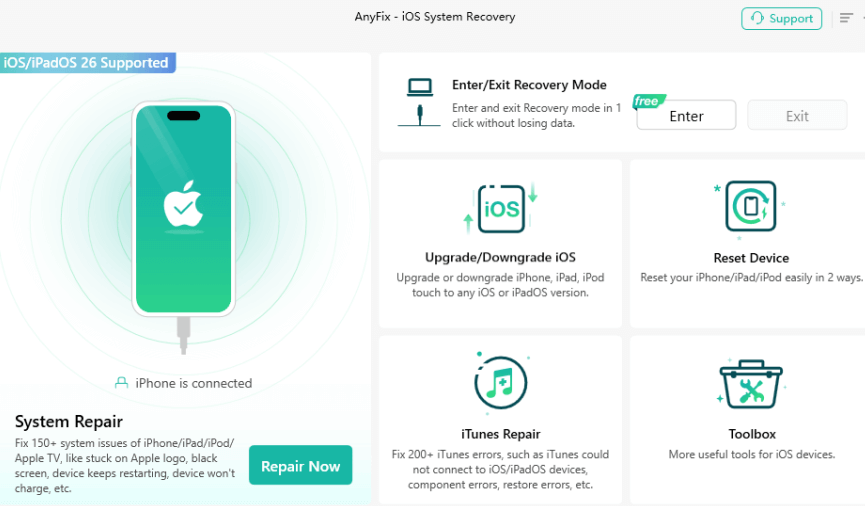
Step 2. Click Start Now after connecting your iPhone to the computer via a USB cable.
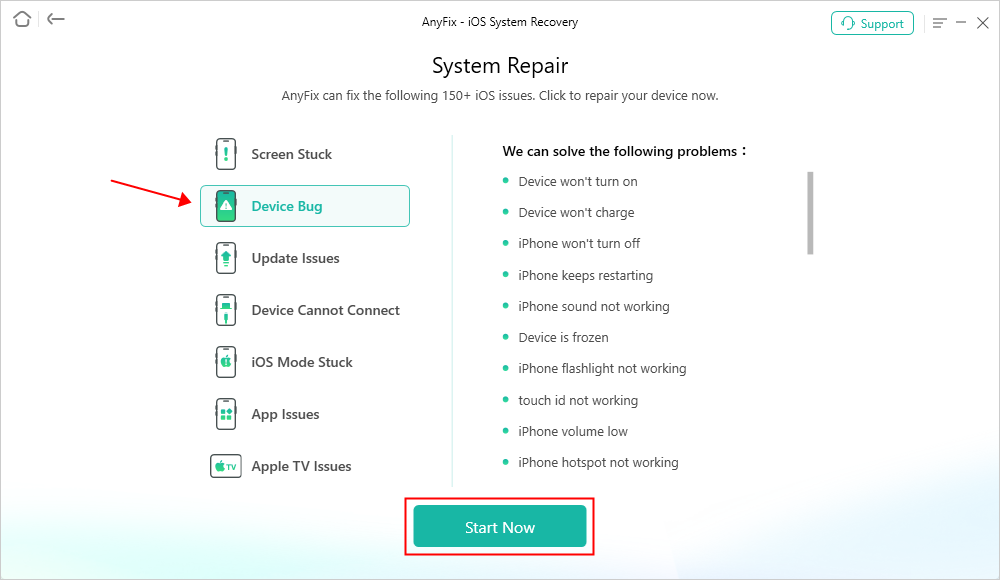
Step 3. To securely resolve your iPhone camera freezing issue without erasing any data, choose Standard Repair.

Step 4. Put your iPhone in recovery mode and click Fix Now. After it’s finished, your iPhone will restart and the camera will function normally again.

FAQs about Camera Freezing iPhone
Q1. How to fix iPhone camera stuck?
To fix iPhone camera stuck, start by closing the Camera app and reopening it. If it’s still stuck, restart your iPhone. This clears temporary glitches and refreshes the system.
Q2. How to fix iPhone 13/15 camera freezing?
iPhone 13/15 camera freezing can be fixed by updating your iOS to the latest version or using a repair tool like AnyFix to fix system glitches causing the freeze.
Q3. How to fix iPhone stuck in camera mode?
Force restart your iPhone to exit the frozen screen. This quick reset helps clear background errors and gets the camera working again smoothly.
Conclusion
To sum up, there might be several reasons behind iPhone camera freeze, such as bugs and system errors, but they are easily fixable if proper iOS system repair tools are used. AnyFix is one such tool that not only repairs all types of iOS system issues, including camera freezing, but also does it safely and without hassle. Get AnyFix now and bring back the camera performance of your iPhone with just a few clicks.
Free Download * 100% Clean & Safe



Joy Taylor is a seasoned technical writer with over a decade of experience in mobile technology. At iMobie, she specializes in producing in-depth content on iOS data recovery, iPhone unlocking solutions, and iOS troubleshooting.
Product-related questions? Contact Our Support Team to Get Quick Solution >
