How to Fix “Cannot Get Mail: The Connection to the Server Failed” [2026 Fixes]
What to do when you meet connect server failed issue? Fortunately, you can get 9 different ways to fix it in this in-depth article. Among these methods, we offer you a special solution that not only solves the connect server failed problem, but also solves other iOS and Android problems
You are trying to log in to your mail and the error pop-ups telling you that “Cannot Get Mail – The connection to the server failed”. Don’t you worry! because we have a solution for you. In this article, you will not only get to know why the connection to the server fails but also how you can avoid them in the future. To solve the connect server failed problem on iOS 27, we will need to understand it first.
This error typically means your iPhone Mail app cannot establish a secure handshake with the email provider. On iOS 27, this is often caused by certificate conflicts or network routing issues after a major update.
1. Repair iPhone Connect Server Failed via iPhone Repair Tool
If you want a quick and guaranteed 90% chance of fixing the problem, then you better use iPhone repair software. Among the iOS system repair software available in the market, AnyFix is highly recommended. It is designed to get iPhone/iPad users out of software problems and data loss dilemmas. So, it allows you to repair iOS and fix various iPhone problems, including connect server failed issue, stuck on factory reset, iPhone black screen, attempting data recovery cannot be completed, etc. Supports all iOS versions including iOS 27 and iPhone/iPad models. Follow below steps to fix iPhone connect server failed issue.
AnyFix – Fix iPhone Connect Server Failed
- Fix iPhone stuck on emergency SOS mode with simple clicks.
- 3 repair modes. All of your repair needs can be satisfied.
- Repair 150+ iOS issues and 200+ iTunes problems in minutes.
- No erase of data on your iPhone, 100% clean & safe.
Free Download100% Clean & Safe
Free Download100% Clean & Safe
Step 1. Free download, install, and run AnyFix on your computer. From the home page window, select System Repair.
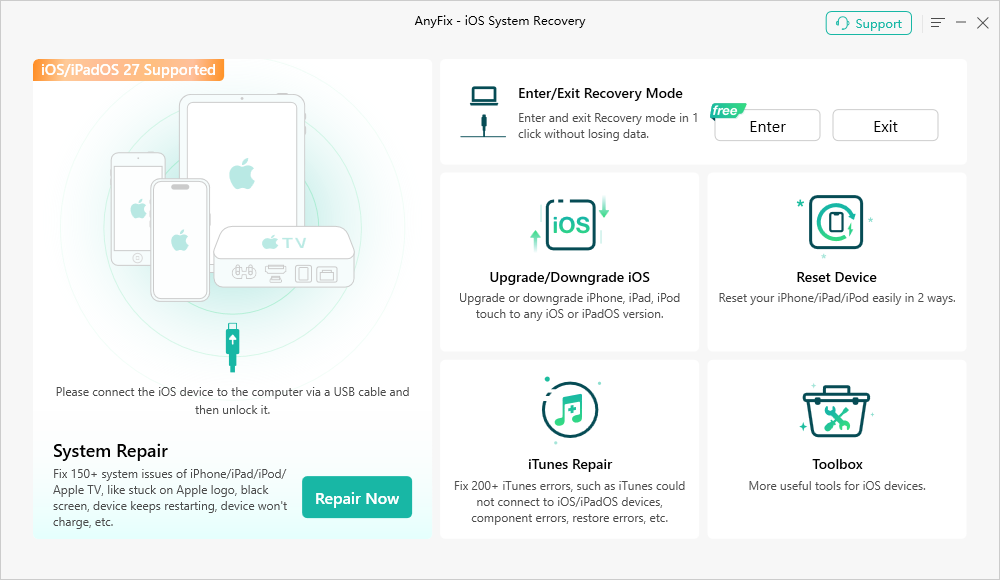
AnyFix System Repair Option
Step 2. Connect the iPhone to your computer and select the App Issues from the program window. Then click on the Start Now button to proceed.
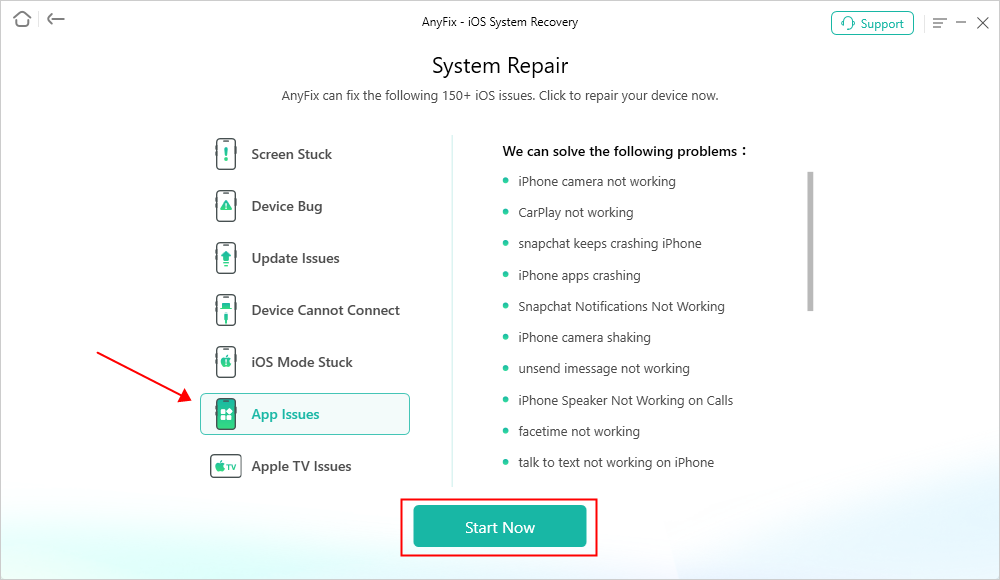
AnyFix System Repair App Issues
Step 3. Choose the Standard Repair option from the program window and follow the screen instructions to put your iPhone into recovery mode.
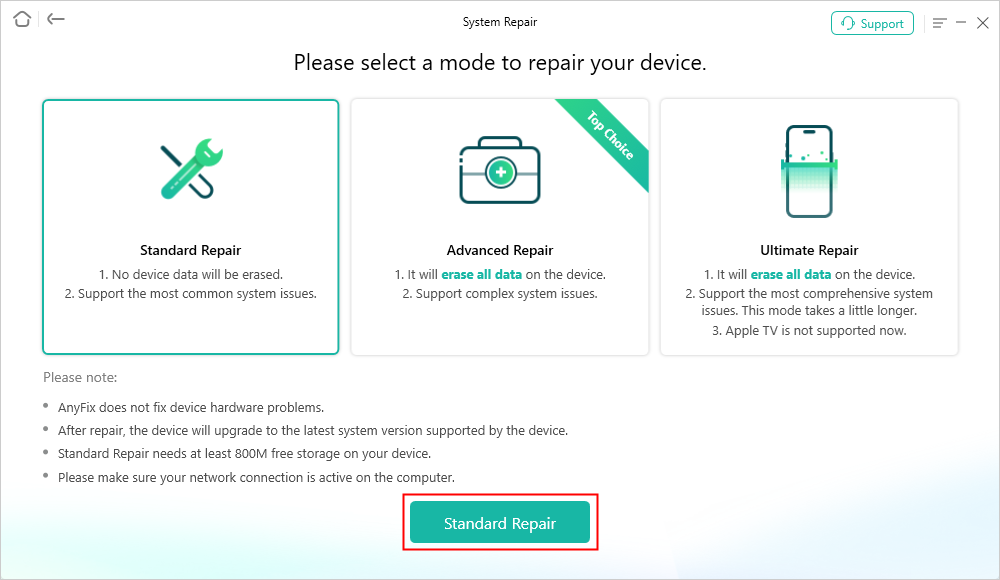
AnyFix Standard Repair
Step 4. Confirm the device information and click on the Download button to download the device firmware package.
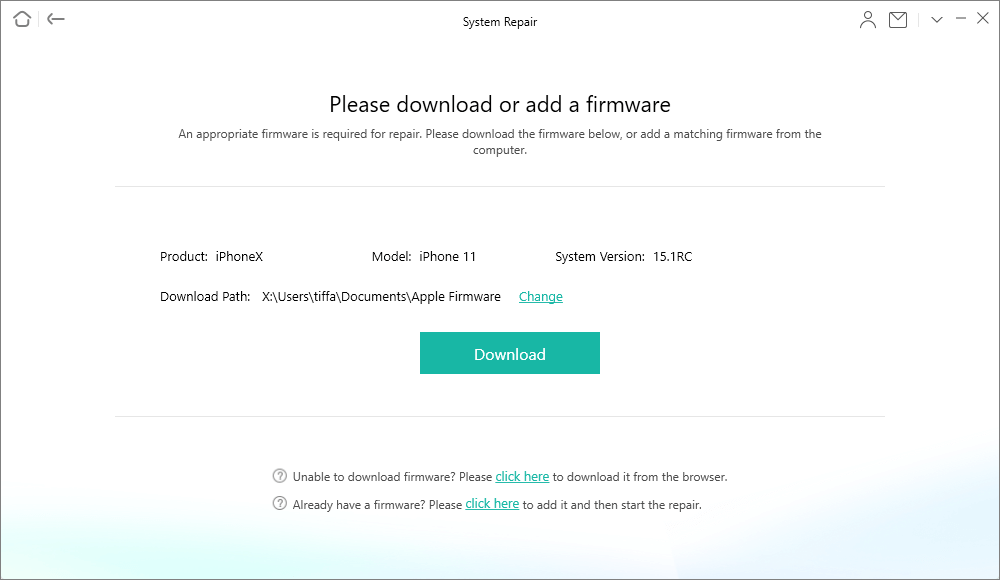
Click Download to Add a Firmware
Step 5. Click on the Fix Now button to start the repair process. Wait till the process finishes and make sure that the device stays connected to your computer.
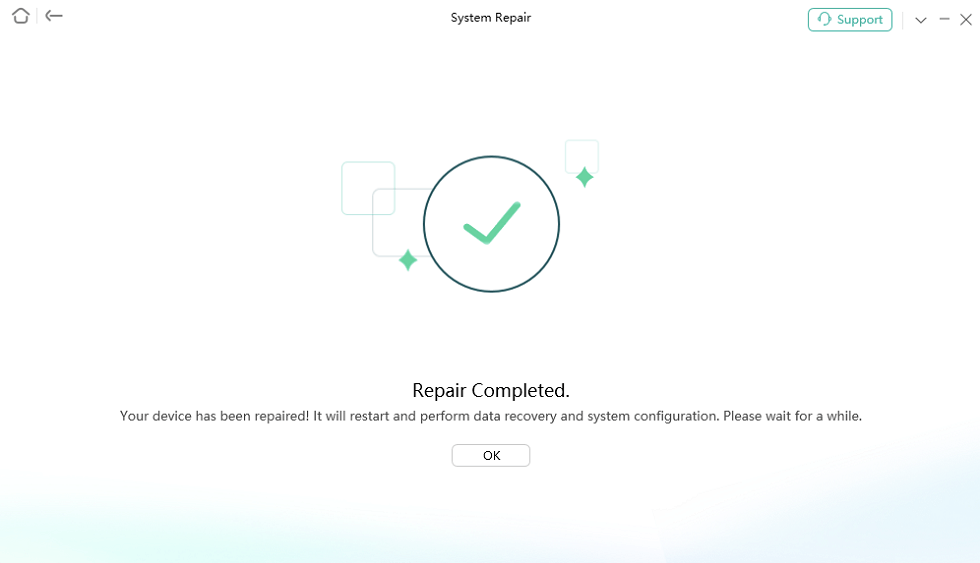
Repair Is Completed
2. Check the Internet Connection
You may have a problem with the server directly, but it could be your internet connection in most cases. Your wifi router or Mobile data can sometimes hinder your login details and stop you from connecting to the internet.
Every device perceives data differently, so it is expected it has its capabilities for connecting to the network. It is said that whenever a problem arises, look for the simplest explanation. And most of the time, it is the solution.
So, the first thing you will be required to do when presented with the server connection failure is to look at your Network device simply.
Try applying the following fixes and check if the problem is resolved.
Restart the wi-fi router
- If you are using a Wi-fi router, then your main goal will be to restart it.
- Every router has a power button behind where the ethernet cables are connected.
- Find the power button and press it.
- Check if the light indicators on the router have turned off.
- This will be your cue to press the power button again and start the router.
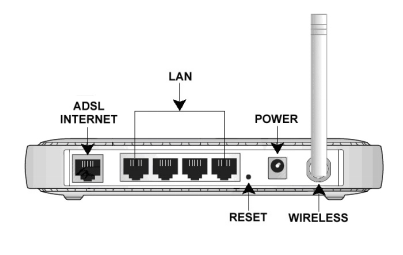
Restart Wi-Fi Router
Note: before pressing the button to restart the router, it’s advised to wait for at least 2-3 minutes.
Check the devices connected to the internet
- If you are using Wi-fi, you may have multiple devices connected.
- It may happen that the Connect to server failed problem may be limited to your device only.
- To confirm that suspicion, your goal would be to look for other devices connected to the wi-fi.
- Look if the connection is stable on the other devices.
- Try logging in from those devices. It may solve your issue.
Check your Mobile Data
- If you are not using a wi-fi router, the issue could be coming from your Mobile Network provider.
- It may happen that the 4G/5G services are temporarily unavailable or any other local issue.
- To solve this, you will need to call your network provider helpline to provide you with the details or wait for the issue to resolve itself.
Call Help-line/support
- If your wi-fi router still presents the problem, you can try contacting the service provider company.
- Every company that provides a network offers a helpline service.
- You can easily find the helpline contact number on your router.
iOS 27 Tip: If your cellular data is causing the fail, go to Settings > Cellular > Cellular Data Options and check if ‘Allow More Data on 5G’ is enabled for better server stability.
3. Restart Your iPhone
Another of the simplest solutions to the server connection issue is restarting your phone.
- If you are using a wi-fi router, check the devices connected to the internet.
- If the service works fine on the other devices, the issue may be with your Mobile device.
- Or sometimes it may happen due to prolonged screentime. Your device has built up excessive cache storage that affects your connection to the server and the internet.
- The simple solution is to restart your phone.
4. Re-enter Your Mail Account
- The connection server failed issue may occur because of a corrupted application or service you use on your phone.
- In cases where you have not verified your email account can result in a connection failure.
- This error can occur both in iPhone and Android devices.
Follow the following steps if you encounter this issue on your iPhone:
- Go to settings.
- Find the Mail, Contact, and Calendars options.
- Open the email account, causing the “Connection server failed” error, and select the “Delete Account” option.
- Head back to the Mail, Contact, Calendars option again after deleting the account.
- Add the account that was causing the problem.
- Refresh the messages and try connecting again to see if the issue is resolved.
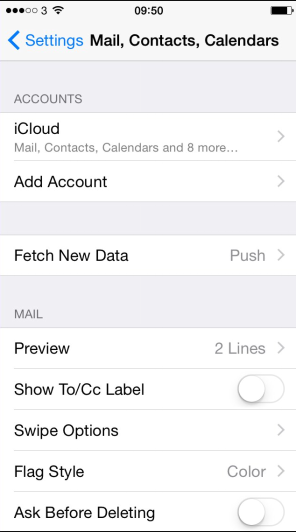
iPhone Re-enter Your Mail Account
5. Change the “mail days to sync”
Sometimes changing the sync time on your iOS device will help you resolve server connectivity issues. Follow the steps mentioned below.
- Go to settings.
- Tap on password and accounts. (Note: If this option isn’t available on your device, go to Mail > Accounts or Mail, Contacts, Calendars.)
- Tap on the email account where you want to change the settings.
- Tap on Mail Days to Sync and select how many days of email you want to download to Mail.
- To synchronize all mail, select “No Limit”.
- You have now successfully synced your mail to your wish.
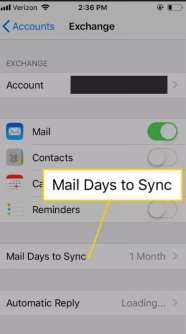
Change the Mail Days to Sync Option on iPhone
6. Check Date & Time Settings:
It might seem trivial. But region, date, and time can affect your server connectivity. It is one of the most commonly ignored issues.
- It could happen that mistakenly your date or time settings get changed.
- Your phone could be in the hands of a kid that unknowingly disrupts the phone date and time settings.
- Some errors could occur due to downloading third-party apps.
- It could also be possible that you may not have set the Region/Time zone to automatic.
Follow the steps below to ensure the date and time are properly synced.
- First, ensure that you have the latest version of iOS.
- Go to settings > General > Date & Time.
- Tap on set automatically.
- Doing so will automatically set your Date & Time regarding your time zone.
- Head to Settings > Privacy > Location Services > System Services and turn on Setting Time Zone.
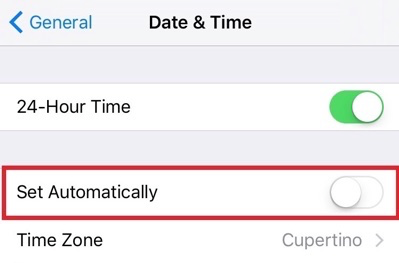
Turn off Automatically Date&Time
7. Change Microsoft Security Exchange Settings
Now, this is a Tech expert process. Here the user will need to change the server settings manually from the phone. Follow the steps mentioned below.
Step 1. Enter your exchange account
- To do that, go to Settings > Mail > Add Account > Microsoft Exchange.
Step 2. Enter your email
- Enter your email address.
- Below, you will also notice an account description.
- Now click on “next.”
- A screen will ask you if you want to configure it manually. Tap on Configure manually.
Step 3. Connect to your server exchange
- Here, you can see the option to enter your password and additional information.
- Tap Next after entering your email & password.
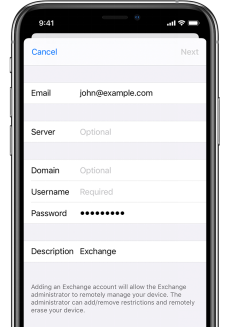
Enter Info and Password
Step 4. Sync your content
- Here you can sync your mail, contacts, calendars, and reminders.
- When done, tap on save.
8. Disable Firewall
A firewall is one of the features that can disturb your syncing with the mail and cause issues such as “Connect server failed.”
Note: On iOS 27, also check Settings > iCloud > Private Relay to ensure it isn’t blocking your mail provider connection.
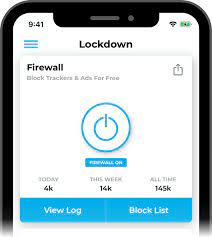
Disable Firewall on iPhone or Android
9. Change Password Settings
The server connectivity issue can be annoying. You may have logged in from the same email to any other internet site. To solve this:
- Go to settings.
- Tap on your name.
- Go to password and security.
- Change your password.
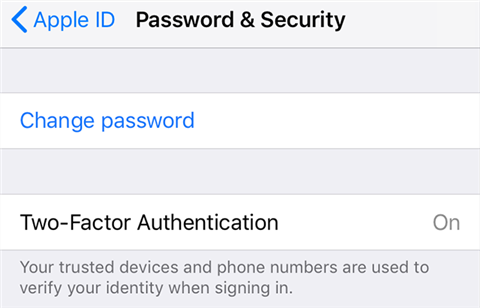
Change the Apple ID password on your iPhone
Final Words
The mobile phone world is so reliable that we forget to notice how far we humans have come technologically. This technology is helping the world in numerous ways. Following the steps mentioned above, you will be able to fix the Connect server issue in no time, even on the latest iOS 27. However, of all the solutions, we recommend using AnyFix, as it not only solves the Connect Server Failed problem, but also other problems related to iOS.
Final Words
The mobile phone world is so reliable that we forget to notice how far we humans have come technologically. This technology is helping the world in numerous ways. But there are errors, and then there are fixes. Following the steps mentioned above, you will be able to fix the Connect server issue in no time, even on the latest iOS 27. However, of all the solutions, we recommend using AnyFix, as it not only solves the Connect Server Failed problem, but also other problems related to iOS.



Joy Taylor is a seasoned technical writer with over a decade of experience in mobile technology. At iMobie, she specializes in producing in-depth content on iOS data recovery, iPhone unlocking solutions, and iOS troubleshooting.
Product-related questions? Contact Our Support Team to Get Quick Solution >
