iPhone Turns Yellow? 2025 Full Fix Guide (iPhone13/14/15/16)
Sometimes, the yellow screen of iPhone is not necessarily related with systsem glitches. However, if the basic troubleshootings don’t work, then you should follow our advanced fixes to solve this error.
“I haven’t really found much online on what happened — I was on my phone normally, just like watching TikTok, and suddenly, the screen fully turned yellow. I can still hear notifications and technically use the phone, but the screen is fully yellow. I have an iPhone 13 Pro Max if that means anything.”
— Reddit user
If this sounds familiar, you’re not alone. Many iPhone users, especially those with iPhone 13, 14, 15, or even the new iPhone 16, have reported the same yellow or warm-tinted display issue.
In this 2025 updated guide, we’ll explain what causes the iPhone yellow screen, how to tell if it’s a software or hardware issue, and step-by-step ways to fix it easily.
Part 1. What Is iPhone Yellow Screen?
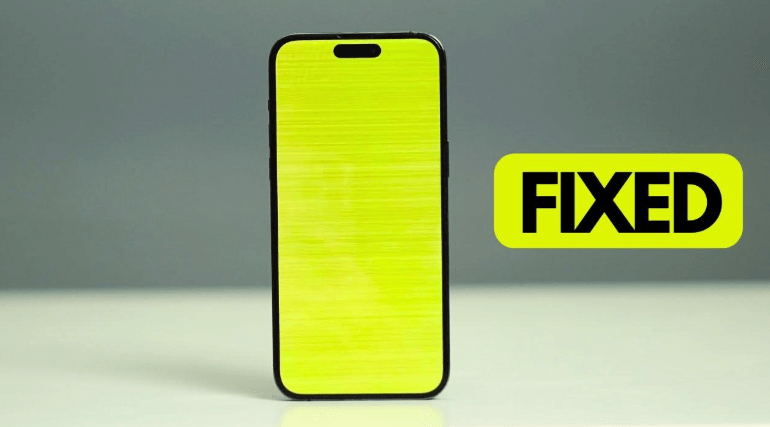
The iPhone yellow screen is a warm or yellowish tint on your device’s display, making whites look creamy rather than bright.
Usually, this isn’t a serious hardware problem. It’s often caused by display settings like True Tone, Night Shift, or Color Filters — all designed to protect your eyes from blue light.
However, a software glitch, incorrect display calibration, or malfunction of the replaced screen can also cause this yellowing. Finding the cause of the problem is the very first step in solving.
Also read: Fix iPhone Black Screen of Death
Part 2. Why Is My iPhone showing a Yellow Screen?
What if your iPhone display color turns yellow, or it looks warmer than usual? Then there could be several reasons for that.
Reason 1. Night Shift mode is enabled: Night Shift automatically shifts the screen toward warmer tones at night to reduce eye strain. If it stays on all day, the display looks yellowish.
Reason 2. True Tone display adjustments: True Tone adjusts color balance based on your environment’s lighting. When it overcompensates, it can make the screen appear yellow even under bright light.
Reason 3. Low Power Mode: When Low Power Mode is enabled, the iPhone reduces system performance and could also make small changes to the display brightness or color to improve battery life.
Reason 4. Hardware or Display issues: If your iPhone has been dropped, exposed to heat, or the display has aged, the backlight or display panel may develop uneven color distribution.
Reason 5. Software glitches: In some cases, bugs are temporary, and performing an iOS update can sometimes affect color calibration or change display settings, resulting in a sudden yellow tint.
Reason 6. Water or Physical damage: Suppose the iPhone was dropped, or water was spilled on it; in that case, the internal parts of the display or the connectors can be damaged, leading to discoloration.
Part 3. How to Fix the Yellow Screen of Death-Stepwise Guide
In case your iPhone screen has become yellow, do not panic — it is mostly a matter of a few display settings or a small software glitch. Below are the easiest methods you can try to get rid of the iPhone yellow screen problem on iPhone 13, 14, 15, and 16.
Method 1. Disable the Night Shift functionality
Night Shift is helpful for nighttime use, but it can make your screen too warm during the day. So, when you deactivate it, the screen often reverts to the standard color.
Step 1. Enter Settings > Display & Brightness.
Step 2. Click on Night Shift.
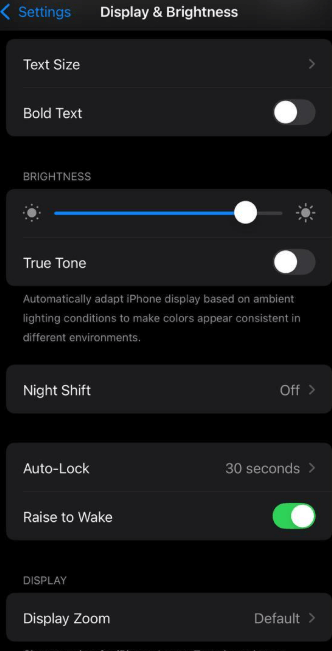
Step 3. Switch off both the Scheduled and Manually Enable Until Tomorrow options.
Method 2. Check the True Tone Option
True Tone is a feature that adjusts your screen based on the room’s lighting; however, sometimes, it is also the one to blame for a yellowish hue on the display.
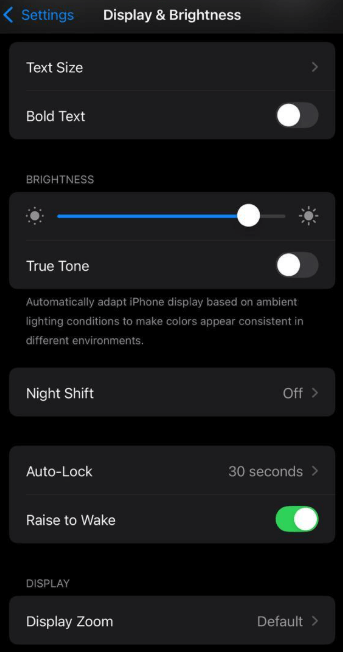
Step 1. Be in Settings > Display & Brightness.
Step 2. Locate the True Tone.
Step 3. Turn it off if you want to check whether the color is back to the normal one.
Method 3. Change the Color Tint Settings
Tint and color filters are accessibility features that might influence your screen tone. By resetting them, the real colors get restored again.
Step 1. Locate and open Settings > Accessibility > Display & Text Size.
Step 2. Select the Color Filters.
Step 3. Deactivate Color Filters. However, if you still must use them, you can simply adjust the Tint until you find a somewhat neutral colour.
Method 4. Adjust the Auto-brightness Feature
Auto-brightness adjusts the screen based on the surrounding light; thus, the display can sometimes appear yellowish.
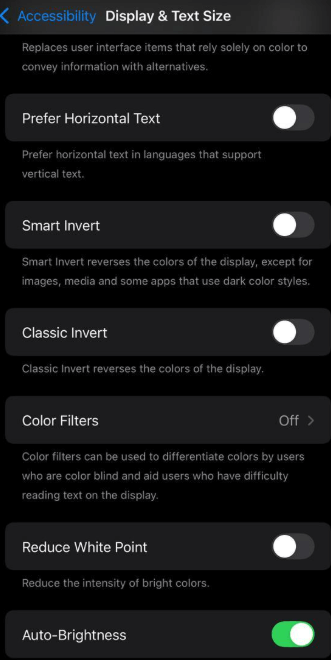
Step 1. Open the Settings app, then go to Accessibility > Display & Text Size.
Step 2. There is an Auto-Brightness switch at the bottom of the page.
Step 3. By switching it off and managing brightness from the Control Center manually, a user can get a more accurate screen colour.
Part 4. Advanced Ways to Fix the Yellow Screen of Death
If the basic settings don’t help, try these advanced methods:
Method 1. Use AnyFix to Resolve System-Related Issues-Hot
AnyFix is a top-notch iOS repair software that can handle more than 150+ iOS system issues without losing data. If your iPhone screen gets yellow, is stuck on the Apple logo, or won’t turn on, with just a few clicks, AnyFix revives it.
- Fix an iPhone that has a frozen screen, a black screen, or a yellow tint, etc.
- Recovery mode features a super-simple one-click entry/exit.
- Offers Standard, Advanced, and Ultimate Repair modes as you need.
- Supports system updates or downgrades without iTunes.
How-to Guide to Fix iPhone Yellow Screen by AnyFix:
Step 1. Install and download AnyFix
Download AnyFix, and then install it. Be sure your Internet connection is stable during the whole installation process.
Free Download * 100% Clean & Safe
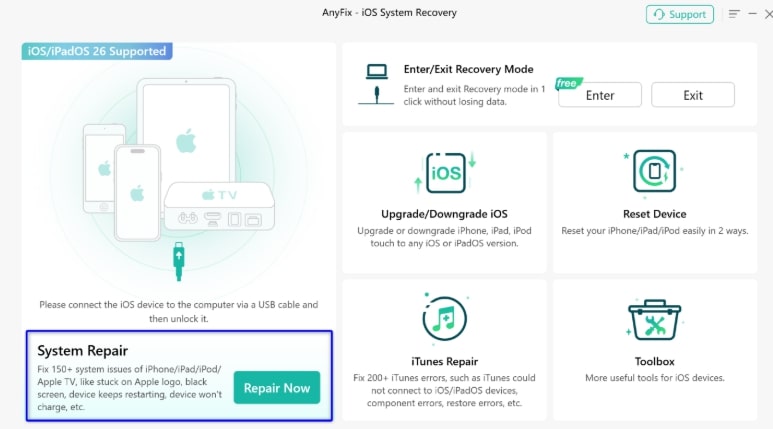
Step 2. Open AnyFix and select “System Repair”
After opening AnyFix, select System Repair from the main menu. Click Repair Now to initiate the process. Your iPhone should be tethered via a USB cable.
Step 3: Select the “Standard Repair” option
After the iPhone is recognized, Standard Repair should be selected as it is the option that resolves minor system problems without wiping the device. If the problem persists, you may later switch to Advanced or Ultimate Repair.

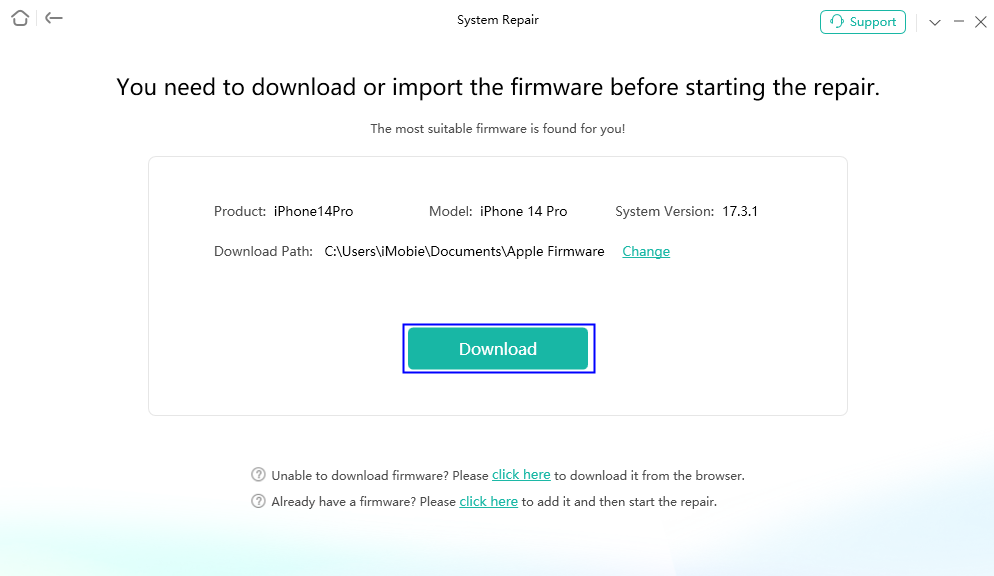
Step 4: Obtain the firmware bundle
To download the latest firmware package, press the Download button. Be sure your Internet connection is stable while downloading the file.
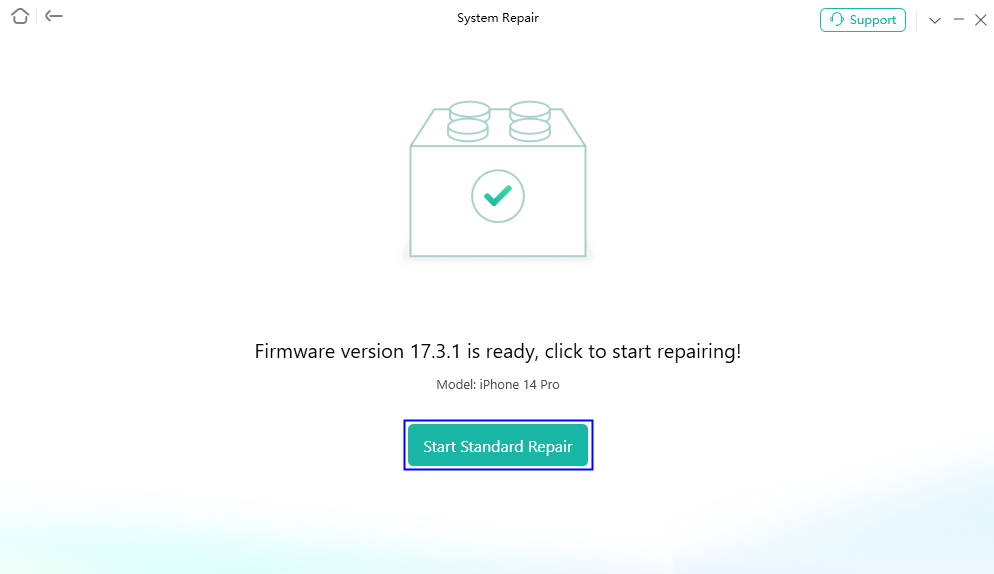
Step 5: Initiate the fixing process
Once the firmware has been downloaded fully, you should click on Start Standard Repair. AnyFix will perform the system repair on your device.
Method 2. Force restart your iPhone
Sometimes, a hard reboot for the iPhone is sufficient to clear temporary errors that lead to the yellow tint or the frozen screen.
Step 1. Quickly press and release Volume Up.
Step 2. Quickly press and release Volume Down.
Step 3. Hold the Side button until the Apple logo appears.
Method 3. Reset All Your iPhone Settings
Suppose the display turned out to be the cause of the problem. It is possible, as a last resort, to return to the factory settings, all the device settings, go back to the standard system configuration, and keep all the personal data intact.
Step 1. Go to Settings > General > Transfer or Reset iPhone > Reset.
Step 2. Select the Reset All Settings option.
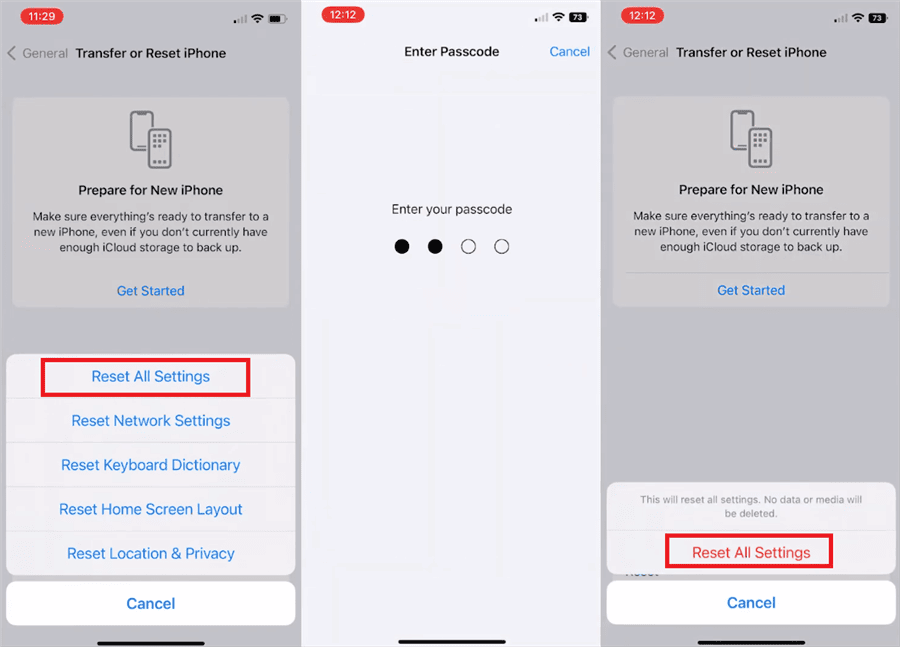
Step 3. Provide your confirmation, and the device will reboot itself after a short time.
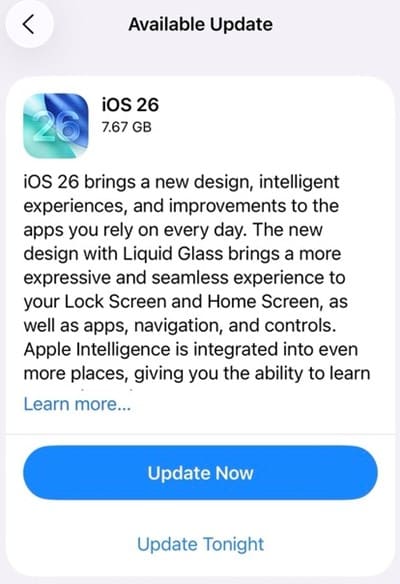
Method 4. Try iOS System Update
By having the latest iOS version, a device stays up to date with all required bug fixes, and any bugs that cause color and display issues may be fixed this way.
Step 1. Go to Settings > General > Software Update.
Step 2. If a new version is available, then the user can tap on Download and Install to begin the update process.
Step 3. Follow the instructions that are given on the screen so that the update can be completed.
Method 5. Factory Reset iPhone
Performing a factory reset will erase all the data and settings from the device, so it will be able to fix any display problem that keeps the device after you have tried other methods.
Step 1. Make a backup of your iPhone through iCloud or iTunes.
Step 2. Open Settings > General > Transfer or Reset iPhone > Erase All Content and Settings.
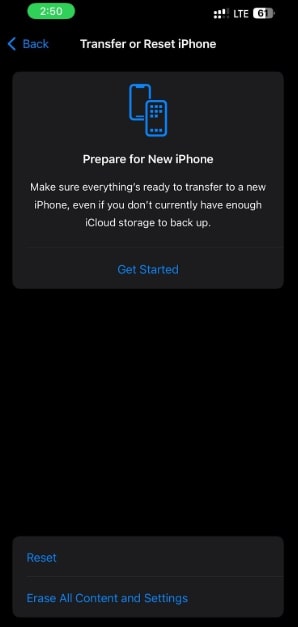
Step 3. Confirm the reset and wait for the iPhone to restart.
Method 6. Restore iPhone via iTunes
If nothing else works, restore your iPhone through iTunes to reinstall iOS completely.
Step 1. Use a cable to connect your iPhone to a computer and open iTunes.
Step 2. Click on your device and then on Restore iPhone.
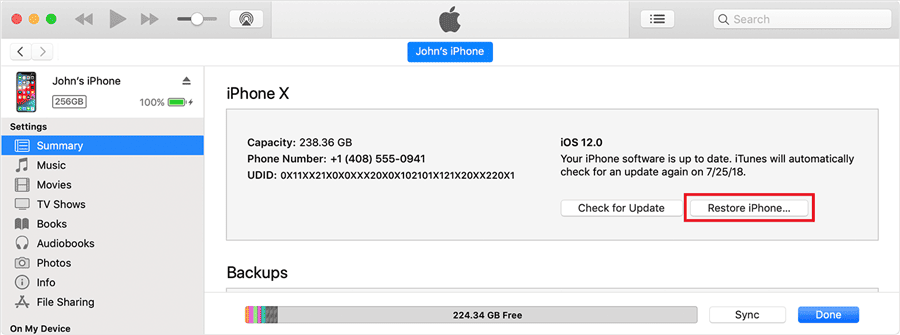
Step 3. Complete the restoration process by following the instructions on the screen.
Method 7. Contact Apple Support
Contact Apple Support online or via the Apple Support app. Make an appointment for a repair or consultation at a service center that is authorized. Get the repair or replacement of your iPhone display done according to Apple’s instructions.
Part 5. FAQs on iPhone yellow screen
Q1. How do I repair the screen of death on my iPhone 13?
Try turning off Night Shift, disabling True Tone, adjusting Color Filters, or restarting your device. If the issue persists, use AnyFix or reset all settings.
Q2. Is it possible to fix the iPhone screen that has been damaged by water?
Yes. If water seeps into the display connectors, it can cause permanent discoloration. In this case, seek professional Apple repair service.
Q3. What are the ways to remove the yellow screen from an iPhone?
If a user turns off Night Shift, the yellow tint will be removed for sure. Besides that, one can also check the True Tone setting, adjust the color filter, or use the auto-brightness feature.
Conclusion
An iPhone yellow screen can be a result of the display settings of the device, system software glitches, or, in some cases, hardware problems. It is recommended to go through the basic troubleshooting steps first, like turning off Night Shift and True Tone, changing the color, and if that still doesn’t resolve the issue, then you can try their advanced alternatives, such as AnyFix or an iOS upgrade. In fact, if you proceed in that manner, not only will your iPhone 13, 14, 15, or 16 screen look normal, but it will also give you a clear and comfortable viewing experience.
Free Download * 100% Clean & Safe



Wanda Norris is a junior author in iMobie specializing in iOS tips and solutions. She keeps a close eye on every iOS update to provide practical, easy-to-understand guides that help users solve problems and master their Apple devices.
Product-related questions? Contact Our Support Team to Get Quick Solution >
