How to Delete iOS Update Files and Reclaim Storage
The text explains how hidden iOS update files can fill storage without permission, causing “Storage Full” issues, and introduces a guide to delete the update, free space, and prevent it from returning.
Staring at a “Storage Full” warning right when you need your phone the most is incredibly frustrating. You go to snap a photo, download an app, or save a document, only to find your device is paralyzed. Often, the hidden culprit behind this sudden loss of space is a massive, pending iOS software update that downloaded in the background without your explicit permission.
These update files can hog gigabytes of your precious internal storage. To make matters worse, Apple does not give you a convenient, obvious “Delete” button right there on the update notification screen. You are left hunting through menus, trying to figure out how to reclaim your space, and wondering why the update keeps coming back even after you thought you canceled it.
If you are dealing with a bloated device and a pending iOS update that you do not want to install, I understand your frustration. This guide skips the jargon and provides a verified, straightforward procedure to delete the downloaded update, resolve your storage errors, and get your device running smoothly again.
Step-by-Step Method: Remove the iOS Update File on Your iPhone
To clear out the iOS update and get your gigabytes back, you need to navigate into your iPhone’s core storage settings. Because Apple hides this file among your standard applications, finding it requires a little patience.
Here is the exact procedure to delete the file:
1. Open the Settings app on your iPhone.
2. Tap on General.
3. Select iPhone Storage.
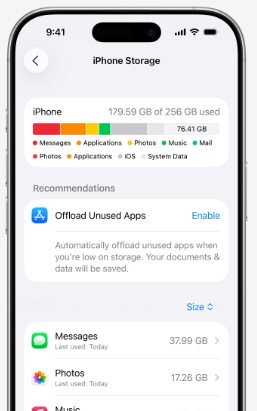
4. Wait on this screen. Do not tap anything yet. You will notice the app list aggressively jumping up and down for a solid minute while your phone calculates individual file sizes. Finding the iOS file right away can feel like playing whack-a-mole. Wait until the spinning loading wheel at the bottom of the screen completely stops and the list settles.
5. Scroll down the stabilized list until you locate the iOS update file (for example, “iOS 27” or “iOS 18”). It is usually identifiable by a gray gear icon.
6. Tap on the update file to open its specific menu.
7. Tap the red Delete Update button, and confirm your choice when the system prompts you.
I tested this on my own iPhone 15 Pro Max, and taking these exact steps instantly gave me back 8GB of space without even needing to restart my phone. Deleting an iOS update file is completely safe. It does not affect your system stability, you will not break your phone, and you will not lose any personal data like photos or texts. It is simply clearing out a massive cache file.
How to Stop the Update from Downloading Again
Deleting the file reclaims your space today, but it does NOT change your device’s download permissions. If you skip this next step, your iPhone will simply force-download the massive iOS file again tonight while you sleep. To permanently stop this frustrating cycle, you must disable automatic updates.
A common source of confusion is assuming that hitting “Delete” permanently halts the update process. Unfortunately, if automatic updates remain enabled in your settings, your device will pull the file from Apple’s servers the next time it is plugged in and connected to Wi-Fi.
To permanently stop the iOS update from downloading in the background and hijacking your storage again, follow these steps immediately after deleting the file:
1. Open the Settings app.
2. Tap on General, then navigate to Software Update.
3. Tap on Automatic Updates at the top of the screen.
4. Toggle off Download iOS Updates.
5. Toggle off Install iOS Updates.
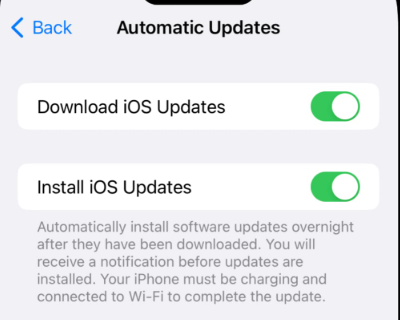
By turning off these specific settings, you put yourself back in control. Your iPhone will no longer quietly hoard firmware files in the background. You have effectively separated the act of clearing your storage from managing your system’s future download behaviors.
Decision-Making Guide: Manual Deletion vs. Professional System Repair
While deleting the update via your settings is the perfect solution for reclaiming space, it may not be enough if the massive file has already caused deeper damage to your operating system. Sometimes, an update attempts to install when your iPhone has practically zero storage left. The installation inevitably fails, leaving behind corrupted system files that can cause your iPhone to act erratically.
If your phone is suffering from severe glitches after a failed update, you must decide between basic manual troubleshooting or utilizing a dedicated repair tool. Consider the following comparison to choose the right path:
| Feature | Manual Deletion (Settings Menu) | Professional Repair Tool (AnyFix) |
|---|---|---|
| Best For | Quickly freeing up storage space. | Rescuing a phone stuck in a boot loop. |
| Time Cost | Under 5 minutes. | 15 to 30 minutes. |
| Core Problem Solved | “Storage Full” warnings. | System crashes caused by corrupted update files. |
| Success Rate | High for reclaiming space. | High for resolving deep operating system bugs. |
| Safety Risk | Zero risk to personal data. | Low risk (features non-destructive repair modes). |
If your goal is purely to get your storage back, manual deletion is all you need. However, if your phone is stuck in a boot loop because your storage was so full that the update corrupted your system, you will need specialized software to bring it back to life.
Fixing Boot Loops and Corrupted Systems with AnyFix
When an iOS update tries to unpack itself on a device with no available space, the resulting crash can be catastrophic. The most common symptom of this is the dreaded “boot loop”—your iPhone displays the Apple logo, goes black, and restarts endlessly, completely locking you out of your device. In this scenario, you cannot even reach the Settings menu to delete the file.
For these severe, storage-induced system crashes, AnyFix is a lifesaver. Rather than acting as a simple file manager, AnyFix performs a deep, system-level repair to fix the corrupted operating system that the failed update left behind.
AnyFix directly addresses catastrophic post-update failures through a few critical features:
- No Data Loss (Standard Repair Mode): If your phone is stuck in a boot loop, your biggest fear is likely having to factory reset it and lose all your photos and messages. AnyFix offers a “Standard Repair” mode designed specifically to fix the core system files without erasing your personal data.
- Bypasses the Settings Menu: Because your phone will not boot up properly, you cannot use the normal storage menus. AnyFix works via your computer, communicating directly with the iPhone’s core to clear the corrupt update package and stabilize the device.
- Broad Compatibility: AnyFix supports all mainstream iPhone models and is fully compatible with the latest iOS 17, iOS 18, and iOS 27 betas.
- Beginner-Friendly Operation: You do not need to be a tech expert to rescue your phone. Connect your looping iPhone to a computer via USB, open AnyFix, and the straightforward interface will guide you through the repair process step-by-step. It is a highly effective way to save a bricked device without paying for an expensive trip to the Genius Bar.

AnyFix – Your iOS System Repair Expert
With AnyFix, you can enjoy a one-stop solution to fix various iOS, iPadOS, tvOS, and iTunes issues within minutes, restoring your Apple device to normal without any data loss.
Delete the iOS update file by following the steps below:
1. Download and open AnyFix on your computer, and choose “System Repair” mode.
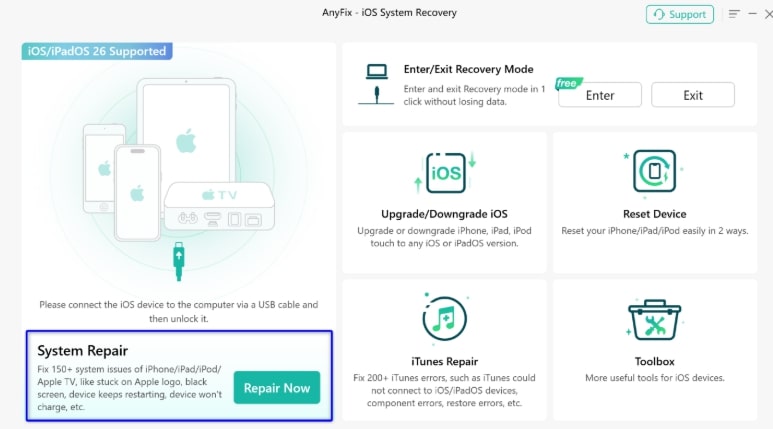
2. Choose the “Standard Repair” Mode.
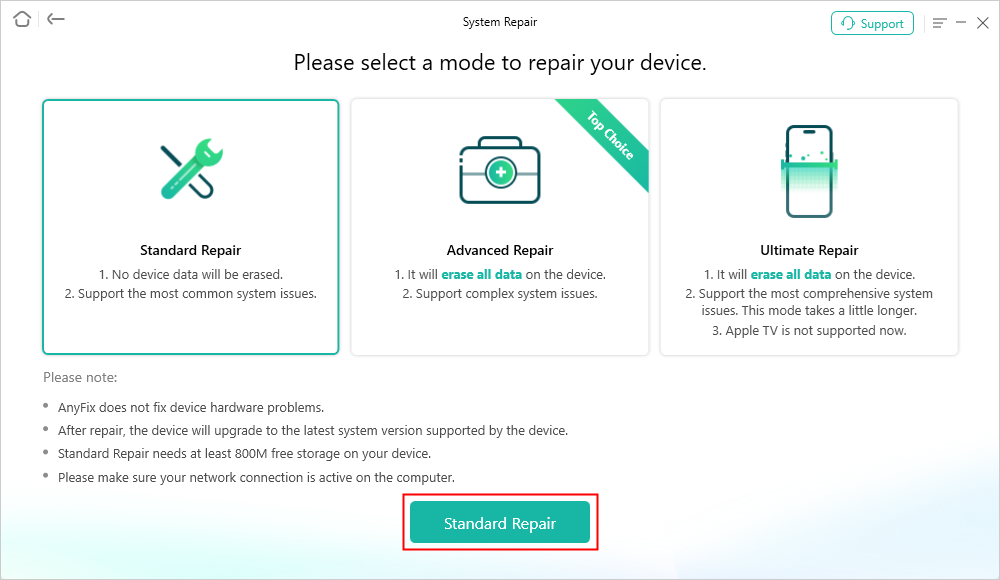
3. Download Firmware Package.
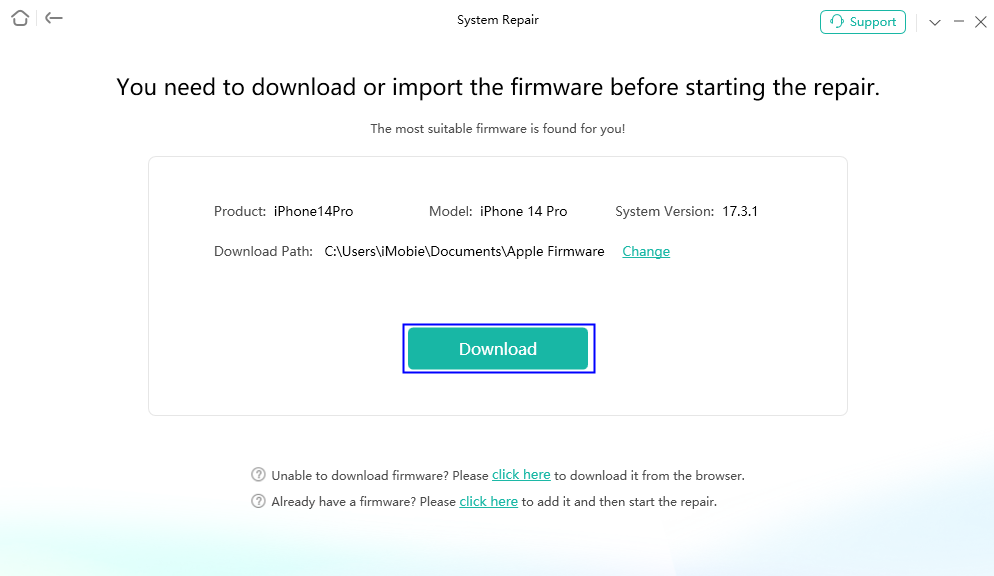
4. When the firmware package has been downloaded successfully, please click Start Standard Repair button.
Troubleshooting: Why is the Delete Button Missing?
It is incredibly stressful to follow all the instructions to delete an update file, only to tap the gray gear icon and realize the “Delete Update” option is completely missing. If you find yourself staring at a dead end, do not panic. This is a common bug, and there are realistic ways to force the button to reappear.
If the delete button is absent, try these verified troubleshooting techniques:
1. Wait for the Storage to Finish Loading: As mentioned earlier, the iPhone Storage screen can take over a minute to calculate file sizes. If the spinning wheel at the bottom of the screen is still moving, the “Delete” button will remain hidden. Patience is your best tool—wait for the wheel to vanish completely.
2. Force Restart Your iPhone: If the app list has settled but the button is still gone, your device’s cache is likely glitching. A force restart clears the temporary memory and forces the storage menu to rebuild itself accurately.
For iPhone 8 and newer (including iPhone 15/16): Quickly press and release the Volume Up button, quickly press and release the Volume Down button, then press and hold the Side (Power) Button until the Apple logo appears. Once the phone reboots, check the storage menu again.
3. Reset Network Settings: Sometimes, a broken Wi-Fi connection during the initial background download results in an unverified, “ghost” file. Navigate to Settings > General > Transfer or Reset iPhone > Reset > Reset Network Settings. This clears network verification errors that might be locking the file down and hiding the delete option.
Frequently Asked Questions About iOS Updates and Storage
To ensure you have total clarity on how your iPhone manages its space, here are detailed answers to the most common questions regarding downloaded updates.
Where can I find the downloaded iOS update file?
You can locate this massive file by navigating to Settings > General > iPhone Storage. Wait for the screen to stop loading entirely, then scroll through the populated list of apps. Look for the specific iOS version name (like “iOS 27”) accompanied by a gray gear icon. Tap it to access the deletion menu.
Does deleting an update stop it from installing?
Yes. Without the physical firmware file resting on your device’s internal storage, the operating system cannot execute the installation procedure. Deleting it completely halts any pending installation prompts.
Why did the iOS update download itself again overnight?
Apple designs iPhones to automatically download the latest software when the device is plugged into power, connected to Wi-Fi, and locked (which usually happens while you sleep). If you delete the file but leave your settings alone, this cycle repeats. You must go to Settings > General > Software Update > Automatic Updates and toggle off the download feature to stop it permanently.
Conclusion
Dealing with a massive iOS update that automatically downloads and cripples your storage space is an annoyance you shouldn’t have to put up with. By patiently navigating your storage menu and ensuring you turn off the automatic background downloads, you can easily reclaim your gigabytes and stop the file from reappearing tomorrow. While these manual adjustments provide an instant fix for a full phone, remember that running out of storage during an update attempt can lead to severe system corruption. If your phone ends up stuck in a frustrating boot loop, a robust tool like AnyFix offers a secure Standard Repair mode to rescue your device without erasing your precious data. You do not have to tolerate a glitching phone or confusing storage warnings—take back control of your device today.

AnyFix – Your iOS System Repair Expert
With AnyFix, you can enjoy a one-stop solution to fix various iOS, iPadOS, tvOS, and iTunes issues within minutes, restoring your Apple device to normal without any data loss.
Free Download for all windows & 100% safe
Free Download for all mac & 100% safe
Free Download 100% Clean & Safe



Wanda Norris is a junior author in iMobie specializing in iOS tips and solutions. She keeps a close eye on every iOS update to provide practical, easy-to-understand guides that help users solve problems and master their Apple devices.
Product-related questions? Contact Our Support Team to Get Quick Solution >
