How to Fix When iPhone Says ‘No SIM’ on iOS 27 (Full Guide)
iPhone suddenly says No SIM available after updating to iOS 27? Learn why your eSIM profile or cellular firmware crashed and how to fix it instantly using AnyFix without data loss!
It can be quite overwhelming if suddenly your iPhone says no SIM is available, especially when you are expecting an important call or trying to use 5G data. However, every system bug has a definitive solution! This guide discusses 11 professional ways to fix the “No SIM Available on iPhone” error on iOS 27.
With today’s advanced mobile technology, the traditional physical nano-SIM has largely been replaced by eSIM (digital SIM). This means your iPhone now relies heavily on a complex software “handshake” between the iOS communication layer and your carrier’s servers. If you see the “Invalid SIM” alert or the no SIM available iPhone error, it usually indicates a corruption in the cellular firmware or a provisioning failure in the system’s root directory.
Whether you are using the latest iPhone 17 or a legacy model updated to iOS 27, there are several ways to diagnose and fix this network connectivity drop. Let’s dive straight into the ultimate troubleshooting methods!
Further Reading: How to Bypass iPhone Unavailable Lock Screen >>
Why Does My iPhone Keep Saying No SIM on iOS 27?
When an iPhone fails to recognize cellular service, it’s often a sign that the Baseband Firmware (the software that controls all wireless functions) has crashed. In the iOS 27 ecosystem, this is typically triggered by:
- eSIM Profile Corruption: A glitch during an OTA (Over-the-Air) update can corrupt the digital SIM tokens, causing the device to lose its network identity.
- Cellular Subsystem Deadlock: The system driver responsible for 5G/6G signals can freeze, leading to an “Invalid SIM” state.
- Carrier Settings Mismatch: If your network provider (Verizon, AT&T, T-Mobile) updates their network protocol but your iPhone doesn’t sync, the connection will drop.
- Hardware Aging/Micro-Solder Cracks: For older models with physical slots, thermal stress from iOS 27’s high-performance tasks can cause the internal SIM reader pins to lose contact with the logic board.
- Hardware Aging/Micro-Solder Cracks: This is a major reason why an iPhone says no SIM after dropped. For older models with physical slots or even newer logic boards, the mechanical shock from a severe drop can cause internal SIM reader pins or baseband chips to lose contact with the logic board, triggering an immediate service drop.
Top 6 Basic Fixes for iPhone No SIM Error
Try these standard surface-level fixes first. They are designed to clear temporary RAM glitches and force a network re-search.
1. Toggle Airplane Mode
This is the quickest way to reset your iPhone’s wireless radios. It forces the baseband to re-establish a connection with the nearest cell tower.
- Open Control Center (swipe down from the top-right).
- Tap the Airplane icon, wait 20 seconds, and tap it again to turn it off.
2. Force Restart Your iPhone
A simple restart won’t suffice for deep-seated firmware deadlocks. A hard reboot is required:
- Press and release Volume Up, then Volume Down, and hold the Side button until the Apple logo appears.
3. Check the Physical SIM/eSIM Line
- For Physical SIM: Use a tool to pop out the tray. Inspect for dust or scratches and re-insert it firmly.
- For eSIM: Go to Settings > Cellular. Ensure your primary line is toggled ON.
4. Reset Network Settings
This will purge all cellular, Wi-Fi, and Bluetooth caches. Navigate to Settings > General > Transfer or Reset iPhone > Reset > Reset Network Settings.
5. Update iOS to the Latest Patch
Apple often releases Rapid Security Responses to fix baseband bugs. Check Settings > General > Software Update.
6. Update Carrier Settings Manually
Go to Settings > General > About. If a configuration update is available, a pop-up will appear within seconds. Tap Update.
Fix Cellular Firmware via AnyFix [No Data Loss] – Recommended
If the built-in network resets fail to bring your signal back, the corruption is deeply embedded within your iPhone’s baseband registry. In the iOS 27 era, standard resets cannot patch broken root network drivers or baseband communication crashes. This is exactly where AnyFix becomes essential.
As a professional iOS system recovery utility, AnyFix targets the core software bugs causing the “No SIM Available” loop, rewriting missing or corrupted system files. It is also fully capable of eliminating other stubborn iOS software deadlocks, such as an iPhone stuck on Apple logo or experiencing a completely frozen screen. Its Standard Repair mode completes the entire operation without erasing your data.
Free Download * 100% Clean & Safe
Steps to fix No SIM Available on iPhone via AnyFix:
Just follow the step-by-step guide below to see how to fix no SIM on iPhone via AnyFix:
Step 1. Free download AnyFix on your computer. Open it and choose the System Repair mode.
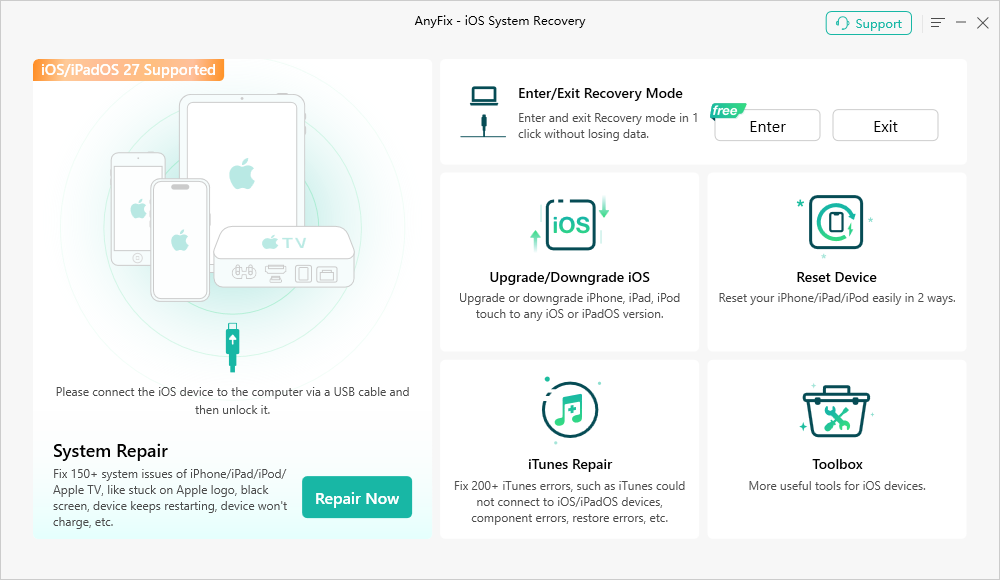
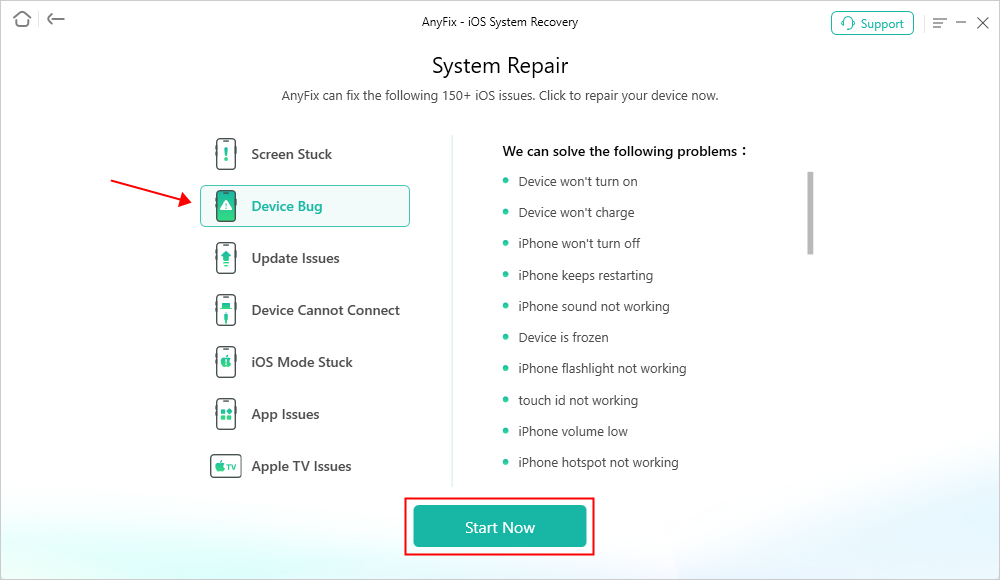
Step 2. Connect your iPhone to the computer. Choose the issue type and click on Start Now.
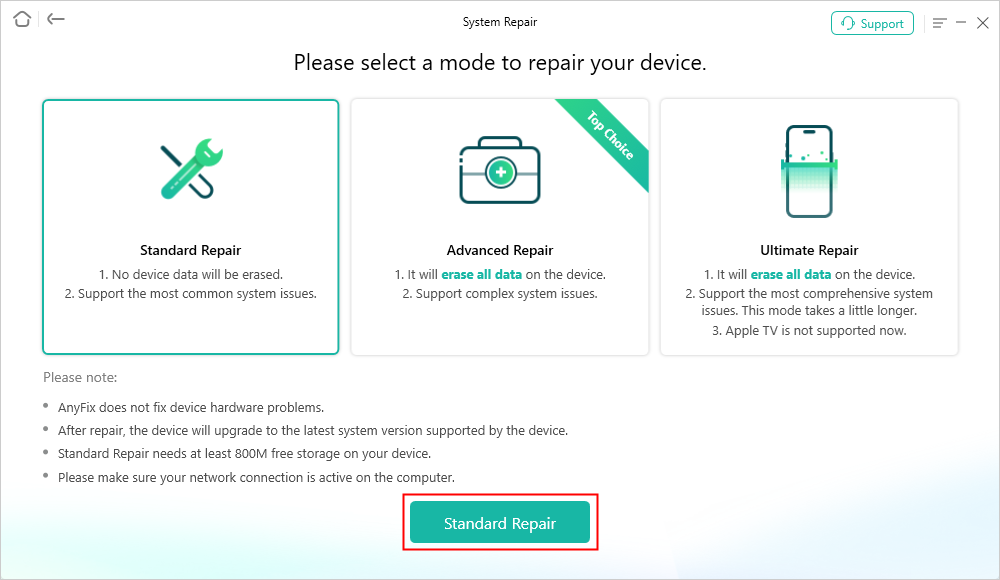
Step 3. You will see 3 repair modes. Click Standard Repair if you don’t want to lose data.
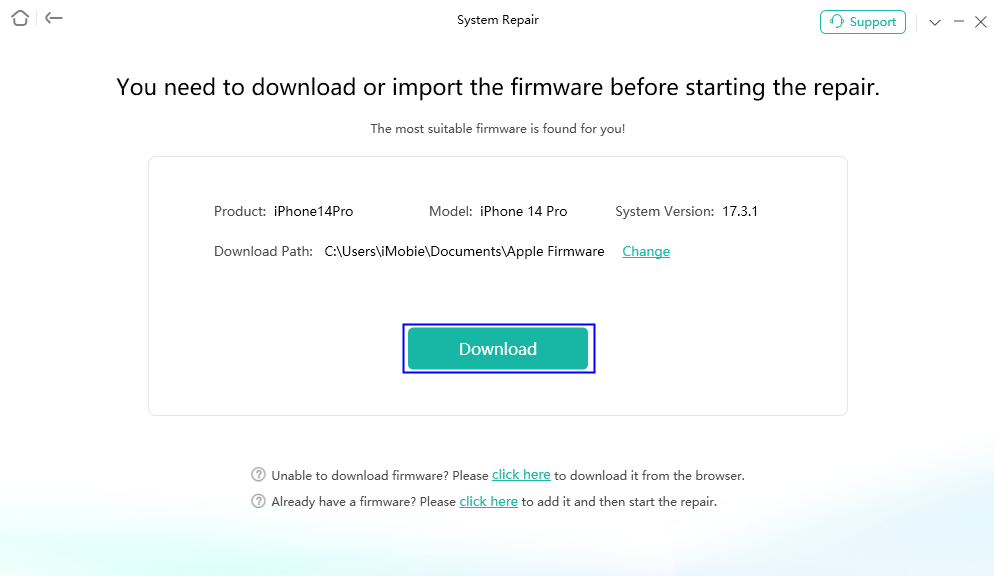
Step 4. Then you need to download the verified firmware matching your iOS 27 device.
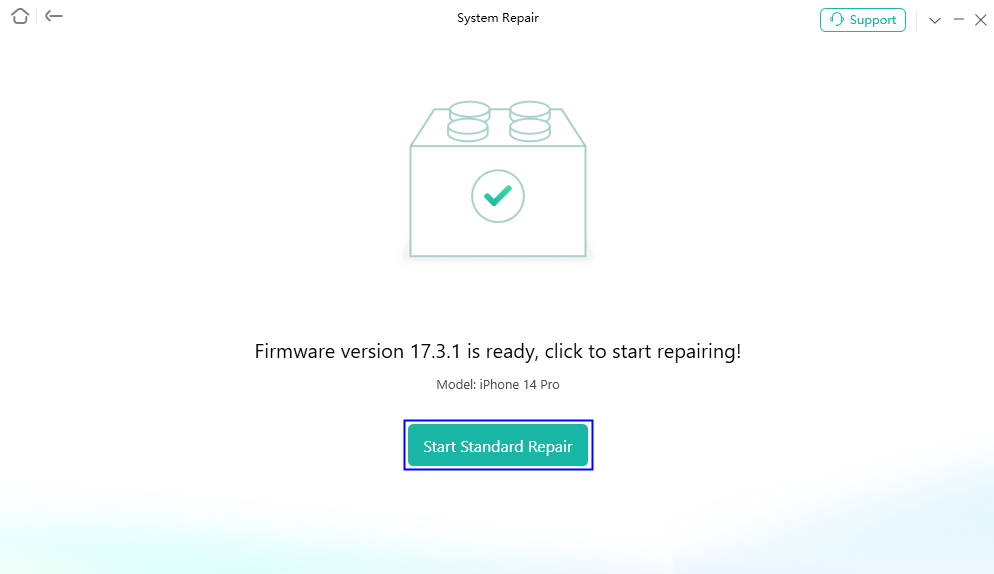
Step 5. When completed, click Start Standard Repair to start the cellular driver fixing process.
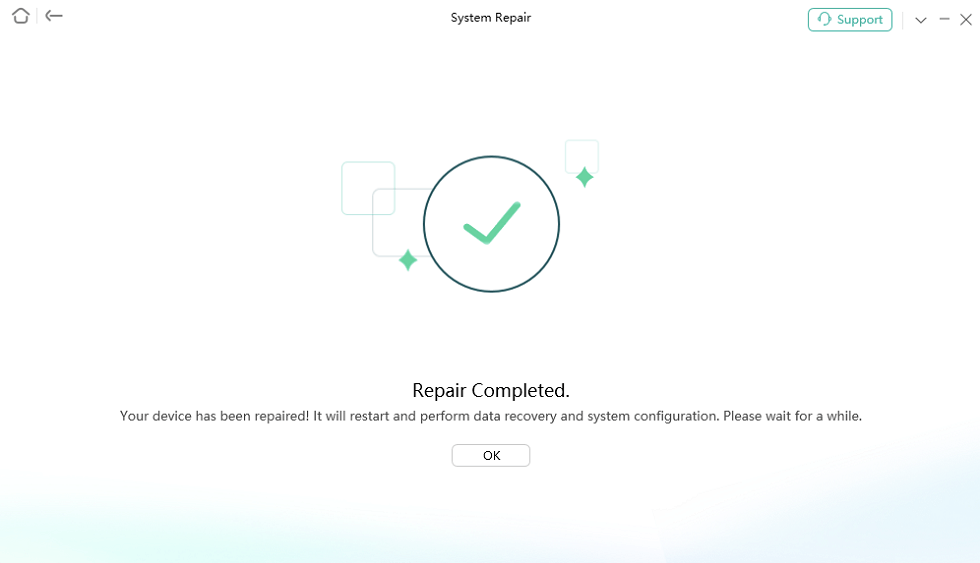
Step 6. Wait for a while and you will see the success screen when it is completed. Your network signal bars will be fully restored!
Carrier-Level Troubleshooting for iOS 27
If your iPhone still says “No SIM,” the issue might be with your carrier’s provisioning server.
Way 7: Check for eSIM Activation Policy
In iOS 27, carriers can remotely lock or disable eSIM profiles if they detect a security anomaly. Contact your carrier (Verizon, AT&T, etc.) and ask them to “Push a new eSIM Profile” to your EID number.
Way 8: Inspect the Cellular Modem Status
Go to Settings > General > About and scroll down to Modem Firmware. If this field is blank, your iPhone’s baseband hardware or driver has failed, and you must use AnyFix to re-flash the driver.
Frequently Asked Questions
Q1: Why does my iPhone say No SIM after the iOS 27 update?
Major updates change deep-level modem codes. If the update was interrupted by a weak Wi-Fi connection, the cellular driver might be corrupted.
Q2: Can I fix “No SIM Available” without a computer?
Yes, you can try resetting network settings or toggling Airplane mode. However, for deep firmware issues, a computer-based tool like AnyFix is more effective.
Q3: Is it a hardware problem?
Only in about 10% of cases. Most “No SIM” errors on modern iPhones are software-driven firmware deadlocks.
Q4: What should I do if my iPhone says no SIM after dropped?
If the error appears immediately after a drop, it could be a minor alignment issue or a sudden software freeze caused by the impact shock. Try re-inserting the physical card first. If that fails, the drop may have crashed the cellular network daemon. Before rushing to an expensive hardware repair shop, try running AnyFix to re-flash the baseband drivers, as many “dropped” errors are actually firmware deadlocks that can be fixed safely via software.
Q5: Why does it say no sim available on iphone 13 after recent updates?
The iPhone 13 remains a highly popular device, but as it adapts to newer modern network protocols, its aging hardware can experience communication lag. If you see no sim available on iphone 13, it is often caused by a voltage mismatch between the legacy motherboard logic and the new eSIM network registry. You can try to force restart the device first. If the error persists, it means the network routing table is locked up, which can be safely cleared and re-flashed using AnyFix without data loss.
The Bottom Line
Facing a persistent “No SIM Available” alert on iOS 27 is usually a software-driven cellular firmware failure. While basic resets might clear superficial bugs, deep-seated baseband anomalies require a robust diagnostic approach.
Instead of wiping your entire device with a risky factory reset or overpaying at a repair shop, deploying AnyFix is your smartest first line of defense. It safely targets, rewires, and rebuilds your network communication layers—ensuring you get your signal bars back instantly without data loss. Give it a free download now!



Joy Taylor is a seasoned technical writer with over a decade of experience in mobile technology. At iMobie, she specializes in producing in-depth content on iOS data recovery, iPhone unlocking solutions, and iOS troubleshooting.
Product-related questions? Contact Our Support Team to Get Quick Solution >
