How to Flash iPhone in 3 Ways: Step-by-Step 2025 Guide
Facing iPhone glitches like boot loops or frozen screens? This 2025 guide covers 3 proven ways to flash your iPhone—using Finder/iTunes, AnyFix for data-safe repairs, or Settings for a quick reset. Regain peak performance effortlessly.
AnyFix – Flash iPhone in Several Steps
Download AnyFix to flash your iPhone in minutes. It handles various firmware-related issues, and it makes the flashing process simple, even for beginners. It is compatible with almost iDevice versions, including the latest iPhone 17.
Someone might think that flashing an iPhone is a very complicated thing to do, however, it is actually a quite simple and efficient way to eliminate deep software issues, speed up the system again, or reinstall iOS in a different way. In case your iPhone is stuck at the Apple logo or you just want to do a clean restart, then flashing is probably the way to go.
In this 2025 guide, we will explain what flashing is and present three different ways to flash your iPhone, which include the use of iTunes or Finder, a professional tool like AnyFix, and the built-in Settings option. Let’s get started and see how you can safely and conveniently refresh your iPhone.
Part 1. What Does Flashing an iPhone Mean?
Flashing an iPhone is essentially a reinstallation or upgrade of the device’s iOS firmware, done to fix software issues, remove bugs, or restore the iPhone to its original state. It is similar to a new hard drive being put in the iPhone – taking away corrupted files, bad updates, or system glitches that cause the device to crash or slow down without the user realizing it.
It is a common practice for people to “flash” their iPhones when the device shows the Apple logo and is stuck, a boot loop occurs, or they simply want to remove the existing configurations. Essentially, a “flash” is a refresh of the iOS system and is like giving the iPhone a brand new functionality.
Part 2. How to Flash iPhone in 3 Ways
If your iPhone keeps freezing, crashing, or won’t start up properly, a flash restore can fix the problem. This is a safe and straightforward way to reinstall iOS, which you can perform in several different ways. Ultimately, your device will be back to normal.
Method 1. Flash iPhone Using iTunes/Finder
One of the least risky methods to do a fresh installation of iOS is to use iTunes (on Windows) or Finder (on macOS) to flash your iPhone. Essentially, this is a way presented by Apple to repair a device suffering from a software issue or to make it as if it were new again. The steps to carry it out are as follows:
Step 1. Connect your iPhone via a USB cable to the computer and open iTunes.
Step 2. Press and release the Volume Up button quickly, then do the same for the Volume Down button. After that, keep holding the Side button until the recovery mode screen comes up.
Step 3. There will be a pop-up after your device connects with options to update or restore your iPhone. Choose Restore to begin flashing the firmware.
Step 4. iTunes or Finder will fetch the most recent iOS version from the server and reinstall it on your device.
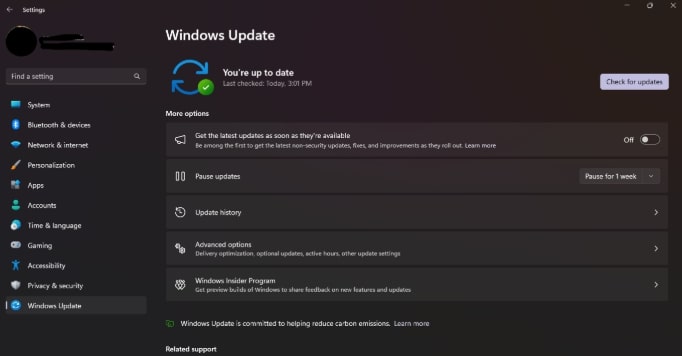
Method 2. Flash iPhone with Powerful Third-Party Tool | AnyFix
Using AnyFix, a powerful iOS system recovery tool provided by iMobie, to flash an iPhone is probably the easiest and most efficient method of fixing your iOS system without any technical skills. In contrast to iTunes, which may fail and cause data loss occasionally, AnyFix is a neat, click-based operation to reinstall iOS, fix crashes, or restore your device from the most extreme system troubles. If the iPhone is halting at the Apple logo, frozen, or not giving you the power to turn it on, in a short time, the innovative repair technology of AnyFix will be able to help your device again.
Key Features
- Fix iOS system issues of 150+ scenarios without losing any data.
- Repair 200+ iTunes errors such as backup, sync, update, or restore issues.
- Provides three repair modes – Standard, Advanced, and Ultimate, to suit the severity of the problem.
- Put your iPhone into Recovery Mode or take it out by just one click, without any charge.
- Downgrade or upgrade iOS without needing iTunes.
- Reset a locked iPhone/iPad even if you don’t have the passcode.
- Compatible with both Windows and macOS, and has a high success rate.
How to Flash iPhone with AnyFix
Step 1. Download AnyFix
Download AnyFix and install the program on your PC.
Free Download * 100% Clean & Safe
Step 2. Click “System Repair”
After connecting your iPhone to the computer, go to System Repair > Repair Now.
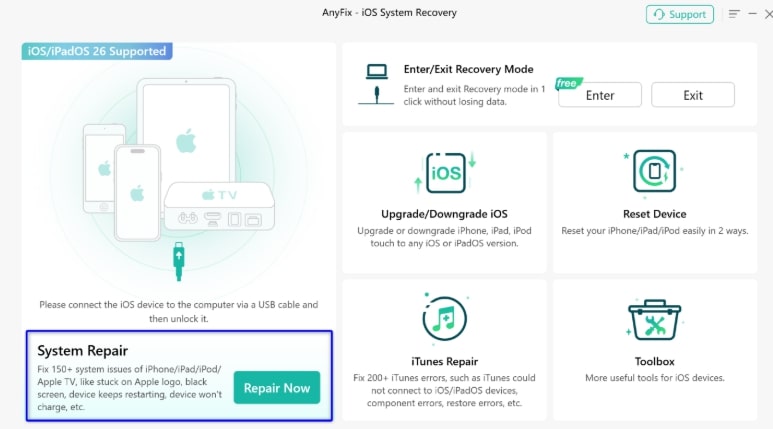
Step 3. “Standard Repair” is the option to be selected
By choosing Standard Repair, you can solve system problems in a non-invasive manner. (Advanced or Ultimate Repair is the option if your iPhone is badly stuck or cannot be powered off.

Step 4. Get the firmware package
Confirm the device information on the screen and then press Download to start getting the firmware.
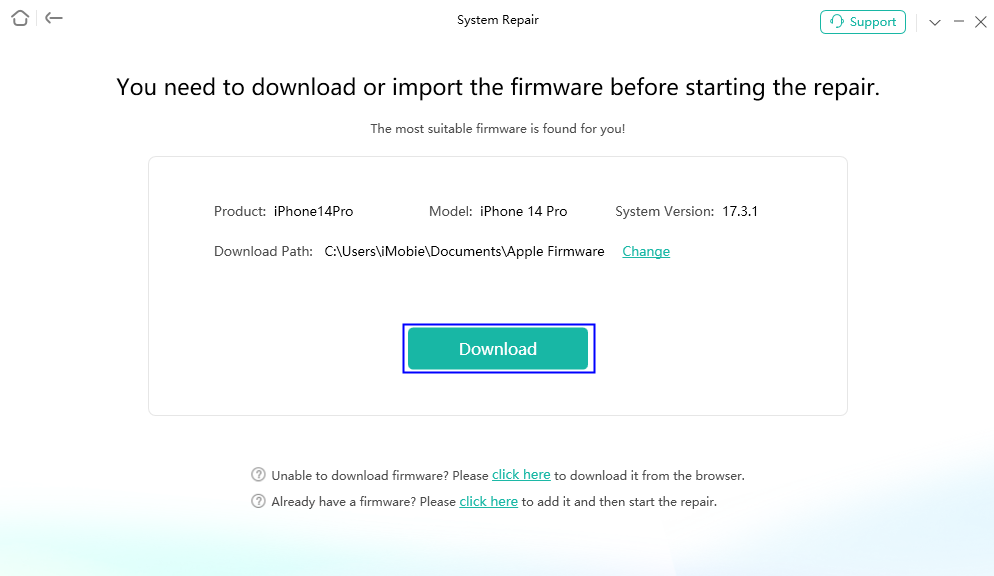
Step 5. The repair process has started
Click on Start Standard Repair as soon as the firmware is available to begin flashing your iPhone. It is better to keep the device connected until the operation is done.
Step 6. Flash done
At the end of the operation, the window will display a Repair Completed message, and the flash process is done.

Method 3. Flash iPhone in Settings
If your iPhone is in normal working condition and you can open the Settings app, then it may be flashed or restored locally without the need for a computer.
Step 1. Launch the Settings app and navigate to General > Transfer or Reset iPhone.
Step 2. Choose Erase All Content and Settings.
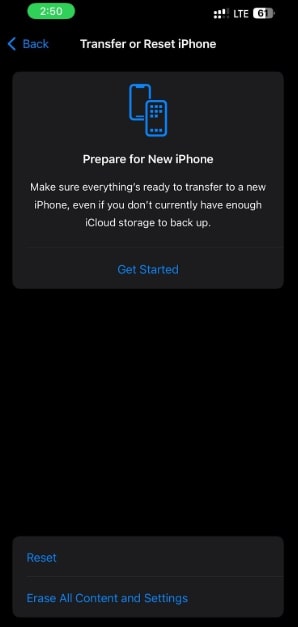
Step 3. Provide a passcode or Apple ID password if required. Confirm the flashing operation by tapping Continue or Erase iPhone.
The iPhone will restart by itself and begin the process of resetting to factory settings. After that, you can configure it as a new one or restore your backup.
Part 3. FAQs
Q1. Will flashing an iPhone delete everything?
Yes, in general, a flash on iPhone means wiping the entire data, apps, and settings – for instance, a typical iTunes or Finder operation. AnyFix, as a tool, presents a Standard Repair mode, which can fix system issues without data loss. Make sure you have a backup of your iPhone before you go on with flashing.
Q2. Is flashing the same as resetting an iPhone?
Flashing is radically different from resetting an iPhone. Resetting only changes back to the default and removes user data, whereas flashing overwrites the entire system with a brand new iOS firmware.
Q3. What should I do if my iPhone gets stuck during flashing?
As a rescue, try a hard reboot or Recovery Mode to connect to iTunes and resume the job if your iPhone flashing is at a standstill. It is also a good idea to use the AnyFix System Repair program to get you out of these deadlocks quickly and simply.
Q4. Do I need to jailbreak my iPhone to flash it?
Absolutely not, there is no connection between the jailbreaking of an iPhone and flashing it. Quite oppositely, a flash is the perfectly legitimate and normal way of putting back a fresh iOS, hence it is the best way to remove jailbreak and any other tampering.
Part 4. Conclusion
Reinstalling the software on your iPhone helps resolve difficult software issues, improve device performance, and basically give it a new life. It doesn’t matter if you choose the official Apple method via iTunes/Finder, the convenience of the Settings app, or the powerful repair capabilities of AnyFix; in each case, you will be able to safely bring your iPhone back to normal. As a matter of fact, AnyFix is the best choice to achieve the goal because it can fix 150+ iOS problems without losing data. Hence, it is the most efficient and easiest-to-use solution in 2025.



Wanda Norris is a junior author in iMobie specializing in iOS tips and solutions. She keeps a close eye on every iOS update to provide practical, easy-to-understand guides that help users solve problems and master their Apple devices.
Product-related questions? Contact Our Support Team to Get Quick Solution >
