How to Put iPhone in Recovery Mode When Disabled
This guide walks you through how to put iPhone in recovery mode when disabled in a simple way. It explains what recovery mode is, how to enter and exit it. There will be two methods with their steps: iTunes/Finder and a one-click repair tool – AnyFix. By the end, you will have your iPhone functioning properly.
iPhone recovery mode helps update or restore your device, which allows you to reuse your iPhone without issues. The problem is, when your iPhone says “iPhone is disabled“, it can be difficult to enter recovery mode and finish updating or restoring. Is it possible to enter recovery mode on a disabled iPhone? No worries, this guide will show you how to put iPhone in recovery mode when disabled step by step. You’ll learn what recovery mode is, if we can put a disabled iPhone into recovery mode, and how to enter and exit it in a few clicks. By the end, your iPhone should be back up and running normally.
What is the Recovery Mode on iPhone?
Recovery Mode is a special troubleshooting state built right into your iPhone. It helps you when the main software starts acting up like the device becomes unresponsive, disabled, or stuck on the Apple logo.
This mode lets your iPhone connect to a computer. When you enter this mode, your phone stops everything and waits for the computer’s help. You then use iTunes or Finder to make things right. Later, it loads a fresh, clean version of the operating system to get things working perfectly again.
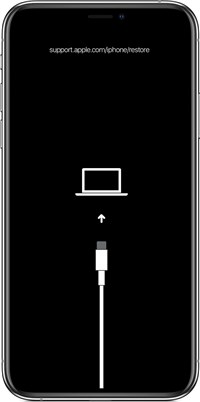
Can You Put iPhone in Recovery Mode When Disabled?
Yes, you can! This option is specifically made for such scenarios where your phone won’t function properly. You have two helpful and easy choices here.
Choice 1: You can pick Update to fix small system bugs. This is great because you keep all your photos and apps safe.
Choice 2: The second choice is to restore the iPhone completely. This action gives your iPhone a total fresh start. It will wipe everything, but it is a powerful fix. This simple option is there for when your iPhone really needs it.
You may also like: How to fix iPhone stuck in recovery mode
How to Put a Disabled iPhone in Recovery Mode
This section will explore two methods for putting an iPhone in recovery mode when disabled. You can try them and see which one of them works for you.
Method 1. Use iTunes/Finder
Using iTunes or Finder is the standard method to put your iPhone into recovery mode. Usually, when your phone starts acting up, it enters recovery mode automatically. But in case it doesn’t, here is how you can enter it manually:
Step 1. Connect the disabled iPhone to your computer via a USB cable.
Step 2. Open iTunes on your Windows (make sure you have the latest version) or Finder on Mac. Your iPhone will be recognized automatically.
Step 3. Next, follow the steps below to enter the recovery mode as per your iPhone model:
For iPhone 8 or later (including iPhone SE 2nd generation):
- Press and release the Volume Up button.
- Press and release the Volume Down button.
- Press the Side button until you see the “Connect to iTunes” screen.
For iPhone 7, iPhone 7 Plus, and iPod touch (7th generation):
- Press the Top (or Side) button and the Volume Down button together.
- Press until the “Connect to iTunes” screen appears.
For iPhone 6s or earlier and iPod touch (6th generation or earlier):
- Press both the Home button and the Top (or Side) button at the same time.
- Press until the “Connect to iTunes” screen appears.
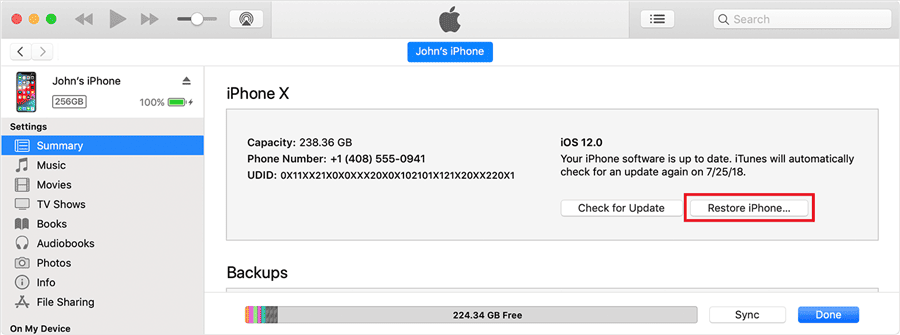
- Now, select your device in iTunes. You will see a pop-up in iTunes/Finder asking you to restore or update. Choose the “Restore” option and let it begin the restoring process.
Method 2. Use AnyFix
Another method that you can use to put your disabled iPhone into recovery mode is AnyFix. It automates the process. No need to follow those tricky button presses. Just open AnyFix on your computer and plug in your iPhone. Then choose the Recovery Mode option you see. Your phone switches into the special mode automatically in seconds. It is quick, clean, and very safe to use every time. AnyFix works on both Windows and Mac computers, too. This makes it a reliable choice for fixing your disabled phone fast. It saves you time and avoids all that guesswork with buttons.
AnyFix – Enter/Exit Recovery Mode in One Click
Download AnyFix to enter or exit recovery mode on a disabled iPhone without effort. Also available for iPhone system fix, upgrade, or downgrade.
Steps to put iPhone in recovery mode when disabled using AnyFix:
Step 1. Launch AnyFix and connect your disabled iPhone via a USB cable.
Step 2. Go to the “Enter/Exit Recovery Mode” tab and click “Enter.”
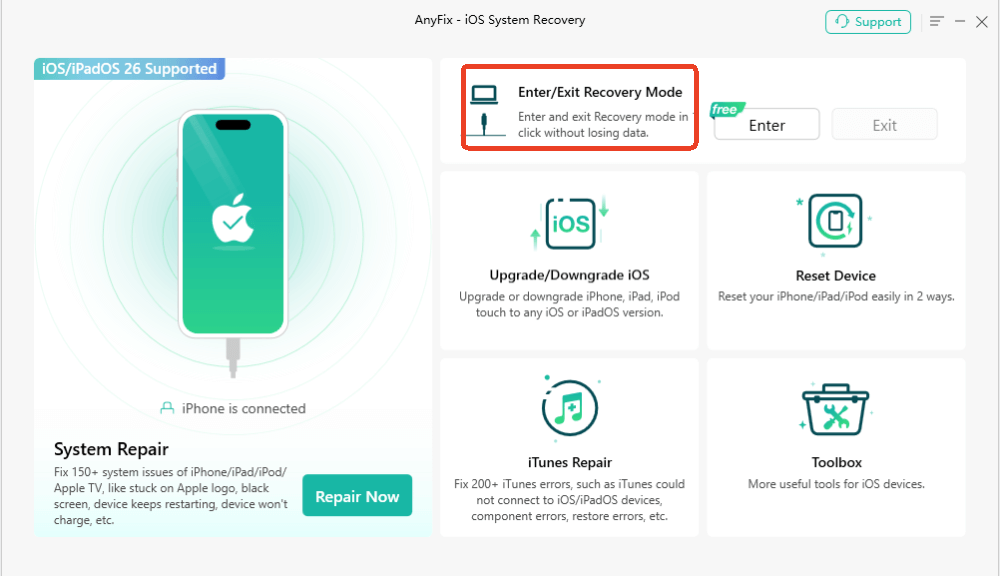
Step 3. In a few seconds, AnyFix will put your device into recovery mode. After entering it, it will notify you that the iPhone has entered recovery mode. Verify the device’s status and see if it is in recovery mode.
How to Exit iPhone Recovery Mode in One Click
While some users struggle to enter recovery mode on a disabled iPhone, others may fail to exit recovery mode due to several reasons. The screen gets stuck at the “Connect to computer” screen. They try to restart, but loop back to the same screen. This is also a common scenario and usually happens when the update couldn’t be finished. Or iTunes’ restoring process fails halfway. It can also occur after a system crash or if there is a sudden power cut during installation.
If this is the case, you can still use AnyFix. It can not only enter recovery mode free and quickly, but also exit the recovery mode on iPhone in one click. Here are the steps:
Step 1. Once you are in recovery mode, click the “Exit” button on the “Enter/Exit Recovery Mode” tab.
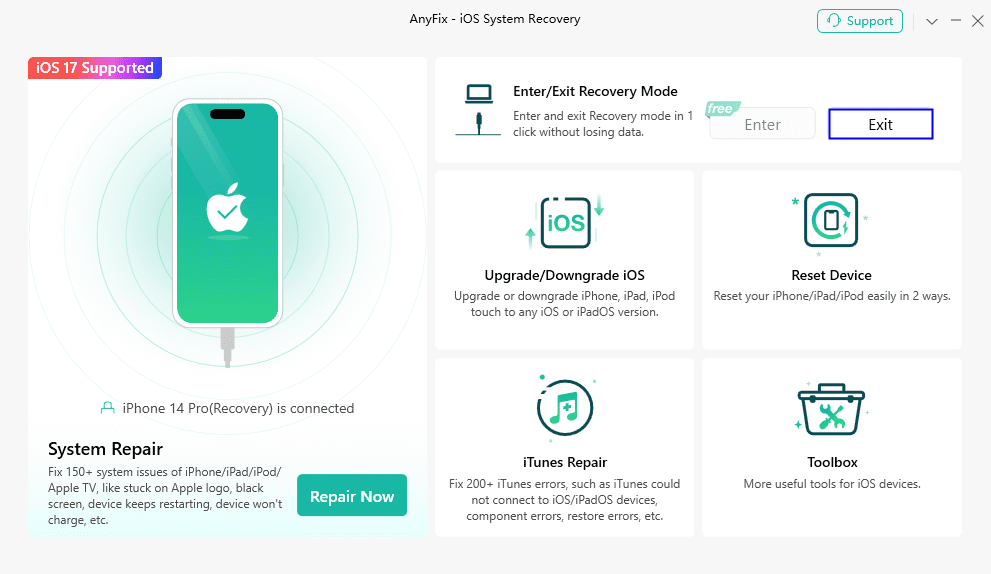
AnyFix Exit Recovery Mode
Step 2. Next, you will be asked to enter your passcode on the iPhone. Enter the passcode and proceed.
Step 3. After entering the passcode, AnyFix will exit the recovery mode. You can then check your iPhone status and use it normally.
FAQs About iPhone Recovery Mode
1. How to put an unresponsive iPhone in recovery mode?
If your iPhone won’t respond, connect it to a computer. Press and hold the right buttons for your model to put it into recovery mode. Then use iTunes/Finder, or a repair tool to restore it.
2. Is safe mode the same as recovery mode?
No, they are different. Recovery mode allows restoring and updating iOS via iTunes/Finder. Safe mode on an iPhone is a feature related to jailbroken devices. It helps disable problematic extensions. It’s not part of standard iPhone troubleshooting.
3. How do I reset an iPhone that’s disabled?
To reset a disabled iPhone, you can first put the iPhone into recovery mode as described. Then connect to a computer and restore it with iTunes or Finder.
Conclusion
Wrapping it up! We have explored how to put iPhone in recovery mode when disabled and what to do if it gets stuck there. Recovery mode can fix serious system issues, but manual steps aren’t always easy. That’s where AnyFix comes in. It lets you enter or exit recovery mode in one click and even repair other iOS problems like frozen screens or boot loops. Download AnyFix today and give your iPhone the smooth recovery it deserves.
Free Download * 100% Clean & Safe



Joy Taylor is a seasoned technical writer with over a decade of experience in mobile technology. At iMobie, she specializes in producing in-depth content on iOS data recovery, iPhone unlocking solutions, and iOS troubleshooting.
Product-related questions? Contact Our Support Team to Get Quick Solution >
