How to Fix iOS 26/27 Brightness Issue in 11 Proven Ways
iOS 26/27 brightness issues are often caused by display or system settings. To fix this issue, you can try simple fixes like adjusting Auto-Brightness or restarting your device. For deeper system repair, use AnyFix to restore normal brightness performance quickly.
Ever turn up your iPhone’s brightness all the way, only to find the screen still looks dim? You’re not alone. Many users have reported an unusual brightness issue after iOS 26/27 update where the display appears darker than expected, even at maximum settings. In this guide, we’ll explain the most common causes behind the dim-screen problem and provide 11 proven fixes you can try right now. We’ll also introduce a smart repair tool, AnyFix, which can restore normal screen brightness with just one click. Let’s get your iPhone shining the way it should.
Common Reasons for iOS 26/27 Brightness Issue
A dim iPhone screen doesn’t always mean something’s wrong. Often, it’s because of some settings. Here is a brief list of the possible reasons for iOS 26/27 brightness issues:
- Auto‑Brightness: Your device senses ambient light and updates brightness. It reduces strain indoors and improves contrast outside. It may look like the iOS 26/27 brightness glitch, but it is simply an innovative adjustment feature.
- Reduce White Point: Reducing white Point lowers intense colors. A high setting makes the display look washed out.
- Adaptive Power Mode: Adaptive Power Mode lowers brightness to conserve battery life. It activates when the system prioritizes battery life.
- Thermal Protection: Thermal Protection reduces brightness when the phone overheats. This prevents damage and stabilizes temperature.
Knowing these reasons helps you fix the iOS 26/27 brightness issue faster.
10 Regular Ways to Fix iOS 26/27 Brightness Issue
Below, we have listed 10 common fixes to resolve brightness issues in iOS 26/27. Look at them:
Way 1. Toggle Auto-Brightness
Auto-Brightness controls your screen based on ambient lighting, but after iOS 26/27, many users report that it becomes overly aggressive and dims the display too much. Temporarily turning it off helps you regain full manual control of brightness. If needed, you can enable it again once everything works normally. Here are the steps:
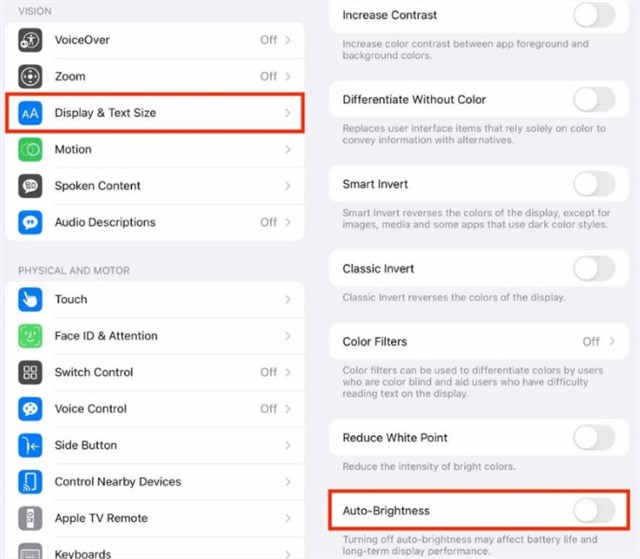
Step 1. Head to Settings > Accessibility > Display & Text Size.
Step 2. Find Auto-Brightness. Switch it off.
Step 3. Wait 5–10 seconds. Switch it on again.
Way 2. Adjust or Turn Off Reduce White Point
Reducing white Point lowers bright elements on the display, which can make the entire screen look duller and darker. This setting may have changed automatically during the update. Disabling or lowering it restores visual brightness and clarity. How to check it:
Step 1. Open Settings> Accessibility & Display and Text Size.
Step 2. Find Reduce White Point.
Step 3. Slide the bar down or just turn it off if it is on.
Way 3. Toggle True Tone and Night Shift
True Tone and Night Shift change screen color temperature depending on the environment, sometimes creating the illusion of lower brightness. Turning them off temporarily allows you to verify whether the brightness issue is display-related or just color-related. You can turn them back on for comfort after testing. This is how you can turn them on or off:
Step 1. Go to Settings, tap Display and Brightness.
Step 2. Switch on True Tone (in case of a test).
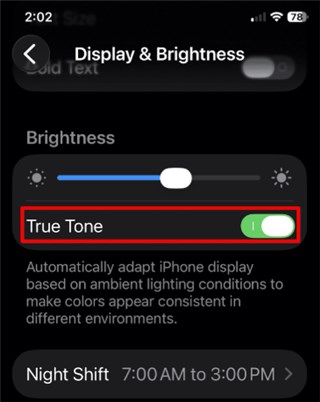
Step 3. Tap Night Shift. Turn its schedule off, or enable a schedule to test.
Way 4. Turn On/Off Always On Display
Always-On Display may cause brightness to stay in a reduced state to save power. Switching it off and on refreshes how iOS handles screen illumination. This is especially useful when dimming happens randomly throughout the day. Follow the steps below:
Step 1. Go to the Settings. Head to Display & Brightness.
Step 2. Tap Always On Display.
Step 3. If it’s on, turn it off. Wait a few seconds, and then turn it on again.
Way 5. Check Low Power or Adaptive Mode
Low Power Mode restricts brightness output and can override your manual brightness level. Turning it off helps ensure that the system isn’t limiting screen luminance. This is particularly noticeable when your battery drops below 20%. Here’s what you gotta do:
Step 1. Open Settings > Battery.
Step 2. Find Adaptive Power Mode (or Low Power Mode). Switch it off if it’s on.
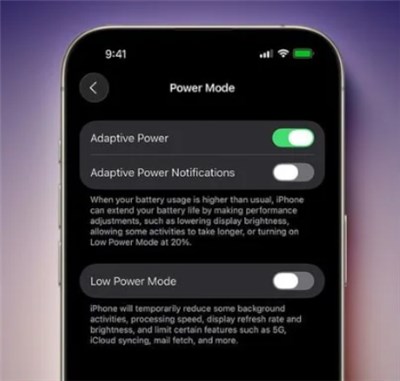
Adaptive Power Mode
Way 6. Check Reduce Transparency or Zoom Filter
Accessibility features like reduced transparency or screen filters can make icons and backgrounds appear darker. These settings sometimes carry over from earlier versions of iOS and negatively affect display appearance in iOS 26. Turn them off to immediately improve visibility and brightness perception. Follow the steps below:
Step 1. Open Settings > Accessibility > Display & Text Size.
Step 2. Find Reduce Transparency. Switch it off.
Step 3. Open Settings. Go to Accessibility > Zoom.
Step 4. If Zoom is enabled, tap Zoom Filter.
Step 5. Pick None or disable Zoom.
Way 7. Check for Overheating
If your iPhone becomes hot during charging, gaming, or navigation, iOS will automatically reduce brightness to protect the battery and display. This is normal behavior and will correct itself after the temperature drops. Simply remove the case or avoid heavy tasks for a few minutes to help brightness return.
Way 8. Restart iPhone
A simple restart refreshes the system’s display services and sensor communication. It is one of the fastest ways to clear temporary brightness glitches introduced by the update. Many users see instant improvement after a reboot. Here’s what to do:
Step 1. Press and release the Volume Up button. Next, do the same with the Volume Down button.
Step 2. Press the Side button (power button) now, and hold it until you see the Apple logo.
Step 3. Wait for your iPhone to restart.
Step 4. Finally, check if the brightness is restored to normal.
Way 9. Update iOS
Early iOS 26/27 builds introduced several display issues, including unexpected dimming. Installing the latest minor update typically improves brightness calculations and fixes related bugs. Keeping the system up to date ensures smoother brightness behavior overall. Here are the steps:
Step 1. Go to Settings > General > Software Update.
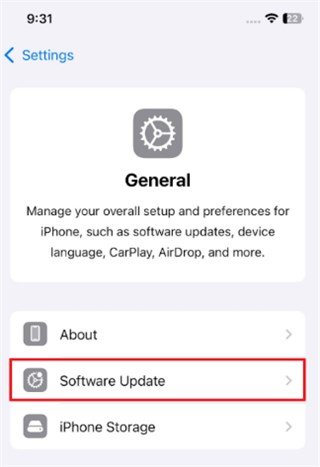
Step 2. If there are updates, simply tap the Download and Install option.
Step 3. Follow the on-screen instructions, then restart the phone.
Step 4. After it is complete, ensure the brightness is functioning normally.
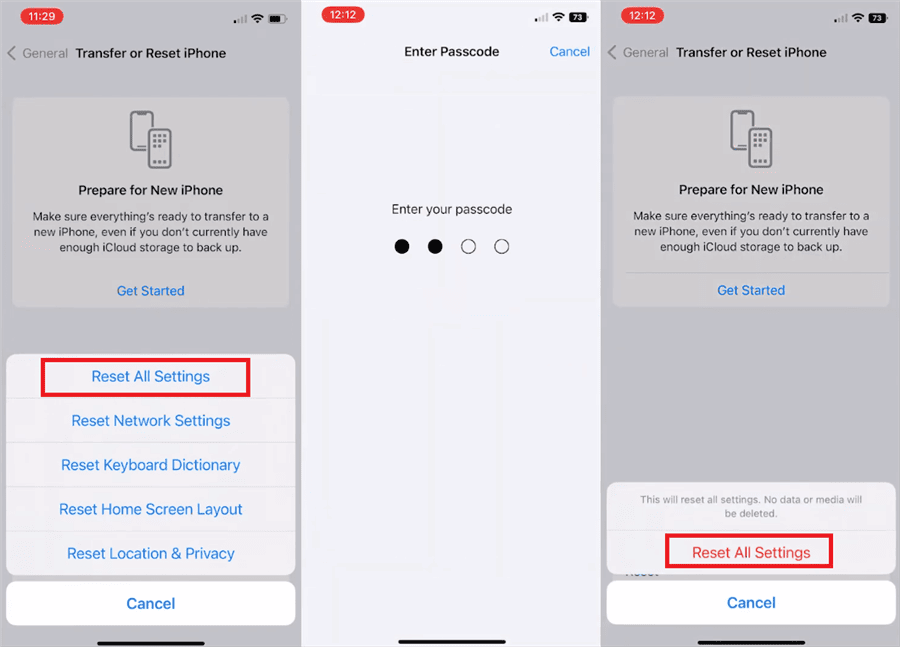
Way 10. Reset All Settings
If brightness rules were changed or corrupted during the update, resetting all settings restores everything to the default configuration. This process does not erase personal data like photos or apps. It’s a deeper fix to use before considering a full system repair. Look at the steps below:
Step 1. Open Settings > General.
Step 2. Scroll down to find Transfer or Reset iPhone.
Step 3. Tap Reset. Then click Reset All Settings.
Step 4. Enter your password when prompted and confirm Reset All Settings.
Fix iOS 26/27 Brightness Issue via AnyFix [One-click]
When all settings and quick fixes fail to restore normal brightness on iOS 26/27, AnyFix offers the most effortless solution. It directly scans your iPhone for system faults that affect screen behavior, such as misconfigured brightness controls, iOS 26/27 laggy, or sensor response failures, and repairs them automatically. With a clear and simple workflow, you only need a Mac or PC and a few clicks to bring brightness back to normal. No technical knowledge or risky troubleshooting is required. And beyond restoring brightness, AnyFix lets you downgrade iOS, repair iTunes errors, and resolve over 150 iPhone problems with ease.
Main Benefits of AnyFix:
- Fully supports the newly released iOS 26/27 without compatibility issues.
- Designed for all users, no tech skills needed and guided repair.
- Safe repair modes help protect personal data throughout the process.
- Regular updates ensure optimal stability with new iPhone models.
Free Download * 100% Clean & Safe
How to fix iOS 26/27 brightness issue using AnyFix:
Step 1. Free download and launch AnyFix, choose System Repair, and connect your iPad to the PC.
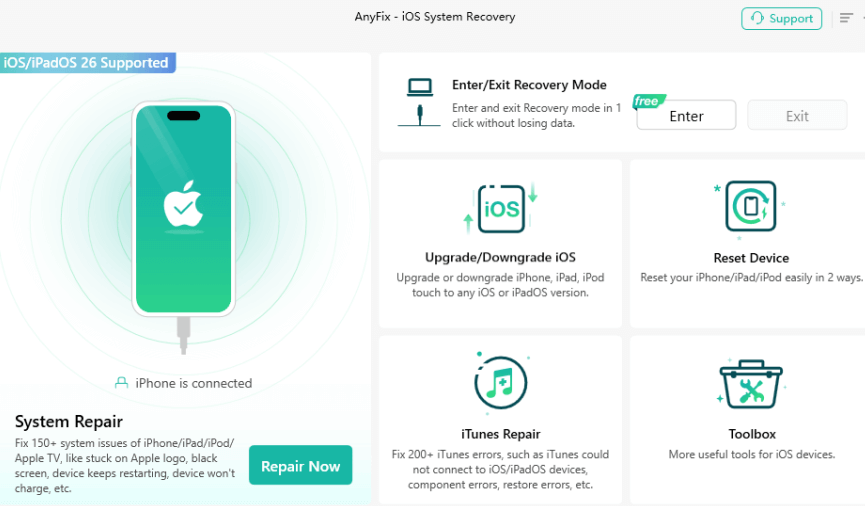
Step 2. Upon detecting your device, choose the corresponding issue and hit the “Start Now” button.
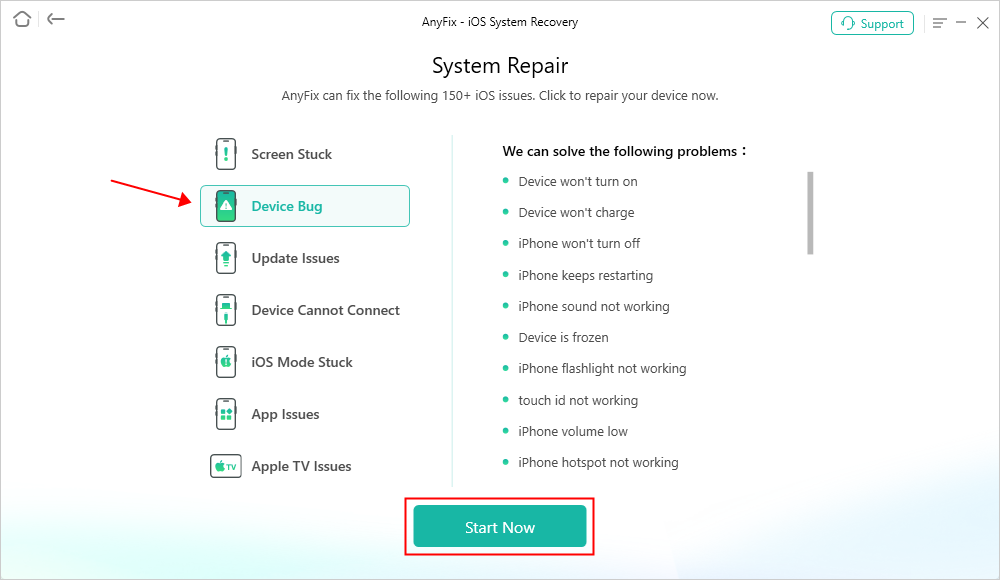
Step 3. Once you see a new screen, select “Standard Repair” mode.

Step 4. Wait until the process finishes. After that, your iPhone will restart, and the issue will be fixed.

FAQs about iOS 26/27 Brightness Issue
Q1. How do I fix the brightness glitch on my iPhone?
Switch auto-brightness on and off. Turn off the adaptive mode. Reduce transparency, or zoom filter. If the problem continues, restart your iPhone. Reset all the settings and update iOS.
Q2. Why is my iPhone screen so dark even on full brightness?
If your iPhone looks dark, it’s usually the system adjusting brightness. Auto-Brightness, Low Power, or thermal protection can dim the screen. Try toggling those settings or restarting the phone.
Q3. Why does Apple keep messing with my brightness?
Apple automatically adjusts brightness for eye comfort, battery life, and thermal safety. So iOS will change the screen to protect the device and save power, which can feel like it’s “messing” with your brightness.
Conclusion
We have discussed 11 fixes to resolve the iOS 26/27 brightness issue. Most fixes are simple and fast. You can try settings tweaks, restarts, and updates to clear the issue. AnyFix offers a deeper repair when basics fail. This iOS system repair tool analyzes system components responsible for brightness control, fixes corrupted files automatically, and restores stable display performance. Download AnyFix to restore steady brightness on iPhone now!
Free Download * 100% Clean & Safe



Joy Taylor is a seasoned technical writer with over a decade of experience in mobile technology. At iMobie, she specializes in producing in-depth content on iOS data recovery, iPhone unlocking solutions, and iOS troubleshooting.
Product-related questions? Contact Our Support Team to Get Quick Solution >
