iPad Battery Draining Fast? 16 Solutions Here!
To fix iPad battery draining fast, you can adjust display settings, enable Low Power Mode, and turn off features like Background App Refresh and Location Services to save power. If battery drain is caused by system issues, use AnyFix to repair your iPad and restore normal battery performance.
AnyFix – Fix iPad Battery Draining Fast in Clicks
Free download AnyFix to repair iPad battery draining fast caused by iOS system issues within minutes. Easily extend your iPad battery life and use it without issues. Support the latest iOS 26.
An iPad is designed to last through hours of reading, streaming, studying, or creative work, which is why unexpected battery drain can feel so disruptive. When the device starts losing power faster than usual, it’s often a sign that certain settings, apps, or system processes aren’t working as they should. In this guide, we break down the most common causes of fast iPad battery consumption and share 16 effective ways to extend battery life. We’ll also cover the best solution for fixing battery issues caused by deeper system malfunctions.
Why Is My iPad Battery Draining So Fast?
Identifying the root cause is the major concern because it determines which solutions to apply. This will not only save time but also reduce efforts and resources. Let’s first discuss the most common reasons why it happens:
- High Display Brightness: Disabled Auto-Brightness, and high brightness results in higher battery consumption.
- Background App Refresh: Apps updating in the background utilize more battery power.
- Continuous Location Services: Keeping the device location feature enabled for a long time drains the battery more than usual.
- Poor Wi-Fi Service: Interrupted or weak Wi-Fi signals take more time to establish a connection multiple times. This leads to faster battery drain.
- Too Many Push Notifications: Getting too many notifications from social media profiles and unnecessary apps also wastes a lot of battery.
- Excessive Power-Consuming Apps: High-graphic video games, video editing software, and HD streaming platforms are major sources (when utilized) that drain a lot of battery.
- Outdated iPadOS: If the iPad version is outdated, there is a greater chance that it will contain bugs. These bugs ultimately affect the battery performance.
How Do I Know If My iPad Battery Is Bad?
When your iPad starts acting differently than usual, one of the first things worth checking is the condition of its battery. Battery wear happens gradually, but there are clear signals when the health drops to a problematic level. This part will help you understand some common behaviors that identify a battery’s poor condition:
- Rapid Battery Decline: An instant drop of battery from 80% to around 20 or 30% indicates that the battery is not in good condition.
- Overheating on Simple Tasks: Getting overheated on normal use indicates that the battery is not in good condition.
- Sluggish Performance: A sudden power off or a “Battery Low” pop-up is a sign of a replaceable battery.
- Battery Health Warnings: Alerts like, Service Recommended ” indicate a damaged battery.
- Charging Problems: A low-health battery takes an unusual time to charge. It can also get stuck at a certain percentage while charging.
How to Fix iPad Battery Draining in 15 Regular Ways
If your battery shows no major hardware issues, the next step is to improve how your iPad manages power during daily use. Below are 15 practical methods to help stabilize your battery consumption and extend your iPad’s runtime.
Way 1. Check for Battery-Draining Apps
Certain apps can run background processes, refresh content, or stay active even when you’re not using them, which may cause unnecessary battery drain. To identify such apps, go to Settings > Battery, where you can view detailed battery usage for each app. If you find apps consuming an unusually high percentage, consider limiting their background activity, disabling Background App Refresh, or reducing usage.
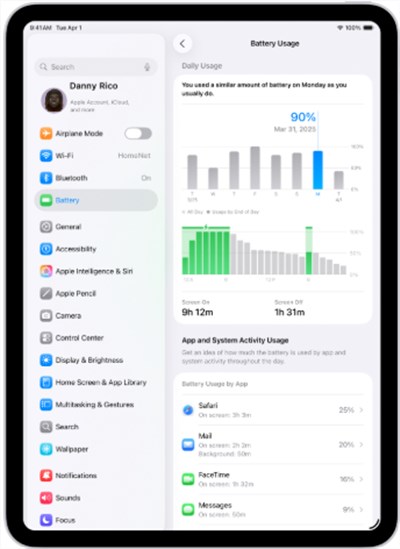
Social media apps, video streaming apps, and mobile games are often the biggest battery consumers.
Way 2. Reduce Screen Brightness
Keeping the screen light low on your iPad is an effective way to increase the device’s run time. Swipe down the quick menu bar and adjust the screen visibility using the slider. Alternatively, open the “Display & Brightness” tab in the Settings and select the level of brightness there.
Way 3. Enable Auto-Lock
Keeping your iPad screen on for too long is one of the biggest causes of unnecessary battery drain. Auto-Lock helps conserve power by turning off the display automatically when the device is inactive. To enable it, go to Settings > Display & Brightness > Auto-Lock and choose a shorter duration, such as 30 seconds or 1 minute. This ensures the screen turns off quickly, reducing screen-on time and improving battery life.
Way 4. Disable Background App Refresh
Background App Refresh allows apps to update content even when you’re not actively using them, which can drain the battery over time. Turning this feature off—or limiting it to selected apps—helps reduce unnecessary power usage. Here are the steps:
Step 1. Open Settings > General > Background App Refresh.
Step 2. Choose Off, Wi-Fi only, or disable it for specific apps that don’t need constant updating.
Way 5. Disable Push Email
If your iPad checks for new emails constantly, it can drain power throughout the day. Switching from automatic updates (Push) to manual refresh reduces background activity and saves battery. To adjust this, go to Settings > Mail > Accounts > Fetch New Data, turn off Push, and set Fetch to Manual.
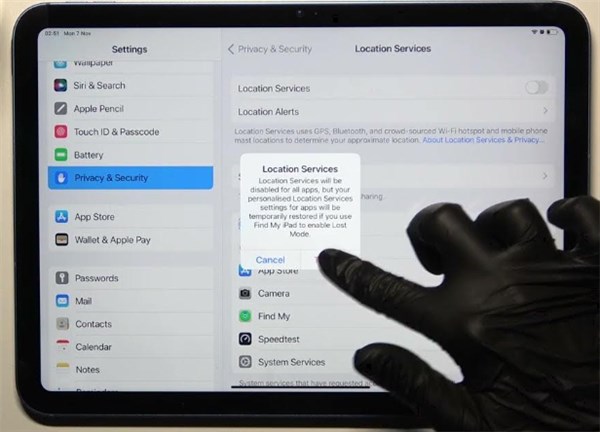
Way 6. Turn Off Location Services
It is important to turn off location services when not required. It keeps your device running for a longer period by saving battery. Open the Settings and access the Location Services tab in the Privacy and Security option. Move the slider to turn it off either for all apps or the specific ones.
Way 7. Disable Unnecessary Notifications
Disabling unnecessary notifications helps users save battery on the iPad and keep it operational for a longer period. Open the Settings and choose the Notifications tab. Here you can manage using two ways:
- Select all apps whose alerts you don’t require and uncheck “Allow Notifications”.
- Enable “Allow Notifications” on an individual app and disable “Allow Notifications” accordingly.
Way 8. Close Unused Apps
Apps running in the background may continue using system resources, which can contribute to faster battery drain over time. This helps free up memory and reduce background activity that can affect battery life. Here is how to:
Step 1. Swipe up from the bottom of the Home Screen and pause in the middle to open the App Switcher.
Step 2. Review all the apps currently running in the background.
Step 3. Swipe up on the apps you don’t need to close them one by one.
Way 9. Remove Unused Widgets
Widgets refresh their content in the background, and too many of them can increase battery usage. Removing widgets you rarely use helps reduce background activity and extend battery life. To manage them, swipe right on the Home Screen, scroll down, tap Edit, and remove the widgets you no longer need.
Way 10. Activate Dark Mode
Dark Mode reduces screen brightness and power usage, helping your iPad last longer—especially on models with OLED displays. To enable it, go to Settings > Display & Brightness and select Dark.
Way 11. Turn On Low Power Mode
Low Power Mode helps extend your iPad’s battery life by reducing background activity, lowering visual effects, and limiting non-essential processes. To enable it, go to Settings > Battery and toggle on Low Power Mode.
Way 12. Use Wi-Fi Instead of Cellular Data
Cellular data requires more power because your iPad constantly searches for a strong signal, which increases energy consumption. Whenever possible, switch to a stable Wi-Fi network to reduce battery drain and extend usage time.
Way 13. Update iPadOS to the Latest Version
Running an outdated iPadOS version can lead to battery drain due to unresolved bugs or poor system optimization. Go to Settings > General > Software Update and install the latest version if available. New updates often include performance improvements and battery-related fixes.
Way 14. Restart or Reset Your iPad
Restarting or resetting your iPad can clear temporary glitches, misconfigured settings, and hidden background processes that may cause fast battery drain. If a simple restart doesn’t help, resetting all settings can restore system behavior without deleting your data.
Restart Your iPad:
- Press and hold the Power button.
- Slide to power off.
- Wait a few seconds.
- Turn it back on.
Reset All Settings:
- Open Settings.
- Go to General.
- Tap Transfer or Reset iPad.
- Select Reset → Reset All Settings.
Way 15. Contact Apple for Battery Replacement
If your iPad still drains unusually fast after trying all regular troubleshooting methods, the battery may be physically degraded and no longer capable of holding a normal charge. In this case, replacing the battery is the most reliable long-term solution. You can schedule a repair through Apple Support, visit an Apple Store, or contact an authorized service provider for an official battery replacement. Apple technicians will run diagnostics to confirm the issue before replacing the battery, ensuring your device returns to optimal performance.
Fix iPad Battery Draining Caused by System Issues [One-click]
System glitches, firmware conflicts, or iPadOS malfunctions can also cause abnormal battery drain, and these issues often can’t be solved by regular settings adjustments. Instead of spending hours troubleshooting or visiting an Apple Store, you can use AnyFix, an all-in-one iOS repair tool. It allows you to fix over 150 device issues and 200 iTunes errors directly from home, making it a fast and practical solution for everyday users. This tool focuses on quick system repair without data loss, which is one of the biggest concerns for iPad owners. It’s clean, secure, and available for free download on both Windows and macOS.
Key Features of AnyFix:
- Fixes 150+ system issues such as battery drain, boot loops, frozen screens, and stuck Apple logo.
- Allows iOS upgrade or downgrade without iTunes for easier troubleshooting.
- Lets you enter or exit recovery mode with one click.
- Supports full device reset even when the iPad is locked or disabled.
- Repairs 200+ iTunes errors, including update, installation, and connection issues.
Free Download * 100% Clean & Safe
How to Use AnyFix to Prevent Excessive Battery Draining:
Step 1. Free download and launch AnyFix, choose System Repair, and connect your iPhone to the PC.
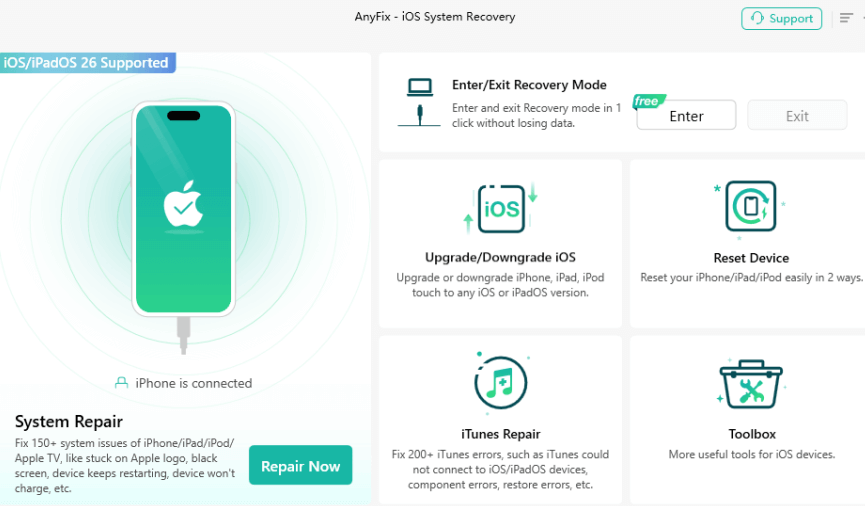
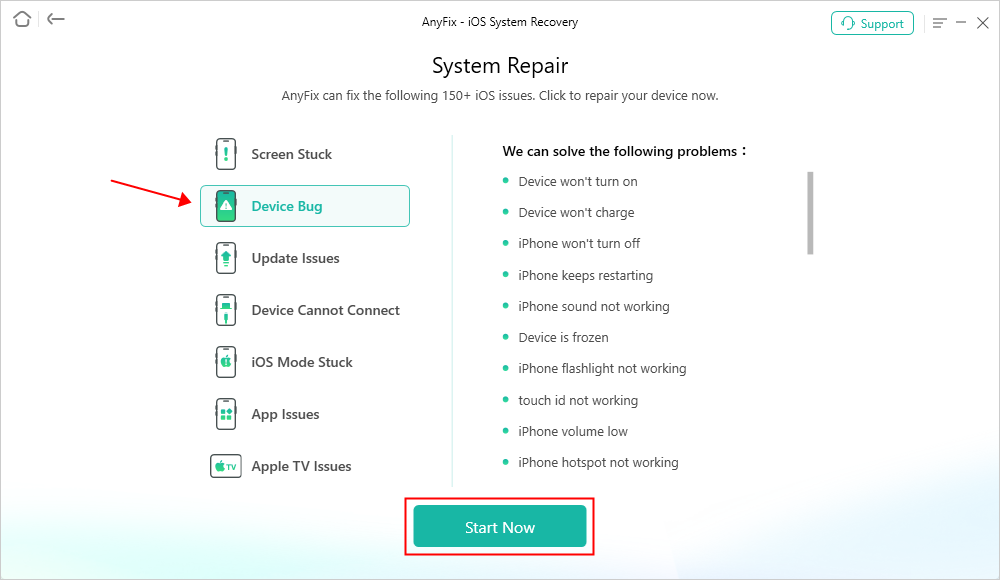
Step 2. Upon detecting your device, choose the corresponding issue and hit the “Start Now” button.
Step 3. Once you see a new screen, select “Standard Repair” mode.

Step 4. Wait until the process finishes. After that, your iPhone will restart, and the issue will be fixed.

Additional Tips to Extend iPad Battery Life
Small daily habits can make a noticeable difference in preserving long-term battery health. Keep these practical tips in mind to maintain smoother performance and reduce unnecessary battery wear:
- Avoid exposing the iPad to extreme temperatures; ideally, keep it between 16°C and 22°C.
- Use original Apple chargers instead of low-quality third-party options.
- Don’t leave the device charging in direct sunlight or inside a hot car.
- Avoid using power-intensive apps while the iPad is charging.
- Unplug the charger when not needed and try to maintain the battery level between 20% and 80%.
FAQs about the iPad Battery Draining Fast Issue
Q1. How do I stop my iPad battery from draining so fast?
To prevent early battery low issues, keep the brightness lower and enable low power mode. Also, turn off location services and shut down all unused apps when not needed.
Q2. How many years does an iPad battery last?
Most iPads have the capability to retain up to 80% after 1000 charge cycles. This typically happens in around 2 to 3 years in the case of regular usage. However, this time may vary based on the usage.
Q3. How do I reset my iPad to improve battery life?
To reset your iPad and improve battery performance, go to Settings > General > Transfer or Reset iPad and select Reset All Settings. This refreshes system preferences without deleting your data. If you forgot your passcode, use AnyUnlock to reset your iPad safely and quickly.
Conclusion
In conclusion, this guide has outlined 16 effective ways to fix fast iPad battery drain and improve overall performance. If deeper system issues continue to cause problems, a professional iPhone repair tool may be necessary. AnyFix offers a reliable way to resolve iPadOS glitches that impact battery life and stability. Try AnyFix today to restore smooth and consistent performance to your iPad.
Free Download * 100% Clean & Safe



Joy Taylor is a seasoned technical writer with over a decade of experience in mobile technology. At iMobie, she specializes in producing in-depth content on iOS data recovery, iPhone unlocking solutions, and iOS troubleshooting.
Product-related questions? Contact Our Support Team to Get Quick Solution >
