How to Fix iPad Bluetooth Not Working [10 Ways]
When encountering iPad Bluetooth not working issue, start by ensuring Bluetooth is on and the device is in pairing mode. Try toggling Airplane Mode, restarting your iPad, or resetting network settings. Or easily try AnyFix to repair iPadOS issues that might be affecting Bluetooth.
AnyFix – Fix iPad Bluetooth Not Working Within Minutes
Download AnyFix to repair iPad Bluetooth Not Working issues caused by system glitches. Save time on manual troubleshooting and quickly restore stable Bluetooth connections.
It’s frustrating when your iPad Bluetooth suddenly stops working and you can’t connect your headphones, keyboard, or other accessories. Whether the connection keeps dropping or your iPad won’t detect nearby devices, don’t worry. This guide walks you through 10 simple yet effective fixes for iPad Bluetooth issues or other iOS devices’ Bluetooth problems. By the end, your iPad’s Bluetooth should be back to smooth, stable connections.
Common Reasons for iPad Bluetooth Not Working
Bluetooth problems on an iPad can appear out of nowhere, often when you need the connection most. In many cases, the cause is simple and can be fixed quickly once you know what’s behind it. Here are some possible reasons for iPad Bluetooth not working:
- The Bluetooth could be off or not arranged properly
- Low battery on either device can interrupt the connection
- Too many paired devices causing a signal conflict.
- Outdated iPadOS leading to software glitches.
- The Bluetooth accessory might be too far from your iPad.
- Small system bugs or background errors can stop pairing temporarily.
- Hardware fault in the iPad’s Bluetooth chip.
Protect Data before Fixing iPad Bluetooth Not Working
Before fixing anything, it’s a good idea to back up your iPad first. This helps you keep your photos, files, and settings safe in case something goes wrong. You can back up through iCloud or iTunes, depending on what’s easier for you.
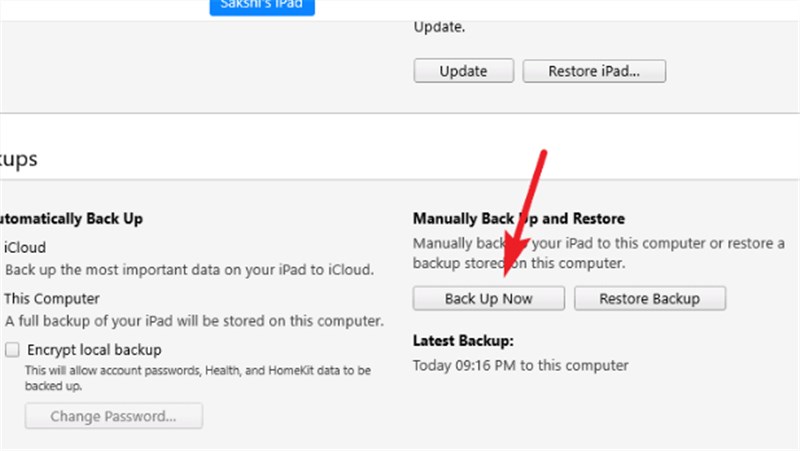
To back up using iTunes:
Step 1. Open the latest version of iTunes on your computer.
Step 2. Connect your iPad using the Lightning cable.
Step 3. Tap “Trust” on your iPad if a message appears.
Step 4. Click the iPad icon in iTunes.
Step 5. Go to the Summary tab and find the Backups section.
Step 6. Choose Back Up Now and wait for the process to finish.
To back up with iCloud:
Step 1. Connect your iPad to a Wi-Fi network.
Step 2. Go to Settings, tap your name, and select iCloud.
Step 3. Tap iCloud Backup.
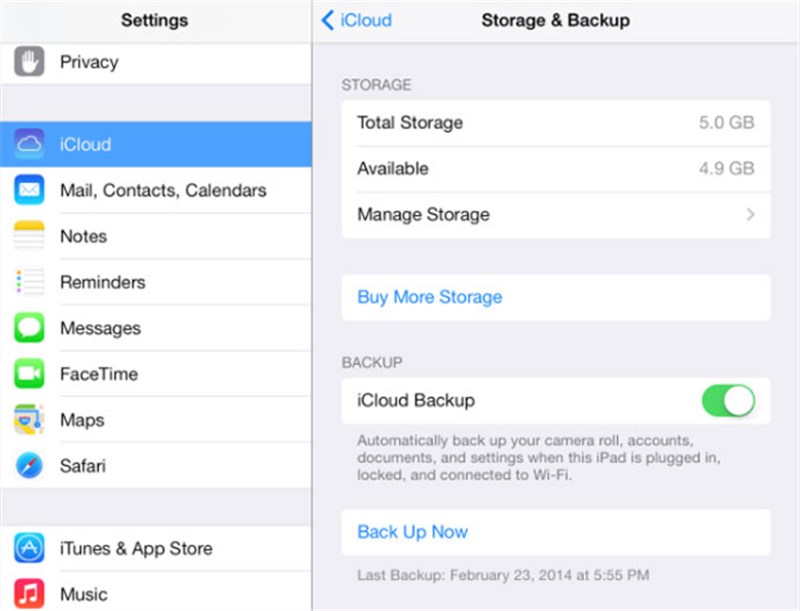
Step 4. Press Back Up Now to begin.
Step 5. Keep your iPad connected to Wi-Fi until the backup is complete.
While you can back up your iPad using iTunes or iCloud, a simpler and faster option is AnyFix. It helps repair iPadOS issues and keeps your data safe without the hassle of manual backups.
Regular Ways to Fix iPad Bluetooth Not Working
Before trying advanced methods, start with some basic yet effective fixes that often solve Bluetooth connection problems instantly.
Way 1. Turn On iPad Bluetooth
The Bluetooth issue may occur because the feature is accidentally turned off. First, check if Bluetooth is enabled. Open the Settings app, go to Bluetooth, and turn the toggle on to restore the connection.
Way 2. Turn Airplane Mode On and Off
A quick toggle of Airplane Mode often helps refresh your iPad’s wireless connections, including Bluetooth. It’s a simple trick that clears minor glitches, stopping your device from pairing properly. Here are the steps:
Step 1. Start by opening Settings on your iPad.
Step 2. Activate Airplane Mode and wait around 10 seconds.
Step 3. Then turn it off again. Try reconnecting your Bluetooth device one more time.
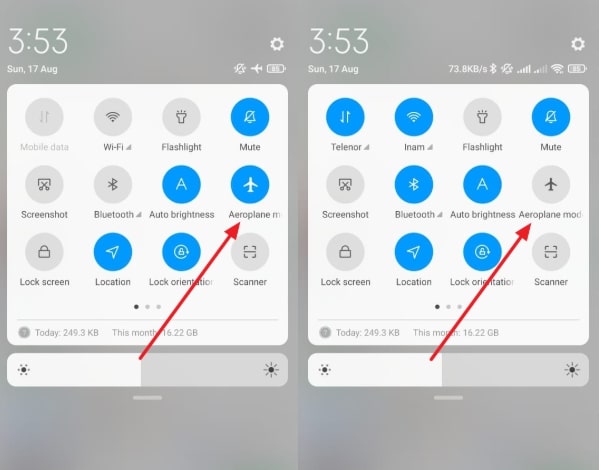
Click Airplane Mode
Way 3. Check the Wi-Fi Connection
Even though Wi-Fi and Bluetooth are two distinct technologies that do not depend on each other, they may still disrupt one another when both are turned on. In this case, you may either turn off Wi-Fi temporarily or check if your connection is stable. You can easily do this through your iPad’s network settings.
Way 4. Forget and Reconnect the Bluetooth Device
The iPad may at times have a memory of an old or an invalid connection, which results in pairing difficulties. The device can be forgotten and reconnected for the iPad to have a totally new beginning. Follow the steps below:
Step 1. Open the settings and select Bluetooth.
Step 2. Your device will be listed, and you should press the (i) icon that is next to it.
Step 3. Click on Forget This Device and then confirm. Turn off Bluetooth and then turn it back on again, and finally reconnect your device.
Way 5. Restart Your iPad
Bluetooth issues can sometimes result from temporary system glitches. Restarting your iPad helps clear these minor errors and refresh Bluetooth functions. Simply hold the Top and either Volume button until the power slider appears, drag it to turn off the device, then press the Top button again after a few seconds to power it back on.
Way 6. Reset Network Settings
Persistent Bluetooth issues may stem from corrupted network configurations. Resetting network settings helps clear these errors and restore stable Bluetooth connections. Here are the steps to reset Network Settings on iPad:
Step 1. Open the Settings app and then enter the General section.
Step 2. Scroll through the options and press Transfer or Reset iPad.
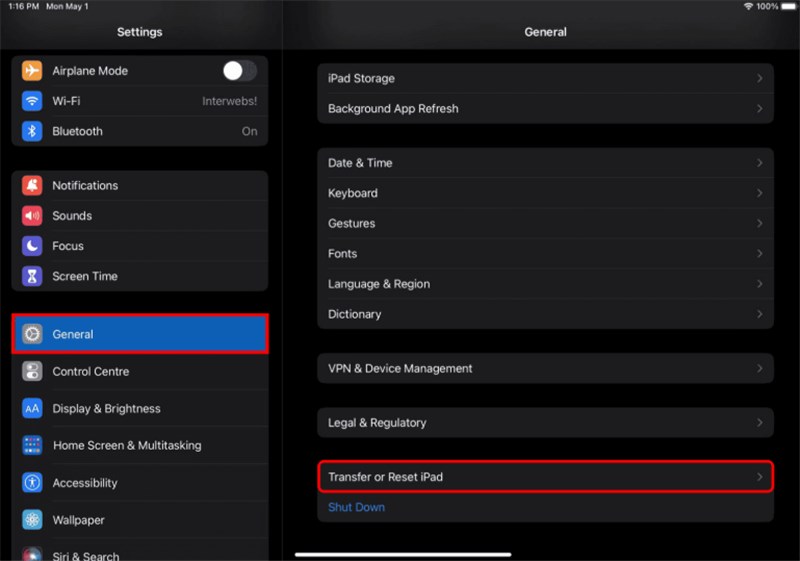
Step 3. Choose Reset next and then select Reset Network Settings.
Step 4. If asked, key in your password. After the iPad has restarted, pair the Bluetooth device and check it again.
Way 7. Update Your iPad to the Latest iPadOS
Outdated software can lead to Bluetooth malfunctions. Updating your iPad to the latest iPadOS version often fixes these bugs. Simply open the Settings app, tap General > Software Update, and choose Update Now if a new version is available.
Way 8. Restore iPad to Factory Settings via iTunes
When all else fails, restoring your iPad to factory settings can clear deep system errors that stop Bluetooth from working. This step wipes everything clean, so make sure your data is backed up first. Here is how to:
Step 1. On a Mac, open the Finder. Use a cable to connect the iPad to the computer.
Step 2. If there is a prompt on iPad screen, click Trust This Computer and input your passcode.
Step 3. When your iPad is visible on the computer, select it. Click Restore iPad, then confirm when asked.
Step 4. Your computer will erase the device and install the latest iPadOS automatically. After it restarts, set it up as new and check if Bluetooth is working properly.
Way 9. Contact Apple Support
There are occasions when troubles with Bluetooth simply refuse to disappear, no matter how many methods you implement. Such cases prompt contacting Apple Support or going to the closest Apple Store, where qualified professionals can evaluate your iPad, identify the issue, and guide you to get it working again.
Fix iPad Bluetooth Not Working with AnyFix [One-Click]
When your iPad’s Bluetooth keeps disconnecting, fails to pair, or won’t turn on at all, AnyFix offers a fast, one-click solution. This professional repair tool is designed for iPhone, iPad, and iPod users to fix system-level glitches that block Bluetooth functions. It scans and repairs your iPad’s iPadOS system deeply while keeping all your personal data safe. With its intuitive interface and automatic repair process, AnyFix makes resolving Bluetooth and other connection issues effortless, even on iPadOS 26. It can also fix a bricked iPad, black screen, and other iOS system issues.
Key Features of AnyFix:
- Repairs Bluetooth connection and pairing failures caused by system errors in clicks.
- Easily restore Bluetooth functionality without erasing any data or settings.
- Works seamlessly with all new iPads and ensures full compatibility with the latest updates.
- Fixes complex issues beyond Bluetooth, keeping your iPad running smoothly overall.
Free Download * 100% Clean & Safe
Steps to Fix iPad Bluetooth not working with AnyFix:
Step 1. Install AnyFix on your PC and launch it. Connect your iPad via USB connection.
Step 2. Once the app opens, click on System Repair and then select Repair Now. Wait for it to detect your iPad. If needed, follow the instructions on the screen to enter Recovery or DFU mode.
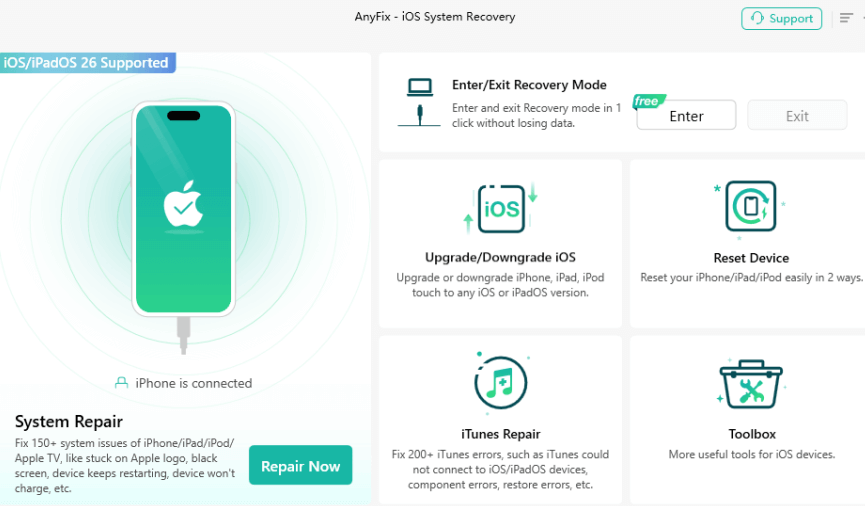
Step 3. You’ll see three options. For Bluetooth issues, go with Standard Repair.

Step 4. AnyFix will show your device info. Click Download to get the right firmware. This might take a few minutes, so just keep your device connected.
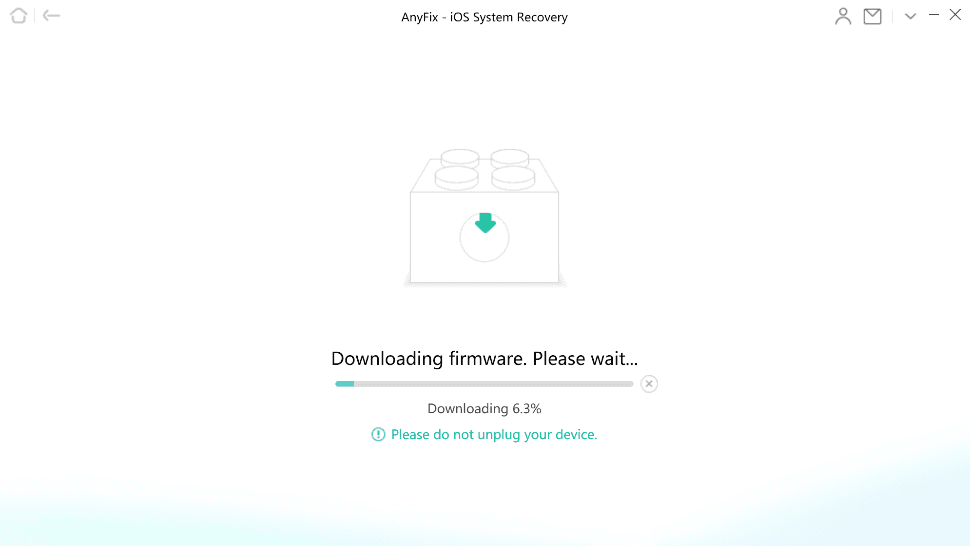
Step 5. Once the download is done, hit Start Standard Repair. AnyFix will repair your iPad system automatically. After a few minutes, your device will restart, and Bluetooth should start working again.

FAQs about iPad Bluetooth Not Working
Q1. Why is Bluetooth not finding any devices?
Bluetooth not finding any devices might be caused by the feature being turned off, or the other device not being in pairing mode. Make sure both devices are nearby, Bluetooth is enabled, and try connecting again.
Q2. How do you reset Bluetooth on an iPad?
Resetting Bluetooth on an iPad involves refreshing all network connections. Go to Settings > General > Transfer or Reset iPad > Reset Network Settings. This will reset Bluetooth and Wi-Fi connections to fix pairing or connection glitches.
Q3. What should I do if my iPad won’t connect to a Bluetooth device?
iPad not connecting to a Bluetooth device may result from temporary pairing errors. Ensure the device is powered on, discoverable, and within range. Restart your iPad, remove the device from Bluetooth settings, then pair it again to restore the connection.
Conclusion
When iPad Bluetooth not working properly, it might sometimes disrupt music, calls, and accessory use. However, with the proper methods, you may simply resolve these difficulties and restore normal operation. Use Anyfix to speed up and improve the reliability of troubleshooting. As a professional iOS system repair tool, it helps repair common iPad issues without data loss. Download it now and bring your iPad back to perfect performance!
Free Download * 100% Clean & Safe



Joy Taylor is a seasoned technical writer with over a decade of experience in mobile technology. At iMobie, she specializes in producing in-depth content on iOS data recovery, iPhone unlocking solutions, and iOS troubleshooting.
Product-related questions? Contact Our Support Team to Get Quick Solution >
