How to Fix iPhone Backlight Not Working [2025 Guide]
To fix iPad battery draining fast, you can adjust display settings, enable Low Power Mode, and turn off features like Background App Refresh and Location Services to save power. If battery drain is caused by system issues, use AnyFix to repair your iPad and restore normal battery performance.
Many iPhone users face the annoying issue of the backlight not working. This problem usually leaves your iPhone screen completely dark and unusable. A common user post on Apple Community asked, “My screen on my iPhone 12 will not light up. Can this be fixed, or do I need repairs?” This article explores the main reasons behind the iPhone backlight not working. You will learn how to resolve both system and hardware-related issues that cause this problem.
Why Is My iPhone Backlight Not Working?
When the iPhone backlight is not working, the screen can turn completely dark while the device continues to function in the background—you may still hear sounds or feel vibrations. This usually happens due to software glitches or hardware issues that stop the LCD backlight from illuminating. Below are the most common causes of an iPhone backlight failure:
- Hardware Damage: Drops or water damage usually break the backlight parts inside your iPhone. This is a common reason why the iPhone backlight not working problem occurs.
- Software Bugs: Many times, software errors or outdated iOS can also cause the backlight to fail. These bugs may confuse your smartphone, and its screen won’t light up.
- Battery Problems: A dying or weak battery may stop the light from functioning properly. This specific reason can also prevent the display from turning on.
- Settings Errors: The backlight may seem off because of poor brightness settings and auto-brightness problems. This problem is common and can be fixed by adjusting settings.
- Physical Shorts: Poor repairs or assembly mistakes create shorts in the backlight circuit. These shorts cut off the power flow and cause the backlight not to work.
Fix iPhone Backlight Not Working with System Issue
When the iPhone backlight isn’t working due to system-related issues, AnyFix offers a dependable solution. This top-rated iOS repair tool supports iOS 26 and newer, and can resolve 150+ system errors without data loss. Its Standard Repair mode fixes common display and system glitches safely, while Advanced Repair handles more severe issues that require deeper system restoration. Before starting, AnyFix automatically detects your device and prepares the correct repair workflow. It also downloads the necessary firmware packages quickly and supports one-click entry and exit of iPhone Recovery Mode, making the entire process smooth and beginner-friendly.
Key Features of AnyFix:
- Ensures the highest possible success rate in repairing device issues.
- Detects connected devices immediately and guides to proper repair modes.
- Carefully repairs system issues without risking user data loss or corruption.
- Works with almost all Apple devices, including iPhone and iPad, for versatile support.
- Requires no advanced technical skills, suitable for casual users.
Free Download * 100% Clean & Safe
Detailed Guide to Fix iPhone Backlight Not Working via AnyFix:
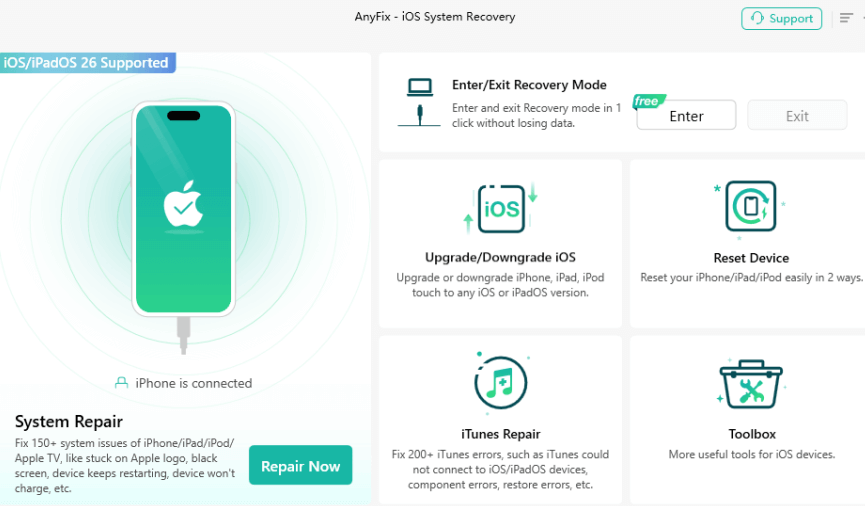
Step 1. Free download and launch AnyFix, choose System Repair, and connect your iPhone to the PC.
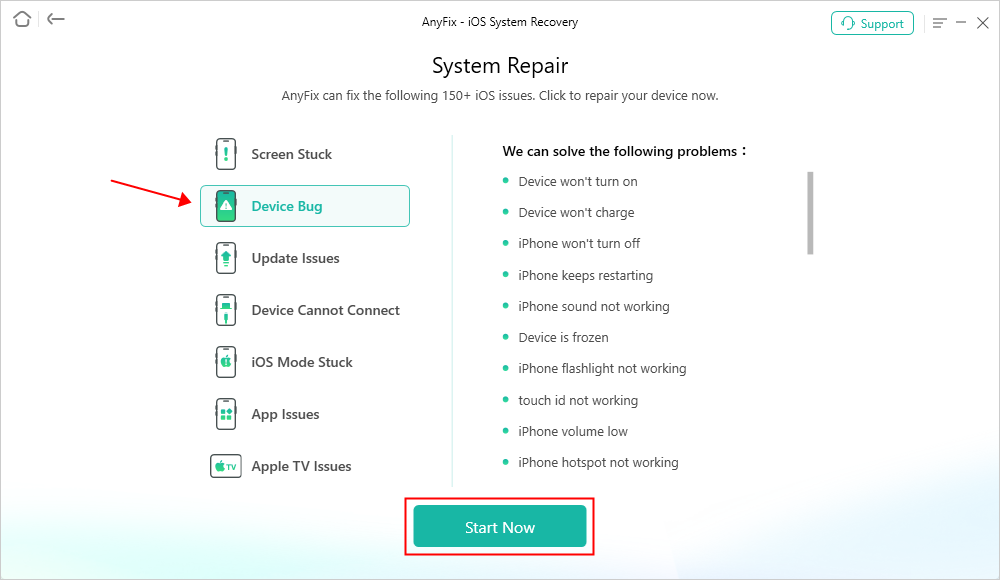
Step 2. Upon detecting your device, choose the corresponding issue and hit the “Start Now” button.
Step 3. Once you see a new screen, select “Standard Repair” mode.

Step 4. Wait until the process finishes. After that, your iPhone will restart, and the issue will be fixed.

Fix iPhone Backlight Not Working with Hardware Issue
When the iPhone backlight stops working due to hardware damage, the issue is usually related to the display connector, backlight circuit, or components on the logic board. Technicians use professional tools to check backlight voltage, test the screen connector, and identify faulty parts such as backlight filters, diodes, fuses, or the backlight IC. Some repairs require removing the shielding and performing precise soldering under a microscope. If you prefer a safer and more guaranteed solution, contacting Apple Support or an authorized service provider is recommended, although it may be more expensive.
FAQs about iPhone Backlight Not Working
Q1. Why did my backlight stop working?
The backlight can stop working due to hardware damage, such as drops. Software bugs or outdated iOS can also cause the backlight failure. Also, faulty connections or battery problems prevent the backlight from functioning properly.
Q2. What are common scenarios for the iPhone backlight not working?
Common scenarios for the iPhone backlight not working include hardware damage or component failure. Short circuits from improper repairs or corrosion also prevent the backlight from functioning. Many times, software glitches or incorrect brightness settings can also cause backlight problems.
Q3. How to diagnose a backlight failure?
Inspect the strips of the backlight by checking them for broken LEDs or corrosion. Check voltage and ensure continuity in LED circuits with a multimeter or backlight tester. In addition, check the settings, including the iOS firmware, to eliminate any issues with the system.
Conclusion
In conclusion, an iPhone backlight not working can arise from both hardware damage and software problems. Identifying the cause helps you choose the best fix, saving time and cost. Hardware repairs focus on replacing faulty parts, while iPhone repair software like AnyFix provides easy system fixes. AnyFix ensures safe repair without losing your important data. Download and use AnyFix now to resolve the iOS system-related issues effortlessly.
Free Download * 100% Clean & Safe



Joy Taylor is a seasoned technical writer with over a decade of experience in mobile technology. At iMobie, she specializes in producing in-depth content on iOS data recovery, iPhone unlocking solutions, and iOS troubleshooting.
Product-related questions? Contact Our Support Team to Get Quick Solution >
