How to Fix iPhone Keeps Beeping in 11 Ways [Latest]
If your iPhone is beeping like a fire alarm, check the Clock app for active alarms or timers and review notifications in the Notification Center. Or easily use AnyFix to repair iPhone keeps beeping issue caused by a system glitch.
AnyFix – Fix iPhone Keeps Beeping in 5 Minutes
Download AnyFix to repair iPhone keeps beeping caused by system issues within a few clicks. Stop the constant alert sounds and restore your iPhone to normal behavior easily. Support the latest iOS 26 & iPhone 17.
It’s annoying when your iPhone keeps beeping for no clear reason, especially if it happens repeatedly or even when you’re not using the device. This issue is more common than you’d expect and is usually caused by things like loose charging cables, notification glitches, Bluetooth issues, or minor iOS bugs.
The good news is that most of these problems are easy to troubleshoot. In this guide, we’ll show you 11 effective ways to fix “iPhone keeps beeping” issue, from quick checks to deeper system fixes.
Why My iPhone Keeps Beeping?
Many times, your iPhone keeps beeping due to simple settings or minor issues. Below, you will explore a few key reasons behind this issue before resolving it:
- Notification Sounds: Beeping usually comes from alerts such as messages or app notifications.
- Battery Warning: Low battery levels can trigger warning beeps on your iPhone randomly.
- Background Apps: Some apps running quietly in the background may generate these noises.
- Software Bugs: Small errors after updates may lead your iPhone to beep for a reason.
- Safari Cookies: Stored website data sometimes makes your device keep beeping notifications.
Common Solutions for iPhone Keeps Beeping
When your iPhone keeps beeping, there are simple solutions to stop the constant alerts. The following part provides 10 ways to help you solve this problem without hassle:
Way 1. Use the Original Apple Charger or Cable
You should always use the original Apple charger or cable to prevent the beeping issues. These chargers provide stable power and avoid short circuits or unexpected alerts during charging. Fake chargers do not supply the correct power needed by your device. Original accessories ensure safe charging and protect the battery from damage over time.
Way 2. Check Notification Settings on iPhone
Checking notification settings is a key step when your iPhone keeps beeping. This feature lets you control which apps can send sounds or alerts to avoid constant noise. Yet, it may not stop all beeps if some system alerts or background sounds are active. Go through the steps below to check the notification settings on your phone:
Step 1. After accessing the “Settings” app, head to the “Notifications” section.
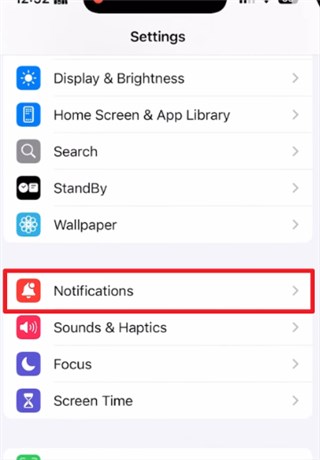
Step 2. You will then access and check the notifications settings.
Way 3. Review Sound & Haptics Settings
Reviewing sound and haptics settings can also help if your iPhone keeps beeping frequently. This option lets you control ringtones and alert volumes for notifications effectively. Let’s explore how you can review these settings on your phone:
Step 1. Access the “Settings” app on your device and tap the “Sounds & Haptics” option.
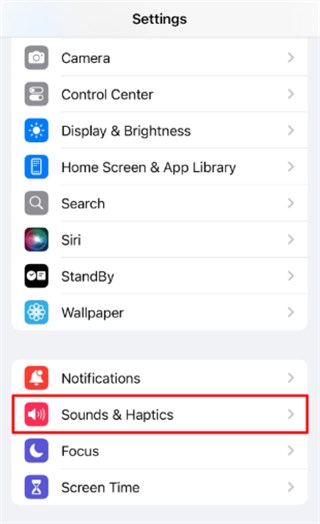
Step 2. Turn on the volume slider to the right to make it loud.
Way 4. Remove Unnecessary or Additional Keyboards
Sometimes, added keyboards cause unwanted sounds or alerts when typing or switching languages. This option lets you delete these extra keyboards to stop possible beeping related to typing. While it won’t fix all beep issues, it reduces noise caused by keyboard drives. You can follow the steps to resolve the iPhone keeps beeping issue:
Step 1. When you access the “General” section, navigate to the “Keyboard” section.
Step 2. Access the “Keyboards” section and swipe left to the unnecessary keyboard to choose “Delete.”
Way 5. Clear History and Website Data in Safari
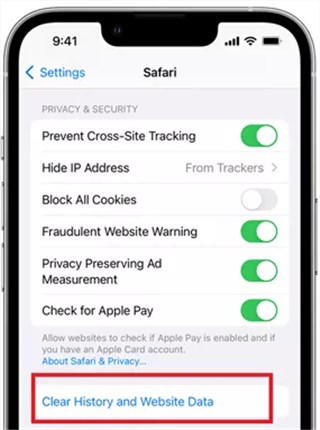
Clearing history and website data in Safari is also a helpful way to stop the iPhone keeps beeping caused by trapped scripts. It clears old cookies, cached files, and web data that can cause unexpected sounds. While it removes stored browsing info, it doesn’t delete saved passwords or autofill data. Take guidance from the given steps to apply this solution:
Step 1. Navigate to the “Apps” section on your phone and opt for “Safari.”
Step 2. Swipe up and tap the “Clear History and Website Data” option.
Way 6. Force Quit All Apps
Apps running in the background may cause repeated sounds or notifications. Closing all apps frees system resources and stops hidden alerts, causing beeping. Yet, it cannot fix the beeping caused by outdated iOS or faulty hardware components. Adhere to the following steps to force quit background apps:
Step 1. Swipe up from the bottom to the middle of the screen to view “App Drawer.”
Step 2. Again, swipe up each app individually to close them all.
Way 7. Check for and Update All Apps
Outdated apps sometimes cause glitches or send unexpected alert sounds on your device. When you update them, it works effortlessly with the latest iOS version without interruptions. Review the steps below to check and update all your apps:
Step 1. As you run the “App Store,” tap the “Profile” icon.
Step 2. Go ahead to access the “Upcoming Automatic Updates” section and tap “Update All.”
Way 8. Update iOS to the Latest Version
Updating iOS to the latest version fixes many issues, causing your iPhone keeps beeping repeatedly. New updates fix software bugs that may cause unexpected alert sounds or glitches. However, it cannot resolve issues caused by damaged hardware. Go through the given steps to update your device version:
Step 1. Initiate by heading to the “General” section and opting for the “Software Update” option.
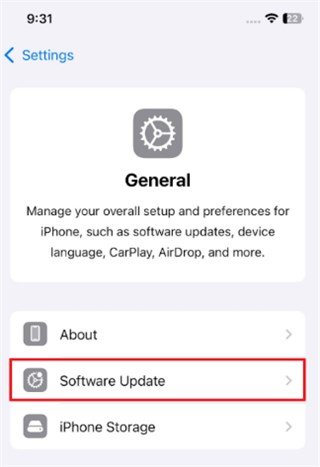
Step 2. When your device shows an update available, press the “Update Now” button.
Way 9. Reset All Settings on iPhone
You can also reset all settings to fix problems if your iPhone keeps beeping unexpectedly. This option restores system settings like notifications and network preferences without deleting data. It helps remove hidden glitches or conflicts causing repeated alert sounds. You can adhere to the steps to reset all settings effortlessly:
Step 1. Going to the “General” menu, tap “Transfer or Reset iPhone” and opt for “Reset.”
Step 2. As you see a prompt, opt for “Reset All Settings” and enter your device’s passcode to choose it again.
Way 10. Restart Your iPhone
Another simple but useful way to resolve the iPhone keeps beeping problem is to restart your iPhone. This process closes all running apps and clears minor software glitches that cause annoying sounds. While it won’t solve severe hardware problems, restarting refreshes system performance. Review the steps below to know how you can restart your phone:
Step 1. Press the “Power” and “Volume Up” buttons together for a few seconds.
Step 2. When you see a new screen, drag the “Slide To Power Off” slider to turn it off. After some time, once more switch on your phone to boot it.
How to Fix iPhone Keeps Beeping in Clicks – AnyFix
When your iPhone keeps beeping despite trying common solutions, a system repair tool can help. Sometimes repeated beeping is caused by hidden software glitches or iOS issues. To address this requirement, AnyFix is a committed iOS system repair software that fixes more than 150 system errors. The tool is also compatible with the latest iOS 26, which makes it a standout option.
Moreover, it offers three repair modes designed for different levels of system issues, allowing you to choose the most suitable option and improve the repair success rate. Whether your iPhone is experiencing common glitches, stuck screens, or system errors like iPhone black screen, white screen, or DFU mode, the tool can help bring your device back to normal.
Key Features of AnyFix:
- Simple interface allows anyone to repair an iPhone without technical knowledge.
- Repairs most system issues within minutes for quick device functionality.
- Achieves a high success rate for fixing various iOS system problems.
- Ensures system stability while repairing without putting the device at risk.
Free Download * 100% Clean & Safe
Stepwise Guide to Fix iPhone Keeps Beeping in Clicks via AnyFix:
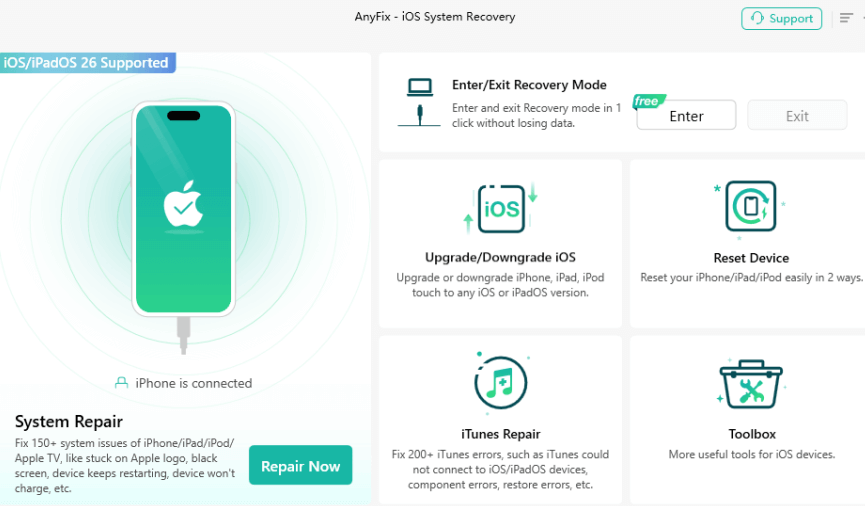
Step 1. Free download and launch AnyFix, choose System Repair, and connect your iPad to the PC.
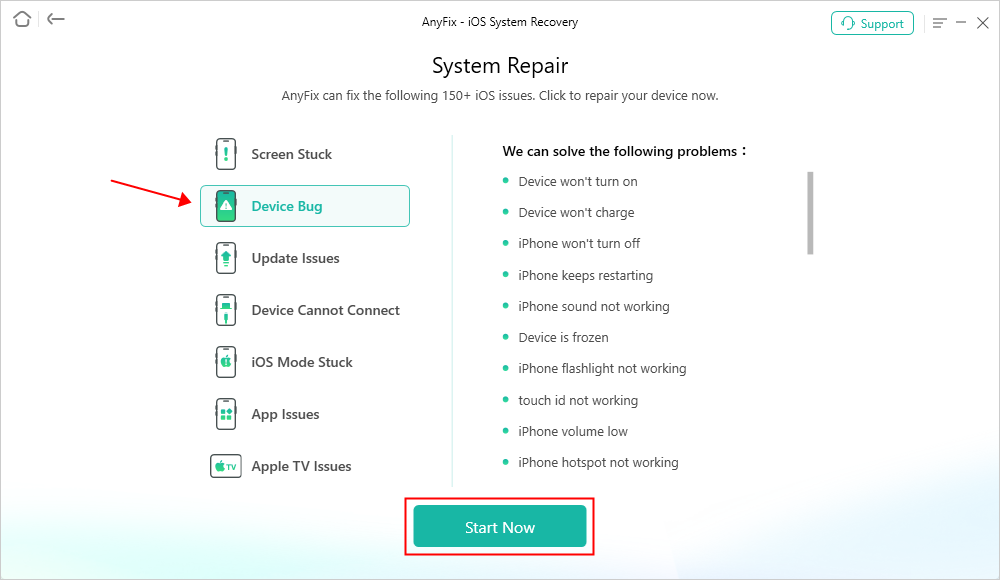
Step 2. Upon detecting your device, choose the corresponding issue and hit the “Start Now” button.
Step 3. Once you see a new screen, select “Standard Repair” mode.

Step 4. Wait until the process finishes. After that, your iPhone will restart, and the issue will be fixed.

FAQs about iPhone Keeps Beeping
Q1. Why does my phone keep beeping with no notification?
Your phone keeps beeping with no notification due to minor software glitches or background apps triggering alert sounds. A quick settings check or restarting your iPhone usually stops the random beeping.
Q2. My iPhone beeps when I plug it in to charge. Is this normal?
Yes. A single beep is normal and confirms the device is charging. But repeated beeps may indicate a loose cable, faulty accessory, or charging issue. Using a certified charger helps avoid this.
Q3. Could a virus be causing my iPhone to beep?
Very unlikely. iPhones are well-protected, and viruses that cause beeping are rare. Most beeping issues come from software bugs, settings conflicts, or system glitches.
Q4. Why is my iPhone beeping like a fire alarm?
This usually comes from urgent alerts, loud notification settings, or a malfunctioning app. Review your alert settings and disable unnecessary notifications to stop the repeated alarm-like beeps.
Conclusion
In conclusion, an iPhone keeps beeping for various reasons, like notification settings and background apps. This article has shown you 11 ways to address and resolve this issue. For persistent or complex issues, using a reliable iOS system repair tool is necessary. We recommend AnyFix to repair iOS system problems safely and stop the continuous beeping. Download and use AnyFix now to resolve the beeping problem effortlessly.
Free Download * 100% Clean & Safe



Joy Taylor is a seasoned technical writer with over a decade of experience in mobile technology. At iMobie, she specializes in producing in-depth content on iOS data recovery, iPhone unlocking solutions, and iOS troubleshooting.
Product-related questions? Contact Our Support Team to Get Quick Solution >
