7 Ways to Fix iPhone Stuck on Home Critical Alerts
This guide explains why your iPhone stuck on Home critical alerts after iOS updates. It also offers seven proven fixes, including force restart, Recovery Mode, DFU Mode, and using AnyFix. Follow these simple steps to repair system glitches and restore your iPhone’s normal performance quickly.
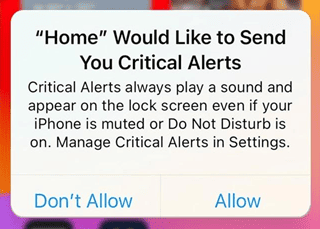
Every time there is an iOS update, it can cause problems after updating your iPhone or iPad. Recently, some hot discussions show that users are experiencing the iPhone stuck on home critical alerts issue. The screen shows “Home would like to send you critical alerts,” and then nothing happens. No response, no way to move past it. This seems to be a minor bug in the new update.
Why does this happen and how can you fix it? Don’t worry, this article will explain the possible reasons and provide 7 effective methods to solve the problem. Additionally, you can learn about some common questions for iPhone critical alerts. Keep reading!
You may also like: How to fix iPhone not alerting me of text
Why Is My iPhone Stuck on Home Critical Alerts?
Here are some possible reasons your iPhone stuck on home critical alerts:
- A bug in iOS 26 that breaks the workflow for granting alert permissions.
- The Home app’s settings for Critical Alerts got corrupted or misconfigured.
- A conflict between HomeKit / Smart Home accessories and iCloud.
- A third-party app with alert permissions is interfering with the Home permission prompt.
- System overload or resource conflict (too many background tasks, memory pressure).
- An issue with your Apple ID or iCloud syncing that disrupts Home settings.
- A hardware or system diagnostic problem is causing the alert screen to lock.
How to Fix iPhone Stuck on Home Critical Alerts
This section shows seven methods to get your iPhone working normally again. You can try each of them and see which one works for you.
Method 1. Force Restart Your iPhone
Force restarting an iPhone should be the first thing you try. It helps clear out temporary system bugs that might be causing the issue. Here is how you can force restart your iPhone:
- Press and release the “Volume Up” and “Volume Down” buttons one by one.
- Quickly press and hold the “Power” button until you see the Apple logo appear on the screen.
After forcefully restarting your iPhone, you can check if the home critical alerts are removed and your iPhone is working normally.
Method 2. Reset HomeKit Configuration from Other iOS Device
Resetting HomeKit configuration can also help fix iPhone stuck on home critical alerts. If you have another iOS device linked to the same Apple ID, you can use it to reset your HomeKit settings. This will remove any faulty configurations that might cause the stuck issues. Here is how:
- Open the “Home” app on your second iPhone/iPad.
- Click the three dots at the top right of the screen. Choose “Home Settings.”
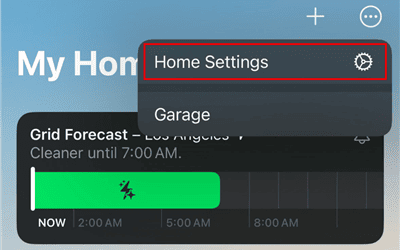
- Scroll down and tap “Remove Home.”
- Confirm your choice to delete the existing Home configuration.
- Wait a few seconds, then restart the iPhone that was stuck.
Method 3. Update iOS in iTunes/Finder
An outdated iOS version can cause these tricky issues, too. If this is the case, you can try to update iOS for your iPhone. But since it’s stuck on home critical alerts, you may need to update iOS in iTunes or Finder. It reinstalls the newest files without deleting your data, which helps your phone move right past that stuck alert.
Here is how you can update iOS using your computer:
- Connect your iPhone to your computer via a USB cable.
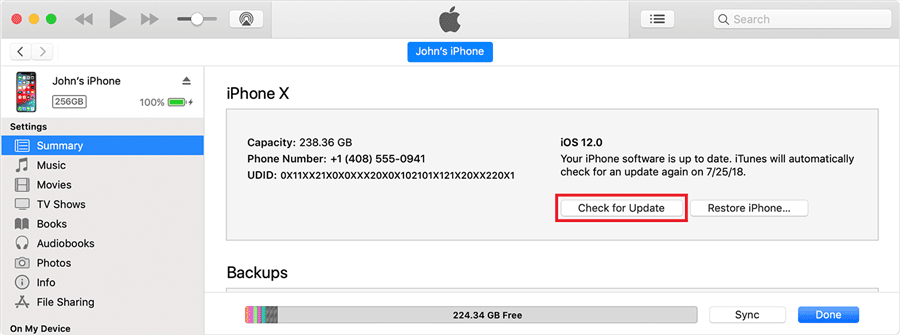
- Open iTunes on Windows and Finder on Mac. The software will automatically recognize the iPhone.
- Once it is recognized, click the device icon, go to the “Summary” tab, and see if there is any update available.
- If yes, then update the iOS.
Method 4. Enter Recovery Mode in iTunes/Finder
Some users may find that there is no update available in iTunes or Finder, or the iOS update failed. In this case, you can try to fix iPhone stuck on home critical alerts in recovery mode. This lets Finder or iTunes fix system issues. It is also safe and won’t erase your data. Your phone will be working again soon.
Here is how to enter recovery mode in iTunes/Finder:
- Connect your iPhone to a computer using a USB cable.
- Next, open iTunes if you have a Windows PC. Or Finder if you are using a Mac.
- Now, you need to force restart your iPhone. Do this while it is still plugged in.
- Keep holding those buttons down for a moment. Wait until you see the special Recovery Mode screen.
- A message will pop up on your computer. Just click on the Update button right away.
Method 5. Enter DFU Mode on iPhone
If nothing could fix the iPhone stuck on home critical alerts issue, you can try putting your iPhone into DFU Mode. This is a deeper restore mode that reloads both the firmware and software of your device. It’s more powerful than Recovery Mode and can fix stubborn system issues that keep your iPhone stuck on the Home critical alerts screen.
Here is how to enter DFU mode:
- Find a USB cable and plug your iPhone into your computer. Then open the Finder or iTunes app.
- Press the Volume Up button fast. Then quickly press the Volume Down button.
- Now, press and hold the Side button. Do not let go until the whole screen turns black.
- While still holding the Side button, press the Volume Down button. Count to five, then let go of the Side button.
- Keep holding Volume Down for five seconds more. The screen stays black, but the computer will tell you that it found your phone!
Method 6. Restore iPhone in iTunes/Finder
If the above methods don’t work and your iPhone still stuck on home critical alerts, you may need to restore your phone. This will wipe the device clean and install the newest iOS. It gives your iPhone a fresh start. This fix usually clears those iPhone stuck on home critical alerts issues completely.
Here is how to restore an iPhone in iTunes/Finder:
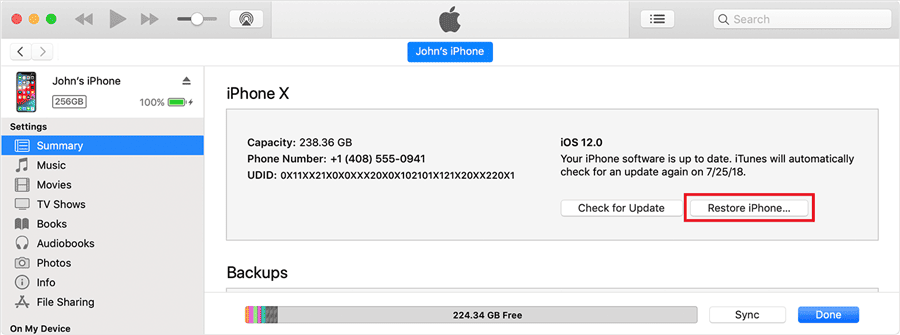
- Connect your iPhone to your computer via a USB cable. Then open iTunes or Finder.
- Wait until the program recognizes your device.
- Go to the “Summary” tab and click “Restore iPhone.”
Method 7. Fix iPhone System in AnyFix [iOS 26 Supported]
Although the restoring method can fix most iPhone problems, it will cause data loss. If you have your iPhone backed up, it will take a long time to restore the data. As a result, the ultimate method to fix iPhone stuck on home critical alerts is repairing iOS without data loss. AnyFix, as one of the most reliable iOS system repair tools, can fix 150+ iPhone system issues in just a few clicks.
Why choose AnyFix?
- Repair 150+ iOS system issues without data loss.
- High success rate in fixing iPhone stuck on home critical alerts issues.
- Support the latest iPhone 17 and iOS 26.
- No technical skills are required, friendly to use for new starters.
Free Download * 100% Clean & Safe
Steps to Fix System Issues Using AnyFix:
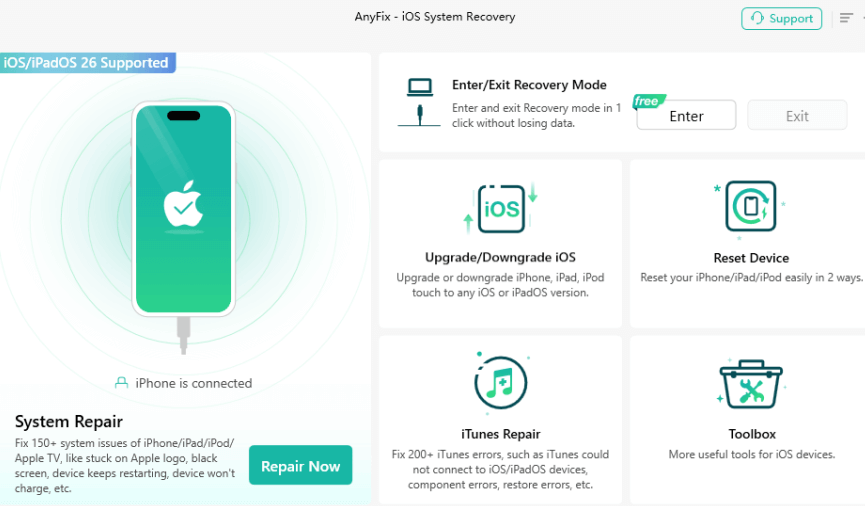
Step 1. Launch AnyFix and connect your device to your computer via a USB cable. Choose System Repair from the homepage.
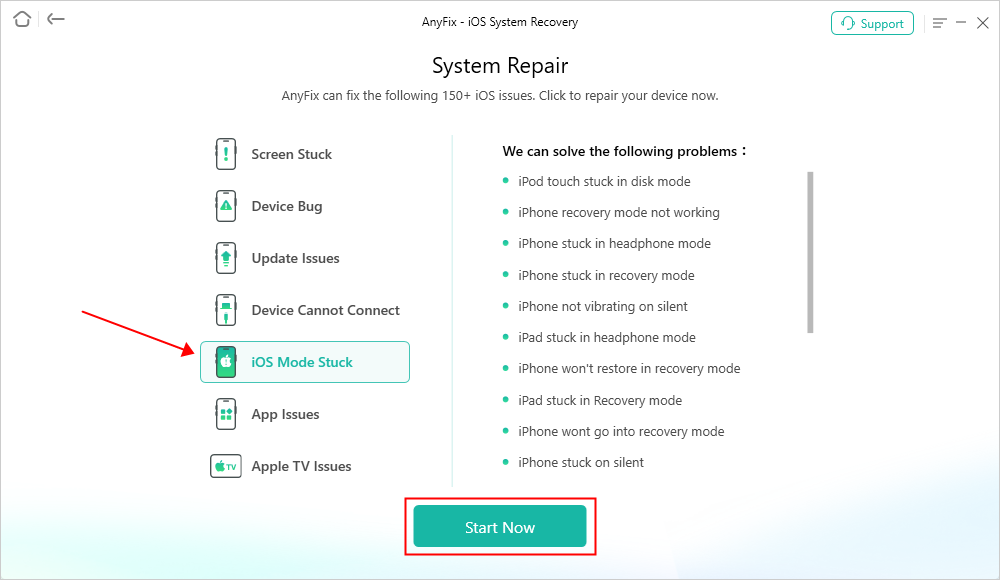
Step 2. From the problems list, choose iOS Mode Stuck and continue.
Step 3. Next, choose the Standard Repair mode and proceed.

Step 4. After you select the repair mode, AnyFix will start obtaining the configuration file. Once it’s ready, click “Download” to download the firmware package.
Step 5. It will take a few minutes to download the firmware package. Once the downloading is completed, click “Start Standard Repair” and AnyFix will start the repairing process.
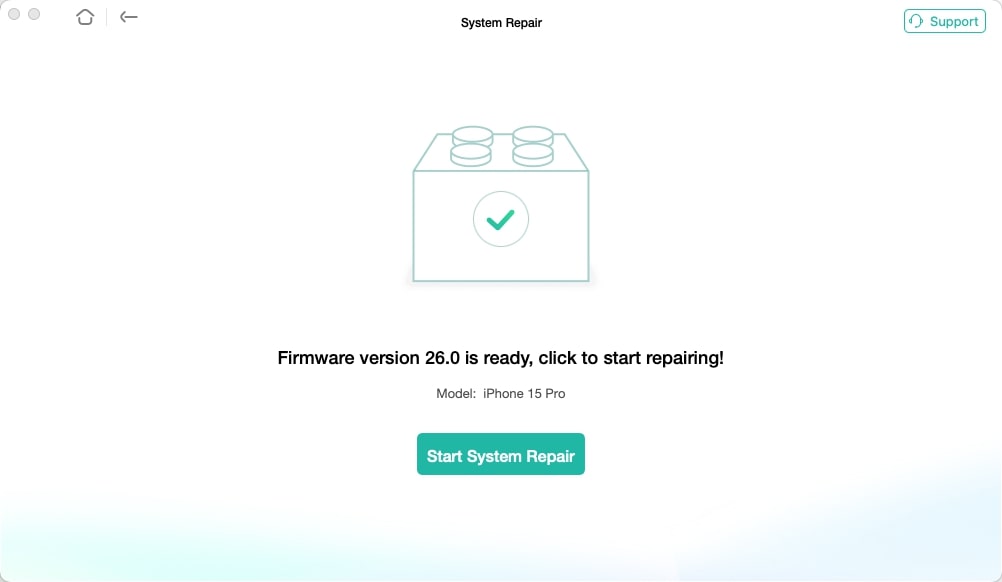
Step 6. When the repair process is completed, you will see this interface. Click “Go back” to go to the previous page. Or click “Home” to jump to the homepage. Check your iPhone stuck on home critical alerts problem. It must be fixed.

FAQs About iPhone Stuck on Home Critical Alerts
Q1. What are iPhone critical alerts?
Critical alerts are kind of important notifications. They bypass the Do Not Disturb mode to warn you about urgent or essential updates from specific apps.
Q2. How to disable critical alerts on iPhone?
You can turn off iPhone critical alerts directly in the Settings app. Go to Settings > Notifications, select the app, and toggle off Allow Critical Alerts.
Q3. Is the critical threat warning on iPhone real?
Usually no, most critical threat pop-ups are scams and don’t threaten your iPhone security. Close the page and avoid clicking any suspicious links.
Conclusion
Wrapping it up! The iPhone stuck on Home critical alerts issue can be annoying – but it’s not permanent. You can usually fix it with a few simple steps. And if those don’t work, AnyFix is a smart choice. Its system repair feature can safely fix iOS glitches, including this alert issue, without hassle. Download AnyFix today and give your iPhone the quick, reliable repair it needs.
Free Download * 100% Clean & Safe



Joy Taylor is a seasoned technical writer with over a decade of experience in mobile technology. At iMobie, she specializes in producing in-depth content on iOS data recovery, iPhone unlocking solutions, and iOS troubleshooting.
Product-related questions? Contact Our Support Team to Get Quick Solution >
