How to Fix QR Code Not Working on iPhone [10 Ways]
To fix the QR code not working on iPhone, you can try to clean the camera lens, ensure good lighting, restart or update your device, etc. For a more reliable solution, try using AnyFix – iOS System Recovery, which quickly resolves camera and system glitches that may prevent your iPhone from scanning QR codes properly.
AnyFix – Fix QR Code Not Working on iPhone Easily
Download AnyFix to repair QR Code Not Working on iPhone caused by the system issues. Quickly restores normal scanning without wasting your time on trial-and-error fixes. Supports the latest iOS 26.
QR codes are designed to scan instantly. When your iPhone suddenly can’t recognize them, simple tasks like checking menus, payments, or app logins get interrupted. It may happen due to iPhone camera errors, poor lighting, or a minor iOS glitch. The good thing is that most fixes are quick and don’t require any tech skills. If you are facing this issue, don’t worry. This guide breaks down the common causes behind QR code not working on iPhone and walks you through nine quick and effective fixes to get scanning back on track. Let’s get started.
Why Is My QR Code Not Working on My iPhone?
QR scanning can fail for several reasons. The issue might come from your iPhone’s software, camera conditions, or even the QR code itself. Here are the most common causes:
- Poor scanning conditions: Low light, glare, shaky hands, or a damaged/low-contrast QR code make detection difficult.
- Unsupported iOS version: Devices on iOS 10 or earlier cannot scan QR codes natively.
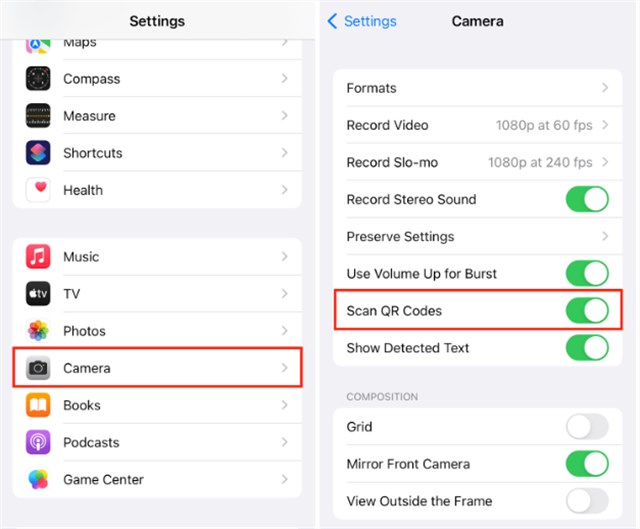
- QR scanning turned off: If Scan QR Codes is disabled in Camera settings, scanning will fail.
- Weak internet connection: Codes that open websites will not load without a stable network.
- System or camera glitches: Temporary iOS bugs can stop the camera from recognizing QR codes.
- Invalid or expired QR code: If the campaign is disabled or the link is outdated, the code won’t work.
Regular Solutions for QR Code Not Working on iPhone Issue
Below are the 9 practical fixes to resolve the issue of QR code not working on iPhone.
Way 1. Check Camera Permissions
If QR codes are not scanning in a third-party app, the most likely cause is that the app doesn’t have permission to use your iPhone’s camera. Without access, it simply cannot detect any code. Turning on Camera permissions usually fixes the issue right away. Follow the steps below to enable it:
Step 1. Go to the Settings application. Tap on Privacy and Security.
Step 2. Now, tap on camera permissions. You can find all the apps here that you have allowed permissions for, as well as those without camera access.
Step 3. Enable the camera permissions for the QR code scanner app. Check if it’s working or not.
Way 2. Clean Camera Lens
When your iPhone struggles to recognize QR codes even when pointed correctly, dirt, smudges, or tiny scratches on the camera lens could be blocking the focus. Gently wipe the lens with a soft microfiber cloth to remove fingerprints and dust. Make sure your phone case isn’t covering or obstructing the camera.
Way 3. Ensure Good Lighting and Proper Distance
The iPhone camera requires sufficient light to scan and read the QR code. Move to a bright space if you are in a dark area while scanning the AR code. Make sure that the space is not exposed or over-lit. This is because the QR code cannot be understood in low light or excessive light.
Way 4. Restart or Force Restart Your iPhone
QR code not working on iPhone might be temporary, such as a camera application or settings bug. The easiest way is to simply restart and clear minor issues by reloading iOS and pausing background processes. If the restart is not working, follow the steps below to force restart your iPhone:
Step 1. First, press and release the volume up button. Then, do the same with the Volume Down button.
Step 2. Press and hold the Power or Side button until you see the Apple logo.
Step 3. Release the power button as you see the Apple logo, and let it restart.
Way 5. Check the QR Code’s Clarity and Quality
Check the QR code for damage and clarity. A sharp pattern reads reliably. Avoid using low-resolution photos and screenshots. Remove glare and reflections, then scan. Maintain square pixels and crisp module edges. Test at multiple distances and angles. Reprint the code if any modules are blurred or smudged.
Way 6. Try Another QR Code Scanner App
Try another QR code scanner app if QR code not working on iPhone. Compare if the new app scans the same code correctly. If it works, the issue is with the default Camera app. Keep the alternative app installed for future scans or until Apple releases an iOS update that improves QR detection.
Way 7. Use Control Center Scanner
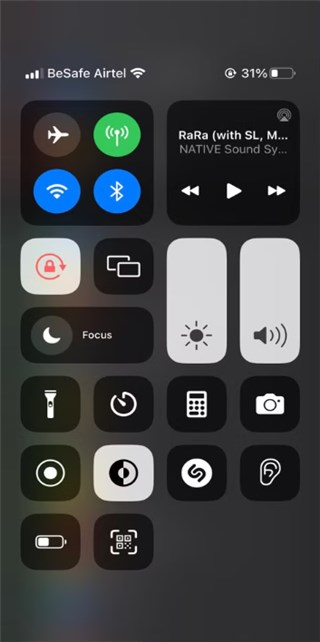
If the Camera app won’t scan, use Apple’s Code Scanner from the Control Center. It runs separately from the Camera and often reads stubborn codes. Follow the steps below to use the control center scanner:
Step 1. Go to the Settings application. Next, scroll down to find the Control Center.
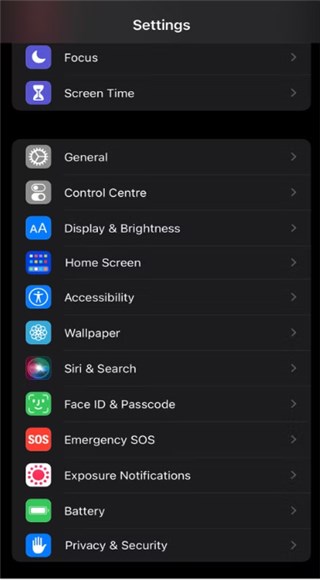
Step 2. Under the More Controls section, find Code Scanner.
Step 3. Click the plus button next to Code Scanner to add it to the Control Center.
Step 4. Finally, open the Control Center. Then tap the Code Scanner icon to scan the QR code.
Way 8. Check Camera Settings
Your iPhone can scan QR codes only when the Camera app is in Photo mode. If scanning fails, switch away from modes like Video, Portrait, or Pano. Position the QR code in the center of the frame, keep the phone steady, and adjust the distance until the code is fully visible. You can tap the screen to help the camera focus if needed.
Way 9. Reset All Settings
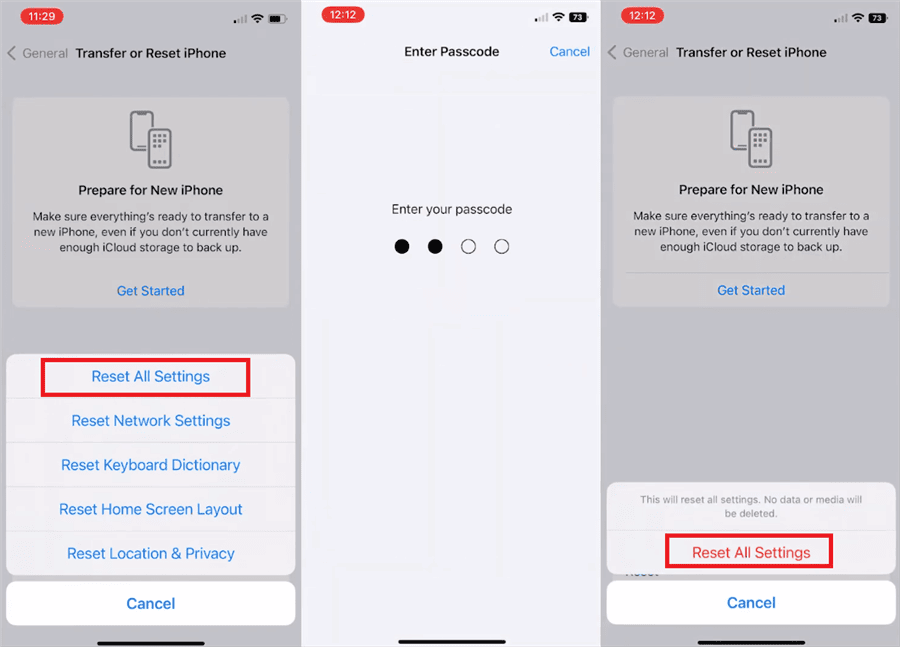
A hidden setting sometimes blocks QR scanning. Restoring your iPhone settings resets all system preferences to their default settings without deleting your apps or files. This usually includes camera, networking, and privacy settings. The steps below show you how you can reset all the settings:
Step 1. Go to Settings > General Options.
Step 2. Tap on Reset > Reset All Settings.
Step 3. Enter the passcode and follow the onscreen prompts to complete the process.
Fix QR Code Not Working on iPhone via AnyFix [One-click]
If QR codes still won’t scan after trying the manual methods above, your iPhone may have deeper iOS issues affecting the camera or its built-in QR recognition system. In this case, AnyFix – iOS System Recovery provides a fast, one-click repair to restore QR scanning functionality. AnyFix is designed to fix iOS system glitches that lead to camera malfunctions, app errors, and performance problems. It repairs iOS without wiping data, helping your iPhone return to stable operation so the camera can detect QR codes properly again.
Main Features of Anyfix:
- Repairs QR Code Not Working on iPhone without data loss.
- Just a few clicks to complete the repair, no technical skills required.
- Supports the latest iOS 26 and iPhone 17 models.
- Fixes QR issues along with other camera-related malfunctions.
Free Download * 100% Clean & Safe
Stepwise Guide to Fix QR Code Not Working on iPhone via AnyFix:
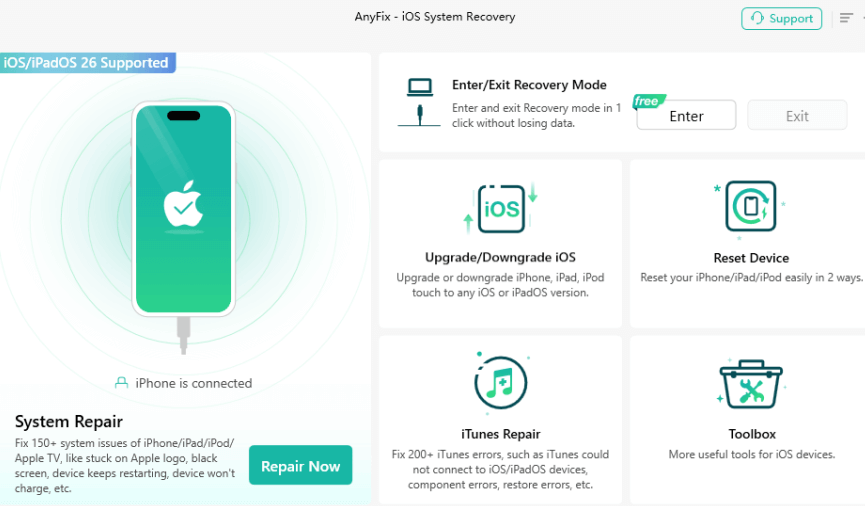
Step 1. Free download and launch AnyFix, choose System Repair, and connect your iPad to the PC.
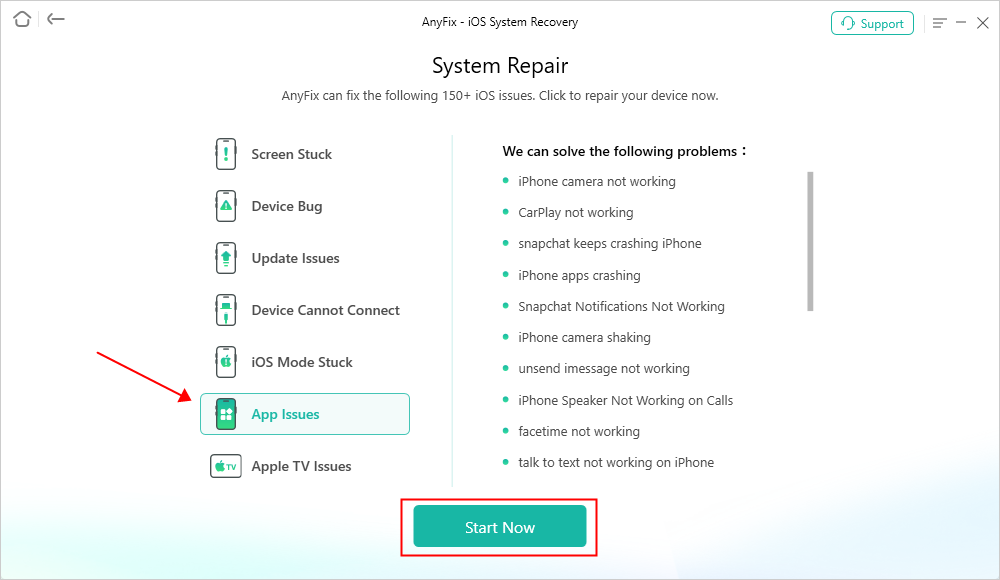
Step 2. Upon detecting your device, choose the corresponding issue and hit the “Start Now” button.
Step 3. Once you see a new screen, select “Standard Repair” mode.

Step 4. Wait until the process finishes. After that, your iPhone will restart, and the issue will be fixed.

FAQs about QR Code Not Working on iPhone
Q1. How do I enable QR codes on my iPhone?
If your iPhone isn’t scanning QR codes, go to Settings > Camera and turn on Scan QR Codes. Then simply point the Camera at the code to read it.
Q2. Why is my QR code not displaying?
A QR code may fail to show if the image is damaged, cropped, or too dark. Make sure the code is complete, clear, and has enough contrast.
Q3. Why is my iPhone not scanning my QR code?
If scanning isn’t working, clean the camera lens and ensure good lighting and proper distance. Also, confirm the Camera app has permission enabled in Settings.
Q4. How to fix QR code not working on iPhone 13?
To fix QR code not working on iPhone 13, restart your iPhone and update iOS, then recheck Camera settings and QR permissions. If the problem persists, try adjusting lighting or scanning a different code.
Conclusion
We’ve covered the main reasons why QR code not working on iPhone and walked you through nine practical fixes. But if the problem comes from deeper iOS or camera system errors, AnyFix would be a better choice. As a professional iPhone repair tool, it repairs deeper iOS glitches without data loss and brings your QR scanning features back to normal with just one click. Download AnyFix to quickly resolve persistent QR code issues and restore smooth, reliable scanning on your iPhone.
Free Download * 100% Clean & Safe



Joy Taylor is a seasoned technical writer with over a decade of experience in mobile technology. At iMobie, she specializes in producing in-depth content on iOS data recovery, iPhone unlocking solutions, and iOS troubleshooting.
Product-related questions? Contact Our Support Team to Get Quick Solution >
