How to Fix a White Screen iOS Issue Without Data Loss (2026 Guide)
An iPhone stuck on a white screen can feel alarming, especially after an update. This issue may block access to apps and data. Follow a step-by-step troubleshooting process using Apple’s tools to diagnose the cause, attempt safe fixes, and protect your data before considering more advanced recovery options if needed.
Staring at a blinding, unresponsive white display on your iPhone when you need it most is a uniquely terrifying experience. Your panic is entirely justified: you are suddenly locked out of your apps, messages, and most importantly, your personal photos.
In our testing lab, we recently dealt with this exact scenario. Our colleague Michael’s iPhone 16 Pro Max suddenly displayed a white screen after downloading an over-the-air update for the iOS 27 beta. The phone was reduced to a glowing brick. Initial attempts, like standard restarting, failed completely. We knew exactly what was at stake: the overwhelming fear of losing critical data while attempting a fix.

If your iPhone is stuck on a white screen, especially after an update, you are likely feeling that same dread. Fortunately, there is a clear, tested progression of troubleshooting steps to resolve this iOS white screen issue safely. We will walk you through exactly how to diagnose the problem, how to use Apple’s free native tools to save your data, and what to do if those tools fail.
Diagnosing the Root Cause: Why Is Your iPhone Screen White?
Before randomly pressing buttons or downloading software, you need to understand what is actually wrong with your device. Diagnosing the root cause prevents future panic and dictates which repair method you should choose.
When an iPhone screen turns white, the culprit usually falls into one of two categories: a software crash or hardware damage. Experts stress identifying whether the issue occurred immediately after an update—like iOS 27—as firmware-related bugs are a primary cause of software failure.
1. Software Glitches (The Most Common Cause)
During the recent iOS 27 beta rollout, we observed specific instances where over-the-air (OTA) installation files became corrupted. If your Wi-Fi connection drops briefly, your battery dips too low, or your local storage is maxed out during an update, the installation fails mid-process. This firmware corruption prevents the operating system from rendering the user interface, resulting in a blank screen or a continuous boot loop.
- Signs it’s software: The screen went white immediately following an iOS update, a sudden app crash, or an interrupted Mac/PC sync. Crucially, the phone may still vibrate, receive notification sounds, or ring when called, even though the screen is blank.
2. Hardware Damage
Hardware damage, conversely, presents with physical context. If your phone recently suffered a severe drop, bending pressure in a tight pocket, or water exposure, the delicate flex cables connecting the logic board to the OLED panel might be physically severed.
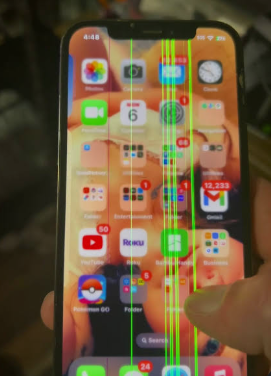
- Signs it’s hardware: The white screen is accompanied by visible glass cracks, flickering colored vertical lines, or “dead” zones that don’t respond to touch. If the issue occurred directly after a physical impact, software fixes will not work, and a physical hardware repair is necessary.
Decision Guide: Finding the Right iPhone White Screen Fix
If you have determined the issue is software-related, you have a few paths forward. Resolving an iOS system crash generally falls into two distinct categories: manual, free procedures provided by Apple, and professional third-party system recovery tools used as a “Plan B.”
1. Apple’s Native Methods (Free)
Manual techniques include executing a force restart, entering Standard Recovery Mode, or using DFU mode via a Mac or PC.
- Success Rate: Moderate to High.
- Time Required: 15 to 45 minutes, depending on the speed of your internet connection when downloading iOS firmware via iTunes/Finder.
- Technical Skill: Medium. Requires precise physical button timing.
- Data Safety: Variable. A force restart is completely safe. Standard Recovery Mode is safe if you select the correct option. DFU mode will guarantee permanent data loss if you do not have a backup.
2. Professional Repair Tools (Paid Subscription)
If Apple’s native tools fail to recognize your device, specialized software (costing around $39.99/year) automates the complex repair steps and bypasses iTunes entirely.
- Success Rate: Very High for severe system blocks.
- Time Required: 10 to 20 minutes.
- Technical Skill: Low. The software provides a guided, intuitive click-through interface.
- Data Safety: High. Specialized modes isolate the operating system repair without touching your local files.
How to Fix White Screen iPhone Issues Manually (Free Apple Procedures)
As a rule of thumb in our testing lab, we always start with Apple’s free, native diagnostic steps.
Here is a critical expert insight: Experts recommend starting with a simple force restart to rule out temporary memory glitches. If the white screen persists, using Standard Recovery Mode via a computer is your safest bet to rescue the device without losing your personal files.
Method 1: The Force Restart
A force restart physically cuts the power cycle and reboots the hardware. It is an immediate diagnostic step that will not delete any of your data.
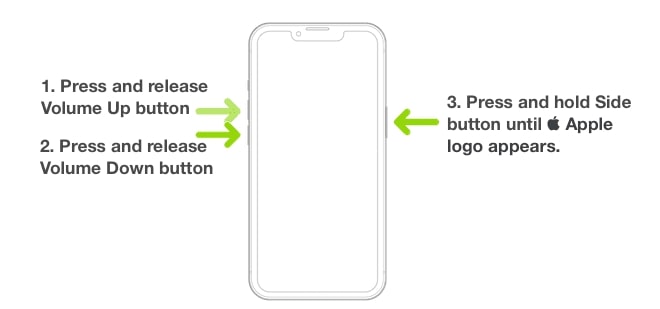
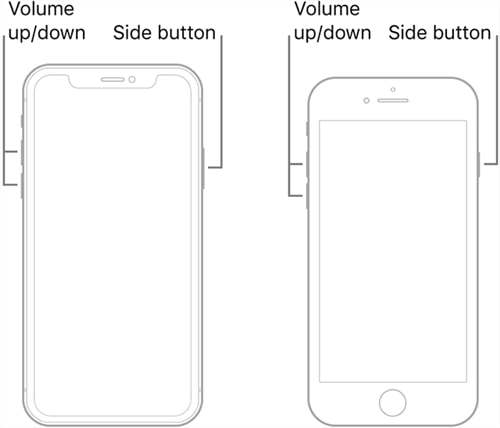
For iPhone 8, X, 11, 12, 13, 14, 15, and 16 Models:
1. Press and quickly release the Volume Up button.
2. Press and quickly release the Volume Down button.
3. Press and continuously hold the Side (Power) button.
4. Keep holding the Side button (even if the screen flashes) until the Apple logo appears, then release.
Method 2: Standard Recovery Mode (Best for Saving Data)
If a force restart does not resolve the issue, you must connect your phone to a computer. Standard Recovery Mode allows iTunes (or Finder on Mac) to reinstall the iOS operating system without touching your local photos, apps, or messages.
1. Connect your iPhone to your Mac or PC using a certified USB cable.
2. Open Finder (on macOS Catalina or newer) or iTunes (on Windows or older Macs).
3. Execute the force restart button combination again: Press and quickly release Volume Up, press and quickly release Volume Down, then press and hold the Side button.
4. Do not let go when you see the Apple logo. Keep holding until you see the “Connect to Computer” icon (a laptop and a cable) on your iPhone screen.
5. Look at your computer screen. A prompt will appear stating, “There is a problem with the iPhone that requires it to be updated or restored.”
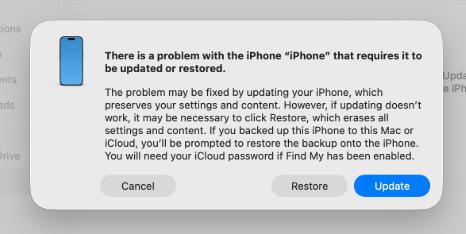
You will see two buttons: Update and Restore.
To KEEP your data, you MUST click Update. This prompts the computer to reinstall iOS 27 (or your current iOS) without deleting your personal files. If you click Restore, your device will be wiped completely clean to factory settings.
Method 3: DFU Mode Recovery (The Last Resort)
If Standard Recovery Mode fails or iTunes throws an error, you must escalate to DFU (Device Firmware Update) mode. This allows the computer to interface with the device without loading the operating system at all, enabling a total rewrite of the software.
DFU mode is a total device wipe. It will factory reset your iPhone. Proceed ONLY if you have a verified iCloud or local computer backup, or if you have accepted that your local data is already gone.
1. Connect your iPhone to a computer and open iTunes/Finder.
2. Quickly press Volume Up, then quickly press Volume Down.
3. Hold the Side button until the screen turns completely black.
4. As soon as the screen goes black, hold both the Side button and Volume Down button together for exactly 5 seconds.
5. Release the Side button but continue holding the Volume Down button for another 10 seconds.
6. If your screen remains pitch black but iTunes/Finder says it has “detected an iPhone in recovery mode,” you are successfully in DFU mode.
7. Click OK on the computer prompt, then click Restore iPhone to download fresh firmware and wipe the device.
Plan B: The Safest Procedure for Stubborn iOS 27 Crashes (Paid Repair Tools)
What happens if iTunes doesn’t recognize your phone at all, or the free Apple “Update” method fails and you absolutely cannot afford to lose your photos?
This is exactly what happened to Michael’s iPhone 16 Pro Max in our lab. The native tools failed to pull the device out of the iOS 27 white screen loop. In these severe cases, using a premium system repair tool like AnyFix is the most reliable Plan B.
AnyFix is a paid, third-party desktop application (subscriptions typically start around $39.99 for a year) designed specifically to handle deep system anomalies that iTunes cannot. It isolates the core operating system and rebuilds it without deleting your personal files.

AnyFix – Your iOS System Repair Expert
With AnyFix, you can enjoy a one-stop solution to fix various iOS, iPadOS, tvOS, and iTunes issues within minutes, restoring your Apple device to normal without any data loss.
What to expect when using AnyFix:
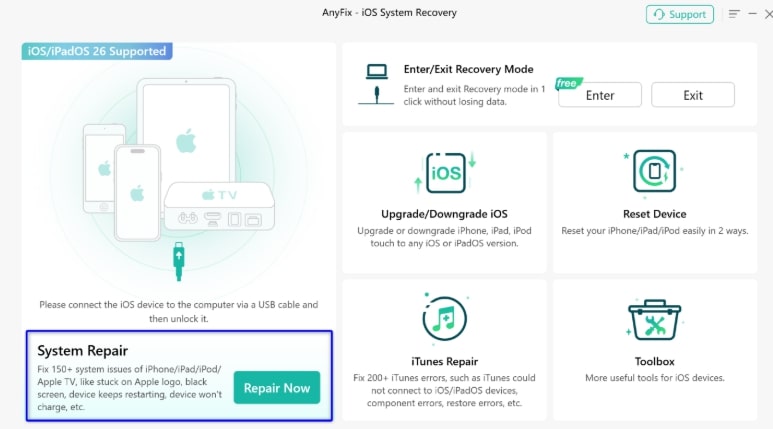
1. Download and Connect: Download and install AnyFix on your PC or Mac. Connect your bricked iPhone via a certified USB cable.
2. Select the Mode: Choose System Repair from the main dashboard, then select Standard Repair. The software explicitly notes that this mode ensures zero data loss.
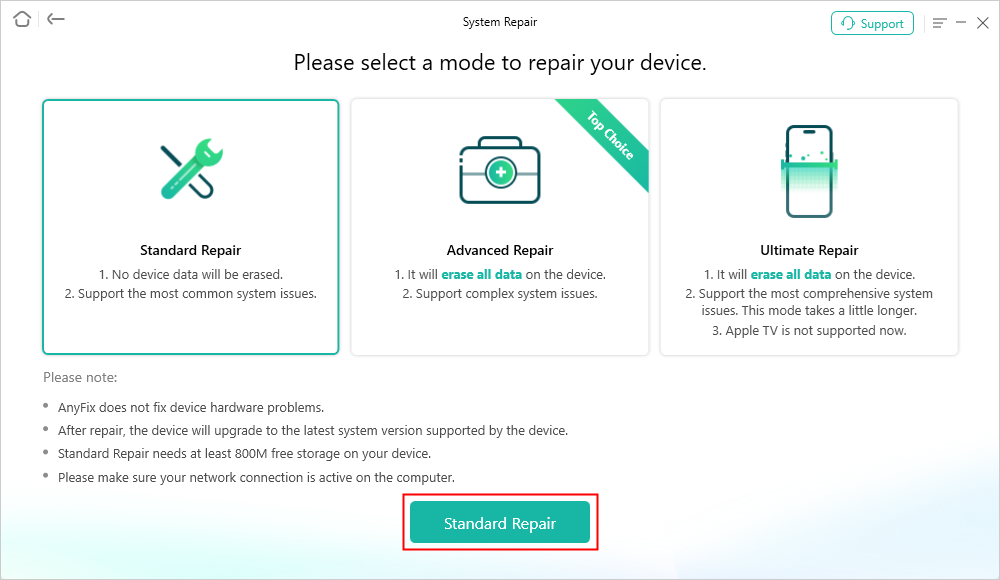
3. Firmware Download: The software will automatically detect your device model and prompt you to download the correct, uncorrupted iOS firmware. Note: This download can take 10 to 15 minutes depending on your internet connection.
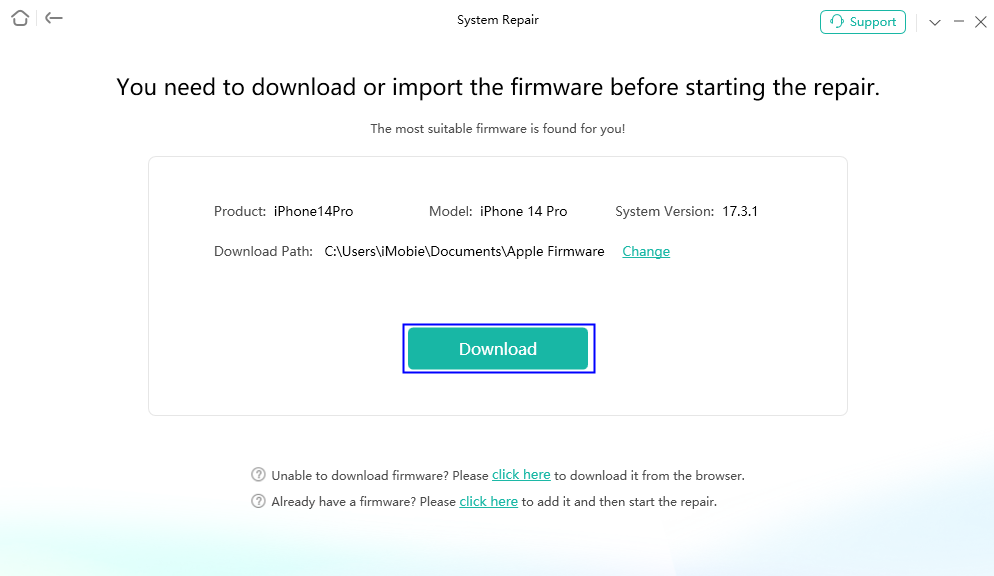
4. Automated Repair: Once downloaded, click “Start Standard Repair” The software screen will show a progress bar. During this 10-15 minute period, your phone may reboot several times. Do not disconnect the cable.

5. Completion: Once the process finishes, your device will boot up to your normal lock screen, fully operational and with all data intact.
Using this exact method, Michael’s device returned to normal without losing a single photo, proving its worth as a failsafe when Apple’s native options fall short.
Frequently Asked Questions: Diagnosing the iOS White Screen
To ensure you have all the necessary details, here are authoritative answers to the most common questions regarding the iOS white screen of death.
What causes the white screen on iOS devices?
The vast majority of cases stem from a software system failure. Firmware corruption during an over-the-air update (like installing a beta iOS), severe app conflicts, or exhausted storage space can cause the operating system to freeze, resulting in a blank display.
How do I fix a white screen on an iPhone running iOS 27?
Begin with a force restart. If that fails, connect the device to a Mac or PC and enter Recovery Mode. Choose the “Update” option in iTunes/Finder to safely reinstall the OS. If iTunes cannot recognize the device, use a dedicated, no-data-loss system recovery tool like AnyFix.
Can I recover data from an iPhone stuck on a white screen?
Yes. To keep your data, you must either successfully use the “Update” feature in Apple’s Standard Recovery Mode, or use the “Standard Repair” feature in a third-party tool. If you choose “Restore” or use DFU mode, your data will be permanently erased.
Is the white screen issue ever caused by hardware damage?
Yes. If you drop your phone or expose it to liquid, the internal connection between the logic board and the display panel can short-circuit. If all software recovery methods (including DFU mode and third-party tools) consistently fail, a physical hardware inspection by a technician is required.
What should I do if a force restart does not work?
If your device remains unresponsive after a force restart, the operating system is deeply blocked. Move on to connecting the device to a computer to utilize Standard Recovery Mode.
Conclusion
An iPhone stuck on a white screen completely disrupts your day and induces a very real fear of data loss. By remaining calm and identifying whether the cause is physical damage or a software bug—like a corrupted iOS 27 update—you can approach the repair strategically.
Always start with the basics: a force restart. If your device remains unresponsive, rely on Apple’s free Standard Recovery Mode, being incredibly careful to select Update rather than Restore to protect your photos and messages. If iTunes fails you, premium third-party tools like AnyFix provide a highly effective, data-safe fallback. By following this progression, you can confidently bypass system errors, safely remove firmware corruption, and get your iPhone back to full functionality.

AnyFix – Your iOS System Repair Expert
With AnyFix, you can enjoy a one-stop solution to fix various iOS, iPadOS, tvOS, and iTunes issues within minutes, restoring your Apple device to normal without any data loss.
Free Download for all windows & 100% safe
Free Download for all mac & 100% safe
Free Download 100% Clean & Safe



Wanda Norris is a junior author in iMobie specializing in iOS tips and solutions. She keeps a close eye on every iOS update to provide practical, easy-to-understand guides that help users solve problems and master their Apple devices.
Product-related questions? Contact Our Support Team to Get Quick Solution >
