iPhone Purple Screen of Death? Fixed in 9 Way
When your iPhone display goes purple, be calm – most of the time, it is an issue that can be solved. Experiment with these 9 uncomplicated methods one after another, starting with a mere restart and finishing with the use of AnyFix, to have your display working as before again.
AnyFix – Fix iPhone Purple Screen of Death in Minutes
Download AnyFix to fix the iPhone Purple screen of death in minutes. It can troubleshoot 150 iOS/iPadOS/tvOS system issues, such as boot loop and being stuck in the Apple Logo.
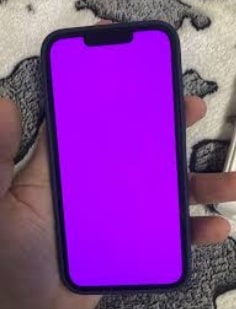
It can be a scary situation when your iPhone screen turns purple – the phenomenon is often known as the “purple screen crash.” This issue may manifest as sudden display freezes or color distortion. The problem could stem from software glitches, display damage, overheating, or iOS vulnerabilities.
But don’t panic—immediate repairs aren’t always necessary. In this guide, we’ll explain why your iPhone screen might turn purple and outline 9 different solutions. Whether you start with a simple restart, tweak settings, or ultimately turn to repair tools like AnyFix, you’ll find a way to get back to using your iPhone as usual.
Part 1. What Does It Mean When Your iPhone Screen Turns Purple?
When an iPhone screen turns purple, it is essentially a warning sign indicating a hardware or software malfunction within the device. A purple screen or display freeze may stem from a system crash, a loose display connector, or internal device damage. In some cases, it could be caused by device overheating or corrupted iOS files, leading to the screen color change.
Therefore, identifying the root cause is the first step toward determining the correct repair method and preventing permanent screen damage.
Part 2. How to Fix Purple Screen on iPhone
There are 9 easy ways shown below that could assist you in ridding your iPhone of the purple screen problem. Try the simple solutions first and switch to the complex ones if necessary.
Way 1. Force Restart Your iPhone
A force restart is a quick way to clear minor system glitches that may cause purple screen issues. However, it does not delete your data. Therefore, it serves as a safe and effective first-line remedy before resorting to advanced troubleshooting measures.
Step 1. Press the Volume Up button once and then the Volume Down button once. Continue holding the Side button until the Apple logo shows up.
Step 2. If the problem is still there, you should proceed to the next method for further troubleshooting.
Way 2. Check for accessibility settings
Sometimes, adjusting visual aids like the “Color Filter” can cause screen colors to change, most noticeably with a purple tint. Simply modifying these settings can also correct the screen colors.
Step 1. Opening Settings on your iPhone is the first step. Next, you should go to Accessibility > Display & Text Size.
Step 2. If Color Filters are enabled, then you need to turn them off.
Step 3. Look through the rest of the page and check the status of Reduce White Point – switch it off if it is on. Look at your display again to ascertain if the purple tint is gone.
Way 3. Turn off iPhone auto-brightness
Auto-brightness is a feature that can, at times, inaccurately interpret the light around you, thus resulting in a color change of the display, in which case, a purple screen is one of those changes. By turning it off, you are making sure that the screen lighting is always the same.
Step 1. Open Settings > Accessibility > Display & Text Size.
Step 2. Scroll to the bottom of the page and turn off the Auto-Brightness feature. Use the slider in the Control Center to change the brightness level manually.
Step 3. See if the color of your display is normal.
Way 4. Fix iPhone Purple Screen Issue | AnyFix
If your iPhone shows a purple screen after a system crash or software malfunction, AnyFix by iMobie is definitely a great choice among the top repair tools. It is the go-to solution for over 150 iOS, iPadOS, and tvOS issues — such as screen freezes, boot loops, or iPhone update errors — and repairs without data loss.
Key Features:
- Three repair modes: Standard, Advanced, and Ultimate are available based on the extent of system damage.
- Standard Repair mode does not cause any data loss.
- Works with both Windows and macOS systems.
- It can repair over 150 iOS/iPadOS/tvOS system issues, which also include discoloration of the screen due to purple or white color.
- The interface of the product is very simple to use and contains directions one after the other for users who are novices in the program.
How to fix the iPhone purple screen with AnyFix:
Step 1. Install AnyFix on your PC or Mac and keep the internet connection stable while installing.
Free Download * 100% Clean & Safe
Step 2. Open the AnyFix app, plug in your iPhone to the computer, and select the System Repair option.
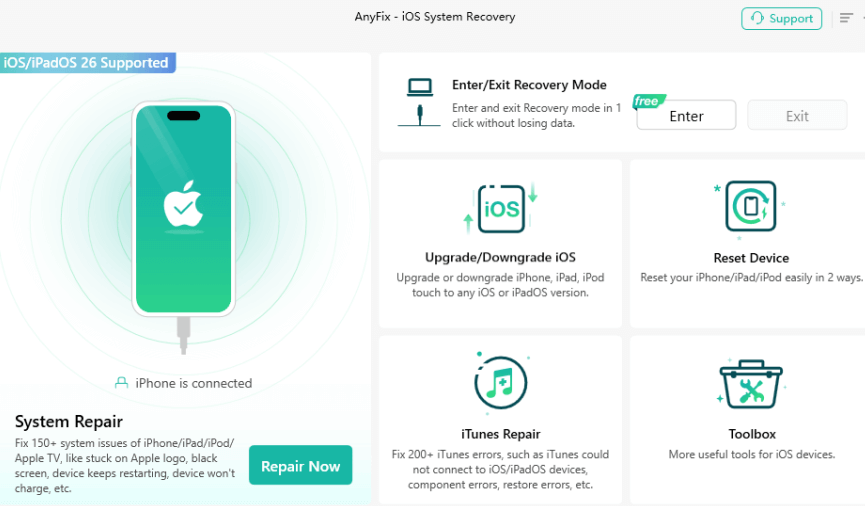
Step 3. Press the Repair Now, then choose the path iPhone Problems > Start Now.
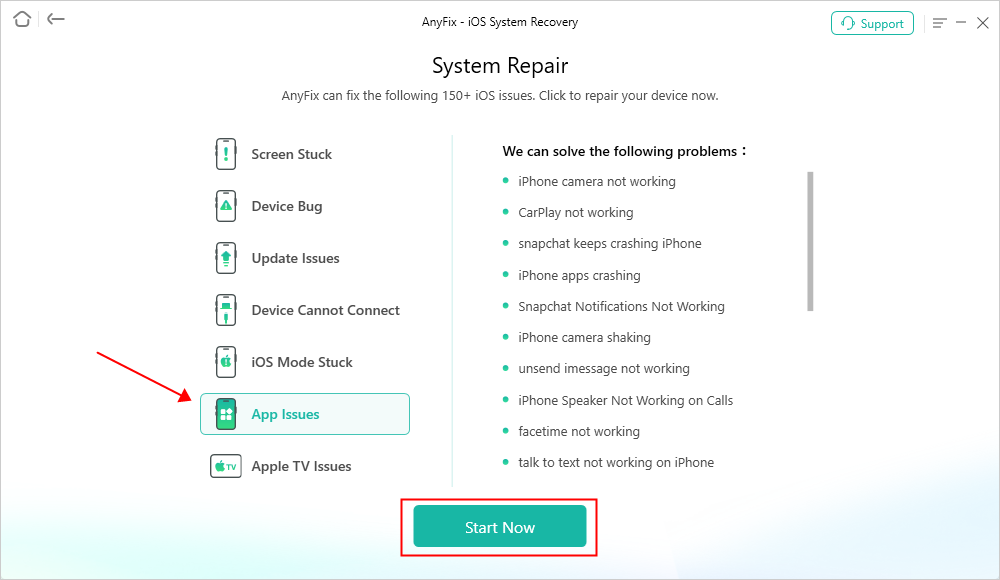
Step 4. To fix the purple screen, selecting Standard Repair will be enough, and you won’t lose any data.

Step 5. Keep patience while AnyFix is downloading the firmware for your device.
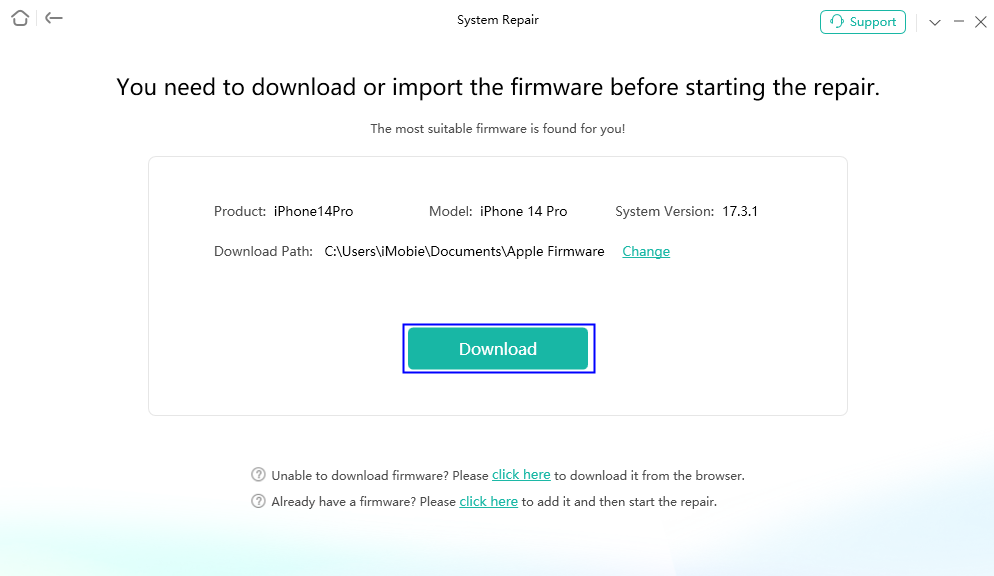
Step 6. The repair will start after you click the Start Standard Repair button.
Step 7. It is better to continue with your iPhone connected until the end of the process. Once done, your device will be restarted as usual, and hopefully, the purple screen will not be there anymore.

Way 5. Update iOS
Older iOS versions may bring bugs and weird things with the display. Therefore, having your device always up to date will make it run smoothly and keep the screen stable.
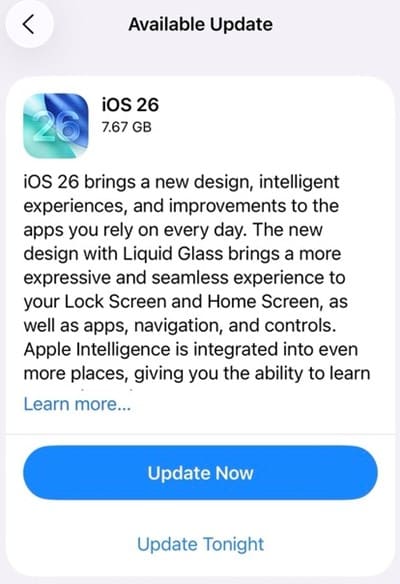
Step 1. Open the Settings app, then General and Software Update.
Step 2. Click Update Now to get a new version if you have one available.
Step 3. Let your iPhone update and restart by itself. After the update, try to figure out if the purple screen problem is gone.
Way 6. Restore iPhone via iTunes/Finder
When you restore your iPhone through iTunes, it is basically a fresh installation of the entire iOS system from scratch, which in turn removes any kind of errors that might be generated by the hardware.
Step 1. Use a cable to connect your iPhone to the PC and launch iTunes or Finder.
Step 2. Click on the Restore iPhone option and confirm your command.
Way 7. Factory reset your iPhone
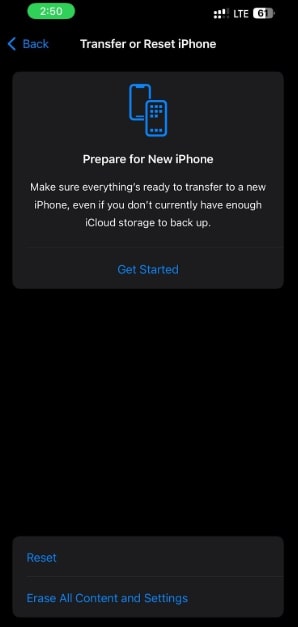
If your purple screen is caused by a software error, performing a factory reset will clear all such errors since it erases the entire device. Be sure to back up your data before resetting.
Step 1. Go to Settings > General > Transfer or Reset iPhone.
Step 2. Select Erase All Content and Settings.
Way 8. DFU restore
DFU (Device Firmware Update) restore is the most powerful of the three methods, as it reinstalls the firmware along with the software. It can only fix the most severe iOS issues and should only be used after all other methods have been attempted.Step 1. Connect your iPhone to a computer and open iTunes or Finder. Put your device in DFU mode.
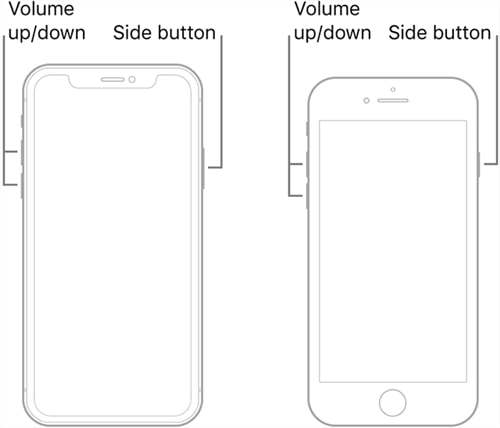
Step 2. When the device is detected, click Restore iPhone.
Way 9. Contact Apple Support
Even if you’ve tried every possible fix, if your iPhone screen still displays purple, it could indicate a hardware issue with a component—either the screen itself or other internal parts. Therefore, you should contact Apple Support or visit an Apple Store retail location. Technicians can not only diagnose the problem but also repair or replace the damaged component.
Conclusion
The purple screen issue on iPhones is a frustrating problem, but it can usually be resolved with the right troubleshooting steps. Tools like AnyFix can perform a forced restart to fix the issue without needing to visit a service center. However, if these methods fail, the root cause is likely hardware-related and requires repair by a technician.
Understanding the cause and taking the correct corrective actions not only restores your iPhone to normal function but also ensures it runs smoothly long-term.



Wanda Norris is a junior author in iMobie specializing in iOS tips and solutions. She keeps a close eye on every iOS update to provide practical, easy-to-understand guides that help users solve problems and master their Apple devices.
Product-related questions? Contact Our Support Team to Get Quick Solution >
