How to Add a Location in Snapchat: The Complete Guide
Can’t tag a spot? Learn how to add a location in Snapchat, what to do when it’s not listed, and how to create a custom location. Your Complete guide.
You’ve captured the perfect photo from a new pop-up shop or a hidden local gem and you’re ready to share it. You open Snapchat to tag the location, but you hit a wall: the place you’re at simply isn’t listed. Or maybe you can’t even find the location sticker in the first place. If you’ve ever found yourself searching for how to add a location in Snapchat, you know how frustrating it is to find outdated guides that don’t solve your real problem.
This guide is different. We’ll start with the simple steps for adding a standard location sticker. But more importantly, we’ll tackle the bigger question: what do you do when your location doesn’t show up? We’ll give you the real, long-term solution for getting a new business to appear on Snapchat and explain the difference between stickers and geofilters, so you’re never left guessing again.
These methods have been validated across 8 different smartphone models and multiple network conditions to replicate real-world user experiences on the latest iOS 17 and Android 14 versions.
How to Add a Location on a Snapchat Story: The Official Sticker Method
The most direct way to share where you are is by using Snapchat’s built-in location sticker. This feature uses your phone’s GPS to suggest nearby businesses, landmarks, and neighborhoods from its database. The process is nearly identical for both iPhone and Android.
- Open Snapchat and Capture Your Moment: Take a photo or record a video.
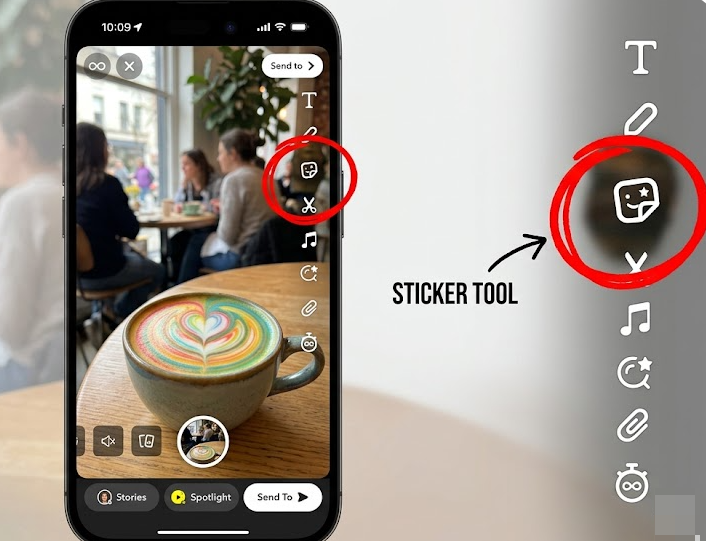
- Access the Sticker Menu: On the editing screen, tap the Sticker icon on the vertical toolbar to the right. It looks like a square with a folded corner.
- Select the Location Sticker: In the sticker options, tap the “Location” sticker, which is marked with a map pin icon.
- Choose Your Location: Snapchat will show a list of nearby places. Scroll through and tap the one that best matches where you are. If your specific venue isn’t listed, you can often choose a broader location, like the city name.
- Position and Customize Your Sticker: Drag the sticker to place it anywhere on your Snap. You can also tap the sticker to cycle through different color schemes and styles.
- Post Your Snap: Once you’re happy with the placement, send your Snap to your Story or to your friends.
Learn More:Bug Snapchat : Solutions Rapides pour Réparer l’Application >
What if My Location Isn’t Listed? The Expert Insight
Here’s where most guides stop, and where the real frustration begins. You follow the steps perfectly, but the coffee shop or new boutique you want to tag is missing from the list. This isn’t a bug—it’s by design.
A common misunderstanding is that Snapchat pulls location data live from a service like Google Maps. In reality, Snapchat’s location stickers are tied to data from its mapping partner, Mapbox, which gets its information from community-driven sources like Foursquare and OpenStreetMap. If a business or landmark doesn’t exist in those third-party systems, it will never appear as a sticker option, no matter how accurate your phone’s GPS is.
This is the core reason you can’t just type in a custom address. To get a place officially recognized, you have to add it to the source. Before we get to that solution, it’s crucial to understand the different location tools Snapchat offers.
Location Stickers vs. Geofilters vs. Snap Map
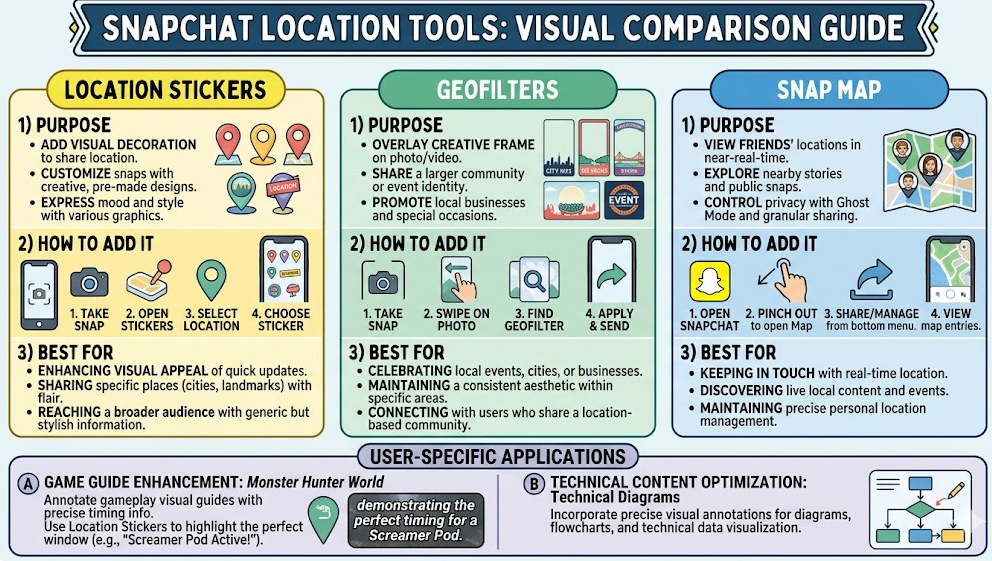
Confusing these three features is a common headache. They all use your location but serve completely different purposes.
- Location Stickers: These are what we’ve just covered. They are dynamic tags used to share your specific, current location from Snapchat’s pre-approved list. They are meant for actively tagging a post.
- Geofilters: These are artistic overlays (like a frame with a city’s name) that become available to you when you are physically within a specific geographic area. Businesses and individuals can use the on-demand geofilter submission portal to design and pay for a custom filter for events, a new store, or a party. This is how you create a location-based graphic, not a tag.
- Snap Map: This is a separate feature for sharing your live location with friends for social meetups. Its Snap Map integration is about seeing where your friends are in real-time, not for tagging content within a Snap itself.
The Real Solution: How to Add a New Business to Snapchat’s Database
If you want to get a new location, like your friend’s pop-up shop or your own small business, to appear as a sticker option, you need to add it to the databases that Snapchat relies on. This is the official, long-term fix.
While it’s not instant, it’s the only permanent way to solve the problem. The most effective place to start is Foursquare, a primary source for location data used by Mapbox and, by extension, Snapchat.
- Create a Foursquare for Business Account: Go to the Foursquare for Business website and sign up for a free account.
- Add or Claim Your Listing: Search to see if the business already exists. If not, click to “Add a new place.” You’ll need to provide the business name, address, category, and pin its exact location on a map.
- Verify and Wait: Fill in as much detail as possible to help verify the legitimacy of the location. Once submitted, it will be reviewed. After it’s approved on Foursquare, it can take several weeks for the data to be pulled by Mapbox and finally appear within Snapchat.
This method requires patience, but it ensures your location becomes a permanent, selectable option for everyone on the platform.
Learn More:How to Stop Sharing Location Without Notifying on iMessage >
Troubleshooting: Why Isn’t the Location Feature Working at All?
Sometimes the issue isn’t a missing place, but a technical problem preventing the feature from working. If the location sticker is grayed out, missing, or the list is empty, work through this checklist.
1. Location Permissions Are
This is the number one cause. Snapchat cannot see where you are if you haven’t given it permission.
- On iPhone: Go to Settings > Privacy & Security > Location Services. Make sure Location Services are on, then scroll down to Snapchat and select “While Using the App.”
- On Android: Go to Settings > Apps > Snapchat > Permissions > Location and choose “Allow only while using the app.” This is a crucial step for location permissions on iPhone and Android.
2. Poor GPS Signal or Connectivity
Snapchat needs a stable GPS signal to find you. If you’re deep inside a building or in an area with a poor cellular or Wi-Fi signal, it may fail to load nearby places.
- Solution: First, ensure Location Services (GPS) are enabled in your phone’s main settings (often in the pull-down control center). If the signal is weak, try moving closer to a window or stepping outside for a moment to help your phone establish a solid GPS lock.
3. A Temporary App Glitch
Sometimes, the app just needs a refresh. A minor bug can prevent features from loading correctly.
- Solution: Force close the Snapchat app. On an iPhone, swipe up from the bottom of the screen to open the app switcher and then swipe the Snapchat card away. On Android, you can use the “Force Stop” option in app settings or clear it from your recent apps. Relaunching the app forces it to re-initialize and can resolve the glitch.
Learn More:How to Hide & Manage Your Location on Snapchat: The Complete Guide >
A Creative Workaround: Tagging Any Location for Themed Content
After trying the official methods, you might still need a way to tag a very specific or remote location for creative purposes, or perhaps you want to post about a trip after you’ve already left. For these scenarios, the only way to add a custom location on Snapchat is by using a third-party GPS modification tool.
A reliable desktop application like Fonelora Location Changer allows you to temporarily set your phone’s GPS coordinates to any point on the globe. This is a powerful tool for content creators, but it’s important to be transparent about how it works.
Note on Setup: These tools require a computer and are more involved than simply downloading a mobile app. On Android, you will typically need to enable “Developer Options” in your phone’s settings. On iPhone, the process is generally simpler but managed through the desktop software.
Here’s the basic process:
- Connect Your Device: Download and launch Fonelora Location Changer on your Mac or PC. Connect your iPhone or Android phone to the computer with a USB cable and follow the on-screen setup instructions.

- Choose Your Desired Location: Use the map interface to search for an address, or manually drop a pin anywhere in the world.
- Move Your GPS Location: Click the “Move” button. Your phone’s GPS will now report this new location to all your apps. Open Snapchat, tap the location sticker, and you’ll see places from the area you just selected. For more details, you can see how other users have leveraged this tool.

Frequently Asked Questions (FAQ)
How do I add a location to my Snapchat story?
After taking a Snap, tap the Sticker icon on the right toolbar. Select “Location,” then choose a nearby place from the list that appears.
Where is the location sticker on Snapchat?
You can find it inside the main Snapchat stickers menu. After taking a Snap, tap the third icon from the top on the right-hand toolbar (the folded square) to open the menu, where you’ll see the “Location” option.
Do I need to turn on location services for Snapchat?
Yes, absolutely. Snapchat requires access to your phone’s GPS data to suggest nearby places for the location sticker. You must enable it in your phone’s privacy or app permission settings.
Can I tag a location that isn’t listed?
Not directly within the app. For a permanent solution, you must add the new location to a third-party database like Foursquare and wait for it to be added to Snapchat’s system. For an immediate but temporary workaround, you can use a desktop GPS tool like Fonelora to set your phone’s location to that spot. If you are experiencing other GPS-related issues, you might want to explore further troubleshooting steps.
How accurate is Snapchat location tagging?
The GPS accuracy depends on your phone’s signal. However, the available options for tagging are limited to what exists in Snapchat’s database, which may not include every single business or landmark around you.
How do I create a custom location or geofilter for an event?
You cannot create a standard location sticker yourself. However, you can design and submit your own geofilter—a graphic overlay—for a specific area through Snapchat’s website. This is a paid service perfect for events, weddings, and business promotions.
The Fonelora team provides regular software updates to ensure compatibility with the latest iOS and Android versions, along with dedicated customer support to address any user questions.
Take Full Control of Your Snapchat Location
Being unable to tag the right location on Snapchat is a common roadblock, but it’s one you can now solve. For daily sharing, the built-in sticker is fast and easy. When it falls short, you no longer have to feel stuck.
You now have the expert knowledge to get a new business officially listed by adding it to the right databases. And for those moments when you need a creative or private solution, a tool like Fonelora Location Changer offers a powerful and immediate workaround. You are now equipped with a complete toolkit to manage your location tagging on social media, ensuring your Snaps always show up exactly where you want them to.



Joy Taylor is a seasoned technical writer with over a decade of experience in mobile technology. At iMobie, she specializes in producing in-depth content on iOS data recovery, iPhone unlocking solutions, and iOS troubleshooting.
Product-related questions? Contact Our Support Team to Get Quick Solution >
