Quick Answer: Snapchat does not let you manually type a new city or address inside the app and make Snap Map show that place. If you want to manage who can see your real location, use Ghost Mode, custom friend visibility, or Live Location settings. If you want Snap Map to show a selected place instead, you need to change the device GPS location that Snapchat reads on your iPhone or Android phone.
Many users search for how to change location on Snapchat because they want different things: some want to hide from Snap Map, some want to share location with only certain friends, and others want to make Snapchat show a different city or area. These are not the same goal, so the best method depends on what you actually want to change.
This guide explains what Snapchat allows natively, how to manage Snap Map visibility, how to change your device location with a GPS location tool, why VPNs usually do not change Snap Map location, and what to do if your Snapchat location is wrong or not updating.
Can You Change Location on Snapchat?
Yes, but there are two different meanings of “change location on Snapchat.”
- Change who can see your location: Use Snapchat’s built-in Snap Map privacy settings, such as Ghost Mode, “My Friends, Except…”, or “Only These Friends…”.
- Change the place shown on Snap Map: Change the GPS location reported by your device before opening Snapchat.
Snapchat itself does not provide a built-in “set my location to another city” button. Ghost Mode can hide your location, and custom friend settings can limit who sees it, but neither option makes you appear somewhere else. To make Snap Map show a selected city, landmark, or address, you need a GPS-level method.
| Goal | Best Method | What Changes |
| Hide your Snapchat location | Ghost Mode | Your Bitmoji disappears from Snap Map for friends. |
| Hide from selected friends | My Friends, Except… / Only These Friends… | Only selected people can see your Snap Map location. |
| Stop sharing Live Location | Stop sharing from the chat | The temporary Live Location session ends. |
| Show a selected location on Snap Map | GPS location changer | Your phone reports a selected GPS location. |
| Change internet region only | VPN | Your IP address changes, but Snap Map may not move. |
If you only want privacy, start with Snapchat settings. If you want Snap Map to show a different place, use a device GPS location method.
Method 1: Change Who Can See Your Snapchat Location
The easiest way to “change” your Snapchat location experience is to change who can see you on Snap Map. This does not move your Bitmoji to another city, but it gives you more control over who can view your real location.
Use “My Friends, Except…”
This option shares your location with most friends while hiding it from specific people.
- Open Snapchat.
- Tap your profile icon.
- Tap the Settings gear icon.
- Go to See My Location.
- Select My Friends, Except….
- Choose the friends you want to hide your location from.
Use “Only These Friends…”
This option is more private. Instead of sharing with everyone by default, you choose a smaller list of trusted friends who can see your location.
- Open See My Location in Snapchat settings.
- Select Only These Friends….
- Choose the friends who can see your Snap Map location.
- Save the setting.
Best for: Users who do not want to disappear from Snap Map completely, but want to control which friends can see their location.
Method 2: Hide Your Location with Ghost Mode
Ghost Mode is Snapchat’s built-in way to hide your location from other people on Snap Map. It does not change your location to another place. Instead, it removes your Bitmoji from the map for the people who would otherwise see you.
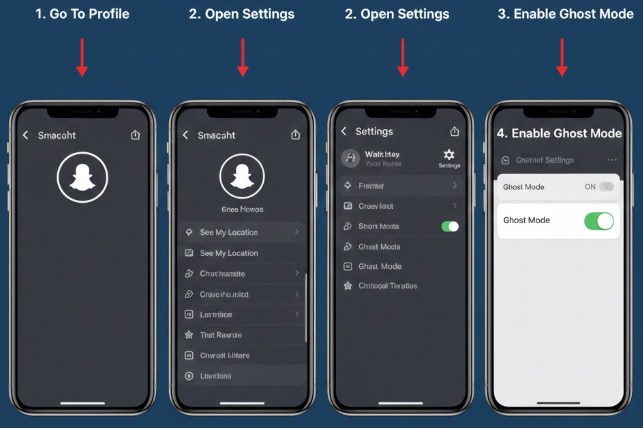
How to Turn on Ghost Mode
- Open Snapchat and tap your profile icon.
- Tap the Settings gear icon.
- Scroll to Privacy Controls.
- Tap See My Location.
- Turn on Ghost Mode.
- Choose a duration if Snapchat asks you to select one.
What Friends See in Ghost Mode
When Ghost Mode is on, friends cannot see your Bitmoji on Snap Map. This is different from changing your location. You are hidden, not moved to another place.
Best for: Users who want full Snap Map privacy without changing device GPS location.
Method 3: Change Snapchat Location with Fonelora Location Changer
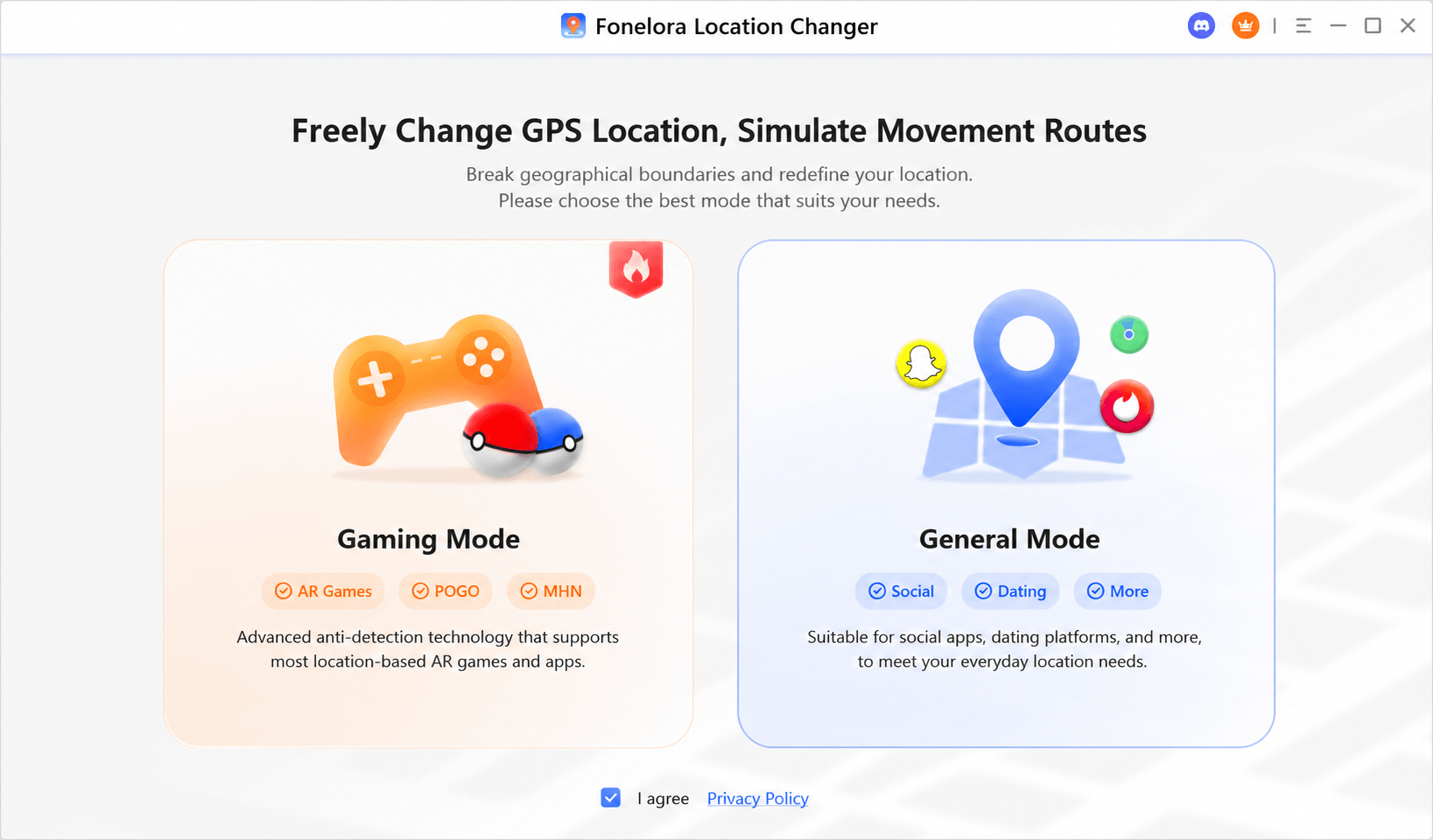
If your goal is to make Snapchat show a selected location on Snap Map, you need to change the GPS location reported by your device. Fonelora Location Changer is a desktop GPS location tool for iPhone and Android that lets you set a selected device location from a Windows PC or Mac.
This method is different from Ghost Mode. Ghost Mode hides you from Snap Map. A GPS location tool changes the location your phone reports, so location-based apps may read the selected place.
Fonelora Location Changer is useful when you want to:
- Set a selected Snap Map location on iPhone or Android.
- Choose a city, address, landmark, or coordinate on a desktop map.
- Use a fixed location or simulate movement with route options.
- Change device GPS location without jailbreaking or rooting your phone.
Step 1. Download and Install Fonelora Location Changer
Download Fonelora Location Changer on your Windows PC or Mac and complete the installation. Use the official product page rather than unofficial installers.
Step 2. Connect Your iPhone or Android Device
Launch the program and connect your phone to the computer. For first-time setup, a USB connection is usually the most stable option. Keep your device unlocked so you can approve any connection prompts.

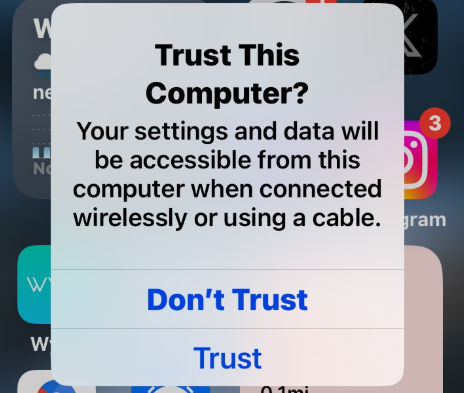
Step 3. Trust the Computer or Approve the Connection
On iPhone, tap Trust if the “Trust This Computer?” prompt appears. On Android, follow the on-screen instructions if the program asks for connection permission or USB debugging setup.
Step 4. Choose a Location Mode
Select the mode that matches your goal. Use a fixed-location mode if you want Snapchat to read one selected place. Use route mode if you want to simulate movement between points.

Step 5. Pick a New Location
Search for a city, address, landmark, or coordinate on the map. Confirm the target location when it appears.
Step 6. Apply the Selected Location
Apply the selected location in Fonelora Location Changer. Your phone should start reporting the selected GPS location.
Step 7. Open Snapchat and Check Snap Map
Open Snapchat and check Snap Map. If location sharing is enabled, your Bitmoji should reflect the device location being reported. If the map does not update immediately, close Snapchat completely and open it again after confirming the selected device location is active.
Step 8. Restore Your Real Location
When finished, reset the location in Fonelora Location Changer or restart your phone to return to your actual GPS location. Reopen Snapchat only after your real location is restored if you want Snap Map to reflect your actual place again.
A GPS location tool changes the device location that apps may read. It does not replace Snapchat privacy settings. Review Ghost Mode and friend visibility settings if you also care about who can see your Snap Map location.
Method 4: Change Snapchat Location on Android with Mock Location
Android users can also use a fake GPS app with Android mock location settings. This method can work without a computer, but it is more manual and may be less stable depending on your Android version, phone model, and location accuracy settings.
Step 1. Install a Fake GPS App
Open Google Play and choose a fake GPS app with clear reviews and recent updates. Avoid unknown APK files from random websites.
Step 2. Enable Developer Options
Open Settings > About Phone, then tap Build Number several times until Developer Options are enabled. The exact path may vary by device.
Step 3. Select a Mock Location App
Go to Settings > Developer Options, find Select mock location app, and choose the fake GPS app you installed.
Step 4. Choose a Location
Open the fake GPS app, drop a pin on the place you want, and start the mock location.
Step 5. Open Snapchat and Check Snap Map
Open Snapchat and check whether Snap Map reflects the selected mock location. If your location snaps back to your real location, check Android location accuracy and Wi-Fi scanning settings.
Android limitation: Mock location behavior can vary by device and OS version. If your phone combines GPS, Wi-Fi, and cellular signals aggressively, the selected location may not remain stable.
Why VPNs Do Not Change Snapchat Location
A VPN can change your IP address, but it usually does not change your phone’s GPS coordinates. This is why many users connect to a VPN server in another country, open Snapchat, and still see their Bitmoji in the real location.
Snap Map is based on the location your phone provides to Snapchat. If your phone GPS still reports your real place, Snapchat may continue showing that location even if your VPN IP address points somewhere else.
| Tool | Changes IP? | Changes Device GPS? | Moves Snap Map? |
| VPN | Yes | No | Usually no |
| Ghost Mode | No | No | No, it hides you |
| GPS location changer | No | Yes | Can change the location Snap Map reads |
Use a VPN for IP-based privacy or browser traffic. Use a GPS location method if your goal is changing Snap Map location.
Snap Map vs Live Location vs Device GPS
Snapchat has several location-related features, and mixing them up can make the settings confusing.
| Feature | What It Means | How to Change It |
| Snap Map | Your general map visibility and Bitmoji location. | Use Ghost Mode, friend visibility settings, or device GPS changes. |
| Live Location | Temporary active location sharing with one selected friend. | Stop sharing from the chat where Live Location is active. |
| Device GPS | The location your phone reports to apps. | Use phone settings or a GPS location tool. |
| Approximate vs precise location | How accurately your device shares location with Snapchat. | Adjust location permission in iPhone or Android settings. |
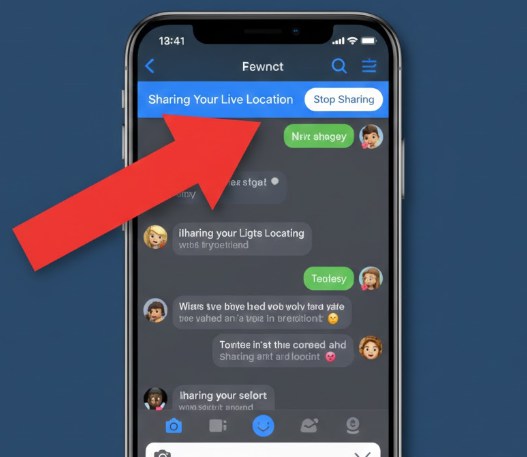
How to Stop Sharing Live Location
If you are sharing Live Location with a friend, Ghost Mode may not be enough. Stop the Live Location session from the chat where it is active.
- Open the chat with the friend.
- Tap the location-sharing banner or map preview.
- Choose the option to stop sharing.
- Confirm the action.
Troubleshooting: Location Not Changing or Showing Wrong
If your Snapchat location is not changing, or Snap Map still shows your real location, check these common causes.
1. Snapchat Was Open Before the Location Changed
Close Snapchat completely before changing device GPS location. After the selected location is active, reopen Snapchat and check Snap Map again.
2. Location Permission Is Disabled
If Snapchat has no location permission, Snap Map may not update. Check your phone settings and confirm Snapchat can access location if you want Snap Map to read the selected place.
3. Precise Location or Accuracy Settings Are Conflicting
On iPhone, check whether Snapchat has the right location permission. On Android, review Google Location Accuracy, Wi-Fi scanning, Bluetooth scanning, and mock location settings if the location keeps jumping back.
4. You Are Using a VPN Only
A VPN does not usually change Snap Map location. Use a GPS-level method instead.
5. Snap Map Is Showing an Old Location
If Snap Map looks stuck or outdated, it may be showing the last location Snapchat received. See the guide on when Snap Map updates.
If your Bitmoji appears in the wrong place even without using a location tool, read the guide to fix Snap Map wrong location. If your location is not refreshing at all, see Snapchat location not updating fixes.
Frequently Asked Questions
How do I change my location on Snapchat?
You can change who sees your location using Ghost Mode or friend visibility settings. If you want Snap Map to show a selected place, you need to change the device GPS location that Snapchat reads.
Can I change location on Snap Map inside Snapchat?
No. Snapchat does not provide a built-in option to manually enter a new city, address, or coordinate for Snap Map. You can hide or limit visibility, but changing the place shown requires a device GPS method.
How do I change location on Snapchat on iPhone?
On iPhone, you can hide your location with Ghost Mode or use a desktop GPS location tool to set a selected device location. iPhone does not have the same built-in mock location workflow as Android.
How do I change location on Snapchat on Android?
On Android, you can use Ghost Mode, friend visibility settings, a desktop GPS location tool, or Android mock location settings with a fake GPS app.
Does Ghost Mode change my Snapchat location?
No. Ghost Mode hides your location from friends on Snap Map. It does not make your Bitmoji appear somewhere else.
Can a VPN change Snapchat location?
Usually no. A VPN changes your IP address, but Snapchat location features generally rely on device GPS data. If your phone GPS does not change, Snap Map may not move.
How do I change Snap Map location without hiding?
If you want to stay visible but show a selected place, you need a GPS location method rather than Ghost Mode. A desktop location changer can set the location your phone reports before opening Snapchat.
Why is my Snapchat location not changing?
Snapchat may still be reading old location data, your device GPS may not have changed, location permission may be disabled, or Wi-Fi and location accuracy settings may be overriding the selected location.
How do I restore my real Snapchat location?
Reset the location in your GPS location tool or restart your phone. Then reopen Snapchat after your real device location is restored.
Is changing Snapchat location the same as pausing location?
No. Changing location means making Snapchat read a selected device location. Pausing location usually means hiding, limiting, or stopping updates through Ghost Mode, app activity, or device permissions.
Conclusion
Changing location on Snapchat can mean different things. If you only want to hide or manage who sees you, use Ghost Mode, custom friend visibility, or Live Location settings. These are Snapchat’s built-in options for controlling Snap Map visibility.
If you want Snap Map to show a selected place, you need to change the device GPS location that Snapchat reads. For iPhone and Android, Fonelora Location Changer is a practical desktop-based option. Android users can also try mock location apps, though results may vary by device and setup.
Use the method that matches your goal: Ghost Mode for privacy, friend visibility settings for selective sharing, Live Location controls for temporary sharing, and GPS location tools for selected Snap Map locations.
More Related Articles