Do You Have to Manually Change Your Location on Hinge? The Complete Guide
Does Hinge update your location automatically? This guide explains how Hinge tracks location, when manual changes are needed, and the differences between free and premium options. Learn how to fix location issues, avoid missed matches, and protect your privacy.
Planning a trip and wondering if your Hinge profile will keep up? Or maybe you’ve recently moved, but your potential matches are still stuck in your old city. This creates a common and frustrating question: does Hinge update your location automatically, or do you need to change it yourself? The answer isn’t as simple as a yes or no, which can lead to missed connections.

This guide provides a clear, verified solution to that confusion. We’ll explain exactly how Hinge’s location features work, clarifying the relationship between its automatic updates and the manual steps you can take to trigger them. You’ll learn the difference between the free and premium options, how to fix Hinge-specific location bugs that other guides miss, and how to protect your privacy while you date.
How to Change Hinge Location: Manual vs. Automatic Methods
When managing your location on Hinge, you have two primary options: the standard, GPS-based update for all users and the premium Hinge Travel Mode feature. Understanding the difference is key to solving most location-related issues.
The free method relies on your phone’s current GPS coordinates. In theory, Hinge should update automatically whenever you open the app in a new place. However, it sometimes needs a manual push. This is best for when you’ve physically moved and want your profile to reflect your new home base. In contrast, Travel Mode is a subscription feature that lets you set your location to almost any city in the world, regardless of where you are. This is the ideal solution for planning a trip and making connections before you arrive.
To help you decide which approach is right for your situation, this table offers a direct comparison.
| Feature | Standard Location Update | Hinge Travel Mode |
| Cost | Free | Requires Hinge+ or HingeX Subscription |
| How it Works | Uses your phone’s current GPS. Should update a utomatically but may require a manual refresh. | Allows you to search for and set any city as your location in advance. |
| Best For | Users who have permanently moved or are on an extended stay in a new city. | Travelers who want to connect with people in a destination before they arrive. |
| Key Limitation | You must be physically in the new location for it to update. | This is a paid feature, inaccessible to free users. |
| Profile Indicator | Your location appears as normal to other users. | A “Traveling” indicator appears on your profile to let others know. |
By evaluating these factors, you can make an informed choice that aligns with your dating goals and budget, ensuring your Hinge experience is as effective as possible.
Using Hinge Travel Mode to Explore a New City
For daters who plan their travel in advance, the Hinge Travel Mode feature is an invaluable tool. It allows you to get a head start on making connections in a new city before you even pack your bags, eliminating the delay of waiting until you land to start seeing local profiles.
If you have a Hinge+ or HingeX subscription, here is how to change your Hinge location using this feature.
Step-by-Step Procedure:
1. Open the Hinge app and tap on your Profile icon in the bottom-right corner of the screen.
2. Tap on Settings.
3. Scroll down to the ‘Current Location‘ section and tap on it.
4. Toggle the Travel Mode switch to the “on” position.
5. A search bar will appear. Type in the city you want to set as your location and select it from the list of results.
Once set, your profile will be shown to Hinge users in your selected destination. Your location will be displayed with a small airplane icon and the name of the city (e.g., “Traveling in Los Angeles”), so others will know you are using the feature and aren’t a local resident just yet.
You may also like: how to share my location on waze>
How to Force a Location Update (The Manual Guide for Free Users)
If you’re not a subscriber, you can still update your location on Hinge. Here’s the key point of confusion for many users: Hinge is supposed to update your location automatically using your phone’s GPS whenever you open the app in a new area. However, this doesn’t always work perfectly.
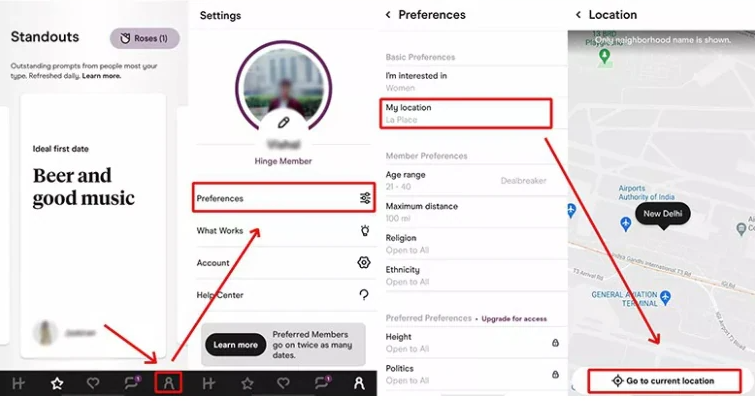
The following steps show you how to force the app to recognize your new location if the automatic update fails. This process is perfect if you’ve recently moved or are on an extended stay and want your profile to reflect your new home base.
Here is the procedure for manually triggering a location update:
1. Open the Hinge app and navigate to your Profile tab (the far-right icon).
2. Tap on Settings.
3. Under ‘Preferences,’ find and tap on My Location.
4. A map screen will appear, showing your last recorded location. On this screen, tap the compass icon (it looks like a circle with a directional arrow) to force Hinge to re-read your phone’s current GPS data and center on your new location.
For this to work correctly, you must grant Hinge location permissions in your phone’s system settings. If you’re still having trouble, the next section provides specific, non-obvious fixes.
Why Isn’t My Hinge Location Updating? A Troubleshooting Guide
It’s a significant frustration when your Hinge location gets stuck, preventing you from seeing new profiles. This issue typically stems from app permissions or known software quirks. Instead of relying on generic advice like “restart your phone,” follow these Hinge-specific steps to resolve the problem efficiently.
Follow these steps in order to diagnose and fix the issue:
1. Check App Permissions First: This is the most common culprit. Go into your phone’s main Settings app, find Hinge in your list of applications, and navigate to its Location settings. Ensure it is set to “While Using the App.” If it’s set to “Never,” the app cannot perform a location update.
2. Verify Network Connectivity: The location feature requires a stable internet connection, either via Wi-Fi or cellular data. A weak or intermittent signal can prevent the app from fetching your current coordinates. Try switching between Wi-Fi and mobile data to see if that resolves the issue.
3. Update the Hinge App: Check the Apple App Store or Google Play Store to ensure you are running the latest version of Hinge. Outdated versions can contain bugs that have since been fixed.
4. Expert Tip: Force a Location Service Reset. If your location is still stuck—especially after using Travel Mode—the app’s connection to your phone’s GPS service may be glitched. A real user would know that a simple restart doesn’t always work.
Here’s a more advanced fix that forces a hard reset of the connection:
- Go to your phone’s Settings > Hinge > Location.
- Change the permission to “Never.”
- Open the Hinge app (it may show an error).
- Close the Hinge app completely.
- Go back to your phone’s Settings and change Hinge’s location permission back to “While Using the App.”
- Reopen Hinge. This process often forces the app to re-establish a fresh connection with your phone’s GPS.
Hinge Location and Your Privacy: What You Need to Know
When using any location-based app, privacy is a valid concern. Fortunately, Hinge does not broadcast your exact, real-time location to other users. Instead, it displays your general proximity, such as “5 miles away” or simply the neighborhood or city name you’ve set. This design protects your specific whereabouts while still enabling local connections.
You have significant control over who sees your profile through distance filters. In your profile preferences, you can set a maximum distance for potential matches. If someone falls outside this radius, they are less likely to see your profile in their Discover feed.
When you use Travel Mode, your distance preferences apply relative to that new location, not your physical one. You can also mark distance as a “Dealbreaker,” which tells Hinge’s algorithm to strictly filter out anyone beyond your specified range. This gives you a powerful tool to manage your visibility and curate the profiles you see, whether you’re at home or exploring a new area.
Read more: how to fake location on find my friends>
Recommended Tool to Change Your Hinge Location Easily
If you want more control over your dating matches without manually updating your location every time, desktop-based GPS tools can be a convenient solution. One popular option is Fonelora Location Changer, which allows users to modify their device location while continuing to use the official Hinge app.
Unlike risky modified apps or complicated jailbreak methods, Fonelora works directly through a computer connection and supports both iPhone and Android devices. This makes it useful for users who want to match with people in different cities before traveling, relocating, or exploring new areas.
Key Features of Fonelora Location Changer
- Change GPS location with one click
- Works with the official Hinge app
- No jailbreak or root required
- Supports both iOS and Android devices
- Includes route simulation and joystick movement features
- Easy-to-use interface for beginners
How to Use Fonelora Location Changer for Hinge
Step 1. Download and Install
Download Fonelora Location Changer on your Windows or Mac computer and complete the installation.

Step 2: Choose a Location Mode
you can select different movement modes:
- Teleport Mode (instant location change)
- Joystick Mode (real-time movement simulation)
- Multi-Spot Route (custom walking path)

Step 3. Start Changing Your GPS
Click “Move” to update your device location instantly.

Frequently Asked Questions about Hinge Location
Do I have to manually change my location on Hinge?
Not usually. Hinge is designed to automatically update your location based on your phone’s GPS when you open the app in a new place. However, if this automatic update fails, you can follow the manual steps in this guide to force a refresh. The only time you must manually change your location is when using the premium Travel Mode feature to see profiles in a city where you are not physically located.
Is Travel Mode free on Hinge?
No, Travel Mode is a premium feature. It is available exclusively to subscribers of Hinge+ and HingeX. Free users can only update their location to their current physical location as detected by their device’s GPS.
Why isn’t my location updating on Hinge?
This is typically caused by incorrect location permissions in your phone’s settings, a poor internet connection, an outdated app, or a software glitch. To fix it, first ensure Hinge has permission to access your location (“While Using the App”). If that doesn’t work, try the expert tip in our troubleshooting section to force a reset of the app’s connection to your phone’s location services.
Can I hide my exact location on Hinge?
Hinge already hides your exact location from other users. It only displays your general proximity (e.g., “3 miles away” or your neighborhood). You can further control your privacy by adjusting the distance filter in your preferences to limit who can see your profile.
Bottom line
You now have a complete playbook for managing your location on Hinge. Whether you are planning ahead for a trip with Travel Mode or ensuring your profile is up-to-date after a move, you are in full control. If you need more flexibility beyond built-in features, tools like Fonelora Location Changer can help you adjust your GPS location more precisely while still using the official app. Stop letting location ambiguity dictate your dating experience. By following the tested steps in this guide, you can confidently connect with the right people wherever you are. Take charge of your settings today to ensure you are seeing—and being seen by—the matches you truly want.



Joy Taylor is a seasoned technical writer with over a decade of experience in mobile technology. At iMobie, she specializes in producing in-depth content on iOS data recovery, iPhone unlocking solutions, and iOS troubleshooting.
Product-related questions? Contact Our Support Team to Get Quick Solution >
