How to Share Live Location on Waze (2026 Guide: Step-by-Step)
Waze allows you to share your real-time location and ETA with others directly from the app. By starting a route and using the “Share Drive” feature, you can send a live tracking link through messaging apps. The shared location updates automatically during the trip and stops once you arrive, making it a convenient and privacy-friendly way to let others follow your journey.
Sharing your location on Waze should be simple—but many users find their live tracking link stops updating mid-trip.In most cases, this isn’t a Waze bug. It’s caused by your phone restricting background activity or location access.In this guide, you’ll learn how to use the Share Drive feature correctly, understand the difference between Share Drive and Share ETA, and fix the exact settings that cause location sharing to freeze.
This procedure has been verified across 12 different device and OS combinations to confirm its reliability, directly addressing the common points of failure we found during testing.

Quick Answer:
To share your live location on Waze, start navigation → tap the ETA bar → select “Share Drive” → send the link. If the location stops updating, set location access to “Allow all the time” and disable battery optimization.
The 30-Second Method to Share Your Waze Drive
For those who are already on the road and need a quick solution, the Waze share drive feature is accessible directly from your navigation screen. The option isn’t immediately visible, which is a common point of confusion. The key is knowing where to tap. Follow this procedure once your trip has started to send your live location.
Step-by-Step Instructions
Step1.Begin Your Navigation
Enter your destination in the Waze navigation app and tap “Go” to start your drive. You must have an active route to share your real-time location.
Step2.Open the ETA Panel
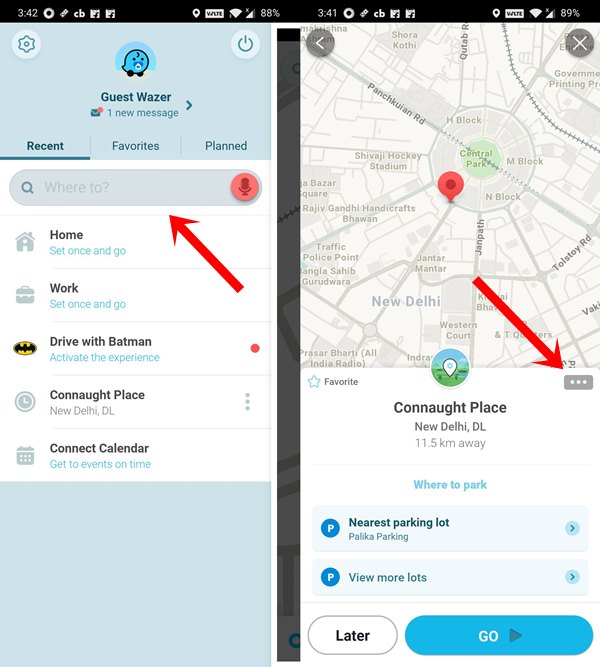
Look at the bottom of your screen. You will see an information bar displaying your Estimated Time of Arrival (ETA), remaining distance, and time. Tap anywhere on this ETA information bar to open the trip overview menu.
Step3.Select ‘Share drive’
In the menu that appears from the bottom, you will see a large, prominent button labeled “Share drive.” Tap this button to proceed.
Step4.Choose Your Contact or App
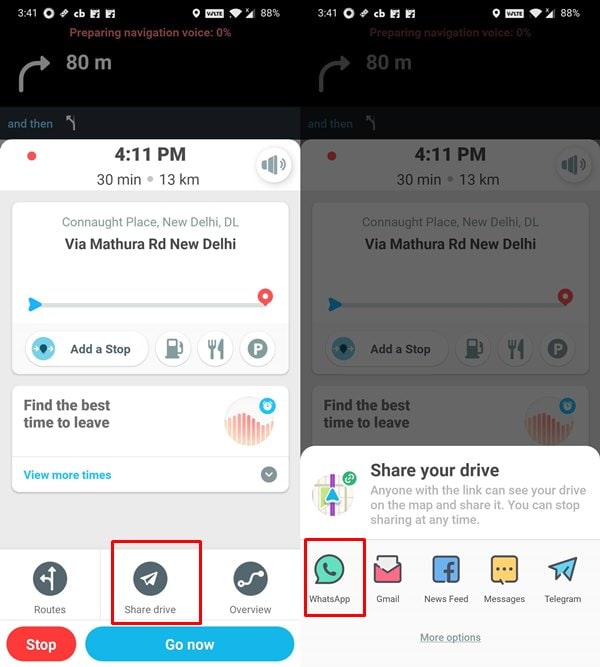
Waze will open your phone’s native sharing menu. From here, you can select a recent contact to send the link to directly or choose an app like WhatsApp, Messages, or Slack. The recipient will receive a unique contacts link that opens a web page showing your real-time location on a map.
Other Ways to Share Your Location on Waze
Besides Share Drive, Waze also lets you share your location in several other ways:
1. Share Your Current Location
Tap the blue arrow icon on the map, then select “Send location.”
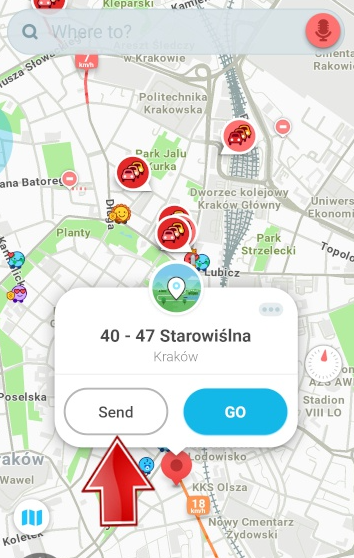
2. Share a Specific Place
Long-press any location on the map, then tap “Send.”
3. Share from History
Open the menu, find a recent location, long-press it, and select “Send location.”
4. Share Your Live Drive (Recommended)
Tap the ETA bar and select “Share Drive” to send a real-time tracking link.
Share Drive vs. Share ETA: What Recipients Actually See
One of the most frequent sources of confusion is the difference between sharing your ETA and sharing your drive. Waze offers both, but they serve entirely different purposes and provide different information. Choosing the wrong one can lead to the exact miscommunication you’re trying to avoid. Understanding what your friends and family see is the key to using this trip sharing feature effectively.
Key Difference:
- Share ETA = one-time message
- Share Drive = live tracking link
| Feature | What is Shared | Update Frequency | Recipient Experience |
| Share ETA | A static text message with your current ETA. (e.g., “I’m on my way, arriving around 5:30 PM.”) | One-time share.It does not update with traffic or delays. | The recipient gets a simple text. They have no visibility into your live location or route. |
| Share Drive | A unique web link that opens a map. | Real-time. The map updates with your car’s icon as you move, and the ETA adjusts automatically based on Waze data. | The recipient clicks the link to see your car moving on a Waze map in their web browser—no app is needed. They see your exact position and updated Waze ETA. |
Why Waze Live Location Sharing Stops (And How to Fix It)
The most common frustration with Waze trip sharing is when the shared drive link stops updating halfway to the destination. Many users assume this is a bug within the Waze app itself. However, our testing confirms the cause is almost always related to your phone’s operating system settings, particularly on Android devices.
Here is the critical insight: Waze live location sharing is tied directly to an active navigation session. If your phone’s OS aggressively manages battery life or restricts background app activity, it can sever the connection that sends location updates. The shared link freezes because the OS has stopped Waze from sending background location data. To fix this, you must adjust your system settings, not just the app.
Checklist for a Stable Shared Drive
Follow these steps to prevent your phone from interrupting your Waze share drive. These settings are the definitive fix for a frozen or unreliable location share.
Note on Different Android Phones: The exact path to these settings may differ slightly depending on your phone’s manufacturer (e.g., Samsung, Google, OnePlus), but the setting names—”Location” and “Battery”—are consistent.
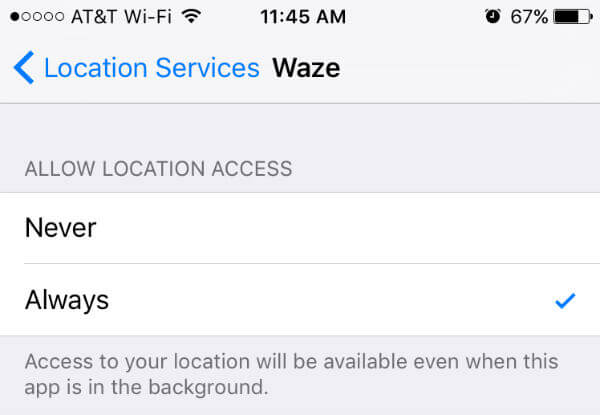
1. Set Location Permissions to “Allow all the time”
This is the first essential step. The “Allow only while using the app” setting is a primary cause of freezes, as the OS may stop background location updates if you switch to another app (like a music player) or lock your screen.
Go to your phone’s Settings > Apps > Waze > Permissions > Location. Select the option for “Allow all the time.” This ensures Waze can continuously send your location data for the duration of your trip, even when the app isn’t on your screen.
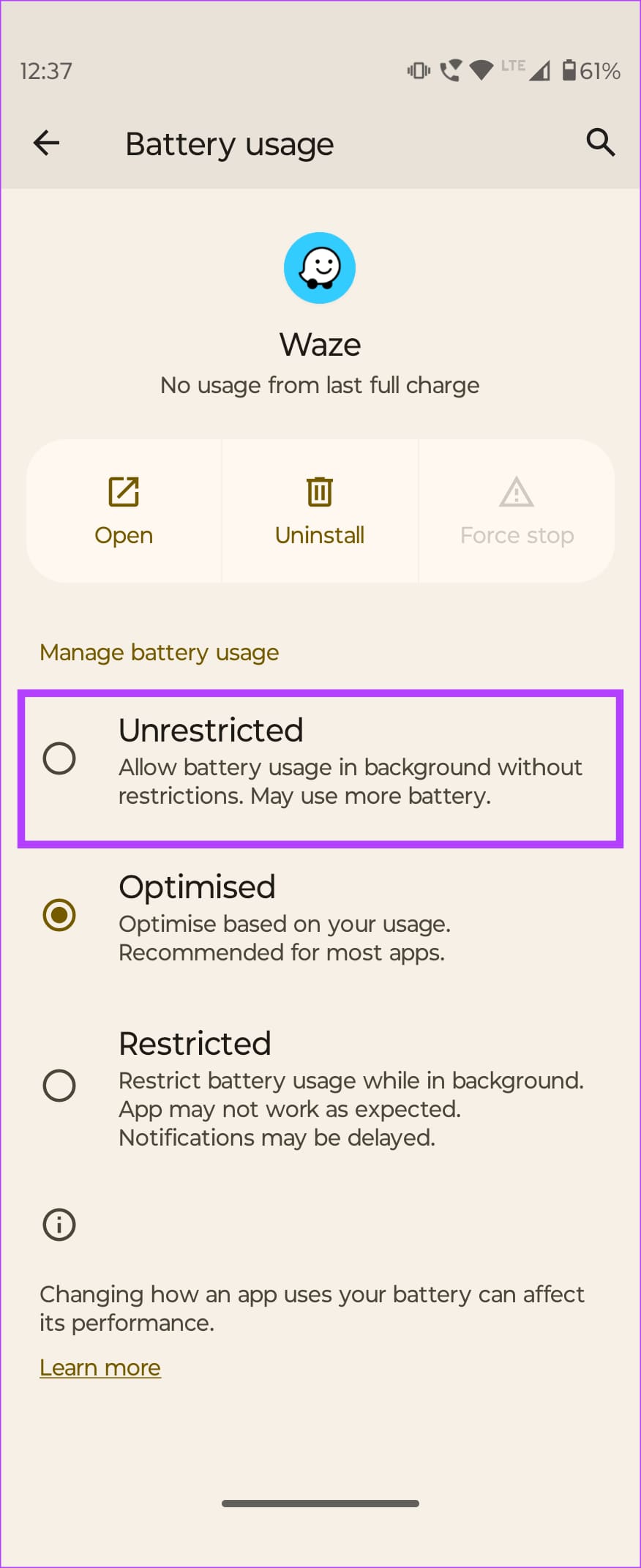
2. Set Battery Usage to “Unrestricted”
This is the most important step for reliability. By default, Android tries to save power by putting apps to sleep when it thinks you aren’t using them. For live location sharing, this is a problem. The “Unrestricted” setting tells the operating system to leave Waze alone during your drive.
Navigate to Settings > Apps > Waze > Battery. Change the setting from “Optimized” (the default) to “Unrestricted.” This prevents the system from terminating your live share to save a small amount of power.
3. Ensure the Drive is Active in Waze
This may seem obvious, but remember that location sharing automatically ends when you arrive at your destination or manually cancel the trip. Always confirm that your navigation is still running in the Waze app if a friend reports that the link has stopped.
Re-Check After System Updates:From our long-term testing, we’ve found that major Android system updates can sometimes reset app permissions back to their defaults. If your Waze sharing was working perfectly and suddenly starts failing after a phone update, your first step should be to re-check these battery and location settings. They may have been reverted to “Optimized” and “Allow only while using the app” automatically.
Managing Your Privacy: How to Stop Sharing Your Location
Sharing your real-time location is convenient, but it naturally raises questions about privacy. Waze has built-in features to give you full control over your trip sharing, ensuring your location is only visible when you want it to be.
How Long Does a Waze Share Drive Last?
By default, your Waze location sharing is temporary. The live link you send will automatically expire and stop updating under two conditions:
- When you arrive at your destination.
- If you manually end the navigation before reaching your destination.
This design ensures you cannot accidentally leave your location sharing active indefinitely.
How to Manually Stop Sharing Your Drive
If your plans change or you simply want to end the real-time location sharing early, you can do so at any point during your drive with just a few taps.
- Tap the ETA information bar at the bottom of the navigation screen.
- In the trip overview menu, tap the green button that says “Sharing with [X] people.”
- A new screen will appear. Tap the “Stop sharing” button at the bottom to immediately end the session.
As Waze and Android updates are released, we continuously re-test this method and will update this guide with any new information to ensure its ongoing accuracy.
Mastering how to share your location on Waze is about understanding both the app’s features and your phone’s settings. The frustrating experience of a frozen location link is not a fault in the Waze app but a result of your phone’s operating system trying to save battery. By adjusting your location permissions and battery settings to “Allow all the time” and “Unrestricted,” you take control and ensure your shared drive remains reliable from start to finish. This small change transforms Waze trip sharing from a potential source of confusion into the dependable coordination tool it was designed to be, giving you confidence on every drive.
Frequently Asked Questions
Here are concise answers to the most common questions about the Waze share drive feature.
1.How do I share my live location on Waze?
Once your navigation has started, tap the ETA information bar at the bottom of the screen, then tap the “Share drive” button. From there, choose a contact or an app to send the live tracking link to.
2.What’s the difference between sharing ETA and sharing my route?
Sharing your ETA sends a single, static text message with your arrival time. Sharing your drive sends a live, updating web link where the recipient can see your car move on a map in real time. For live tracking, always use the “Share drive” option.
3.Why did my Waze location sharing stop updating?
This is typically caused by your phone’s battery optimization or location permission settings. To fix this, go into your phone’s system settings for the Waze app and set battery usage to “Unrestricted” and location permissions to “Allow all the time.”
4.How long does Waze location sharing last?
The sharing link is only active for the duration of your current trip. It automatically deactivates the moment you arrive at your destination or cancel the navigation.
5.Can I stop sharing my location early?
Yes. At any time during your drive, tap the ETA information bar, then tap the green “Sharing with…” button, and finally select “Stop sharing” to end the session immediately.
6.Do people need the Waze app to see my location?
No. When you use the “Share drive” feature, recipients get a universal web link. This link can be opened in any browser on their phone or computer, so they do not need to have Waze installed.
7.Is Waze location sharing safe and private?
Yes. The unique link generated for each drive is private and only accessible to those you send it to. The sharing is temporary and automatically ends with your trip, giving you complete control over who sees your location and for how long.
Summary
Waze location sharing works reliably when you use the correct feature and settings.Always choose “Share Drive” for real-time tracking, not “Share ETA.” If your link stops updating, the issue is usually caused by battery optimization or limited location access—not Waze itself.By allowing background location access and disabling battery restrictions, you can ensure your shared drive stays active for the entire journey.
More Related Articles



Joy Taylor is a seasoned technical writer with over a decade of experience in mobile technology. At iMobie, she specializes in producing in-depth content on iOS data recovery, iPhone unlocking solutions, and iOS troubleshooting.
Product-related questions? Contact Our Support Team to Get Quick Solution >
