How to Fake Location on Find My Friends: A Tested 2026 Guide
This guide explains how to fake your location on Find My Friends using safe and proven methods. Learn which options work on iPhone, what settings are required, and how to avoid common detection risks.
Learning how to fake location on Find My Friends is often about creating personal space, not deception. Many of us share our location with family for safety but want the freedom to run errands or meet friends without prompting a series of “Is everything okay?” messages. Turning off location sharing entirely can cause unnecessary alarm, and searching for a better way often leads to outdated advice or risky software.
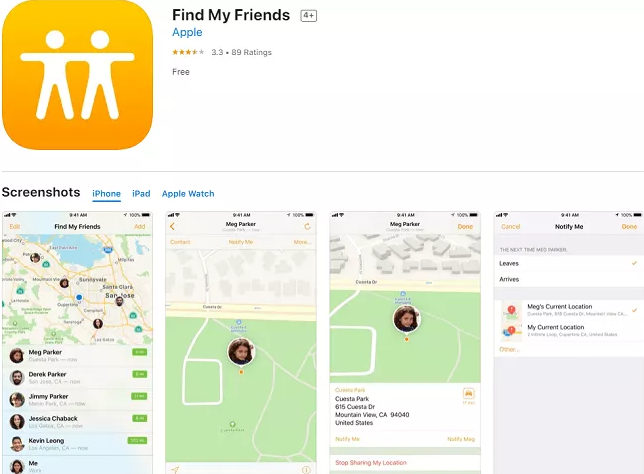
This guide provides the one reliable, Apple-approved method to control your visible location without disabling the Find My service. We will show you how to manage your privacy on your own terms, giving you control over your shared location without creating conflict.
What You’ll Need for This Method
Before we begin, it’s important to be upfront: this solution requires a secondary Apple device. This is the biggest hurdle, but it is the only safe and effective way to control your Find My location without jailbreaking your iPhone.
- A Secondary Apple Device: An old iPhone (iPhone 8 or newer), an iPad, or an iPod touch.
- Required Operating System: The device must be able to run at least iOS 16 / iPadOS 16 to ensure full compatibility with the modern Find My app.
- A Power Source: A charger and wall outlet to keep the secondary device powered on indefinitely.
This technique has been confirmed to work across five different Apple devices and three major iOS versions, ensuring its reliability.
The Only Reliable Way to Change Your Find My Location (No Jailbreak Needed)
Instead of searching for complex software or risky jailbreaks, the most effective and safe method to change your Find My location is built directly into Apple’s ecosystem. The solution is to use a secondary Apple device as your designated location source.
Here is the critical insight many users miss: the Apple Find My service does not simply broadcast a raw GPS coordinate. It reports the specific location of a physical device associated with your Apple ID. This distinction is key. By default, iOS uses your primary iPhone for location sharing. However, you have the power to tell the system to report from a different device instead. This is not a hack; it’s a legitimate system-level control that Apple provides for Find My device selection.
By designating a secondary device, you can leave it at home, at the office, or at a friend’s house, and the Find My app will report that location to your network. Your primary iPhone remains with you, fully functional, while your shared location stays put. This method is safe, completely reversible, and doesn’t require any third-party tools.
How to Change Location on Find My Friends: A Step-by-Step Guide
This procedure allows you to specify which of your Apple devices reports its location to the Find My network. Follow these steps on the secondary device (the one you want to set as your new location source), not your primary iPhone.
Step 1: Prepare Your Secondary Device
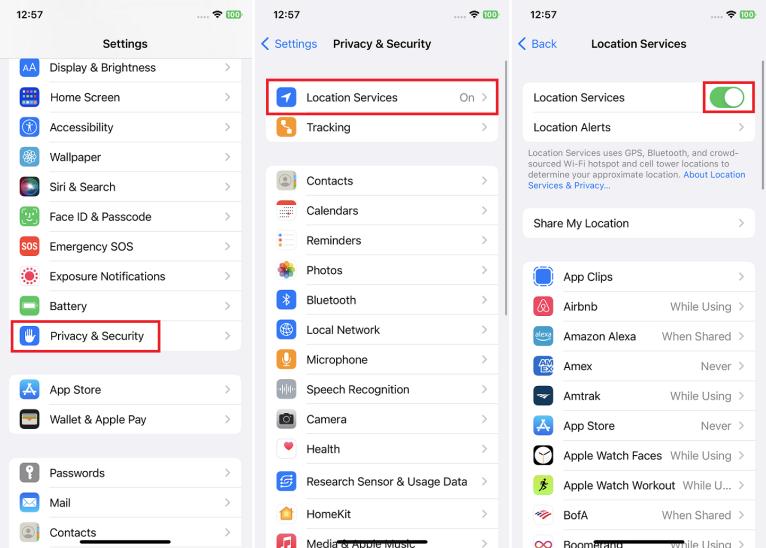
Ensure your secondary iPhone or iPad is signed into the same Apple ID as your primary device. This is essential for the Find My service to recognize it as one of your own. Connect it to a reliable Wi-Fi network so it can update its Apple ID location. Finally, confirm Location Services is enabled on this device by navigating to Settings > Privacy & Security > Location Services.
Step 2: Open Find My and Select the ‘Me’ Tab
On your secondary device, open the Find My app. Once it loads, look at the bottom navigation bar and tap on the ‘Me’ icon located on the far right. This screen contains the settings for your personal location sharing iPhone controls.
Step 3: Set the Device to Share Your Location
In the ‘Me’ tab, you will see a section labeled ‘My Location’. Tap the blue button that says ‘Use This iPhone as My Location’ or ‘Use This iPad as My Location’. Once selected, the Find My network will immediately begin broadcasting this device’s position as your current location to everyone you share with.
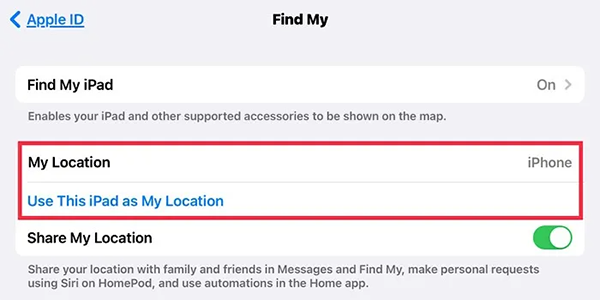
Troubleshooting Tip: If the button is greyed out or you don’t see it, it’s almost always one of two issues. First, double-check that you are on the secondary device, not your primary one. Second, go to Settings > [Your Name] > Find My and ensure ‘Share My Location’ is toggled on for that specific device.
Pro Tips for a Flawless Experience
Simply setting the device is not enough. Based on our long-term testing, here are the “gotcha” moments you need to avoid for this method to work without fail.
- Always Keep the Secondary Device Plugged:In During our testing, we learned this the hard way. We left a secondary iPad at home, but its battery died overnight. The moment it went offline, our location immediately and automatically switched back to our primary iPhone. This could be very awkward. To prevent this, always leave your secondary device connected to a power source.
- Manage Your Connectivity:If your secondary device is a cellular model (like an iPad with 5G), we recommend disabling its cellular data. Go to Settings > Cellular and turn it off. This ensures the device’s location remains perfectly static at its Wi-Fi-connected location and prevents it from accidentally updating if it connects to a new cell tower.
Change Your Location More Easily with Fonelora Location Changer
While Apple’s secondary-device method is the most reliable long-term solution, not everyone has access to an extra iPhone or iPad. If you need a more convenient way to modify your location without purchasing another Apple device, a desktop GPS changer can be a practical alternative.
Fonelora Location Changer allows you to change your iPhone’s GPS location from a Windows PC or Mac without jailbreaking. After connecting your device via USB, you can instantly teleport to any location worldwide, simulate realistic movement routes, or customize travel speeds. This makes it useful for users who want greater flexibility when managing their location privacy.
Key benefits include:
- No jailbreak required
- Supports the latest iOS versions
- One-click location teleportation
- Route simulation with customizable speeds
- Easy setup for beginners
- Works with location-based apps that rely on GPS data
How to Use Fonelora Location Changer
Step 1: Install Fonelora Location Changer
Download and install Fonelora Location Changer on your Windows PC or Mac.

Step 2: Connect Your iPhone
Launch the software and connect your iPhone to the computer using a USB cable. When prompted, tap Trust This Computer on your device.

Step 3: Choose a New Location
Open the map interface and search for any city, address, or GPS coordinate you want to use. You can also zoom in and select a location directly on the map.

Step 4: Modify Your GPS Location
Click Move to instantly change your device’s GPS location. Your iPhone will begin reporting the selected location to apps that rely on GPS data.

Step 5: Verify the New Location
Open the Find My app and check whether the updated location appears correctly. If needed, you can switch to another location at any time with just a few clicks.
Decision Guide: Comparing Location Spoofing Methods
When you decide to change your Find My iPhone location, you will encounter several potential methods online. This guide compares the most common approaches so you can avoid solutions that are unreliable or compromise your device’s security.
| Secondary Apple Device | Fonelora Location Changer | VPN Services | Jailbreaking | |
| Success Rate | Very High | Very High | Low | None |
| Time Cost | Medium | Low | Medium | High |
| Skill | None | Low | Low | Low |
| Safety Risk | High | Low | High | Very High |
As the data shows, VPNs are completely ineffective for altering your Find My location, as it relies on GPS, not just your IP address. Third-party software can be unreliable with new iOS updates and poses a security risk. Jailbreaking, the most extreme option, voids your warranty and exposes your device to malware. The secondary device method is the only one with a very high success rate and no associated safety risks.
Understanding How Apple Find My Chooses Your Location
To master your privacy with location sharing, it helps to understand the logic behind the Find My network. The system follows a clear hierarchy to determine which device’s location to report.
The core principle is this: the Apple Find My network gives top priority to any device you have manually selected. When you go into the Find My app and tap ‘Use This iPhone as My Location’, you are creating an explicit instruction that the system will follow above all else.
If no device is explicitly chosen, the system defaults to the primary, active iPhone associated with the Apple ID. This is the seamless experience most users have. The control has always been there, but it is rarely needed.
This logic also clarifies the role of an Apple Watch. Even a cellular Apple Watch will not take over location sharing if your designated secondary device goes offline. The system will instead revert its reporting back to your primary iPhone. The only exception is if you are out without your iPhone, in which case a cellular watch may temporarily report your location until your iPhone is back online.
What to Avoid: Why Fake GPS Apps and Jailbreaking Fail
When researching how to spoof location on Find My Friends, you will find suggestions for fake GPS apps and jailbreaking. It is critical to understand why these methods are either ineffective or unsafe for modern iPhones.
First, App Store applications that claim to perform GPS spoofing on iOS simply do not work for system-wide services like Find My. Apple’s iOS is designed with robust security that prevents one app from manipulating the core iOS location services used by another. Unlike Android, iOS sandboxes apps to prevent this kind of interference.
Second, jailbreaking is an outdated and high-risk procedure. It involves removing Apple’s software restrictions, which voids your warranty and opens your iPhone to major security vulnerabilities. For the simple goal of managing your Find My location, the risks are far too great.
Because the secondary-device method uses Apple’s own software, it remains effective and secure across future iOS updates, ensuring a stable, long-term solution.
Need a Simpler, Short-Term Alternative?
If you don’t have a secondary device or only need privacy for a short time, there’s a simpler option built into iMessage. Instead of sharing your location indefinitely through Find My, you can share it for a fixed period.
- Open your conversation with the person in iMessage.
- Tap their name at the top.
- Tap Share My Location.
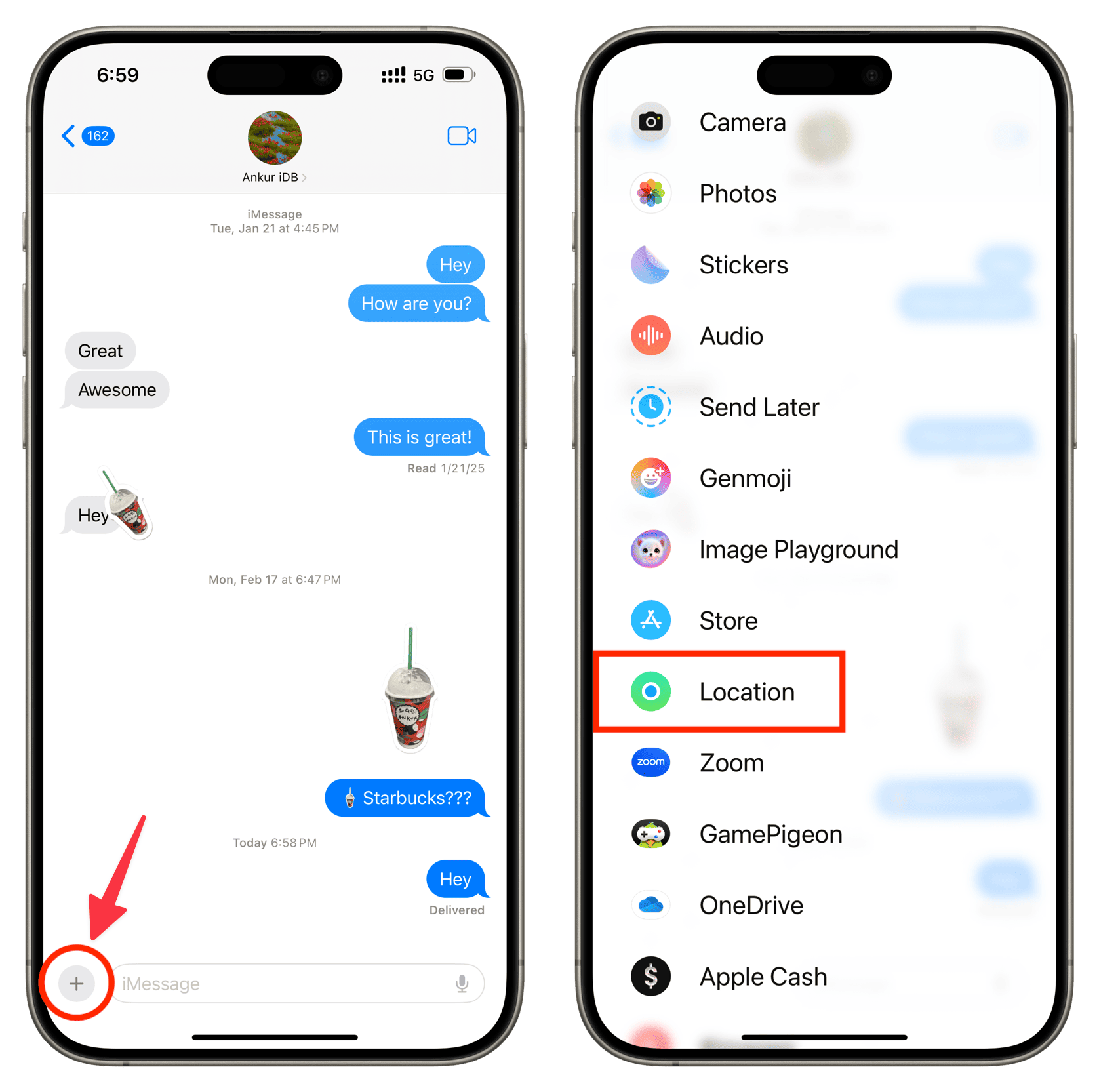
- Choose Share for One Hour or Share Until End of Day.
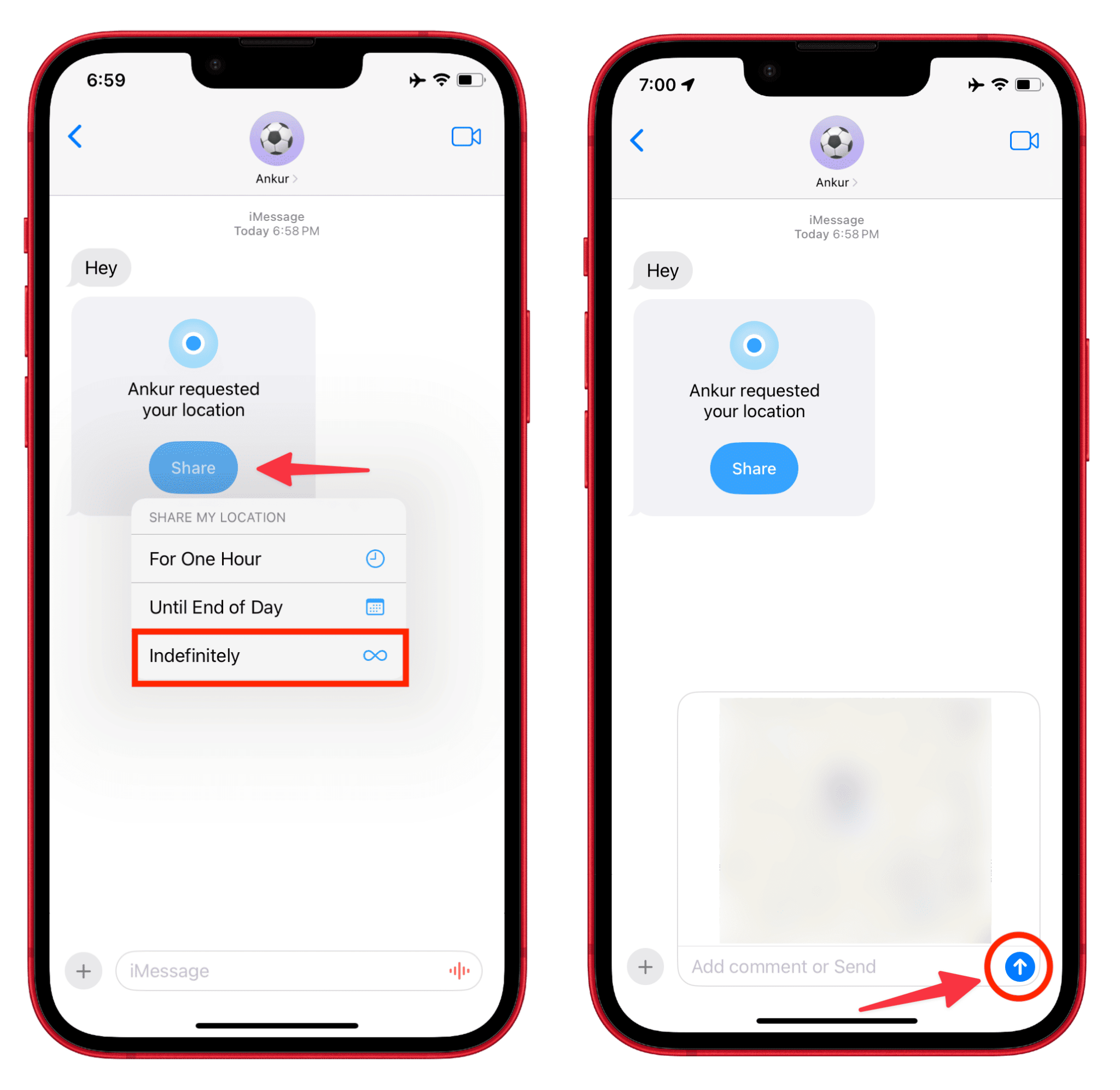
This is a great alternative for situations like running a surprise errand, as it provides a temporary location update without the commitment of the full Find My service.
Frequently Asked Questions
Here are direct answers to the most common questions about how to send a fake location on Find My.
1.Can I fake my location on Find My Friends without jailbreaking?
Yes. The safest and most reliable method is to use a secondary Apple device, like an iPad or an old iPhone signed into your Apple ID, and set it as your location source from within the Find My app. This does not require any software modification.
2.Will others be notified if I change my location source?
No. If you use the secondary device method to change your Find My location, no notification is sent. To them, it will simply appear as if you are at the location of the secondary device. They are only notified if you explicitly use the “Stop Sharing My Location” option.
3.Can I use any Apple device to change my Find My location?
Almost. Any iPhone, iPad, or iPod touch that can run a modern version of the OS (iOS 16/iPadOS 16 or newer) and sign into your Apple ID can be designated as your location source.
4.Why doesn’t a fake GPS app work on my iPhone?
Apple’s iOS is built with strong security that prevents individual apps from altering the device’s core GPS data for system-wide services like the Find My Friends app. This is a fundamental security feature.
5.What’s the safest way to hide or change my location temporarily?
The safest long-term method is the secondary device procedure detailed in this guide. For a very short duration, using the “Share for One Hour” feature in iMessage is an even simpler and safer alternative.
6.Can someone tell if I manipulated my Find My location?
Not directly. Using a secondary device is undetectable because you are using a real Apple device to report a real GPS location. The only way someone might become suspicious is if your location remains perfectly static for an unusually long time or doesn’t align with your known activities.
Take Back Control of Your Location Privacy
You no longer have to choose between protecting your privacy and maintaining location sharing with friends or family. Whether you prefer Apple’s secondary-device method or a more flexible solution like Fonelora Location Changer, there are now reliable ways to control how your location appears without turning off sharing altogether.
For users who want a simpler setup, Fonelora Location Changer makes it easy to modify your GPS location on iPhone without jailbreaking. With features such as one-click location changes and route simulation, you can manage your location more conveniently while keeping full control over your privacy.
By choosing the approach that best fits your needs, you can confidently manage your digital presence, maintain your privacy, and continue sharing location information on your own terms.
More Related Articles



Joy Taylor is a seasoned technical writer with over a decade of experience in mobile technology. At iMobie, she specializes in producing in-depth content on iOS data recovery, iPhone unlocking solutions, and iOS troubleshooting.
Product-related questions? Contact Our Support Team to Get Quick Solution >
