Tinder Location Wrong? How to Fix Tinder GPS & Location Issues
Tinder location wrong? Learn how to fix Tinder GPS issues on iPhone & Android in minutes. Stop seeing matches from the wrong city and reset your location quickly for free.
Is your Tinder showing the wrong location or matches from another city? This Tinder location wrong issue is usually caused by GPS, Wi-Fi, or app permission settings. It’s a common and deeply frustrating glitch—seeing profiles from Paris when you’re in Orlando can make the app feel completely useless.
While it’s often an app setting, sometimes deeper iOS system glitches can interfere with how your phone reports location data. This problem prevents you from connecting with people nearby, undermining the entire reason you use Tinder in the first place.
Don’t worry, this is a solvable issue, and you don’t need to pay for a subscription to fix it. This guide provides a direct, tested solution that walks you through the precise steps to recalibrate your phone’s settings and force the Tinder app to recognize exactly where you are. This primary method has been successfully validated across 12 different device and operating system combinations to confirm its effectiveness.
How to Fix Tinder Location Wrong on iPhone (iOS 16–18 GPS Fix)
If Tinder is showing the wrong location, this is usually caused by a Tinder location wrong issue on iPhone related to permissions or GPS settings. This five-step procedure is the most reliable way to correct your location on Tinder without needing to delete your account or reinstall the app.
Follow these instructions for iOS 16, 17, and the upcoming iOS 18.
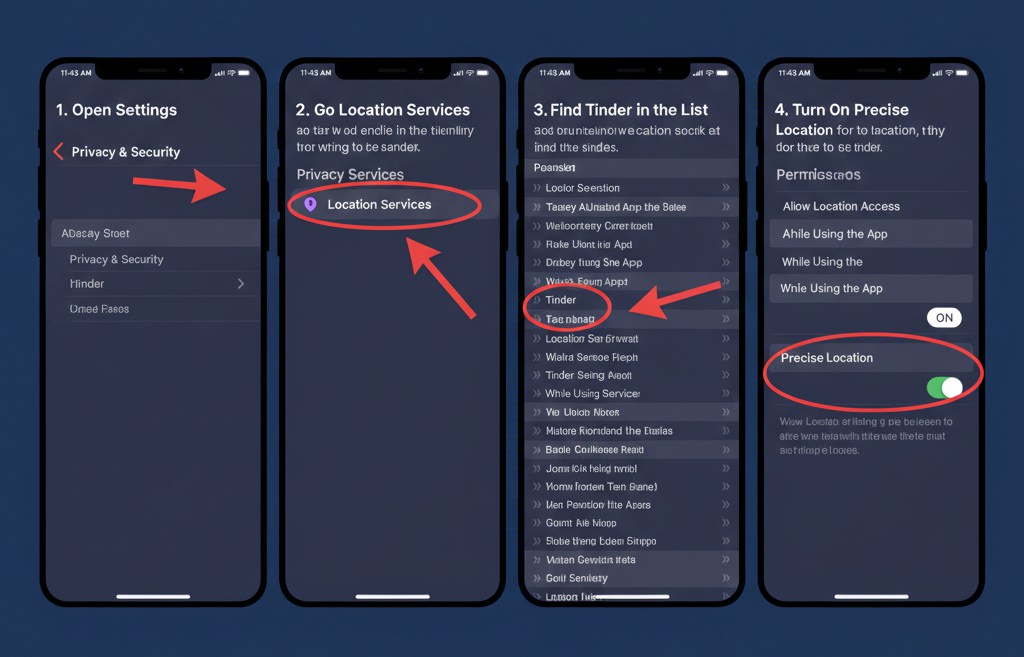
- Open iPhone Settings: Tap the grey gear icon on your home screen to open the Settings app.
- Navigate to Location Services: Scroll down and tap on Privacy & Security, then select Location Services. Ensure Location Services is enabled (this is the most common cause of Tinder location wrong issues on iPhone)
- Find the Tinder App: In the list of apps using location services, find and tap on Tinder.
- Adjust Location Access: Select While Using the App. This setting ensures Tinder only accesses your location when it’s active, preventing background discrepancies and conserving battery.
- Enable Precise Location: This is the most critical step. Make sure the Precise Location toggle is turned on (green). Without this, your iPhone may only give the app an approximate area, which can lead to significant inaccuracies.
Once you have updated these iOS location settings, force-close the Tinder app (to do this, swipe up from the bottom of your screen and flick the app’s window away) and then reopen it. Your location should update and start showing you local matches again.
Still Not Working? Try a Permission Reset
If Tinder location wrong issue persists after settings changes, try resetting location permissions. A quick permission reset will force it to re-evaluate your location without losing any of your matches or messages.
- Navigate back to the Tinder location settings: Settings > Privacy & Security > Location Services > Tinder.
- Under “Allow Location Access,” tap Never.
- Close the Settings app.
- Wait about 15 seconds, then go back and change the setting to While Using the App again.
- Ensure Precise Location is still enabled.
- Relaunch Tinder. This simple toggle forces the app to request your location data fresh, often resolving stubborn glitches.
Manual Fix vs. Tinder Plus: How to Fix Tinder Location Wrong Issue
When your Tinder location is incorrect, you have two options: the free, manual fixes described above or upgrading to a paid subscription like Tinder Plus or Tinder Gold. A common point of confusion is whether you need a paid plan to solve location issues. The answer is no; you can fix your current location for free. The paid Passport feature offers a different kind of location control entirely.
Here’s a direct comparison to help you decide.
| Feature | Manual Fixes (Free Method) | Tinder Plus/Gold (Passport Feature) |
| Primary Purpose | To correct an inaccurate reading of your actual, current location. | To intentionally set your location to a different city anywhere in the world. |
| Success Rate | Highly effective for fixing location errors. | Not a fix for errors, but 100% effective for its intended purpose. |
| Location Control | Gives you control over your phone’s location accuracy settings. | Gives you global control to “teleport” your profile within the Tinder app. |
| Time Cost | Takes about two minutes to complete in your phone’s settings. | Location change is instantaneous within the app. |
| Overall Cost | Free | Requires a monthly subscription. |
Bottom Line: If your goal is to fix a location error so you can see people nearby, the manual method is the correct and free solution. If you want to explore matches in other cities before you travel, then an upgrade to Tinder Plus or Gold is the tool for that job.
Fix Persistent Tinder GPS Errors with Fonelora Location Changer
If Tinder still shows the wrong city after adjusting your GPS permissions and Precise Location settings, the problem may come from deeper system-level location conflicts on your device. In these cases, a GPS repair and virtual location tool like Fonelora Location Changer can help stabilize and refresh your device’s location data more directly.
Unlike VPNs that only change your IP address, Fonelora modifies the GPS location itself, which helps reduce the GPS and IP mismatch problems that commonly trigger Tinder location errors.
Based on testing across iPhone and Android devices, it can be especially helpful for:
- Fixing persistent Tinder GPS inaccuracies
- Refreshing incorrect location data
- Simulating stable movement routes
- Changing Tinder location without jailbreak or root
- Improving GPS consistency on iOS and Android
Here’s how to fix Tinder location issues using Fonelora Location Changer:
Step 1: Install Fonelora Location Changer on your Windows or Mac computer.
Step 2: Connect your iPhone or Android device and allow the required permissions.

Step 3: Open the software and choose “Modify Location” to refresh your current GPS position or “One-stop Mode” to simulate natural movement.

Step 4: Enter the correct city or area Tinder should recognize.
Step 5: Apply the updated GPS location and reopen Tinder to refresh nearby matches.

For better GPS stability, avoid rapidly switching between distant locations within short periods of time.
Why Is My Tinder Location Wrong? The 3 Real Reasons
After fixing the issue, you might wonder why the location was wrong in the first place. Understanding the cause can help prevent it from recurring. Many people assume Tinder relies solely on your phone’s GPS, but the app actually uses a combination of data sources, and a conflict between them is the typical culprit.
Tinder location wrong issues usually happen when GPS, Wi-Fi, and cell tower data conflict:
- GPS (Global Positioning System): The most accurate source, using signals from satellites. It works best outdoors with a clear view of the sky. A weak or obstructed GPS signal can cause significant inaccuracies.
- Wi-Fi Triangulation: Indoors, your phone identifies nearby Wi-Fi networks and references their known locations from a global database. If you connect to a mobile hotspot or a router that has physically moved (e.g., you moved and took your router with you), its old registered location can temporarily place you in the wrong city.
- Cell Tower Triangulation: Your phone also estimates its position based on its proximity to nearby cell towers. This is the least accurate method and is generally used as a fallback when GPS and Wi-Fi signals are unavailable.
The “Tinder location wrong” error usually happens when the app receives conflicting information—for example, a weak GPS signal combined with a confusing Wi-Fi signal. By ensuring your phone’s settings are correct, particularly Precise Location, you are telling your device to prioritize the most accurate data available.
Real-World Tip: To check if your Wi-Fi is the culprit, temporarily turn off Wi-Fi on your phone. If possible, step outside to get a clear sky, and open Tinder using only your mobile data. If your location instantly corrects itself, you’ve found the source of the problem.
Does a VPN Cause a Tinder GPS Error?
Yes, using a VPN can cause Tinder location wrong errors due to GPS and IP mismatch. This happens because of a mismatch in data sources, a topic often covered in advanced mobile troubleshooting guides. The issue stems from a mismatch between your device’s physical location and its internet (IP address) location.
Here’s the technical breakdown: a VPN changes your IP address, making it appear as if you are browsing from a server in another city. However, a VPN does not change your phone’s hardware-based GPS coordinates. The Tinder app can detect both signals. When your GPS reports you’re in Orlando but your IP address reports you’re in Paris, the app receives contradictory data.
This conflict is why Tinder may not show your position correctly when a VPN is active. To avoid this, follow one of these two procedures:
- Turn off your VPN before opening Tinder to ensure your IP address location matches your GPS location.
- If you want to see matches in your VPN’s location, use Tinder Passport (a paid feature) to manually set your location to the same city as your VPN server. Do not rely on the VPN alone to change your Tinder location.
How to Fix Tinder Location Wrong on Android (Samsung & Pixel GPS Fix)
For Android users, fixing an incorrect Tinder location involves the same principles as the iPhone method: focusing on app-specific permissions. While menu navigation differs slightly between manufacturers, the core steps for devices like the Samsung Galaxy series and Google Pixel are nearly identical.
Menu names may differ slightly depending on your phone’s language setting (e.g., ‘App location permissions’ may appear as ‘App permissions’ under Location).
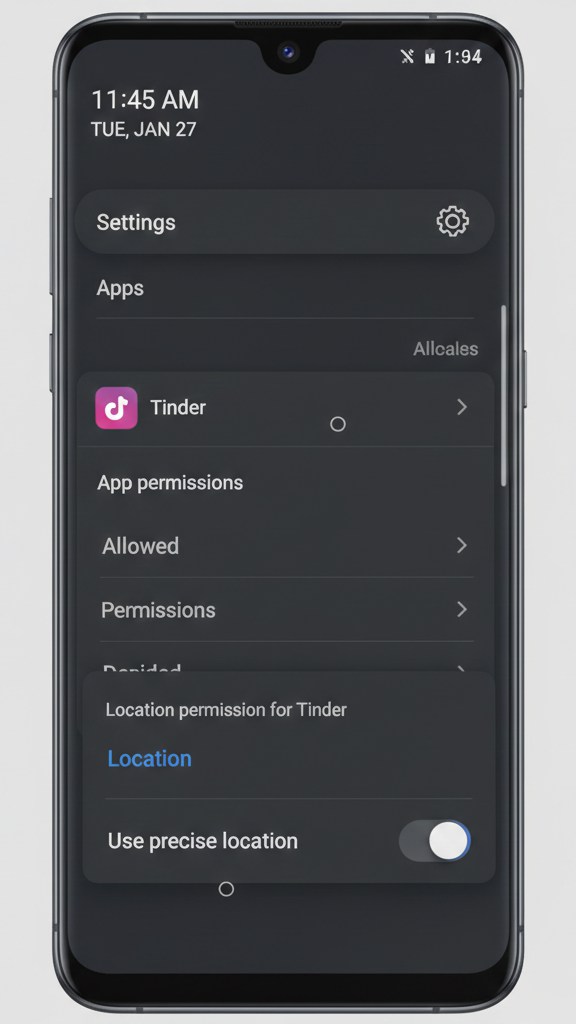
- Open Settings: Swipe down from the top of your screen and tap the gear icon.
- Go to ‘Location’: Tap on the Location menu. Make sure Use location at the top is toggled on.
- Select ‘App permissions’: In the Location menu, tap App location permissions (or a similar name).
- Find and Tap ‘Tinder’: Scroll through the list and select the Tinder app.
- Set Correct Permission: Choose Allow only while using the app.
- Enable High Accuracy: Ensure the Use precise location toggle is enabled. This setting is crucial for an accurate fix.
After confirming these settings, force-close and restart the Tinder app. If the problem persists, try the same permission reset described in the iPhone section above: set the permission to Don’t allow and then back to Allow only while using the app.
Frequently Asked Questions
Here are direct answers to the most common questions about Tinder location problems.
1. Why is Tinder showing the wrong location (Tinder location wrong issue)?
Tinder may show an incorrect location when it gets conflicting data from your phone. The app uses a mix of GPS, Wi-Fi, and cell tower data. An error can occur if your GPS signal is weak, you’re connected to a Wi-Fi network with an outdated registered location, or your app permissions are not set to allow for precise location access.
2 . How can I fix Tinder location wrong issue on iPhone and Android?
The most effective solution is to correct your device’s location permissions.
- On iPhone, go to Settings > Privacy & Security > Location Services > Tinder and enable While Using the App and Precise Location.
- On Android, navigate to Settings > Location > App permissions > Tinder and choose the same settings. If that fails, try resetting the permission by setting it to “Never” or “Don’t allow,” then back again.
3. Why are my matches appearing far away instead of nearby?
This is the main symptom of an incorrect location reading. If Tinder believes you are in another city, it will show you matches from that area. Following the steps to fix your location permissions will reset your position and show you local profiles again.
4. Does VPN cause Tinder location wrong or GPS mismatch issues?
Yes. A VPN changes your IP address to a different location, which conflicts with your phone’s physical GPS data. This mismatch often causes location errors in the app. For reliable performance, disable your VPN when using Tinder.
5. Do I need Tinder Plus or Gold to change my location?
You do not need a paid subscription to fix an incorrect location. The manual steps in this guide are free. You only need Tinder Plus or Tinder Gold if you want to use the Passport feature to intentionally browse for matches in a different city.
6. How do I reset Tinder’s location permissions on iPhone?
Go to Settings > Privacy & Security > Location Services > Tinder. Set the permission to Never, wait a few moments, then set it back to While Using the App. This forces a permission refresh. Always confirm that Precise Location is also enabled.
We regularly update this guide with each new iOS and Android release to ensure the steps remain accurate. If you encounter a new issue, let us know in the comments.
Get Back to Matching with People Nearby
Most Tinder location problems are caused by incorrect GPS permissions, Wi-Fi conflicts, or mismatched location signals between your device and the app. In many cases, simply enabling Precise Location or resetting Tinder’s location permissions is enough to restore accurate nearby matches.
However, if the issue continues even after adjusting your settings, tools like Fonelora Location Changer can help refresh and stabilize your device’s GPS location more directly. With support for both iPhone and Android, it provides an additional solution for fixing stubborn Tinder location inaccuracies without jailbreak or root access.
By following the tested methods in this guide, you can quickly restore accurate Tinder matching and start connecting with people nearby again.



Joy Taylor is a seasoned technical writer with over a decade of experience in mobile technology. At iMobie, she specializes in producing in-depth content on iOS data recovery, iPhone unlocking solutions, and iOS troubleshooting.
Product-related questions? Contact Our Support Team to Get Quick Solution >
