How Can I Find My Tracked Locations on iPhone
Users struggle to find iPhone location history due to confusing settings, limited data, and privacy concerns, but it can be accessed via Find My, Location Services, or third-party tools with proper navigation.
When you want to review where your iPhone has been over the past few weeks, you often encounter unexpected hurdles. Finding this data should be straightforward, but many of us experience complex navigation when digging through system location menus. If you are struggling to locate your stored location history or have deep privacy concerns regarding how much data your device holds, you are certainly not alone.
The confusion about which apps store location history—combined with discovering inaccurate, limited, or missing location records—creates a frustrating experience. You are likely just trying to figure out how to see your tracked locations on your iPhone to keep tabs on your own routines or monitor your family’s device activity securely.
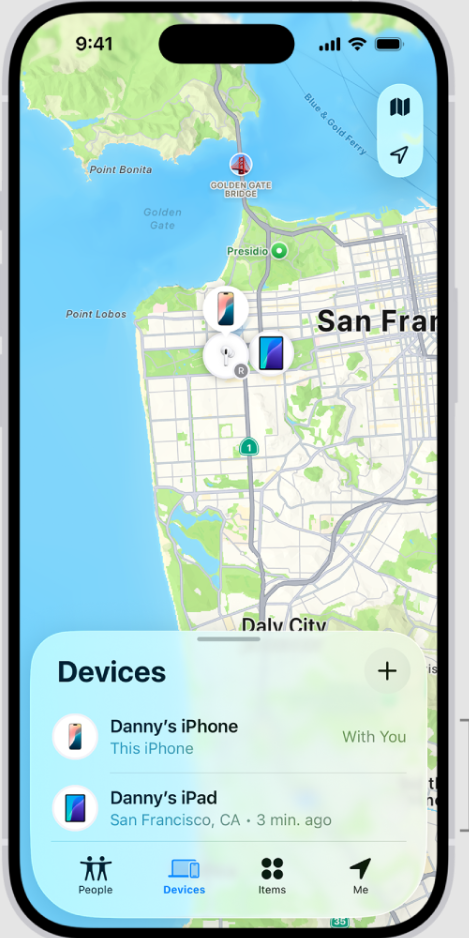
This guide provides a clear, tested method to regain access. We will walk you through navigating your system settings, using the Find My app, and exploring third-party alternatives to access your data. By the end, you will know exactly how to check your past locations and adjust your privacy settings to secure your daily routine. Location history can be accessed through the Find My app or system settings under Location Services, but understanding the limitations of each is key to getting the results you need.
Understanding the System: Why Accessing Tracked Locations Feels Complex
When attempting to view past locations your iPhone has stored, the process can feel deliberately difficult. If you have spent time navigating through different menus attempting to locate your tracking data, it helps to understand why Apple designed the system this way.
The reality is that Apple actively obscures these settings to protect user privacy. Rather than keeping an open log of your life on your home screen, the system uses strict security measures:
- Deep Menu Placement: The “Significant Locations” feature is buried deep within the system settings to prevent unauthorized individuals from picking up your unlocked phone and easily viewing your daily routines.
- End-to-End Encryption: Your location data is end-to-end encrypted and stored locally on your specific hardware. Because of this encryption, not even Apple can read your location reporting logs remotely or recover them if they are deleted.
While this local encryption provides excellent security, it is the direct cause of the frustration you experience when searching for your own logs. Knowing that the system is designed to protect you makes it easier to approach the necessary steps to uncover this data.
Step-by-Step Procedure: View Location History in iPhone Native Settings
When searching for the tracked locations your iPhone records, you will quickly realize that the required method involves diving much deeper than the basic privacy menus.
Here is the exact click-by-click procedure to access Apple’s native Significant Locations feature:
- Open the Settings app on your device.
- Scroll down and tap on Privacy & Security.
- Select Location Services at the top of the screen. Ensure the main toggle is green (turned on).
- Scroll past your long list of apps to the very bottom and tap on System Services.
- Locate the Significant Locations tab and select it.
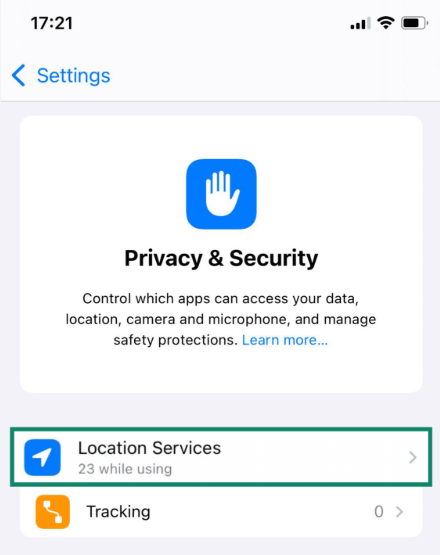
At this stage, your device will prompt you for Face ID, Touch ID, or your passcode. This security step ensures that only the device owner can view the information. Once authenticated, you can review your recent iCloud location data .
If you are running iOS 15 or later, you will likely be disappointed by what you see here. In older versions of iOS, this menu displayed a highly detailed, day-by-day map of everywhere you went. Apple has since heavily restricted this feature for privacy reasons. Today, you will only see a vague summary of a few recent spots (e.g., “15 records in the last 2 weeks”) and perhaps your most recent immediate location. If you came here looking for a detailed daily timeline, Apple’s native settings no longer provide this.
Want a Real Day-by-Day Map? Why You Need Third-Party Apps
Because Apple nerfed the Significant Locations feature in recent updates, relying solely on native settings will not solve your core problem if you want a detailed log of your past locations.
If you want a true location history, you need to rely on third-party mapping applications that you explicitly grant permission to track your timeline. Google Maps is the most robust alternative for this.
If you install Google Maps and enable the Timeline feature (and allow it to access your location “Always” in your iPhone settings), the app will actively record your daily routes, stops, and travel methods. You can easily select specific calendar days to see an accurate map of where your iPhone has been. Just remember: these apps cannot retroactively show you history from before you installed them and granted them permission.
How to Track Current and Recent Locations Using the Find My App
If your goal is to monitor your family’s device activity or locate a misplaced Apple product, historical logs aren’t very helpful. Instead, you need to use Apple’s native Find My app.
- Open the Find My app on your iPhone.
- To find your own devices, tap the Devices tab at the bottom. This will show you a map with the current (or last known) location of your iPhone, iPad, Mac, or Apple Watch.
- To find family members or friends, tap the People tab.
Note on Family Sharing: Family members can see your current real-time coordinates here, provided you have explicitly granted them permission. However, they cannot remotely view your historical Significant Locations data. The Find My app is excellent for answering “Where is my child right now?” but it will not answer “Where was my child last Tuesday at 4 PM?”
Which Apps Store Data? Reviewing Your Device Activity Logs
Whether you use Google Maps for a detailed timeline or stick to Apple’s basic summaries, you must regularly review which apps have access to your location data.
When reviewing your app list under the main Location Services menu (Settings > Privacy & Security > Location Services), pay close attention to the small arrow icons displayed next to each app name:
- A solid purple arrow: Indicates that the app recently accessed your location data.
- A gray arrow: Indicates that the app accessed your data within the last 24 hours.
- An outlined arrow: Indicates that an app is using a geofence (triggering an action when you enter or leave a designated area).
By identifying these indicators, you can manage access for better privacy control. Keep in mind that enabling “Precise Location” and keeping Location Services active improves tracking consistency for apps you actually rely on . Tuning these specific permissions allows you to restrict background logging for invasive social media apps while ensuring your trusted navigation apps remain highly accurate.
Native iOS Controls vs. Advanced Spoofing for the Privacy-Conscious
After reviewing your location logs and seeing how many apps track your daily movements, you might feel a sudden urge to lock down your privacy. You have two main choices: relying entirely on native iOS settings, or adopting an advanced location management tool to simulate your coordinates.
Comparing Privacy Methods
| Feature | Native iOS Controls (Disabling Settings) | Advanced Privacy Tools (Location Spoofing) |
|---|---|---|
| Best For | Casual users who just want to stop apps from tracking them. | Extreme privacy advocates who want to obscure their real location. |
| Effect on Phone | Stops all tracking, but completely breaks navigation and weather apps. | Maintains app functions by feeding them fake location data. |
| Safety Risk | High operational risk (loss of emergency Find My device capabilities if globally). | Low operational risk, but requires third-party software. |
Turning off your privacy settings completely stops your device from logging data. However, this severely limits location reporting features essential for maps, ride-sharing, or emergency services.
Taking Extreme Control: Using Fonelora Location Changer
Disclaimer: If you are a parent trying to track your children, or a user simply trying to find a missing log of your past locations, skip this section. This tool does not recover missing data.
For users who reviewed their activity logs and feel deeply uncomfortable with how much their device knows, simply turning off services isn’t always practical. If you want strict privacy without sacrificing daily usability, Fonelora Location Changer is a premium, non-jailbreak software solution designed to obscure your actual whereabouts .
Fonelora allows you to safely change your GPS coordinates globally. If you are terrified of exposing your real-world routines to third-party apps, this software feeds them simulated travel patterns instead.
Step 1: Download and Install
Download Fonelora Location Changer from the official website and install it on your computer.

Step 2: Connect Your Device
Select “Teleport Mode” from the main interface for an instant coordinate change, or choose Joystick Mode to simulate natural movement.

Step 3: Choose a Location
Enter your desired global destination and click “Move.” Your device will immediately reflect this new, secure location across all apps.

Frequently Asked Questions About iPhone Location Tracking
Even after adjusting your settings, you might have specific questions about how your hardware handles background data. Here are direct, factual answers to common queries.
Why is my Significant Locations menu missing or empty?
If the menu is missing or empty, it means Location Services were previously, or Screen Time restrictions are blocking menu access . Ensure your device is updated to the latest iOS version and verify that restrictions are turned off. Also, remember that iOS 15+ intentionally limits what is displayed here to a brief summary.
Is my location history accurate?
The accuracy of your logs varies. A strong GPS signal, a stable network connection, and clear device movement heavily affect historical location accuracy. If you are in a rural area, a heavily wooded region, or underground, the logged coordinates may be approximated based on the nearest cellular tower rather than exact satellites, leading to slight inaccuracies.
How do I turn off location tracking completely?
To stop all hardware logging, go to Settings > Privacy & Security > Location Services and toggle the main switch at the top to the “Off” position. Be aware that this method completely disables all GPS functionality, including map navigation, weather updates, and emergency tracking requests.
Conclusion
Managing your digital footprint should empower you, not frustrate you. By understanding how Apple’s current iOS handles the Significant Locations feature, you can set realistic expectations and bypass the confusion of complex system menus. If your goal is to find a detailed, day-by-day map of your history, setting up a third-party app like Google Maps Timeline is your best path forward. For real-time family tracking, the Find My app remains your most reliable tool.
Make it a habit to regularly review which apps have access to your location data, ensuring that your privacy settings align with your comfort level. Whether you rely on native iOS toggles to restrict data or opt for advanced spoofing tools like Fonelora to mask your digital footprint completely, taking proactive control allows you to use your device with confidence and peace of mind.



Joy Taylor is a seasoned technical writer with over a decade of experience in mobile technology. At iMobie, she specializes in producing in-depth content on iOS data recovery, iPhone unlocking solutions, and iOS troubleshooting.
Product-related questions? Contact Our Support Team to Get Quick Solution >
