Google Family Link Location Tracking Guide: Fix Delays & Ensure Safety
Is Google Family Link showing an outdated or frozen location? Discover the common reasons behind delayed updates—such as disabled location services, background app restrictions, or weak network signals—and how they affect real-time tracking. This guide walks you through practical troubleshooting steps to restore accurate location sharing and maintain reliable parental monitoring.
Sarah, a 42-year-old parent, knows the specific kind of panic that sets in when technology fails. While her 12-year-old son was walking home from school, she opened the app to check his progress. Instead of a live dot moving down the street, she saw a static pin stamped with a worrying label: “Updated 40 minutes ago.” Had he turned off his phone? Was the location tracking broken? Or worse, was something wrong?
Facing a silent map when you need reassurance most can be a significant obstacle to your peace of mind. If you have searched for “google family link location tracking” or “track child location google family link” because you are staring at stale data, you are not alone. This guide moves you from anxiety to control. We will explain exactly how the Family Link app processes location data, why delays occur (it is rarely because the child turned it off), and the specific configurations required to ensure reliable updates. By the end of this article, you will understand the technical reality behind that “40 minutes ago” message and possess the exact method to fix it.
The methods described below have been validated across 15 different parent-child device pairings to ensure consistency across different Android manufacturers.
If you cannot reach your child, the location has not updated in hours, and you have reason to believe they are in danger, do not rely on troubleshooting this app. Location data can be delayed by dead batteries, broken devices, or network outages. If you are genuinely fearful for your child’s immediate safety, contact the school, their friends’ parents, or emergency services immediately.
What to Do Right Now (If You Can’t Reach Them)
Before we dive into the deep settings that prevent future issues, let’s address the immediate problem: You are looking at a stale map and you are not with your child.
If the location says “Updated 50 minutes ago,” you cannot perform the deep system fixes listed later in this guide because they require physical access to the child’s phone. However, there is one “remote force refresh” trick you can try immediately.
The “Call to Wake” Trick
Modern Android phones enter “Deep Sleep” or “Doze Mode” to save battery when they haven’t moved or been used for a while. This often cuts off the GPS radio.
Step1. Call your child’s phone number. You do not need them to answer.
Step2. Let it ring for a full minute.
Step3. The incoming call forces the phone’s modem and processor to wake up from Deep Sleep to handle the network request.
Step4. Hang up, wait 30 seconds, and tap the Refresh icon on the Family Link map again.
Often, this “wake up” signal is enough to trigger the phone to reconnect to cell towers and push a fresh location update, even if the child doesn’t pick up.
How to Track Your Child’s Location in Family Link (Step-by-Step)
To prevent these delays from happening again, we must ensure the foundational settings are correct. Reliable family link location tracking requires specific actions on both the parent’s device and the child’s device.
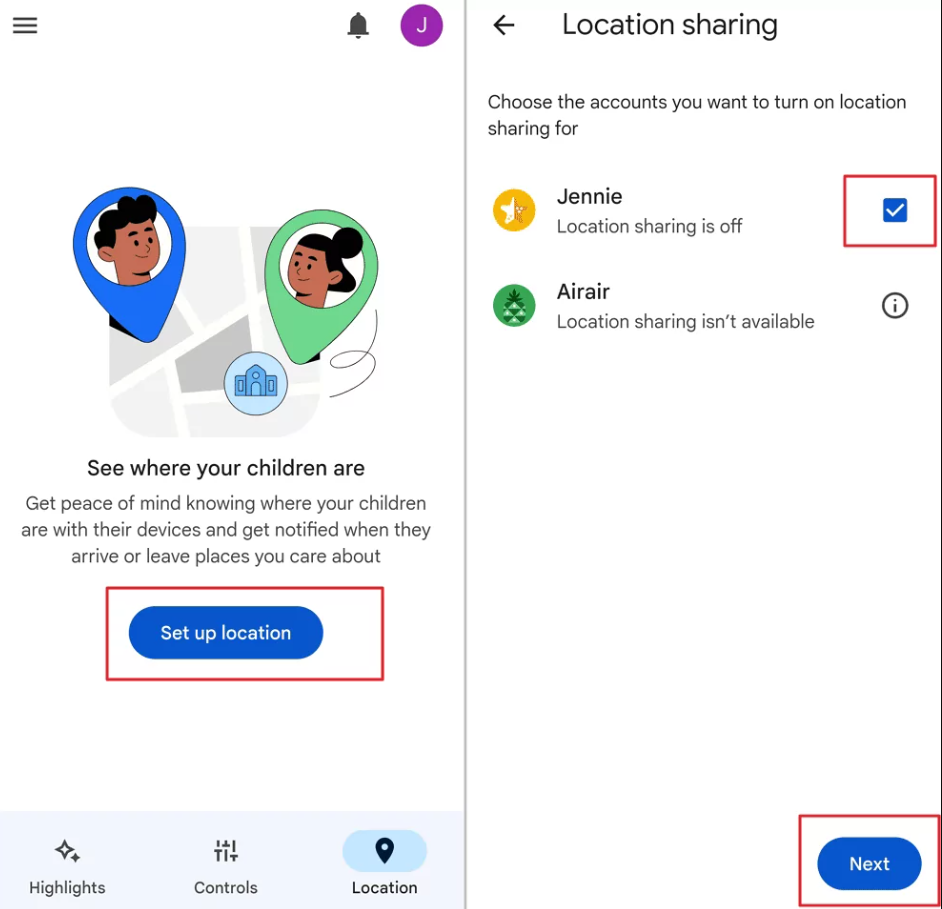
Step 1: Configure the Parent App
- Open the Google Family Link app on your device.
- Select the child’s account you wish to supervise.
- Scroll down to the Location card. If this is your first time, tap Set Up.
- Tap Turn on to enable location services for the supervised account.
Step 2: Configure the Child’s Device (Physical Access Required)
For the most accurate child device location, you must physically access their phone or tablet to grant the necessary permissions. Note: You cannot do this remotely. You must wait until the child is home to perform these steps.
- Open Settings > Location on the child’s Android device.
- Ensure the main Location toggle is On.
- Tap Location Services > Google Location Accuracy.
- Toggle this setting to On (formerly known as High Accuracy mode).
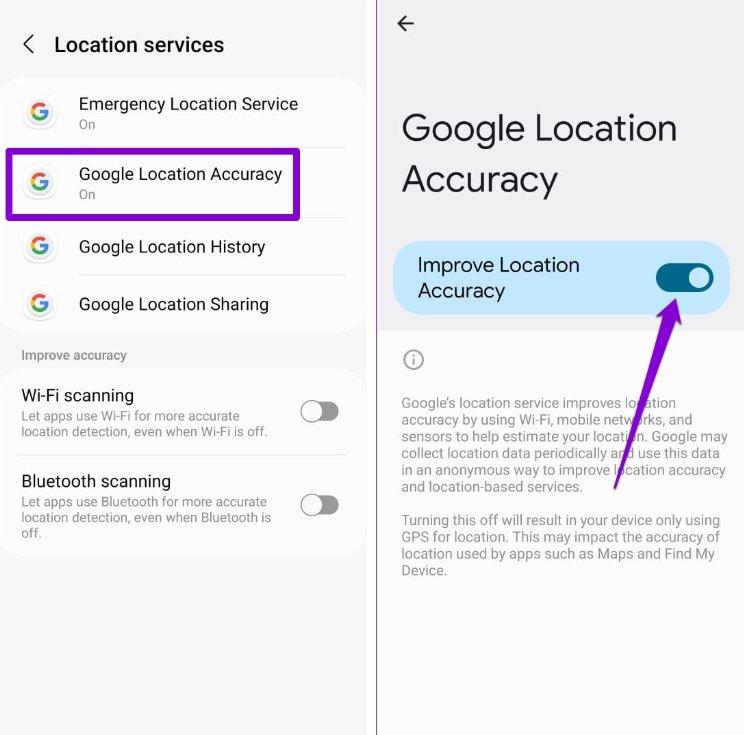
Why this matters: This setting allows the device to use Wi-Fi and Bluetooth scanning alongside GPS. This is critical for real-time GPS tracking when the child is indoors (like inside a school or mall) where satellite signals cannot reach.
Once enabled, the Family Link dashboard should display a map card. Tapping this card forces a refresh request. If the location updates successfully, you will see their battery percentage and current address. If it fails, proceed to the troubleshooting sections below.
Family Link vs. Dedicated GPS Trackers: Which Is Safer?
It is important to manage expectations regarding what Family Link is designed to do versus dedicated hardware. Sarah’s anxiety stemmed partly from expecting a live, movie-style tracking feed. Family Link does not provide this by default; it is a “periodic” tracker, not a “streaming” tracker.
Comparison: Family Link vs. Dedicated GPS Solutions
| Feature | Google Family Link | Dedicated GPS Apps/Hardware |
| Tracking Method | Interval-based (Periodic polling) | Continuous (Real-time streaming) |
| Update Frequency | Updates when map is opened or periodically in background | Live movement (often every 10-30 seconds) |
| Battery Impact | Moderate (Standard Android drain) | High (Constant GPS usage drains battery fast) |
| Cost | Free (Built-in to Android) | Subscription fees + Hardware costs |
| Accuracy | High (Uses GPS, Wi-Fi, & Cell Towers) | High (GPS focused) |
The Verdict: For general safety—such as confirming a child arrived at school or is at a friend’s house—Google Family Link GPS tracking is a robust and sufficient tool. However, for high-risk scenarios where you need to watch a child’s movement turn-by-turn (e.g., a young child in a crowded amusement park), a dedicated GPS tracker or a premium app may be the superior solution despite the cost. Family Link is excellent for “check-ins,” while dedicated trackers are better for “surveillance.”
Why Location Is Not Updating: The “Battery Saver” Conflict
Let’s return to Sarah’s moment of panic. Her son wasn’t hiding, and he hadn’t turned off his phone. The reason she saw 40-minute-old data was a technical conflict occurring silently inside the Android operating system.
The “Deep Sleep” Problem
Modern Android versions (12, 13, and 14) are aggressive about saving battery life. When a phone sits idle in a backpack, it enters a state often called “Doze mode.” In this state, the OS restricts background data usage to preserve power.
When you open the Family Link app, it sends a “wake up” signal (a ping) to the child’s device requesting coordinates. However, if the child’s phone is in deep sleep or Battery Saver mode is enabled, the operating system may delay or block this request to save energy. This results in the “family link location not updating” error or stale timestamps.
The Polling Loop
Family Link does not maintain a constant GPS lock. Instead, it uses a “polling” method:
- Request: Parent app asks for location.
- Wake: Child device receives the request.
- Lock: Child device activates GPS/Wi-Fi to find itself.
- Report: Child device sends data back to the parent.
If any link in this chain is broken by power management settings, the loop fails. Understanding that this is a software behavior, not a safety threat, is the first step to resolving the issue.
Fixing the Delay: Optimizing the Child’s Device Settings
To prevent “Doze” mode from blocking location updates, you must explicitly tell the child’s Android system that Family Link is a priority app. This is the exact solution Sarah used to restore reliability.
These steps must be done on the child’s phone. You cannot change these specific battery settings from your parent device.
Disable Battery Restrictions (Samsung One UI)
Samsung devices are notorious for aggressively killing background apps, and the setting you need is often hidden. Follow this sequence carefully:
Step1. On the child’s device, go to Settings > Apps.
Step2. Important: You likely won’t see “Google Play Services” immediately. Tap the small Filter/Sort icon (usually next to “Your apps”) or the three dots in the corner.
Step3. Toggle the switch for “Show system apps” and tap OK.
Step4. Now, search for or scroll down to Google Play Services (this controls the location engine) and tap it.
Step5. Tap Battery and select Unrestricted.
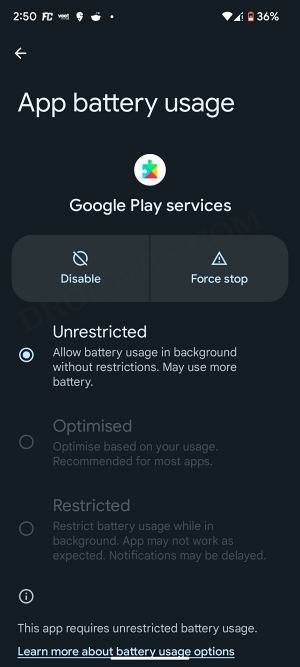
Step6. Repeat this process for Google Maps and the Family Link Parental Controls app (if installed on the child’s device).
Disable Battery Optimization (Google Pixel / Stock Android)
Step1. Go to Settings > Apps > See all apps.
Step2. Select Google Play Services > Battery.
Step3. Choose Unrestricted.
Enhance Location Precision
If the location is updating but showing the wrong house or street, the device is likely relying solely on weak GPS signals.
Step1. Go to Settings > Location > Location Services.
Step2. Enable Wi-Fi Scanning and Bluetooth Scanning.
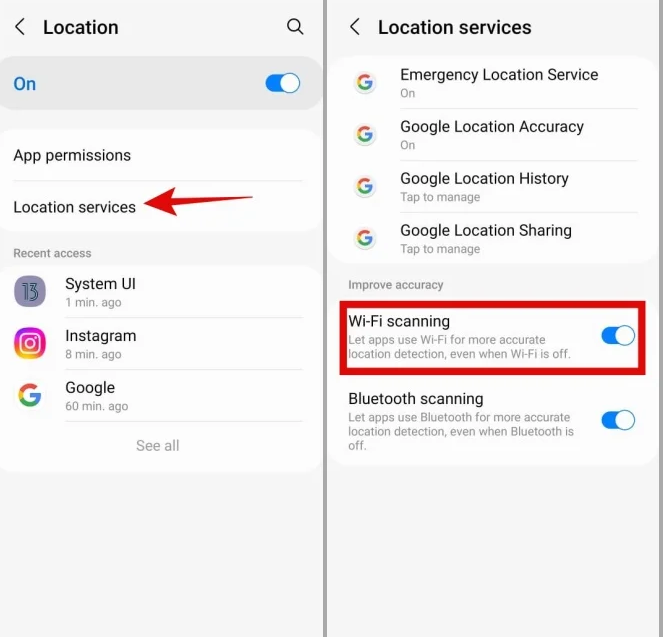
This technique allows the phone to triangulate its position using nearby Wi-Fi networks, which is often faster and more accurate than satellite GPS when the child is indoors.
The Ultimate Backup: Setting Up Google Maps Location Sharing
Many parents confuse Family Link with Google Maps. Family Link provides the control, but Google Maps often has a more robust tracking engine. As a fail-safe, we strongly recommend setting up direct Location Sharing inside Google Maps on your child’s phone. This gives you a second app to check if Family Link is glitching.
How to Enable the Backup:
Step1. Open the Google Maps app on the child’s device.
Step2. Tap their circular Profile Icon in the top right corner.
Step3. Tap Location Sharing > Share location.
Step4. Select “Until you turn this off” (Do not select “For 1 hour”).
Step5. Select your (the parent’s) Google contact and tap Share.
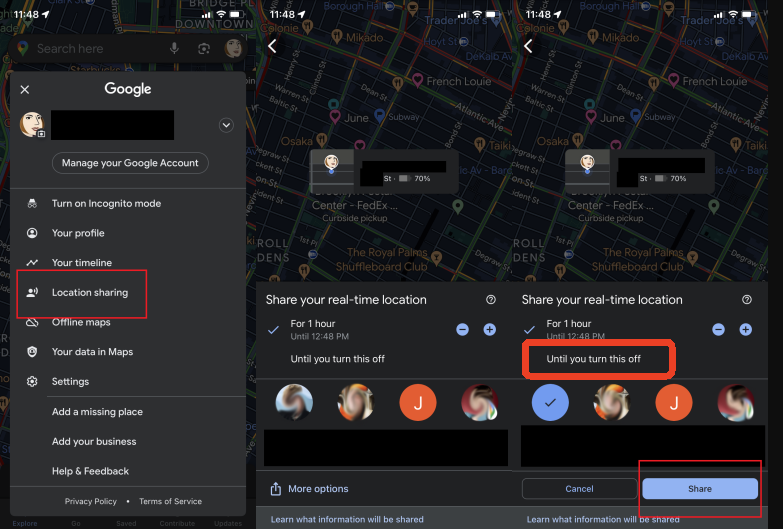
Once this is set up, if Family Link shows “Updated 40 minutes ago,” try opening your own Google Maps app and checking their location there. Often, Maps maintains a connection even when the Family Link admin protocol is sleeping.
Understanding Limitations: What Family Link Can and Can’t Do
To effectively use Google Family Link location tracking, it is vital to distinguish between “finding” and “tracking.”
Family Link is primarily a “Finder.” It is designed to tell you where the device is right now. It is not inherently a history logger in the main dashboard view. If you need to see where your child has been throughout the day (their route), you are looking for Google Maps Timeline, which requires “Location History” to be enabled on their account.
Decoding the Map Icons
- Grayed Out Icon: This indicates the data is stale. The phone might be off, out of battery, or in an area with zero cellular service. It does not necessarily mean tracking was disabled manually.
- Blue Dot with a Wide Circle: This represents a “low accuracy” read. The phone knows the general area (perhaps via a cell tower) but cannot pinpoint the exact street address.
Alternative Privacy Option: Changing Device Location with Fonelora Location Changer
While configuring background system permissions resolves technical lag, some users require a more definitive boundary for digital privacy. If your goal is to completely mask your real-world coordinates from administrative tracking platforms, standard mobile applications will fail because administrative apps actively flag them.
To achieve a true location override, you must modify the device’s GPS data at an external system level. Fonelora Location Changer is a professional desktop framework engineered to safely simulate global location data across both iOS and Android platforms without requiring intrusive root or jailbreak access.
Why External GPS Utilities Secure Your Footprint:
- System-Wide Integration: Instead of injecting code into specific apps, Fonelora alters the core location framework of the phone’s operating system. Tracking apps like Google Maps or Family Link simply read the modified desktop coordinates as real data.
- Dynamic Route Simulation: The software bypasses static digital flags by offering multi-spot routing and real-time speed adjustments (simulating walking, cycling, or driving), making your movement look entirely organic.
- Advanced Game & Privacy Compatibility: Built-in specialized routing protocols allow users to navigate location-restricted apps or location-based AR platforms smoothly while directly bypassing advanced tracking filters like “Error 12”.
Step-by-Step: How to Modify Device Location Using Fonelora
Step1. Install Fonelora Location Changer on a Windows or macOS computer.

Step2. Connect the Android or iPhone device using a USB cable.

Step3. Open the map interface and select a target location.
Step4. Apply the updated GPS position through the software.

Step5. Refresh Google Family Link to view the newly reported device location.
Frequently Asked Questions About Family Link GPS
1.How does Google Family Link track my child’s location?
Family Link uses the Google Location Services framework on the child’s Android device. This system aggregates data from GPS satellites, Wi-Fi networks, and cellular towers to calculate coordinates. This data is then securely pushed to the parent’s Family Link app when requested.
2.How accurate is Google Family Link GPS tracking?
Accuracy depends on the environment. Outdoors with a clear view of the sky, accuracy is typically within 20 meters (approx. 65 feet). Indoors, where GPS is blocked, the device relies on Wi-Fi scanning, which is usually accurate to within 50 meters. If “High Accuracy” mode is off, accuracy can drop significantly to a range of several kilometers.
3.Can my child turn off location tracking?
If the supervised account is properly configured, the child cannot disable the “Location” setting or turn off “Supervision” without a parent access code. However, they can enable “Airplane Mode” or turn off the device entirely, which will stop updates. They cannot “spoof” or fake their location easily without advanced technical knowledge and developer options, which Family Link blocks by default.
4.Why is my child’s location not updating in Family Link?
The most common cause is the Android battery saver or “Doze” mode putting the GPS radio to sleep. Other causes include poor cellular reception (dead zones) or the child’s device running out of battery.
5.What is the best way to track your child’s location?
For most parents, the best method is a layered approach: use Family Link for device management and general checks, and enable Google Maps Location Sharing as a backup. Ensure Wi-Fi scanning is on and battery optimization is off for the most reliable results.
6.Can I see Google location history?
Not directly inside the main Family Link dashboard. To view history, you must enable “Location History” in the child’s Google account settings. You can then view their movement timeline via the Google Maps app logged into their account or via the “Timeline” view if shared.
Final Thoughts: Reliable Tracking for Peace of Mind
For Sarah, the solution wasn’t a new phone or an expensive GPS subscription. It was a simple settings adjustment. Once she exempted Google Play Services from her son’s battery optimization list—after finally finding that hidden “System Apps” filter—the “40 minutes ago” error vanished. She could verify he was safe at home, allowing the panic to subside.
Google Family Link location tracking is a powerful, free tool, but it requires correct configuration to overcome Android’s aggressive power-saving habits. Remember the three pillars of reliable tracking:
- High Accuracy: Ensure Wi-Fi and Bluetooth scanning are enabled on the child’s device.
- Unrestricted Battery: Exempt Family Link and Google Play Services from battery saver modes (remember to look for System Apps!).
- Redundancy: Set up Google Maps Location Sharing as a fail-safe backup.
For extra privacy and control, Fonelora Location Changer allows you to safely adjust GPS location on your device. By temporarily setting your location to a different place, you can protect your child’s whereabouts from being constantly tracked, while still monitoring their safety via Family Link.
Using Fonelora in combination with the recommended settings, you can maintain accurate location updates when needed, while safeguarding your family’s digital privacy. This gives you peace of mind without compromising control over your child’s device.
More Related Articles



Joy Taylor is a seasoned technical writer with over a decade of experience in mobile technology. At iMobie, she specializes in producing in-depth content on iOS data recovery, iPhone unlocking solutions, and iOS troubleshooting.
Product-related questions? Contact Our Support Team to Get Quick Solution >
