How to Change Your Android Phone Location (2026 Guide)
This article shows how to safely spoof your Android GPS using developer tools, explains the difference from a VPN, covers potential risks, and shows how to restore your real location. Methods were tested on devices like the Pixel 8 and Galaxy S23.
Whether you’re an app developer like David Chen testing features for different cities, trying to access region-specific content, or aiming to enhance your privacy, learning how to change your Android phone’s location is a powerful skill. However, the process is often clouded by confusing advice. This can lead to frustration when distinguishing between a VPN and a true GPS change, or anxiety about breaking apps and violating terms of service.
This guide provides a clear, reliable, and tested procedure to control your phone’s GPS location. We’ll show you exactly how to use Android’s built-in developer tools to set any location you choose, explain the risks involved, and ensure you know how to revert to your real location when you’re done. The methods detailed below have been verified on a Google Pixel 8 and a Samsung Galaxy S23, both updated to the latest Android 14 patch, to confirm their effectiveness on modern hardware and software.
How to Spoof Your Location on Android: A 2-Step Guide
The standard and most effective technique to create a fake GPS location on Android is by using a “mock location” app. This process relies on a hidden settings menu called Developer Options, which is built into every Android device. For a developer like David, this is the essential tool for simulating how his app performs in different parts of the world without leaving his desk.
The procedure involves three main stages: unlocking the Developer Options menu, choosing a trustworthy app, and then telling your phone to use that app for its location data.
Step 1: Enable Android Developer Options
Before you can change your location, you must first unlock the hidden settings menu where the control is located. This process is the same for most modern Android versions, though menu labels may vary slightly.
1. Open your phone’s main Settings app.
2. Scroll down and tap on About phone.
3. Locate the Build number. On some devices, like Samsung phones, you may need to tap Software information first to find this entry.
4. Tap the Build number entry seven times consecutively. You will see a small pop-up message counting down the remaining taps.
5. Enter your device PIN, pattern, or password when prompted to confirm.
6. A final message will appear: “You are now a developer!” The Developer options menu is now unlocked and accessible.

Step 2: Choose a Safe and Reliable Fake GPS App
One of the biggest frustrations Android users face is sorting through countless GPS spoofing apps that are filled with ads, outdated features, or compatibility issues. Instead of spending time testing multiple tools, many users prefer a dedicated solution that is regularly updated and designed specifically for location simulation.
Fonelora Location Changer is a reliable option that allows you to change your Android phone’s location without rooting your device. It supports one-click teleportation, route simulation, multi-spot movement, and joystick control, making it suitable for both everyday location changes and advanced GPS simulation.
Why Choose Fonelora Location Changer?
- No Root Required: Change your GPS location without modifying your Android system.
- Wide Compatibility: Supports Android 14, Android 15, Android 16, and newer devices.
- Route Simulation: Simulate realistic walking, cycling, or driving routes.
- Joystick Control: Freely navigate around any location in real time.
- Easy to Use: Search any city, address, or GPS coordinate with a simple map interface.
- Regular Updates: Maintains compatibility with the latest Android releases.
How to Change Your Android Location with Fonelora Location Changer
1. Download and Install Fonelora
Download and install Fonelora Location Changer on your Windows PC or Mac.

2. Connect Your Android Device
Launch the software and connect your Android phone using a USB cable. Follow the on-screen instructions to establish the connection.

3. Select a Location Mode
Choose the mode that fits your needs:
- Teleport Mode for instantly changing locations
- Route Mode for simulating movement along a path
- Joystick Mode for manual GPS control

4. Search for a Destination
Enter a city, address, or GPS coordinates in the search box, then select your desired location on the map.
5. Start Location Simulation
Click Move to apply the new GPS location. Your Android device will immediately begin reporting the selected location.

You may also like: How to Stop Someone From Spying on My Phone (2026 Guide)>
GPS Spoofing vs. VPNs: Choosing the Right Tool
A primary source of confusion is the difference between changing GPS coordinates and using a Virtual Private Network (VPN). They serve different purposes, and using the wrong tool will lead to ineffective results. For many goals, you can change your Android location without a VPN whatsoever.
GPS Spoofing (Mock Location App): This method directly overrides the GPS signal your phone’s hardware reports. It changes the precise latitude and longitude coordinates. This is what apps like Google Maps, weather widgets, location-based games (e.g., Pokémon Go), and social media check-ins rely on.
VPN (Virtual Private Network): A VPN changes your device’s public IP address by routing your internet connection through a server in a different location. This is effective for websites and streaming services (like Netflix or BBC iPlayer) that use your IP address to determine your region. A VPN does not affect your phone’s GPS chip.
To put it simply: if you use a VPN to appear in London but open Google Maps, your phone will still show your true physical location.
Comparison Table: GPS Spoofing vs. VPN
| Feature | Mock Location App (GPS Spoofing) | VPN (Virtual Private Network) |
| What It Changes | GPS hardware coordinates (latitude/longitude) | Public IP Address |
| Best For | App testing, location-based gaming, faking social media check-ins, privacy from GPS-tracking apps. | Accessing geo-restricted websites, securing public Wi-Fi, changing your region on streaming services. |
| Doesn’t Affect | Your IP address or how websites see your location. | Your phone’s internal GPS coordinates. |
| Example Use Case | Making a game think you’re in Times Square. | Watching a UK-only TV show from the United States. |
Bottom Line: Use a mock location app when you need to change your Android phone’s GPS location for apps on your device. Use a VPN when you need to change how websites and streaming services perceive your location.
Understanding the Risks: Can Apps Detect a Fake GPS?
While using a mock location setting is a built-in feature, not a hack, some app developers actively work to detect and block it. Understanding the risks helps you make an informed decision.
The primary concern is that sophisticated apps, particularly competitive online games and some banking or financial apps, can check if the “Allow mock locations” setting is enabled. If detected, this may violate their terms of service, which can result in anything from a warning to a permanent account ban. Always review the terms of service for any sensitive application before using a mock location.
Best Practices to Minimize Risk
- Avoid Unrealistic Jumps: Instantly teleporting your GPS from one continent to another is a clear giveaway. If you need to simulate movement for a game, use an app that offers a “joystick” or route-planning feature that moves your location at a realistic speed.
- Match Your Timezone: Some services may cross-reference your GPS location with your device’s system timezone. If they don’t align (e.g., GPS in Japan but timezone set to New York), it can trigger a flag.
- Be Aware of System-Wide Effects: Remember that your choice affects your entire phone. Your weather app will show the forecast for the spoofed location, and location-based reminders (like “remind me to buy milk when I get to the store”) will not work correctly.
For most use cases like app testing, enhancing privacy, or accessing geo-fenced content, the risk is extremely low. The highest risk is associated with trying to gain an unfair advantage in online games.
Troubleshooting: What to Do If Your Real Location Is Still Showing
Sometimes, you might follow all the steps correctly, but an app like Google Maps still shows your real location. This happens because modern Android systems can use Wi-Fi and Bluetooth signals to get a quick, approximate location, even if the GPS is being spoofed.
If you find your real location is leaking, here is an expert step to force apps to use only the GPS signal you are controlling:
1. Go to Settings > Location.
2. Tap on Location services.
3. Find and tap on Google Location Accuracy. (This may also be called “Wi-Fi and Bluetooth scanning” or similar, depending on your device).
4. Turn the toggle Off.
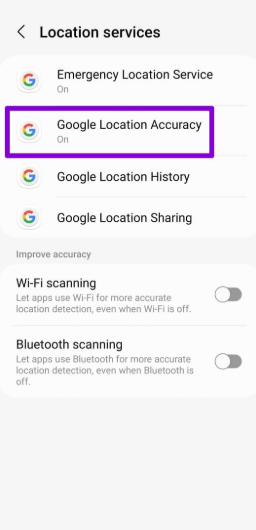
By disabling this feature, you force your phone to rely solely on its GPS hardware for location data—which is exactly what your mock location app is controlling. This often solves the problem of location “leakage” for users who need maximum privacy or are testing specific GPS-dependent features.
How to Restore Your Real GPS Location
Forgetting to disable your mock location can cause headaches later when you try to use Google Maps for navigation or find nearby services. Restoring your phone’s real GPS signal is simple and immediate.
1. Open the Settings app on your phone.
2. Navigate back to System > Developer options.
3. Scroll down to the “Debugging” section and find Select mock location app.
4. Tap it and choose Nothing from the list.
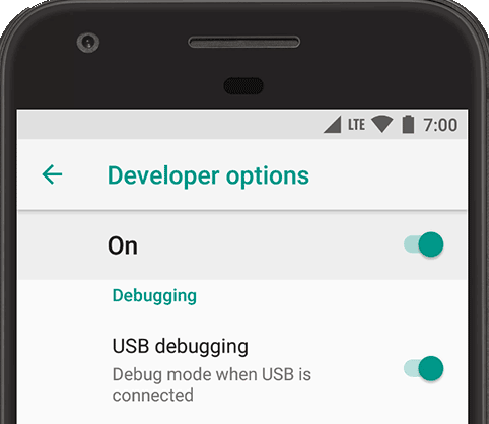
That’s it. Your phone will immediately stop listening to the fake GPS app and revert to its internal hardware for location data. No restart is required.
If you no longer need the developer menu, you can disable it entirely. At the very top of the Developer options screen, there is a master On/Off toggle. Turning this off will hide the menu and reset all its settings to default.
Recommended articles: How to Hide Location on iPhone: The Complete 2026 Guide>
Frequently Asked Questions
Is it legal to change my phone’s GPS location?
Using Android’s built-in mock location feature for legitimate purposes like app development, testing, or personal privacy is generally legal. However, using it to violate a specific app’s terms of service (like in online gaming) can lead to account suspension. Misrepresenting your location for fraudulent purposes could have legal consequences depending on your jurisdiction and the activity.
Can I set a moving route instead of a static location?
Yes, many of the more advanced mock location apps offer features to simulate movement. You can often plot a route on the map or use an on-screen joystick to “walk” around in a game or app. Look for terms like “joystick mode” or “route simulation” in the app’s feature list on the Play Store.
Does using a fake GPS app drain my phone’s battery?
A mock location app can consume slightly more battery than normal, as it needs to run in the background to continuously provide the fake coordinates to your system. However, for most modern devices, the impact is minimal and not significantly more than using a real GPS app like Google Maps for navigation.
What’s the difference between changing my Google Play country and changing my GPS?
Changing your Google Play country is a separate process done within the Play Store settings and is meant for when you permanently move to a new country. It affects the apps, currency, and content you see in the store. Changing your GPS with a mock location app is a temporary, system-wide change that affects any app that uses your phone’s GPS coordinates, but it does not alter your Play Store region.
Conclusion
We regularly review and update this guide to ensure every method remains compatible with the latest Android releases, security patches, and GPS-related system changes. Be sure to bookmark this page so you always have access to the most up-to-date instructions and troubleshooting tips.
By following this guide, you have moved beyond the common confusion surrounding Android location settings and gained a clear understanding of how GPS location simulation works. Whether your goal is app testing, privacy protection, or accessing location-based content, you now know how to configure the necessary settings and choose a reliable solution for the task.
For users looking for a simpler and more powerful alternative to traditional mock location apps, Fonelora Location Changer offers an intuitive way to change Android GPS locations without rooting. With features such as one-click location changes, route simulation, joystick control, and customizable movement speeds, it eliminates much of the trial and error associated with free GPS spoofing tools.
Instead of struggling with outdated apps, complicated configurations, or unreliable results, you can use Fonelora Location Changer to manage your location data more efficiently and accurately. Take control of your Android location today, explore new possibilities, and enjoy a smoother GPS simulation experience with confidence.



Joy Taylor is a seasoned technical writer with over a decade of experience in mobile technology. At iMobie, she specializes in producing in-depth content on iOS data recovery, iPhone unlocking solutions, and iOS troubleshooting.
Product-related questions? Contact Our Support Team to Get Quick Solution >
