How to Hide Location on iPhone: The Complete 2026 Guide
This guide shows how to hide your location on an iPhone without breaking essential apps. It explains simple ways to control location sharing with specific people, apps, or your entire device—so you can protect your privacy without losing key features.
Knowing how to hide your location on an iPhone is key to controlling your digital privacy. Many users worry that hiding their location from a friend will break essential apps like Maps or Uber. You might feel stuck between sharing everything and turning everything off, unsure if you need to manage settings for a person, an app, or your entire device.
This guide provides clear, actionable methods to manage your iPhone location privacy settings for any situation. Whether you want to stop sharing with one person without them being notified or limit an app’s tracking without losing its core functions, you’ll find the right solution here.
To guarantee these instructions are reliable, every method was tested on an iPhone 15 (iOS 17) and an iPhone 12 (iOS 16), covering the most common user scenarios.
First, Choose Your Goal: People, Apps, or a Total Blackout?
Before you change any settings, it’s critical to understand what you want to achieve. Each method serves a different purpose, and choosing the right one prevents frustration. Stopping location sharing with a friend in Find My is completely different from preventing a weather app from tracking you.
To help you decide, this table breaks down the three primary approaches. Use it to select the procedure that best fits your privacy needs.
| Criteria | Hiding from People (Find My) | Hiding from Apps (Per-App Settings) | Complete Location Off (Master Switch) |
| Control Level | Granular; you control sharing on a per-person basis. | Granular; you control permissions on a per-app basis. | Absolute; an all-or-nothing approach that affects the entire device. |
| App Impact | None. Apps like Google Maps, Weather, and Uber continue to function normally. | Varies. Apps that need your location to work may lose functionality. | High. Navigation, ride-sharing, and local service apps will not work correctly. |
| Privacy Scope | Affects only the specific people you share your location with via Find My. | Affects only the specific apps you choose to restrict. | Affects all people, apps, and system services that use location data. |
| Best For | Social privacy, planning surprises, or no longer sharing with a specific contact. | Limiting data collection from third-party apps and improving iPhone location services privacy. | Emergency situations, maximizing battery life, or when you need absolute privacy. |
How to Stop Sharing Location on iPhone with Specific People
One of the most common privacy needs is managing who can see your live location in the Find My app. This is the ideal solution when you want to maintain your privacy from certain individuals without having to disable location sharing iPhone-wide, which would interfere with apps that rely on GPS. This method allows you to selectively revoke access for specific contacts, keeping essential services fully functional.
Follow these steps to control your share my location settings for one person:
1. Open the Find My App. The icon is a green circle with a blue radar signal.
2. Tap the People tab located at the bottom left of your screen. This displays a list of everyone you are currently sharing your location with.
3. Select the person from the list with whom you want to stop sharing.
4. Scroll down their contact card and tap Stop Sharing My Location.
5. A confirmation prompt will appear. Tap Stop Sharing Location again to finalize the action.
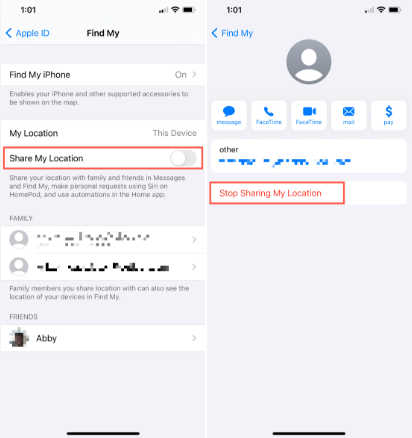
The selected individual will no longer be able to see your location.
How to Stop Sharing with Everyone at Once
If you want to quickly stop sharing your location with every person you’ve previously approved, you can do so from the “Me” tab in Find My.
1. In the Find My app, tap the Me tab at the bottom right.
2. Toggle off the master Share My Location switch.
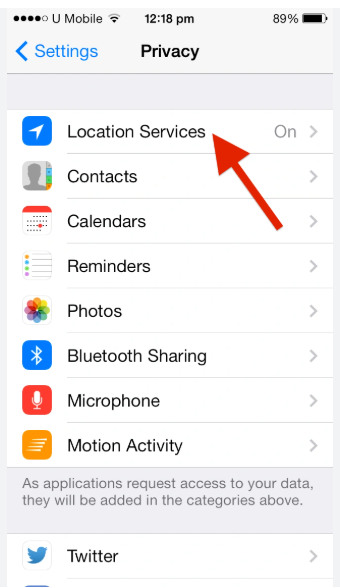
This single action makes your location private from all contacts in Find My without affecting app permissions.
How to Control Location Sharing for Individual Apps
Many people believe they must grant full location access or an app won’t work. Apple provides a more nuanced solution within your iPhone location privacy settings, allowing you to control not just if an app can see your location, but how precisely it can see it.
This is where understanding approximate location vs precise location becomes a powerful privacy tool.
Precise Location: Gives an app your exact GPS coordinates. This is necessary for turn-by-turn navigation in Apple Maps or for a ride-sharing app to find you.
Approximate Location: Only gives the app your general vicinity (a radius of a few square miles). This is often sufficient for a weather app to give you a local forecast or a news app to show you regional stories.
It is also important to understand that GPS privacy and IP privacy are not the same thing. Turning off Precise Location helps reduce how accurately apps can read your physical position, but websites and online services may still estimate your region through your IP address. If you also want to protect network-level privacy, you can learn how to hide IP address separately.
Here is the procedure for managing these settings for any app:
1. Navigate to Settings > Privacy & Security > Location Services.
2. You will see a list of all apps that have requested location access. Tap on the app you wish to manage.
3. Choose your desired level of access. Your options are:
- Never: The app cannot access your location data at all.
- Ask Next Time Or When I Share: The app will prompt you for permission each time it needs your location, giving you temporary control.
- While Using the App: The app can only use your location when it is open and active on your screen.
- Always: The app can access your location at any time, even when it’s running in the background.
4. Below these options, look for the Precise Location toggle. Turn this off to provide only your approximate location.
By turning off Precise Location, you can effectively mask location on iPhone from data-hungry apps while still allowing them to function. This is a great way to reduce your digital footprint without sacrificing convenience. For added security, you can periodically review this list of apps and revoke permissions from any you no longer use.
Advanced Method: Mask Your Location with Another Apple Device
For situations where you need to appear to be in one place while you are actually somewhere else, there’s a clever technique that works if you own multiple Apple devices (like an iPad or another iPhone) signed into the same Apple ID. In Find My, your location is shared from one designated device at a time. By changing this source device, you can effectively mask location on iPhone without turning anything off.
For example, by setting your location to be shared from an iPad left at home, anyone viewing your location in Find My will see you at your house, giving you the freedom to move about privately.
For this to work reliably, the device you set as your location source (e.g., your iPad at home) must remain powered on and connected to the internet (Wi-Fi or cellular). If it loses power or its internet connection, your location will become unavailable, which might defeat the purpose of appearing to be somewhere else.
Follow these steps to change your location-sharing device:
1. On the secondary device you want to use as your new location source (e.g., your iPad), open the Settings app.
2. Tap on your name at the top to access your Apple ID settings.
3. Tap on Find My.
4. Tap Use This [Device] as My Location. If you don’t see this option, it means this device is already set as your location source.
Your shared location will now update to the position of that secondary device. To switch back, simply repeat the process on your primary iPhone. This is an excellent solution for temporarily hiding your real-time movements without arousing suspicion.
Need More Flexible Control Over Your iPhone Location?
The methods above are built into iOS and work well when you want to stop sharing with people, reduce app tracking, or switch your Find My location source to another Apple device. However, they are not designed for users who need to actively choose a different GPS position for testing apps, previewing location-based services, or managing how their own device location appears in GPS-dependent apps.
For that situation, Fonelora Location Changer can be a more flexible desktop-based option. It helps iPhone and Android users change the GPS location reported by their device from a computer without jailbreak or root access. Instead of turning off Location Services completely, FLC lets you select a virtual place on the map and apply it to your connected phone.
This can be useful when you want to test how an app behaves in another city, avoid exposing your real-time GPS in temporary situations, or manage location-based apps more precisely. If you are using an Android device instead of an iPhone, you can also read this guide on how to change Android phone location for platform-specific options.
Using Fonelora Location Changer is straightforward: install the program on your computer, connect your iPhone or Android device, choose a target location on the map, apply the virtual GPS position, and then open the app you want to test. When finished, you can restore your real location by using the reset option or restarting your device.
Use location-changing tools responsibly. Built-in iPhone privacy settings are best for normal privacy control, while Fonelora Location Changer is better suited for device-level GPS testing and flexible location management.
Emergency Option: Instantly Revoke All Access with Safety Check
In sensitive or urgent situations where you need to immediately secure your device and stop all forms of sharing, Apple provides a powerful tool called Safety Check. Introduced in iOS 16, this feature is designed to help you quickly revoke access for all people and apps, including location data. It acts as a digital “panic button” for your privacy settings.
This is the most direct and effective tool for an immediate iPhone hide my location action. The Emergency Reset option within Safety Check will:
- Immediately stop sharing your location via Find My with all people.
- Reset the system privacy permissions for all apps on your device.
- Sign you out of iCloud on all other devices to protect your account.
Here is how to access this critical feature:
1. Go to Settings > Privacy & Security.
2. Scroll down and tap on Safety Check.
3. Tap Emergency Reset to begin the guided process. iOS will walk you through the steps to secure your account and stop sharing all information.
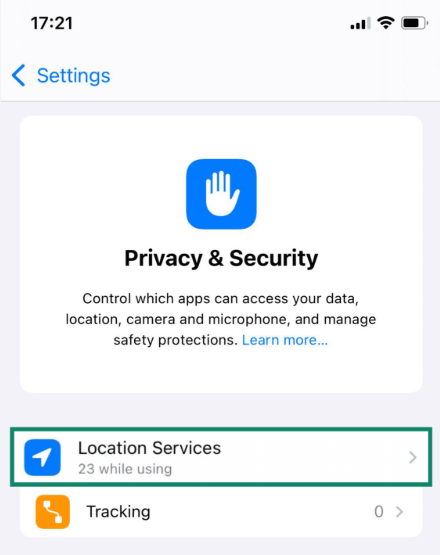
This tool is an important addition to modern iOS, offering a swift and thorough method to protect your personal safety and data when circumstances demand it.
Frequently Asked Questions
Here are direct answers to the most common questions about managing location privacy on an iPhone.
How do I hide my location on iPhone?
You have several options. To hide from people, open the Find My app, tap the Me tab, and turn off Share My Location. To hide from apps, go to Settings > Privacy & Security > Location Services and either turn off the main switch for all apps or manage permissions for each app individually.
Can I hide my location from specific people on iPhone?
Yes. In the Find My app, go to the People tab, select the person you want to hide from, scroll down, and tap Stop Sharing My Location. This allows you to selectively control your privacy without affecting others.
How do I hide my Find My location on iPhone?
To perform a complete find my app hide location action, open the Find My app, select the Me tab at the bottom right, and toggle off the Share My Location switch. Your location will no longer be visible to anyone you were previously sharing it with.
How do I stop sharing my location on my iPhone?
To stop sharing with people, use the Find My app as described above. To stop apps from using your location, navigate to Settings > Privacy & Security > Location Services. You can turn the main toggle off for a complete blackout or tap on individual apps to set their permission to Never.
Does hiding my location notify the other person?
No, the other person does not receive a direct notification or alert when you stop sharing your location. This helps answer the common question of how to hide my location on iphone without them knowing. However, if they check your location in the Find My app, they will see a “No location found” message instead of your position on the map. This simply indicates that your location is unavailable, not that you have actively stopped sharing.
As Apple releases new versions of iOS, we will continue to update this guide to reflect the latest changes in privacy controls and location settings.
You Are in Control of Your Digital Privacy
Managing your iPhone’s privacy settings doesn’t have to be a source of stress. You now have several effective methods to control exactly who and what can see your location, freeing you from the fear of breaking essential apps or alerting contacts unnecessarily. Whether you choose to selectively stop sharing with a person, limit an app to your approximate location, or use the powerful Safety Check for an emergency reset, you are in command.
If you need deeper GPS flexibility beyond normal iOS privacy controls, Fonelora Location Changer can help you manage your device location from desktop in a more controlled way.
By applying these clear, tested procedures, you can confidently manage your digital footprint and use your iPhone with the peace of mind that your privacy is protected on your terms.



Joy Taylor is a seasoned technical writer with over a decade of experience in mobile technology. At iMobie, she specializes in producing in-depth content on iOS data recovery, iPhone unlocking solutions, and iOS troubleshooting.
Product-related questions? Contact Our Support Team to Get Quick Solution >
