How to Pause Find My iPhone: A Privacy Guide
iPhone users can pause location sharing without losing security by adjusting settings or using tools, allowing greater privacy while avoiding alerts, maintaining anti-theft protection, and preventing confusion for family members.
Facing the realization that your device broadcasts your real-time whereabouts constantly can be a significant obstacle when you simply want more control over your personal privacy. You might feel a growing confusion about whether your device’s tracking capabilities can be temporarily stopped, especially when scrolling through menus only to find a lack of clear options. The fear of permanently losing access to anti-theft features often prevents people from adjusting their settings, leaving them feeling trapped on a digital map.
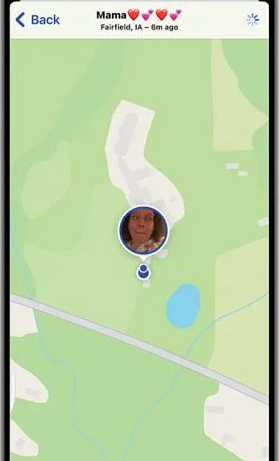
I experienced this exact challenge. I desperately needed a break from sharing my whereabouts, but I was terrified of leaving my hardware unprotected against theft, and equally worried about offending family members by abruptly disappearing from their radar. Fortunately, you do not have to choose between personal privacy and device security.
By adjusting specific sharing toggles or relying on dedicated tools, you can safely pause your visibility. This guide provides tested, straightforward solutions to help you regain your privacy safely, complete with the real-world warnings that other guides leave out.
How to Stop Sharing Location on iPhone: Adjusting Apple ID Settings
When seeking a reliable way to temporarily pause tracking, the most effective method built directly into iOS is adjusting your global settings. Many users experience uncertainty between disabling the entire security network and simply stopping location sharing.
Here is a critical expert insight: completely disabling Find My reduces your ability to track lost devices. Using the “Share My Location” toggle provides far more flexible control than turning off the feature entirely. Instead of shutting down the entire security network, you temporarily revoke access for the people tracking you. Your real-time movements remain private, but if you drop your phone, you can still log into iCloud to find it.
To implement this procedure safely, follow these steps:
- Open the Settings app on your iPhone.
- Tap your name at the very top of the screen to access your Apple ID settings.
- Select Find My from the menu list.
- Locate the toggle switch labeled Share My Location.
- Tap the switch to turn it off. The switch will turn from green to grey.
While this setting successfully hides your coordinates from the map, you must understand the immediate social and technical consequences before you press that button.
Collateral Damage: What Else Breaks When You Toggle This Off?
Before you flip the switch, be aware of the immediate ripple effects across the rest of your device’s ecosystem:
Apple Maps ETA Sharing: If you are actively navigating to a destination and sharing your live ETA with a friend, this feature will instantly break and stop updating.
Home Screen Widgets: If your partner or family member has a “Find My” widget on their phone’s home screen dedicated to you, it will immediately blank out or display an error state, signaling that your tracking is off.
Family Sharing Automations: Any location-based alerts set up by family members (e.g., “Notify me when Jane leaves the house”) will fail to trigger.
AirTags: Your personal AirTags will still be trackable by you. However, if you share an AirTag with someone else, toggling off your location sharing can disrupt their ability to see your proximity to that shared item.
Comparing Methods: Manual Privacy Settings vs. Location Changers
Before modifying your device, it is helpful to evaluate the different techniques available to achieve your desired privacy state. Users generally choose between manual iOS settings adjustments and professional location-changing software. Both methods offer distinct advantages depending on your physical location and immediate needs.
| Feature | Manual iOS Settings | Dedicated Desktop Location Changers |
|---|---|---|
| Primary Function | Hides your coordinates completely. | Actively simulates a new, fake GPS coordinate globally. |
| Hardware Required | Just your mobile device. | Requires a PC or Mac computer. |
| On-the-Go Practicality | High. Can be done anywhere in seconds. | Low. Must be set up at a computer before you leave. |
| Contact Notifications | Potential for iMessage alerts (see warning above). | None. Contacts see the fake location naturally. |
| Safety Risk | None. Operates exactly as Apple intended. | Low. Non-jailbreak tools preserve base device security. |
Understanding these criteria empowers you to make an informed decision. If you want to disappear from the map quickly while out and about, manual settings work best. If you need to actively simulate being at the office while you are actually at home, a dedicated desktop tool is the optimal solution.
How to Temporarily Modify Your Reported Coordinates with Fonelora
If you need complete control over your reported coordinates—and you want to avoid the awkward “Location Not Available” status entirely—a dedicated software solution is highly effective.
Fonelora Location Changer is an all-in-one GPS modification tool designed for users who want a safe, realistic way to control their device’s whereabouts. Instead of turning off your location, you feed the system controlled data. Your friends and family see you exactly where you want them to see you, keeping your actual security infrastructure perfectly intact.
IMPORTANT REQUIREMENT: PC or Mac Needed
Here is how to manage your visibility without deleting your data or losing security features by using Fonelora:
Step 1: Connect Your Device to Your Computer
Download and install Fonelora Location Changer on your Windows or Mac machine. Launch the software and connect your phone via a USB cable (Wi-Fi connection is supported after the initial setup).

Step 2: Choose a Location Mode
Fonelora offers five powerful movement modes. For a direct, static location swap, select “Teleport Mode” from the main interface. If you need to simulate realistic movement like walking or driving along a specific route, you can select the Multi-Spot Mode.

Step 3: Change Your GPS Coordinates
Enter your desired destination address into the search bar, then click “Move.”

Your device will instantly report this new location across all services, including Find My, Apple Maps, and social media platforms. Once the fake location is locked in, you can disconnect your phone from the computer and go about your day. This technique effectively solves the need to pause your visibility by keeping you actively on the map, just not exactly where you physically stand.
Managing Location Sharing Settings for Individual Apps
Beyond global toggles and desktop software, managing your permissions at the application level provides highly granular privacy control. As you research different methods, you will find that you do not need to restrict system-wide tracking to regain your peace of mind.
Adjusting app-specific permissions can dramatically enhance your privacy without sacrificing security. By modifying these menus, you dictate exactly which applications can access your GPS data, preventing third-party apps from silently logging your daily routines.
Follow this procedure to customize your daily application permissions:
- Open the Settings app and scroll down to select Privacy & Security.
- Tap on Location Services at the very top of the screen.
- Scroll through the list of installed applications.
- Tap on any specific app (like Maps, Weather, Instagram, or a banking app) to change its permission level.
- Choose between options such as “Never,” “Ask Next Time Or When I Share,” or “While Using the App.”
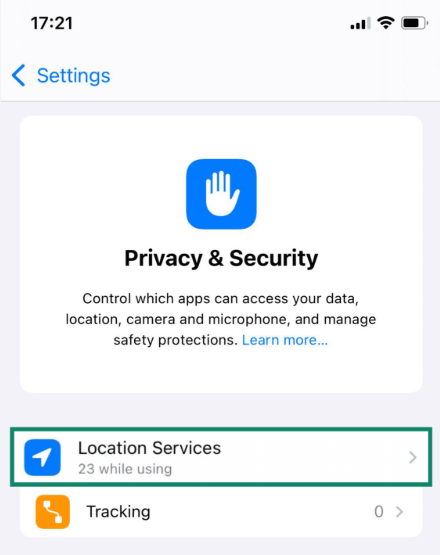
Toggle off the “Precise Location” switch for apps that only need your general city or region (like local news or weather apps). This protects your exact street address while still providing relevant local data.
By restricting tracking for specific applications while leaving it enabled for critical system services, you gain better daily privacy control while keeping device recovery available when needed.
Understanding Device Tracking Features and Ecosystem Configuration
To effectively manage your privacy, it is essential to understand exactly how the Apple ecosystem operates. The reason users struggle to find a simple “pause button” is deeply rooted in how the manufacturer engineers its hardware and software to prioritize theft recovery above all else.
The network relies on complex background Bluetooth signaling to maintain constant contact with servers. This is a core component of modern hardware security, designed to ensure that if a device is lost or stolen, it remains trackable even if it is completely offline or powered down.
When your phone loses its Wi-Fi or cellular connection, it silently pings nearby Apple devices via Bluetooth. Those passing devices securely relay your phone’s encrypted location to the cloud. This is why attempting to force a hard pause by enabling Airplane Mode or disabling cellular data is often ineffective. Modern devices continue to broadcast their location to the surrounding hardware network in the background.
Furthermore, aggressively modifying your core settings to block all background tracking can disrupt your family ecosystem, causing unintended synchronization issues across your trusted iPads, MacBooks, and Apple Watches.
Because the ecosystem prioritizes anti-theft measures over temporary privacy, the system is intentionally rigid. Understanding this architecture clarifies why relying on the specific “Share My Location” toggle or third-party computer simulation tools are far more reliable methods than trying to forcibly interrupt the native tracking network.
Frequently Asked Questions About Device Privacy Management
Managing your settings often raises highly specific questions regarding privacy, notifications, and system functionality. Here are clear answers to the most common queries.
Can you definitively pause Find My iPhone with one button?
No, there is no native, single button to strictly pause the service. You can simulate a paused state by stopping location sharing with specific contacts, or by using dedicated desktop software to feed the system alternate coordinates.
What is the difference between disabling and pausing the tracking network?
Disabling turns off the entire anti-theft network, leaving your hardware vulnerable to permanent loss. Pausing—achieved via sharing restrictions or desktop location spoofing—hides your current whereabouts from your contacts while keeping core recovery and locking features fully active.
Can others still see my location if I turn off cellular data?
Yes. Due to background Bluetooth signaling, your phone will quietly ping nearby devices to update its location on the network, even if you turn off your cellular data or enable Airplane Mode.
Regain Control of Your Device Privacy
Experiencing uncertainty between disabling your security features and simply stopping location sharing is a common hurdle. However, gaining control over your personal privacy is entirely achievable once you understand how the ecosystem actually communicates.
By strategically adjusting your specific Apple ID settings, managing granular app permissions, or employing a dedicated desktop technique, you overcome the lack of clear temporary control options without risking your hardware.
If you are on the go and need immediate privacy, remember to weigh the pros and cons of the “Share My Location” toggle, keeping potential iMessage notifications in mind. If you want to bypass the complexity of navigating menus and need to establish a controlled, alternate GPS coordinate before you leave the house, Fonelora Location Changer provides a highly effective, safe solution. Regain complete control over your digital footprint today and enjoy the peace of mind you deserve.



Joy Taylor is a seasoned technical writer with over a decade of experience in mobile technology. At iMobie, she specializes in producing in-depth content on iOS data recovery, iPhone unlocking solutions, and iOS troubleshooting.
Product-related questions? Contact Our Support Team to Get Quick Solution >
