Find My Friends Location Not Available on iPhone: Causes, Fixes & What It Really Means
Seeing “Find My Friends location not available” on iPhone? Learn the real causes, how to fix it step by step, and the key difference between “Location Not Available” and “No Location Found”.
That moment of panic is universal. You open the Apple Find My app to check on a friend or family member, only to be met with the message: Find My Friends location not available on iPhone. Your mind immediately races. Is their phone off? Are they in trouble? Did they stop sharing with me?
This guide is designed to cut through that anxiety. If you’re seeing the “Find My location not available” message on your iPhone, the cause is almost always a simple technical issue, not a reason for alarm. We will provide clear, step-by-step solutions to help you understand what’s happening, fix the problem, and understand the difference between key Find My status messages.
Table of ContentsHide
Step 1: Is the Problem on Your iPhone or Theirs? A Quick Diagnostic
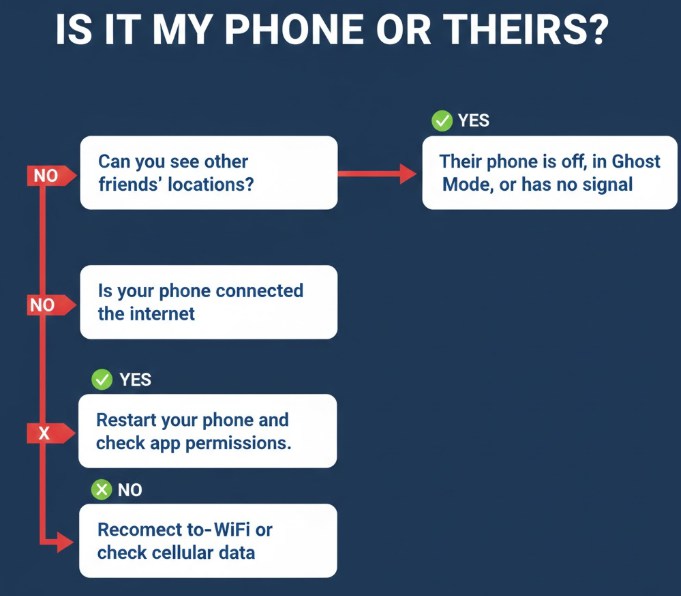
When you see “Location Not Available,” the first question is always where the problem comes from. Before diving into settings, this simple diagnostic helps you quickly identify the root cause of the Find My Friends location not available issue.
Ask yourself these two key questions:
- Can I see the location of anyone else? If you are sharing locations with multiple people, check their status in the Find My app. If you can see everyone else but not this one specific person, the issue is almost certainly on their end. If you cannot see anyone’s location, the problem is very likely with your own iPhone or your network connection.
- Is my own device online? Look at the top of your iPhone screen. Do you see Wi-Fi or cellular signal bars (5G, LTE)? A quick way to test is to open Safari and try to load a new website. If you have no connection, your iPhone’s internet is inactive, and the Find My app cannot receive any updates.
This logical process acts as a decision tree. Answering these questions points you in the right direction, saving you time and worry.
Why ‘Location Not Available’ Rarely Means What You Fear
It’s natural to feel a pang of concern when a friend’s location suddenly becomes unavailable. The most common fear is that someone has stopped sharing their location. However, in most cases, Find My Friends location not available on iPhone is caused by temporary technical issues rather than intentional action.
The message “Location Not Available” is most often triggered by a temporary technical issue on the other person’s device. Think of it as a disconnected phone line, not a deliberate hang-up. It’s a sign that your phone can’t get an update, not a message of refusal.
Here are the most common, non-alarming reasons you’ll see this message:
- The Device is Off or Has a Dead Battery: If the iPhone runs out of power, it cannot send its location data.
- Airplane Mode is Enabled: Placing a device in Airplane Mode disables all cellular, Wi-Fi, and GPS radios, which prevents any location updates from being sent.
- Poor Network Connection: The device is likely in an area with no Wi-Fi or cellular service, such as a subway tunnel, a remote rural area, or inside a large building with thick walls.
- System Update or Restart: The device may be in the process of restarting or installing an iOS update, during which time it is temporarily offline.
Understanding these possibilities can immediately alleviate the fear that you’ve been intentionally cut off and helps you approach the situation with a clearer, calmer perspective.
How to Fix ‘Find My Location not available’ on Your iPhone
If your diagnostic check from Step 1 pointed to an issue on your end (e.g., you can’t see anyone’s location), the problem likely lies within your iPhone’s settings. Follow this procedure to ensure your device is correctly configured to receive location updates.
- Check Your Internet Connection: As confirmed in the first step, an active internet connection is non-negotiable for Find My. Ensure you are connected to either a stable Wi-Fi network or have active cellular data.
- Verify Location Services are Fully Enabled: This is the most frequent cause on the user’s end. The master switch for all location services must be turned on.
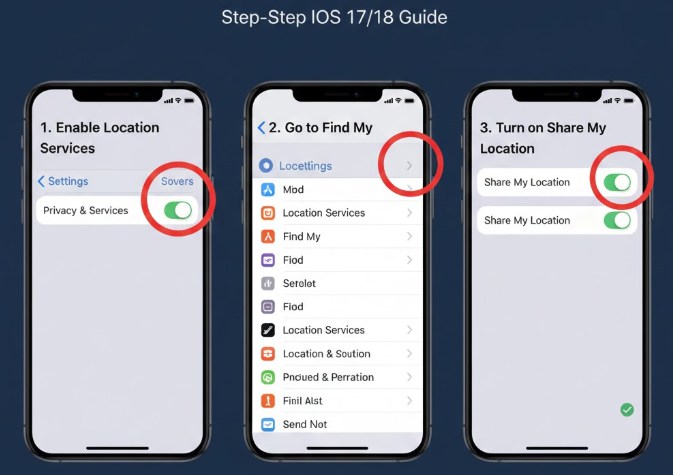
- Navigate to Settings > Privacy & Security > Location Services.
- Confirm that the Location Services toggle at the very top is green (enabled). If it’s off, no apps can access your location.
- Ensure ‘Share My Location’ is Active: Within the same menu, you must confirm that your Apple ID is configured to share your own location.
- From the Location Services screen, tap on Share My Location.
- Make sure the Share My Location toggle is enabled.
- Why is this important? This setting does more than just share your location; it allows your iPhone to properly authenticate with Apple’s location servers. Even if you’re only receiving data, this switch needs to be on for the entire Find My service to function correctly.
- Check Date & Time Settings: An incorrect date or time on your iPhone can cause authentication errors with Apple’s servers, leading to problems with services like Find My.
- Go to Settings > General > Date & Time.
- Ensure that Set Automatically is toggled on. This syncs your device with network time servers, preventing conflicts.
Correcting any of these privacy settings will often resolve the issue immediately, and locations should begin updating in the app.
The Key Difference: ‘Location Not Available’ vs. ‘No Location Found’
A major source of confusion for Apple Find My users is the subtle but critical difference between two very similar error messages. Understanding this distinction is essential for accurately diagnosing the problem. Apple’s system displays different messages based on the status of the other person’s device.
This is the “aha!” moment for many users. The two messages are not interchangeable; they provide different clues.
‘Location Not available’
This message typically indicates a real-time, temporary connectivity problem. Your iPhone is actively trying to request an updated location but is currently failing.
- What it means: The other device has likely just lost its signal, been powered off, had its battery die, or was put into Airplane Mode.
- Think of it as: An active, “live” error. The system is trying and failing in the present moment.
‘No Location Found’
This message is more passive and often indicates a more prolonged offline state. The Find My service has stopped actively searching and is reporting that there is no recent or stored location information to display.
- What it means: The friend’s device has been offline for a significant period (typically more than 24 hours). It can also appear if the user has manually turned off Location Services on their device entirely.
- Think of it as: A passive status report. The system is telling you it hasn’t heard from the device in a while.
Here is a simple table to clarify the distinction:
| Message You See | What It Most Likely Means | Your Best Course of Action |
| Location Not Available | A temporary issue: device just turned off, lost signal, entered Airplane Mode, or has a dead battery. | Wait a short while and try again. If urgent, try contacting the person via a call or text. |
| No Location Found | A longer-term issue: device has been offline for over 24 hours, or Location Services have been disabled. | The device is not reachable. Contacting the person directly is the only way to resolve this. |
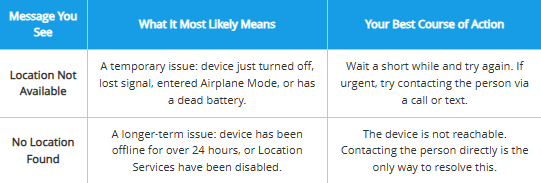
Recognising which message you see provides a powerful clue about the nature and urgency of the situation.
Expert Tip: Force a Refresh If you know your friend’s phone is back online but their location still isn’t updating, the app itself might be stuck. Try force-quitting the Find My app on your own iPhone and reopening it. To do this, swipe up from the bottom of your screen and pause, then swipe the Find My app card up and off the screen. Relaunching the app often forces a fresh update from Apple’s servers.
Frequently Asked Questions
Here are concise answers to the most common questions about the “location unavailable” issue and related problems.
1. Why does Find My Friends show location not available on iPhone?
It usually signifies a temporary technical problem that prevents your iPhone from getting a location update from your friend’s device. The most common causes are their phone being turned off, in airplane mode, or in an area with no internet service.
2. Is it my phone or theirs causing the issue?
An easy way to check is to see if you can view the locations of other people you share with. If you can see others, the issue is with that specific person’s device. If Find My isn’t working for anyone, the problem is likely with your own iPhone’s settings or internet connection.
3. Can someone stop sharing location without me knowing?
Yes, a person can stop sharing their location with you at any time through their device settings. However, when they do this, their name will typically disappear from your Find My list entirely, or you might see a message explicitly stating they have stopped sharing. This is a different state than “Location Not Available.”
4. Does Airplane Mode cause this issue?
Absolutely. Both a dead battery and enabling airplane mode will stop the device from transmitting its location, which results in the “Location Not Available” message appearing on your screen.
5. How do I fix Find My Friends location not available?
If the issue is on your end, start by checking your iPhone’s core settings. Ensure you have a working internet connection, that Location Services are enabled (Settings > Privacy & Security), and that Share My Location is also turned on.
6. What is the difference between “Location not available” and “No location found”?
“Location Not Available” is an active error, meaning a connection attempt is failing right now. “No Location Found” is a more passive state, indicating the device has been offline for an extended period or that its Location Services have been turned off completely.
Conclusion: From Worry to Confidence
Navigating the “Find My friends location not available” message no longer needs to be a source of anxiety. By understanding that the cause is almost always technical—not personal—and by knowing how to quickly diagnose whether the issue is on your end or theirs, you replace uncertainty with a clear, methodical action plan.
You now have the knowledge to troubleshoot your own settings effectively or to wait patiently with the understanding that a dead battery or poor signal is the likely culprit. This empowers you to use this powerful tool to stay connected with loved ones, free from unnecessary worry and confusion.



Joy Taylor is a seasoned technical writer with over a decade of experience in mobile technology. At iMobie, she specializes in producing in-depth content on iOS data recovery, iPhone unlocking solutions, and iOS troubleshooting.
Product-related questions? Contact Our Support Team to Get Quick Solution >
