How to Turn Off Location Without Notifying: The iOS Privacy Guide
You cannot hide iPhone location without showing Location Not Found, but privacy is possible using secondary devices, app permissions, or GPS tools without triggering alerts or disrupting Apple’s safety system.
Many of us face a common frustration: wanting a quiet afternoon completely off the grid without causing unnecessary worry to friends or family. Dealing with an overbearing digital tether can make your personal smartphone feel less like a tool and more like a tracking collar.
Let us be completely honest right from the start: you cannot simply flip a native system switch on your primary iPhone to freeze your location without it eventually showing as “Location Not Found.” If you try to shut down your system’s global GPS, your family and trusted contacts will almost certainly know. Apple designed its location-sharing ecosystem strictly around physical safety. If your signal drops off the map, the system assumes something is wrong, or that you intentionally disconnected, and it updates your status accordingly.
However, regaining your personal space without setting off alarms is entirely possible. In this guide, we provide tested, real-world procedures to regain your privacy. We will explain how to use a secondary Apple device as a location anchor, how to safely manage individual app permissions without touching Find My, and when to consider professional GPS simulation tools.
The Core Problem: Why Does Find My Notify Contacts?
Before modifying your device, you need to understand exactly how Apple’s Find My app and Family Sharing network operate. A crucial piece of technical knowledge is that iOS actively monitors the consistency of your location broadcast.
When you use the master global toggle to turn everything off at once, Apple’s servers register a sudden, unexplained loss of your device’s signal. If you have active Family Sharing location settings enabled, the system updates your status to “Location Paused,” “Location Not Found,” or “Offline” on the screens of anyone tracking you.
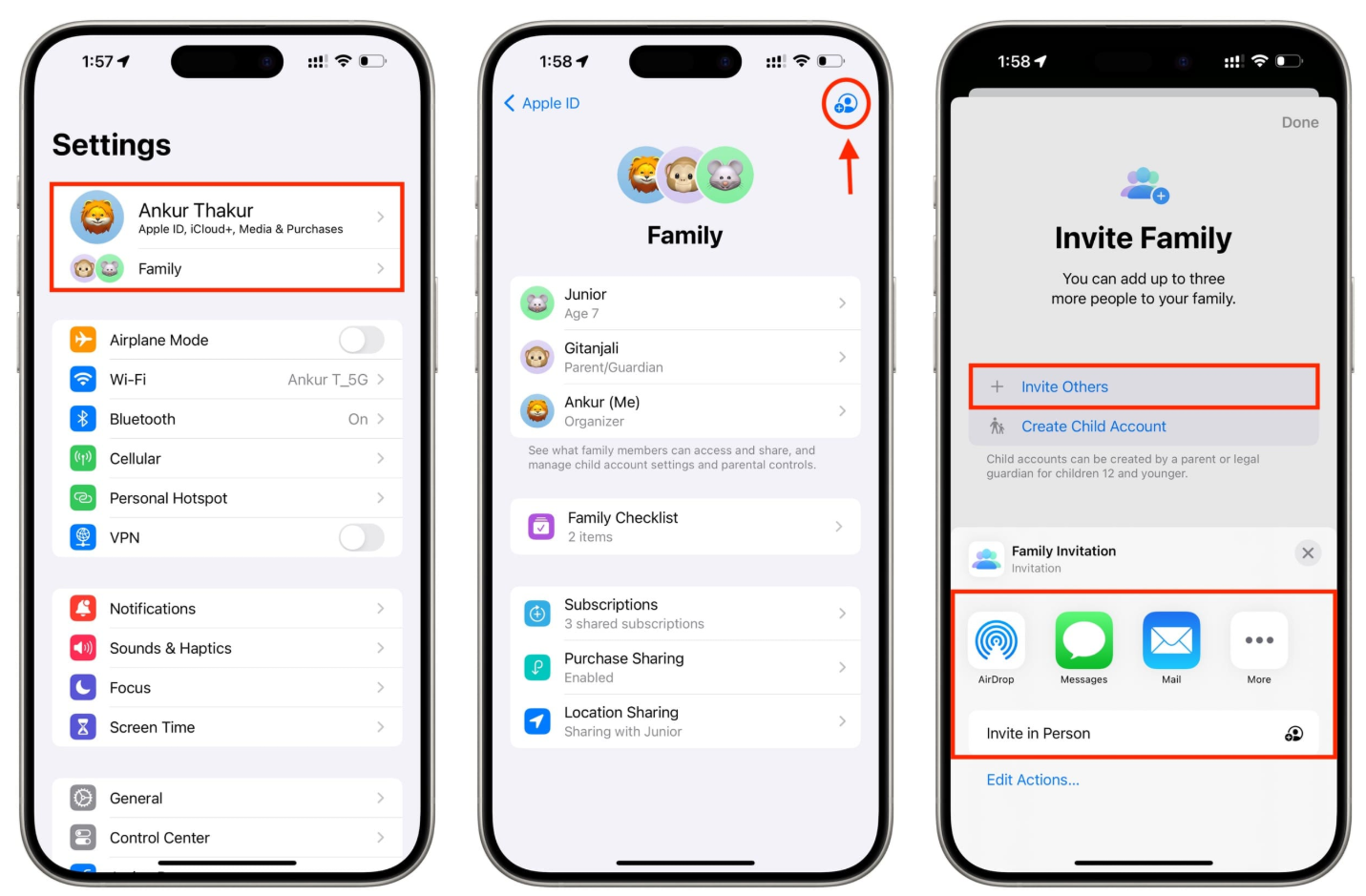
Furthermore, iCloud privacy options are deeply integrated into your Apple ID. If a family member has set up a geofence alert for your device (such as “Notify me when they leave home” or “Notify me when they arrive at work”), intentionally cutting off your data connection or shutting down your GPS will immediately trigger that specific notification rule. Understanding these automated triggers is essential because it clarifies why native system toggles almost always result in unintended disclosures.
To dive deeper into how these automatic triggers function, you can read our detailed breakdown on understanding Apple Family Sharing alerts.
If your goal is to stay hidden from Family Sharing and the Find My app, do not go into your main Settings and turn off the global Location Services toggle.
Additionally, do not go into your per-app settings and turn off location access specifically for the “Find My” or “Messages” apps. Doing either of these actions instantly alters your sharing status to “Location Not Found” and acts as a massive red flag to anyone tracking your device.
The Ultimate Native Workaround: The Secondary Device Anchor
If you want a native solution that is 100% free and does not require third-party software, using a secondary Apple device is the most reliable method available. Any expert who has navigated this problem knows that the “Device Anchor” workaround is the most effective way to freeze your location without sending a single alert.
Because Apple allows you to choose which device dictates your location, you can assign your location broadcast to an iPad or an older spare iPhone that you leave at home. Your family will see your location as happily stationary at your house, while you take your primary iPhone with you wherever you need to go.
Here is exactly how to stop your family from getting alerts using a secondary device:
- Prepare the Secondary Device: Ensure your secondary device (like an iPad or spare iPhone) is logged into the exact same Apple ID as your primary phone.
- Connect to Wi-Fi: Ensure the secondary device is connected to a stable home Wi-Fi network and plugged into a charger so it does not die while you are out.
- Open Find My: On the secondary device you plan to leave behind, open the Find My app.
- Access the “Me” Tab: Tap the Me icon located at the bottom right of the screen.
- Set the Anchor: Scroll down until you see the option that says “Use this [Device] as My Location” and tap it.
- Verify the Change: Check your primary iPhone. If you open Find My on your phone and look at the “Me” tab, it should now confirm that your location is being broadcast from your other device.
![Use this [Device] as My Location](https://imobie-resource.com/en/media/2026/04/use-as-my-location.png)
Steps to Turn Off Location Services Privately Per App
What if you do not care about hiding your location from your family on Find My, but you desperately want to stop third-party apps like Facebook, Uber, or local weather apps from constantly tracking your movements?
This is where native iOS settings shine. Adjusting location access per app allows you to secure your data from corporate tracking while keeping your Find My broadcast active for your family. This granular approach helps you manage iOS location services safely without setting off global system alarms.
Here is the procedure to selectively disable tracking for specific apps:
- Open Settings: Navigate to the main Settings app on your iPhone.
- Access Privacy: Scroll down and tap on Privacy & Security, then select Location Services.
- Select Specific Apps: Scroll through the list of installed applications. Remember, skip the master switch at the top. Instead, tap on individual apps that you no longer want tracking you (e.g., Maps, Weather, Instagram).
- Modify Permissions: Change the app’s permission from Always or While Using the App to Never. You can also toggle off Precise Location if you only want the app to know your general city rather than your exact street address.
By managing your data restriction on an app-by-app basis, you isolate the privacy changes. You successfully stop sharing your daily routine with third-party developers without disrupting the safety features your family relies on.
How to Hide Location Status Secretly Using GPS Simulation
If you do not own an iPad or a spare Apple device to act as an anchor, and you absolutely must prevent your family from tracking your primary iPhone, your remaining option is GPS simulation.
GPS simulation uses external desktop software to supply fake coordinates to the iOS system. This method is highly effective because your iPhone continues to broadcast a strong, active signal to Apple’s servers. Since the signal never drops, zero offline alerts are sent to your contacts. Your device simply reports that you are somewhere you are not.
For users needing absolute discretion, Fonelora Location Changer is a practical premium solution. It modifies your GPS coordinates at the system level without requiring you to jailbreak your phone.
To stop your family from getting alerts when you need privacy, Fonelora’s Teleport Mode allows you to change your coordinates to any specific address. Because the software bypasses Apple’s native trigger warnings by feeding the phone an active signal, you never have to worry about the dreaded “Location Not Found” status.
Step-by-Step Instructions for Fonelora
Step 1: Download and Install
Download Fonelora Location Changer from the official website and install it on your computer.

Step 2: Connect Your Device
Connect your iPhone or Android device using a USB cable.
- On iOS: Tap “Trust This Computer” when prompted
- On Android: Enable USB Debugging

Step 3: Choose a Location
Open the map interface in the software:
- Enter a specific location (such as an airport or busy area)
- Or select a point directly on the map

Restarting your iPhone will typically reset your GPS back to its real, physical location. Ensure you do not reboot your device while you need the simulation to remain active.
Frequently Asked Questions About Device Privacy Management
Can I turn off location without notifying anyone natively?
Yes, but only if you use a secondary Apple device. By setting an iPad or a spare iPhone left at home as your location broadcast device, your contacts will see that stationary location instead of your primary phone’s movements. You cannot simply turn off a switch on your main phone without it changing your status to “Location Not Found.”
Does turning off GPS send a text or push alert?
Flipping the global GPS switch in your settings does not send a direct text message or push notification stating, “User turned off GPS.” However, it immediately changes your status in the Find My app to “Location Not Found,” which visually alerts your contacts the next time they check the app. If they have an active geofence alert set up for you, dropping your GPS signal will trigger that specific push notification.
How do I disable location services discreetly for social media apps?
To disable location discreetly for third-party apps, avoid the master toggle switch. Instead, go to Settings > Privacy & Security > Location Services and restrict tracking access to Never on an app-by-app basis. Leave the Find My app settings completely alone to avoid alerting family.
Taking Control of Your Privacy and Regaining Peace of Mind
Navigating the complexities of smartphone privacy settings does not have to be an ongoing struggle. By understanding the underlying mechanics of how Apple’s servers communicate with Family Sharing, you can confidently handle your system settings.
Remember, transparency is built into the operating system. Attempting to force your primary iPhone offline will always result in a conspicuous blank spot on the map. Instead, take advantage of the secondary device workaround by anchoring your location to an iPad left at home. It is safe, free, and completely native to your Apple ID. We also highly recommend that you regularly review your app permissions to ensure third-party companies are not accessing your data unnecessarily.
If a secondary device is not available to you, reliable GPS simulation tools offer a secure way to maintain an active signal while protecting your actual coordinates. By applying these tested methods, you can secure your personal space, reduce tracking anxiety, and experience genuine device privacy management without compromise.



Joy Taylor is a seasoned technical writer with over a decade of experience in mobile technology. At iMobie, she specializes in producing in-depth content on iOS data recovery, iPhone unlocking solutions, and iOS troubleshooting.
Product-related questions? Contact Our Support Team to Get Quick Solution >
