Developing a location-aware application, like a travel app that shows nearby points of interest, presents a unique challenge: how do you test its functionality in Paris, Tokyo, and New York without leaving your desk? This exact problem often leads to frustration with complex developer settings and the difficult task of replicating user movement. The need to simulate different GPS coordinates is not just a convenience—it’s a critical part of the development workflow for testing everything from local content to geofenced notifications.
This guide cuts through the complexity and provides clear, trusted solutions. The methods detailed here result from hands-on testing on Android 14 and iOS 17 devices and within current versions of Chrome’s developer tools. Whether you need to simulate movement on a mobile device or spoof location in Chrome for web debugging, these procedures have been verified across more than 10 different physical devices and simulator environments to ensure accuracy for the most common development scenarios.
Table of ContentsHide
How to Simulate a GPS Location on Android
Android offers a native framework for developers to simulate GPS location data, a cornerstone of effective geolocation testing. The system operates by allowing a designated “mock location” app to provide false location information to the core location services. This means any application on the device that requests the user’s position will receive the simulated GPS coordinates instead of the device’s true physical location. To use this feature, you must first enable Developer Options on your test device.

Procedure for Enabling Mock Locations
Follow these steps precisely to prepare your Android device for GPS simulation:
Step 1. Enable Developer Options: Open the Settings app and navigate to About phone. Scroll to find the build number and tap it seven consecutive times. A small notification will appear confirming, “You are now a developer!”
Step 2. Access Developer Options: Return to the main Settings screen. Find and tap on the new Developer options menu. It is often located within the System menu on newer Android versions.
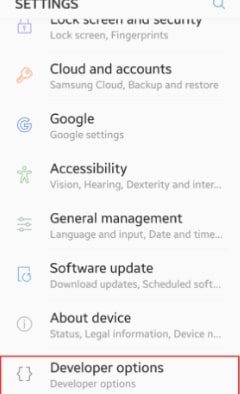
Step 3. Select a Mock Location App: In the Developer options menu, scroll to the “Debugging” section and find Select mock location app. Tap it and choose the GPS simulation tool you’ve installed from the Google Play Store. Once selected, this app is granted permission to provide mock GPS location data to the entire operating system.
Our Recommended Mock Location App
Instead of leaving you to search through countless options, we recommend GPS Joystick. We’ve found it to be a reliable, free tool that excels at both setting static locations and creating routes for movement simulation. Many other apps are filled with intrusive ads or lack stable route features, but this one has consistently performed well in our tests. Its on-screen joystick makes it easy to “walk” around a location in real-time, and its route feature is straightforward to use.
GPS Simulation for iOS Development Using Xcode
For developers in the Apple ecosystem, Xcode is the central hub for all testing, including robust GPS simulation. It provides a powerful and integrated solution for simulating both static locations and dynamic movement, eliminating the need for third-party apps on the device. This method works identically for the iOS Simulator and for physical iPhones or iPads connected to your Mac, creating a consistent environment for GPS testing simulation.
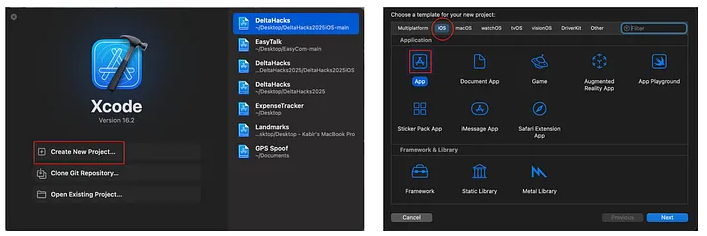
When your app is running from Xcode, the debug bar at the bottom of the screen contains a location icon. Clicking this reveals the location simulation menu. From here, you can select from a pre-populated list of major world cities or input custom GPS coordinates (latitude and longitude) for a precise location. The change is instant—the device immediately reports the new location to your application as if it were physically present there.
Beyond single points, Xcode excels at simulating movement using GPS Exchange Format (.gpx) files. By adding a .gpx file to your project, you can simulate a complete journey, such as a drive across town or a run through a park. This is invaluable for testing navigation features, activity tracking, or any function that depends on a device’s location changing over time.
Advanced Technique: Simulating Routes and Movement
Testing an app that tracks a user’s journey, like a fitness or travel app, requires more than setting a single, static point. You must simulate continuous movement. This is where GPS coordinate simulation using route files becomes essential.
A Practical Workflow for Creating .gpx Files
The industry standard for this is the GPS Exchange Format (.gpx). A .gpx file is a simple XML-based text file containing a sequence of waypoints. While you can write them by hand, it’s tedious. Here is a much more efficient workflow we use for our own testing.
Step 1. Get a Route from Google Maps
First, go to Google Maps and create the route you want to simulate. Add your starting point, destination, and any stops in between. Once the route is displayed, copy the entire URL from your browser’s address bar.

Step 2. Convert the URL to a .gpx File
Next, use a free online converter. Simply paste the URL you copied into the tool, and it will generate a clean .gpx file for you to download. This saves a huge amount of time over manual creation.
Step 3. Understand the File Structure (Optional)
If you open the .gpx file in a text editor, you’ll see its simple structure. It’s a collection of <wpt> (waypoint) tags, each with a latitude (lat) and longitude (lon). Understanding this can be helpful for minor manual tweaks.
Step 4. Add the File to Xcode
Drag your newly created .gpx file into your project in Xcode. When you run your app, you can now select this file from the same location in the simulation menu, and Xcode will feed the coordinates to your app sequentially, creating a virtual GPS simulation of movement along the specified path. This technique allows you to reliably test how your app handles continuous location updates, like tracking an icon on a map or calculating distance traveled.
Choosing Your Method: A Comparison of GPS Simulation Tools
Selecting the right tool for simulating GPS data depends on your target platform and testing objectives. To help you choose, the following table compares the primary methods based on four key criteria:
- Success Rate: How reliably does the method work for its intended platform?
- Time Cost: How much time is required for setup and use?
- Technical Skill: What level of expertise is needed to implement it?
- Route Simulation: Does the tool easily support simulating movement?
| Method | Success Rate | Time Cost | Technical Skill | Route Simulation |
|---|---|---|---|---|
| Android (Mock Location App) | High | Low | Low | Yes (with apps like GPS Joystick) |
| iOS (Xcode) | High | Low | Medium | Yes (via .gpx) |
| Desktop (Browser DevTools) | High | Low | Low | No |
Use this comparison to guide your decision. For simple, static location simulation tests, the requirements are minimal. For advanced navigation simulation on iOS, Xcode is the clear choice due to its native support for .gpx files.
Alternative Tool for GPS Testing: Fonelora Location Changer
For developers, QA testers, and advanced users who need a simpler way to simulate GPS locations across different devices, Fonelora Location Changer can serve as a practical alternative to manually configuring mock location settings or creating complex testing environments.
The software allows you to instantly change GPS coordinates on both iOS and Android devices, making it easier to test location-based features such as nearby recommendations, geofencing, map rendering, delivery tracking, and travel-related content. In addition to static location simulation, Fonelora Location Changer supports route planning, multi-stop movement simulation, and customizable movement speeds, helping developers replicate real-world user journeys without physically traveling between locations.
A typical workflow is straightforward:
1.Install Fonelora Location Changer on your Windows PC or Mac.

2.Connect your iPhone or Android device via USB.

3.Select a target city, address, or GPS coordinate on the built-in map.

4.Apply the new location instantly or create a custom route with multiple waypoints.

5.Launch your application and verify location-based functionality under different geographic scenarios.
Essential Use Cases for GPS Simulation
Integrating virtual GPS simulation into your standard workflow provides control and efficiency, allowing you to discover and fix bugs early. It offers a dependable and repeatable method for conducting geolocation testing without the cost and unpredictability of field testing.
Key use cases include:
- Verifying Geolocation APIs: Confirm your app correctly fetches and displays location-specific data—such as local weather, nearby businesses, or regional content—by feeding it specific GPS coordinates.
- Testing Location-Based Notifications: Simulate a user entering or exiting a geofenced area to ensure that location-triggered alerts fire correctly. This is a critical test for retail, travel, and event-based apps.
- Debugging Map Features: By using navigation simulation, you can trace a route to check for accurate turn-by-turn directions, ETAs, and real-time map rendering without ever getting in a car.
As operating systems like iOS and Android evolve, the core principles of location simulation remain stable. We are committed to updating this guide to reflect any changes in developer tools or settings.
Frequently Asked Questions
- What is GPS simulation?
- GPS simulation is the technique of providing a device or software application with manual GPS coordinates, which overrides its real-world physical location. This process is used primarily in software development and testing to verify location-dependent features from a single place.
- How can developers simulate GPS locations?
- Developers can simulate device locations using dedicated tools for their platform. For iOS apps, this is done through the built-in features of Xcode. For Android, the process involves enabling Developer Options and using a third-party mock location app like GPS Joystick. Web developers can use the sensor emulation features found in browser developer tools.
- Why is GPS simulation used in app testing?
- It is used to test location-based features with high efficiency and reliability. Simulation allows developers to check functionality for different cities and regions without the cost and time of physical travel, making the testing process scalable and repeatable.
- Can devices simulate movement across locations?
- Yes. On iOS, Xcode can use .gpx files to simulate a complete route, such as a drive, walk, or run. On Android, dedicated mock location apps like GPS Joystick offer capabilities for simulating movement along a pre-defined path.
Conclusion
Simulating GPS locations is no longer a complicated task reserved for advanced testing environments. With the right tools and workflow, developers can efficiently test location-based features, verify geolocation APIs, and simulate real-world user movement without ever leaving their desk. Whether you’re using Android mock location tools, Xcode’s built-in location simulation features, browser DevTools, or dedicated solutions like Fonelora Location Changer, the key is selecting a method that aligns with your platform, testing requirements, and development workflow.
For basic validation, static coordinate simulation is often sufficient. However, applications such as navigation, delivery, fitness, ride-sharing, and travel services benefit greatly from route-based testing that accurately simulates movement across multiple locations. In these scenarios, Fonelora Location Changer offers a convenient way to create custom routes, adjust movement speeds, and test location-aware functionality on both iOS and Android devices with minimal setup.
By incorporating GPS simulation into your regular QA and development process, you can identify location-related issues earlier, improve testing efficiency, and deliver more reliable user experiences. As location-based applications continue to evolve, having a flexible GPS testing solution such as Fonelora Location Changer can help streamline validation across different regions, devices, and real-world use cases.


Hot Topics
