Monster Hunter Now Fake GPS: Safely Spoof Location
Getting soft banned after using a fake GPS can ruin your gameplay. This guide explains safe location settings, speed limits, and proper setup to avoid detection and play smoothly.
Imagine being locked out of your favorite game simply because you live in an isolated area. Last week, I tried to participate in a limited-time Pink Rathian event from my rural home. The map was completely empty. Desperate to play, I downloaded a basic mobile fake GPS app, instantly jumped my coordinates to a bustling virtual location in Tokyo, and set my simulated speed to a blazing 10 m/s to cover ground quickly.
The result? An instant soft ban. Every Great Jagras I tapped instantly despawned in a cloud of dust, and resource nodes flatly refused to yield materials. The dreaded red “Searching for GPS signal” banner appeared across the top of my screen.

Gamers are constantly dealing with mobile applications failing after recent game updates, or soft bans triggering after moving too fast. Whether you are struggling to enable mock locations on newer Android versions, dealing with iOS setups that demand complex jailbreaking, or experiencing severe GPS drift, you need exact parameters—not vague advice. This guide outlines the precise technical execution, down to the exact joystick speed limits, to securely simulate natural movement and restore your hunting experience.
Evaluating Methods: Manual Setup vs. Dedicated Desktop Tools
When attempting to spoof your location safely, players usually choose between free manual applications and dedicated professional desktop tools. Understanding these differences is vital to manage your account suspension risk.
Free mobile location apps appeal to budget-conscious users but carry highly elevated safety risks. Manual configurations require adjusting developer settings directly on the phone, and these setups frequently result in detection. Furthermore, rooted or jailbroken devices are highly vulnerable to the latest security policy checks, which actively scan your phone for internal modifications.
Conversely, dedicated desktop tools handle location signal simulation externally. By removing the need for internal phone modifications, these tools offer a highly secure environment for your gameplay. A professional desktop location changer automates the complex variables of real-time tracking, securing your account integrity.
| Feature | Free Mobile Mock Location Apps | Professional Desktop Spoofing Tools |
|---|---|---|
| System Modification | Often requires Root / Jailbreak | No Root or Jailbreak required |
| Safety Risk | High (Easily flagged by anti-cheat) | Low (Simulates system-level GPS) |
| Movement Control | Basic static coordinate swapping | 360-degree joystick movement control |
| Setup Complexity | High (Developer options, system tweaks) | Low (Plug and play via USB/Wi-Fi) |
Choosing Your Tool: Why Desktop Software Works
If you are looking for an option that avoids rooting your phone, you generally have to rely on desktop software. I personally use Fonelora Location Changer. While it is a paid premium tool (though it does offer a limited free trial), it is currently my go-to choice for one specific reason: its joystick mode actually locks your character into a strict 4 km/h walking speed, which Niantic’s servers register as a normal, human stroll.
This desktop software eliminates the common obstacle of iOS devices requiring jailbreaks and bypasses the difficulty of enabling mock locations on heavily restricted Android updates. Instead of feeding static coordinates to the game, it provides stable joystick control for precise, realistic real-time navigation.
How to Use Fonelora to Change GPS Location
Follow these simple steps to get started:
Step 1: Download and Install
Download Fonelora Location Changer from the official website and install it on your computer.

Step 2: Connect Your Device
Connect your iPhone or Android device using a USB cable.
- On iOS: Tap “Trust This Computer” when prompted
- On Android: Enable USB Debugging

Step 3: Choose a Location
Open the map interface in the software:
- Enter a specific location (such as an airport or busy area)
- Or select a point directly on the map

The Step-by-Step Execution: How to Spoof Safely
Implementing a safe setup requires following precise instructions. Many guides fail to explain the initial interface preparation, which is why software often fails to recognize your phone. Follow this step-by-step procedure to ensure maximum safety.
Step 1: Prepare Your Device Settings Before Connecting
Before you even plug your phone into your computer, you must prepare the operating system.
For Android Users: Navigate to your phone’s Settings > About Phone and tap “Build Number” seven times to unlock Developer Options. Go back to Settings > Developer Options, turn on USB Debugging, and scroll down to Select mock location app. Choose your spoofing software companion app from this list.
For iOS 16+ Users: Navigate to Settings > Privacy & Security, scroll to the bottom, and toggle Developer Mode ON. Your iPhone will ask to restart.
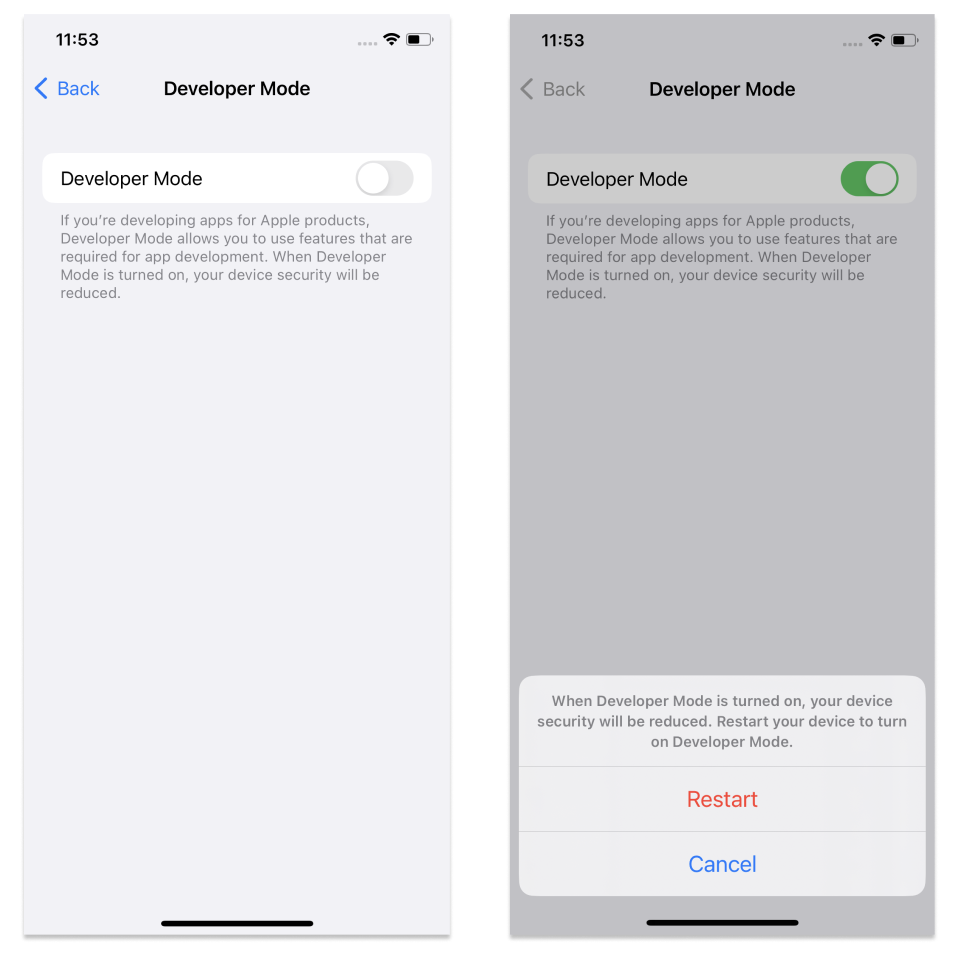
Once these settings are confirmed, open Fonelora on your Windows or Mac computer and connect your smartphone via a high-quality USB cable.
Step 2: Select “Joystick Mode”
Once the software recognizes your map location, look at the top right corner of the Fonelora interface. You will see several icons representing different movement modes. Click the icon that looks like a directional pad—this is Joystick Mode. Do not choose the teleport mode if you value your account safety.
Step 3: Input Exact Speed Parameters and Move
This is the most critical technical step. Do not just drag a pin across the map and expect the game to accept it.
1. Look at the speed slider at the bottom of the software interface.
2. Keep the speed slider strictly under 2 m/s (roughly 7.2 km/h).
3. Use the WASD keys on your computer keyboard or click the on-screen directional arrows to physically guide your character down the virtual streets.
Moving exactly like a human at this restricted speed heavily minimizes your risk of triggering anti-cheat detection.
Mastering Cooldown Timers for Account Safety
If you want to protect your progress, you must rigidly observe cooldown timers. A cooldown timer is the mandatory waiting period between interacting with map-based gameplay at two distinct, distant locations.
Warning: Failing to follow these limits is the primary cause of soft bans. During a soft ban, monsters will run away immediately upon starting an encounter, and gathering nodes will drop zero items.
Gamers need this information fast, so keep this reference chart handy before making any large distance jumps:
- 1 to 5 kilometers: Wait 1 to 2 minutes
- 10 to 25 kilometers: Wait 10 to 15 minutes
- 50 to 100 kilometers: Wait 45 minutes
- 250 to 500 kilometers: Wait 60 minutes
- 1,000+ kilometers (International): Wait exactly 2 hours (120 minutes)
Pro-Tip: Premium desktop tools feature a built-in visual cooldown tracker on the map interface. Rely on this tracker to enforce your safe waiting periods automatically .
Why Free Apps Fail Against Modern Anti-Cheat
Many players wonder why their older mobile applications suddenly stop functioning. As anti-cheat systems in location-based games continue to evolve, simple coordinate swapping is no longer enough.
Modern detection algorithms deeply analyze movement patterns. If your character instantly moves from New York to Tokyo, the server immediately flags the physical impossibility of that travel time. Furthermore, security algorithms actively monitor your altitude data and real-time tracking metrics. Outdated free applications fail to mask their presence within your device’s mock location framework, instantly alerting the game that you are using unauthorized software.
Fixing Specific Monster Hunter Now Errors
Even with careful preparation, you might encounter technical roadblocks. If you are experiencing persistent issues, apply these specific troubleshooting methods.
Bypassing iOS Location Error (12)
Currently, a massive wave of “Location error (12)” messages is plaguing iOS players. This error is triggered by game updates specifically targeting modified game files (third-party IPAs) and standalone mobile spoofing apps. Simply turning off Bluetooth is not enough to fix this.
To bypass Error 12, you absolutely must avoid modified versions of the game app. Download the official game from the Apple App Store. Then, tether your phone to a PC or Mac and use a desktop tool to alter your coordinates at the system level. Because the official app remains entirely untouched, the server struggles to detect the external PC modification.
Fixing the Red “Searching for GPS Signal” Banner
If your character randomly wanders aimlessly or the red banner drops down from the top of your screen, your device’s native hardware GPS is actively fighting your simulated signal.
Android Fix: Go to Settings > Location and turn off “Wi-Fi and Bluetooth scanning.” Also, ensure “Google Location Accuracy” is temporarily so your phone stops trying to pull your real-world coordinates.
General Fix: Always start your desktop location software before opening the game app on your phone.
Frequently Asked Questions About Safely Altering Coordinates
Before starting your next hunt, reviewing these core questions serves as a final safety check.
Is it safe to alter my game location?
Yes, provided you use system-level software that simulates realistic walking speeds (under 2 m/s) and strictly observe cooldown waiting periods. Using outdated, free mobile apps heavily increases your account suspension risk.
Why do I keep getting soft-banned when I move?
Modern anti-cheat detection flags users who produce severe speed anomalies. If you set your movement speed to 10 m/s or higher, the game identifies that you are moving too fast to be walking, but too perfectly to be driving, resulting in a temporary ban.
Do I need root or jailbreak for this to work?
No. The most secure solutions operate via external computer connections. This bypasses the need for risky internal device modifications that modern game updates actively scan for.
Which spoofing tools still work?
As we look ahead, desktop-tethered applications remain highly effective because they handle signal simulation at the system level without triggering device security flags. Mobile-only apps will continue to struggle as operating system developers lock down mock location permissions.
Dealing with geographic limitations should not prevent you from enjoying a full gaming experience. By transitioning to a secure, system-level tool and treating your virtual movement like a real-world walk, you permanently solve the anxiety of sudden soft bans and missing out on limited-time events. You no longer have to worry about the lack of exact setup parameters or frustrating game-breaking errors. It is time to regain control of your map. Boot up your desktop, connect your device, carefully set your walking speed, and solve your empty map problems today.



Joy Taylor is a seasoned technical writer with over a decade of experience in mobile technology. At iMobie, she specializes in producing in-depth content on iOS data recovery, iPhone unlocking solutions, and iOS troubleshooting.
Product-related questions? Contact Our Support Team to Get Quick Solution >
