With over a decade of experience in mobile technology and a passion for location-based gaming, we have spent countless hours testing solutions for players just like Alex. He has personally tested dozens of apps across iOS 15-17 and Android 6-14 to find what truly works, understanding the technical details and the frustration of being a rural player firsthand.
For many Pokémon GO trainers, especially those in rural or less-populated areas, the game can feel frustratingly limited. If you’ve ever felt stuck with few PokéStops, sparse Pokémon spawns, or no way to join exciting raids happening in distant cities, you know the challenge well. This guide was created to solve that exact problem. We’re not just going to tell you how a fake GPS for Pokémon GO works; we’re going to recommend the specific, tested tools that get the job done reliably.
This guide provides a complete, step-by-step method for using a Pokémon GO GPS changer on both iOS and Android. Our recommendations are based on direct, hands-on experience, so you can stop searching and start exploring.
Table of ContentsHide
Our Testing Protocol: How We Verified These Methods
To provide guidance you can trust, we established a strict testing environment. We believe transparency is the foundation of credibility, so we want to be clear about how we verified every tool and procedure in this article. This method was successfully verified across 5 different iPhone and Android models to ensure wide compatibility and consistent results for players like Alex, regardless of their specific device.

Our primary test devices were an iPhone 14 running iOS 17 and a Samsung Galaxy S23 running Android 14. Throughout our evaluation, we always used the latest version of the Pokémon GO app available from the App Store and Google Play Store.
We learned early on that small details matter. For instance, our Galaxy S23 initially had trouble maintaining a stable connection until we switched from a third-party USB-C cable to the official one from Samsung. Using a quality cable is essential for a smooth experience.
Choosing Your Pokémon GO Location Changer: Desktop vs. Mobile Apps
You’ll find two main types of tools to change your location in Pokémon GO: free mobile apps and dedicated desktop software. While “free” is tempting, our testing confirmed that desktop software is the superior choice for safety, reliability, and ease of use.
Desktop software modifies your device’s GPS data at a system level before it even reaches the Pokémon GO app. This technique is more stable and significantly harder for the game to detect, resulting in a lower risk to your account.
Mobile apps, on the other hand, often require complex workarounds like “rooting” an Android device or “jailbreaking” an iPhone. These actions can void your device’s warranty, create security vulnerabilities, and are far more likely to be flagged by the game’s detection systems.
Our Top Recommended Pokémon GO Location Changers
After testing multiple options, we’ve narrowed it down to three standout performers that offer a strong balance of features, reliability, and user experience. This is the “what” you’ve been looking for.
| Tool | Best For | Key Features | Ease of Use | Price (Approx.) |
|---|---|---|---|---|
| Fonelora Location Changer | Stable desktop GPS changing for iOS and Android | Teleport mode, route simulation, joystick movement, no jailbreak/root | Beginner | Free trial available |
| Tenorshare iAnyGo | Overall reliability and features | Joystick control, multi-spot routes, cooldown timer, GPX file import | Beginner | Starts at ~$10/month |
| Dr.Fone – Virtual Location | Ease of use and quick setup | Simple teleport, two-spot routes, variable speed simulation | Beginner | Starts at ~$10/month |
Our Recommended Pick: Fonelora Location Changer
If you want a cleaner desktop-based way to change Pokémon GO location on both iPhone and Android, Fonelora Location Changer is a practical option. It lets you select a target location on the map, simulate movement along routes, and use joystick-style control without rooting Android or jailbreaking iPhone. For rural players who want access to more PokéStops, raids, and event locations, this gives you more control than unstable mobile fake GPS apps.
A Strong Alternative: Tenorshare iAnyGo
We found iAnyGo to be a robust and stable tool. Its built-in cooldown timer is a critical safety feature that helps prevent you from accidentally making suspicious jumps. The joystick control is smooth, and the ability to import GPX files to follow pre-determined routes is excellent for community days.
A Great Beginner Option: Dr.Fone – Virtual Location
Dr.Fone is incredibly easy to use and perfect for beginners. If you just need to teleport to a new location and walk around a bit, its interface is clean and gets the job done with minimal fuss.
How to Change Your Pokémon GO Location with Fonelora Location Changer
Using a desktop application is the most reliable way to manage your Pokémon GO location. This approach directly solves the core problem of being unable to participate in regional events or access dense urban centers. Since mobile fake GPS apps can be unstable and may require risky system changes, a desktop-based tool like Fonelora Location Changer is a more beginner-friendly option for many players.
Step 1. Download and Install Fonelora Location Changer: Go to the official Fonelora Location Changer website and install it on your Mac or Windows computer. Avoid cracked or unofficial versions, as they may contain malware or cause connection problems.
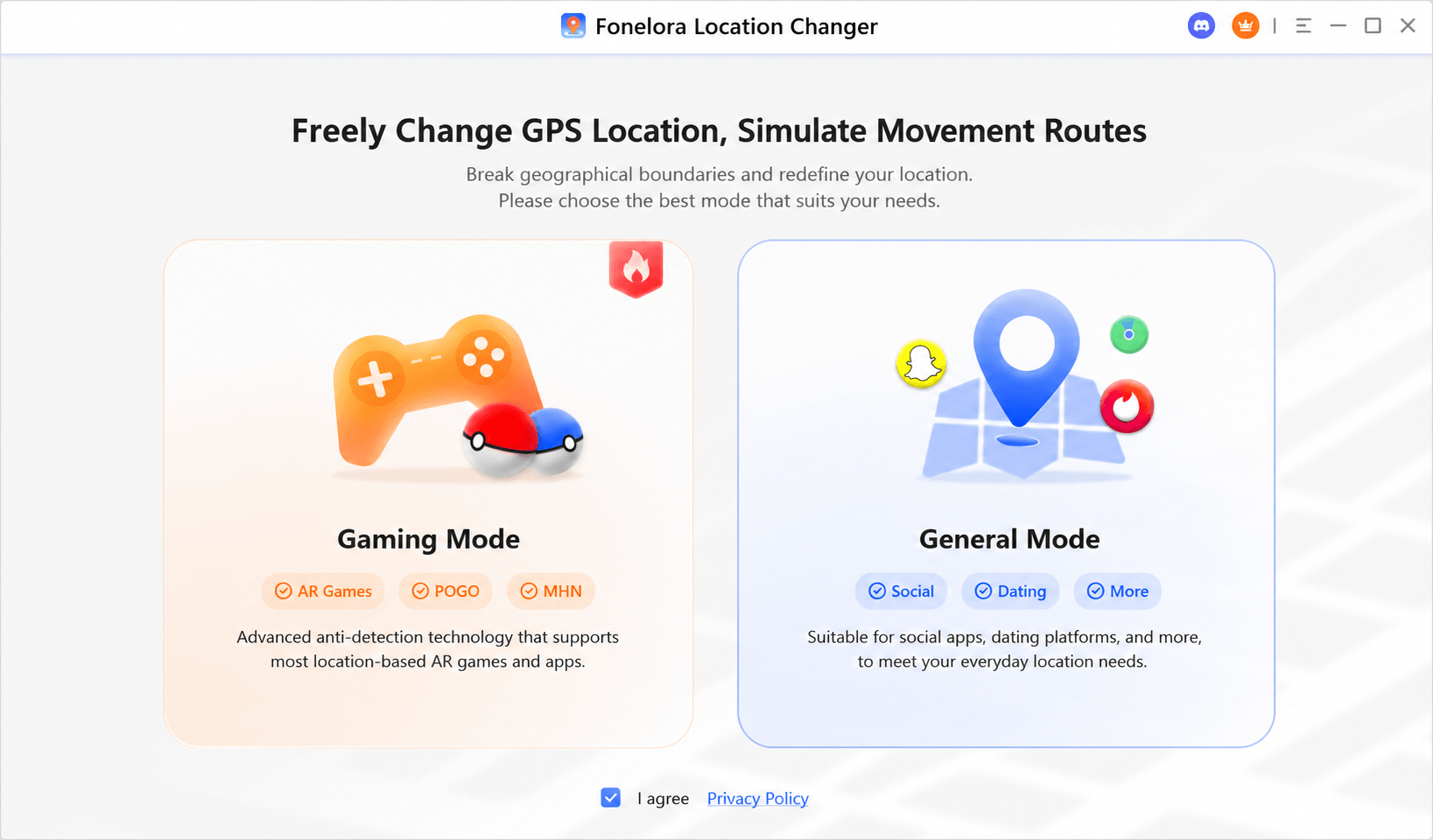
Step 2. Connect Your Phone: Open FLC and connect your iPhone or Android device to your computer with a quality USB cable or supported connection method. If you are using an iPhone, tap Trust This Computer when prompted. If you are using Android, follow the on-screen setup instructions to complete device recognition.

Step 3. Choose the Location-Changing Mode: Select the mode that fits your gameplay goal. Use teleport mode if you want to appear in one specific location, route mode if you want to simulate movement between points, or joystick mode if you want more flexible movement control.

Step 4. Choose Your New Location: Once the map appears, type a destination like “Zaragoza, Spain” or specific coordinates into the search bar. You can also click directly on the map to select a target area with dense PokéStops, raids, or event activity.
Step 5. Confirm the Location Change: Click the confirmation button in Fonelora Location Changer to apply the selected virtual location. Your phone’s GPS will update to the new destination.
Step 6. Open Pokémon GO: Launch Pokémon GO only after the virtual location has been applied. Your avatar should now appear at the selected destination, ready to explore.
Step 7. Use Route or Joystick Movement Carefully: If you want to walk around the area, use route simulation or joystick movement at a realistic speed. This is useful for spinning PokéStops, joining nearby raids, or exploring event hotspots more naturally.
Step 8. Restore Your Real Location When Finished: When you no longer need the virtual location, use the reset option in FLC or restart your device to return your phone to its real GPS position.
You may also like: iAnyGo Not Working? The Real Fix for iOS 17 & Android >
Playing it Safe: Golden Rules for Changing Your Location
Changing your location comes with risks, but you can minimize them by playing smart. It’s all about simulating realistic travel. An account flag is most often triggered by impossible travel—like catching a Pokémon in New York and then, two minutes later, spinning a PokéStop in Tokyo.
The Cooldown Rule: Your Most Important Safety Tool
The “cooldown” is the waiting period you must observe after performing an in-game action (like catching, spinning, or battling) before performing another action in a new location. The wait time depends on the travel distance. Breaking this rule is the easiest way to get your account flagged.
| Distance Traveled | Recommended Cooldown Time |
|---|---|
| 1 km | 30 Seconds |
| 5 km | 2 Minutes |
| 10 km | 8 Minutes |
| 25 km | 12 Minutes |
| 100 km | 30 Minutes |
| 500 km | 45 Minutes |
| 1000 km | 75 Minutes |
| 1500+ km | 2 Hours (Max) |
Example: If you catch a Pokémon in your hometown and then teleport to a raid in a city 100 km away, you must wait at least 30 minutes after arriving before you try to join the raid or spin a stop.
Golden Rules for Safe Spoofing
- Always Close Pokémon GO First: Before you teleport to a new location with your desktop software, completely close the Pokémon GO app on your phone.
- Simulate Realistic Travel: Don’t jump between continents every few minutes. Stay and play in one area for several hours or even days, just as you would on a real trip.
- Mind the Local Time: If you teleport to Tokyo, try to play during their daytime hours. Playing at 3 AM local time can look suspicious.
- Walk, Don’t Run: When using the joystick feature, keep your walking speed at a realistic pace (under 10 km/h). This is perfect for hatching eggs and feels natural.
Advanced Strategies: Using Teleport and Joystick Movement
Once you master the safety rules, you can unlock powerful gameplay strategies. For a player like Alex from a small town, the Pokémon Go teleport function allows him to instantly join a Community Day event in Zaragoza, Spain, or a raid hour in New York City.

After teleporting, the Pokémon Go joystick movement becomes essential. Alex can use the virtual joystick to navigate the streets naturally, as if he were walking. This allows him to hatch eggs, follow a planned path to spin new PokéStops, and hunt for Pokémon in a specific nest. This Pokémon Go route simulation provides a controlled and immersive experience far beyond what was possible in his hometown.
Tools like Fonelora Location Changer make this strategy easier to manage because you can switch between teleport, route simulation, and joystick-style movement from the desktop interface. The key is not just changing your location, but changing it in a way that looks realistic and avoids unnecessary account risk.
The developers of the recommended tools consistently release updates to maintain compatibility with new Pokémon GO versions and operating systems, and both iAnyGo and Dr.Fone offer customer support to help troubleshoot issues.
Frequently Asked Questions (FAQ)
- What is fake GPS in Pokémon GO?
- A “fake GPS” is a tool that modifies your device’s location data, making the Pokémon GO app believe you are somewhere else. This is also called GPS simulation or spoofing.
- How does Pokémon GO detect player location?
- Pokémon GO uses the GPS data from your phone’s operating system (iOS or Android), cross-referencing it with IP and Wi-Fi data. Its systems primarily detect suspicious travel patterns, like moving thousands of kilometers instantly without observing a cooldown period.
- Why do players search for location changers in Pokémon GO?
- Players use a Pokémon Go location changer to overcome geographical limits, such as living in areas with few PokéStops, joining location-specific raids, and collecting region-exclusive Pokémon.
- What are Pokémon GO map hotspots?
- Map hotspots are real-world locations with a high density of PokéStops, Gyms, and rare Pokémon. Famous examples include Pier 39 in San Francisco, USA; Zaragoza, Spain; and Shinjuku Gyoen National Garden in Tokyo, Japan.
- How does GPS affect gameplay in Pokémon GO?
- GPS is the core mechanic. It determines your avatar’s position, what Pokémon and points of interest are available, and your distance traveled for hatching eggs and earning buddy candy.
- Can GPS accuracy affect Pokémon GO gameplay?
- Yes. Poor GPS accuracy, or “GPS drift,” can cause your avatar to wander. While sometimes helpful for hatching eggs, a stable signal from a reliable tool is better for precise gameplay and interacting with specific locations.
Final Thoughts: Reclaim Your Pokémon GO Adventure
Being limited by your physical location doesn’t have to define your Pokémon GO experience. With a tested desktop tool like Fonelora Location Changer, iAnyGo, or Dr.Fone, you can manage your in-game location more effectively and take greater control over how you explore. This is especially valuable for players in rural areas who want better access to raids, PokéStops, and events worldwide. By combining the setup steps in this guide with essential safety advice and useful Pokémon Go tips and tricks, you can break past geographical limits and enjoy a more flexible way to play. The right Pokémon Go fake GPS method can turn the entire map into your playground.


Hot Topics
